Our Top Picks
 Logitech C920x HD Pro PC Webcam with Microphone1 Pack2.8 x 1.7 x 3.7 inches0.4 poundsCheck on Amazon

As an Amazon Associate we earn from qualifying purchases.
A built-in laptop camera is convenient, but it rarely gives you control over framing, focus, or light. If you stream, record facecam video, join work calls from a desktop, or play with friends on Discord, a dedicated webcam is one of the simplest upgrades you can make to a PC setup. The models in this guide are current listings on the market right now, chosen to cover distinct jobs rather than five versions of the same camera.
This shortlist spans a 4K flagship for creators who want resolution to spare, a smart 1080p camera built for meetings, a streamer-focused model with no built-in microphone by design, a low-light specialist with an adaptive sensor, and a long-running 1080p favourite that remains easy to recommend for everyday calls. None of them requires capture hardware, and all connect over USB.
Disclosure: This article contains affiliate links. If you buy through a link on this page, we may earn a commission at no extra cost to you.
Quick Picks
- Best 4K option: Logitech MX Brio — 4K at 30fps and 1080p at 60fps, Show Mode, dual noise-reducing microphones, and a built-in privacy shutter.
- Best for everyday meetings: Logitech Brio 500 — Full HD 1080p, RightLight 4 light correction, RightSight auto-framing, Show Mode, and dual noise-reducing microphones.
- Best for streamers who use a separate microphone: Elgato Facecam — uncompressed-style 1080p at 60fps output, Sony STARVIS sensor, fixed focus, and Elgato Camera Hub controls, with no built-in microphone.
- Best for low light: Razer Kiyo Pro — 1080p at 60fps, adaptive light sensor with a Sony STARVIS sensor, and an adjustable field of view.
- Best proven all-rounder: Logitech C920x HD Pro — 1080p at 30fps, autofocus, dual microphones, and broad app compatibility in a familiar design.
1. Logitech MX Brio — Best 4K Option
The Logitech MX Brio is the pick for buyers who want the most resolution available from a mainstream USB webcam in this group. Its listing describes Ultra HD 4K capture for streaming and collaboration, 1080p at 60fps, Show Mode, and compatibility with Microsoft Teams, Zoom, and Google Meet. For a gamer, that combination matters in two ways: 4K gives you room to crop a facecam window without it looking soft, and the smoother 1080p mode suits fast-moving gameplay overlays.
Show Mode is a practical extra rather than a headline gimmick. Tilting the camera down to show a desk lets you present a controller, a sketch, notes, or a product on camera without moving the mount or switching to a second camera. The MX Brio also includes dual noise-reducing microphones, so you can start with the built-in audio and move to a headset or desk microphone later if your setup grows.
Privacy and mounting are handled in the hardware. A built-in privacy shutter covers the lens when the camera is not in use, and the monitor mount keeps the camera centred above your screen, which is where viewers and call participants expect your eyeline to be.
Key specifications:
- Maximum resolution: 4K Ultra HD, with 1080p at 60fps also listed
- Microphones: Dual noise-reducing microphones
- Special modes: Show Mode for desk views
- Privacy: Built-in privacy shutter
- Connection: USB-C
- Compatibility listed: Microsoft Teams, Zoom, Google Meet, and Nintendo Switch 2 in some listing titles
Pros:
- Highest maximum resolution in this guide, with headroom for cropping
- Smooth 1080p at 60fps mode for streaming and recording
- Show Mode covers desk presentations without a second camera
- Built-in microphones and privacy shutter included
Cons:
- 4K is capped at 30fps, so fast motion is better served by its 1080p mode
- Needs a capable USB connection and computer to make full use of 4K
- More camera than a casual caller who only ever uses 720p in apps will need
View the Logitech MX Brio on Amazon
2. Logitech Brio 500 — Best for Everyday Meetings

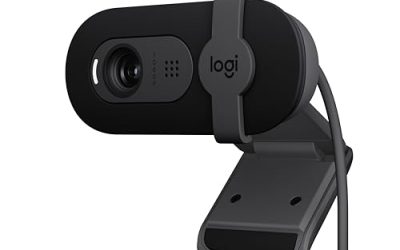
The Logitech Brio 500 is built around a different priority: looking clear and well framed in ordinary rooms, without manual tweaking before every call. It is a Full HD 1080p webcam with RightLight 4 auto light correction, RightSight auto-framing, Show Mode, dual noise-reducing microphones, a privacy cover, and a USB-C cable, according to its listing.
RightLight 4 adjusts for your lighting conditions, which helps when your desk faces a window during the day and a warm lamp at night. RightSight auto-framing keeps you centred if you shift in your chair or lean in to make a point. Together, those two features are the reason this camera suits people in back-to-back meetings: you set it up once and let the camera handle small changes.
Like the MX Brio above, the Brio 500 offers Show Mode, so you can tilt it down to show paperwork or objects on your desk. Its video modes are listed as 1920 x 1080 at 30fps and 1280 x 720 at 60fps, which covers conferencing apps comfortably. Most meeting platforms compress your video anyway, so clean 1080p with good light correction is often more useful in practice than a higher headline resolution.
The Brio 500 is certified for use with Microsoft Teams, Google Meet, and Zoom in retailer and manufacturer descriptions, which will reassure buyers whose camera has to work first time in a work call.
Key specifications:
- Maximum resolution: Full HD 1080p at 30fps; 720p at 60fps
- Light correction: RightLight 4
- Framing: RightSight auto-framing
- Microphones: Dual noise-reducing microphones
- Special modes: Show Mode
- Privacy: Built-in privacy cover
- Connection: USB-C
Pros:
- Automatic light correction and framing reduce setup effort
- Show Mode adds desk presentations to a meeting camera
- Dual microphones and a physical privacy cover included
- Certified for major meeting platforms in product descriptions
Cons:
- No 4K mode for cropping or high-resolution recording
- 1080p is limited to 30fps, unlike the 60fps streamers’ models here
- Auto-framing is less relevant if you always sit perfectly still and centred
View the Logitech Brio 500 on Amazon
3. Elgato Facecam — Best for Streamers With a Separate Microphone

The Elgato Facecam takes the opposite approach to most webcams: it leaves audio out entirely and puts all of its effort into the picture and the controls. Comparison data for its listing records 1080p at 60fps, an 82-degree field of view, a Sony STARVIS CMOS sensor, fixed hyperfocal focus, USB-C connection, and support for Elgato Camera Hub software. There is no built-in microphone.
For a streamer, that omission can be a strength. Most gaming setups already use a headset microphone or a USB desk microphone, so a second, weaker microphone in the camera adds nothing. Removing it lets the Facecam focus on a clean, high-frame-rate image for OBS and similar software, where the smooth 60fps feed matches gameplay footage better than a 30fps camera does.
Fixed focus is the trade-off to understand before buying. The lens is set to keep a typical desk distance sharp, roughly from a normal sitting position outward, rather than hunting for focus as you move. If you sit at a consistent distance, that stability is welcome. If you regularly hold objects very close to the lens or move around a room, an autofocus model such as the C920x or Kiyo Pro will suit you better.
Camera Hub gives you manual control over settings such as exposure and field of view behaviour, and the camera can store settings on board in the Facecam family design, so your look stays consistent between sessions and apps.
Key specifications:
- Maximum resolution: 1080p at 60fps
- Sensor: Sony STARVIS CMOS
- Field of view: 82 degrees
- Focus: Fixed, hyperfocal
- Microphone: None built in
- Connection: USB-C
- Software: Elgato Camera Hub
Pros:
- Smooth 1080p at 60fps feed that matches gameplay footage
- STARVIS sensor aimed at clean images in indoor light
- No autofocus hunting at a fixed desk distance
- Deep manual controls through Camera Hub
Cons:
- No built-in microphone, so a separate microphone or headset is required
- Fixed focus is poor for extreme close-ups
- No 4K option for cropping a recorded facecam
View the Elgato Facecam on Amazon
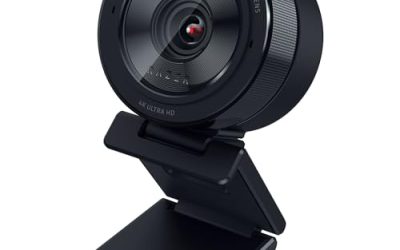
4. Razer Kiyo Pro — Best for Low Light

The Razer Kiyo Pro is designed for rooms where the lighting is the problem. Its listing data records 1080p at 60fps, a Sony STARVIS sensor with an adaptive light sensor, continuous autofocus, an omnidirectional microphone, USB 3.0 over USB-A, and an adjustable field of view of 80, 90, or 103 degrees.
The adaptive light sensor is the headline feature. Instead of simply brightening a dark image and adding noise, the sensor adjusts to the available light, which helps streamers who play in the evening, in a room with a single lamp, or with RGB lighting that changes colour. Combined with 60fps capture, it keeps a facecam usable in conditions where a basic camera would look grainy and sluggish.
The three field-of-view steps are genuinely useful. The narrower setting keeps the frame tight on your face for calls, the middle setting suits a standard facecam overlay, and the widest setting shows more of your room or a second person beside you. Switching in software is easier than moving the camera or buying a different lens.
Note that this is the Kiyo Pro, not the Kiyo Pro Ultra. The Ultra is a separate, larger-sensor 4K model. If low-light 1080p at a smooth frame rate is your actual need, the standard Kiyo Pro already covers it without the Ultra’s extra demands on USB bandwidth and processing.
Key specifications:
- Maximum resolution: 1080p at 60fps
- Sensor: Sony STARVIS with adaptive light sensor
- Field of view: 80, 90, or 103 degrees, adjustable
- Focus: Autofocus
- Microphone: Omnidirectional, built in
- Connection: USB-A, USB 3.0
Pros:
- Adaptive light sensor built specifically for dim rooms
- Smooth 1080p at 60fps for streaming
- Three field-of-view options cover calls, overlays, and wider shots
- Autofocus handles movement toward and away from the desk
Cons:
- No 4K mode
- Wider fields of view will show more background clutter
- USB-A connection may need an adapter on USB-C-only laptops
View the Razer Kiyo Pro on Amazon
5. Logitech C920x HD Pro — Best Proven All-Rounder
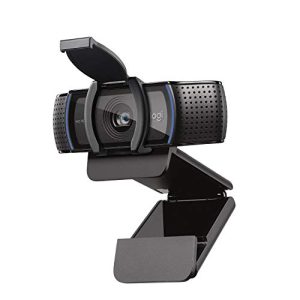
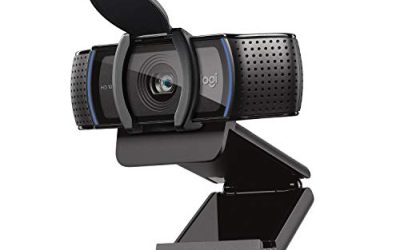
The Logitech C920x HD Pro is the familiar option in this guide, and familiarity is part of its appeal. Listing data records autofocus, dual microphones, and Full HD video, and the C920 family design is supported by virtually every conferencing and streaming app on PC and Mac. If you want a camera that plugs in and appears correctly in Zoom, Teams, Discord, and OBS without troubleshooting, this is the safest choice here.
Video is 1080p at 30fps, which is entirely adequate for calls and for a small facecam window on a stream. You do not get the smoothness of the 60fps models above, and there is no 4K headroom for cropping, but for a camera window that occupies a corner of a 1080p stream, most viewers will be looking at your gameplay, not counting pixels in your facecam.
Autofocus and dual stereo microphones make it a complete, self-contained unit for a desktop that has no other audio gear. It is also a sensible second camera: streamers sometimes use a C920-series camera as a desk, hand, or pet camera alongside a higher-end main camera, because its behaviour in streaming software is so well understood.
Choose the C920x if your priority is reliability and simplicity. Choose one of the models above if you specifically need 60fps, 4K, advanced low-light handling, or automatic framing.
Key specifications:
- Maximum resolution: Full HD 1080p at 30fps
- Focus: Autofocus
- Microphones: Dual stereo microphones
- Connection: USB-A
- Compatibility: Broad support across conferencing and streaming apps
Pros:
- Proven design with very broad app compatibility
- Autofocus and dual microphones in one self-contained unit
- Simple plug-and-play setup for calls and streaming
- Works well as a main camera or as a secondary desk camera
Cons:
- 1080p limited to 30fps, so motion is less smooth than 60fps rivals
- No 4K, auto-framing, or adaptive low-light sensor
- Older USB-A connection may need an adapter on newer laptops
View the Logitech C920x HD Pro on Amazon
How to Choose the Right Webcam Right Now
Start with frame rate, not just resolution. A 1080p camera at 60fps usually looks better in a live stream than a 4K camera squeezed into a small overlay at 30fps, because motion stays smooth. Pick 4K, such as the MX Brio, when you record and crop your footage afterwards, present in large windows, or want the sharpest possible image in well-lit calls.
Match the camera to your microphone plan. If you already use a headset or desk microphone, a camera with no built-in microphone, such as the Facecam, is not a drawback. If the webcam will be your only microphone, choose a model with dual noise-reducing microphones, such as the Brio 500 or MX Brio, and sit reasonably close to it.
Be honest about your light. No sensor fully fixes a dark room, but an adaptive light sensor, as on the Kiyo Pro, or strong auto light correction, as on the Brio 500, helps a lot. Adding even a small desk lamp facing you will improve any camera in this guide more than a model upgrade alone.
Decide between autofocus and fixed focus. Autofocus suits presenters who move, lean, and hold objects up to the camera. Fixed focus suits a streamer who sits in one place and wants a stable image with no hunting. Neither is better in the abstract; they serve different habits.
Check your ports. USB-C models suit newer laptops directly, while USB-A models may need a simple adapter or hub on a USB-C-only machine. For uncompressed high-resolution or high-frame-rate modes, use a direct, high-speed USB port rather than an unpowered hub where possible.
Consider privacy and framing extras. A physical privacy shutter or cover is worth having on a camera that points at you all day. Auto-framing and desk Show Mode are worth paying for if you present often; they add little if you only join occasional calls from a fixed position.
Frequently Asked Questions
Is 4K worth it in a webcam for gaming?
It is worth it if you record your facecam separately and crop it in editing, stream in a large camera window, or present to groups where your video fills much of the screen. For a small overlay in the corner of a gameplay stream, a good 1080p camera at 60fps is usually the better match, because the smoother motion is more visible at that size than extra resolution.
Why would a webcam have no microphone?
Streamers and gamers almost always use a headset or a dedicated microphone, which sounds better than any camera microphone at desk distance. A model such as the Elgato Facecam omits the microphone and concentrates on image quality and controls instead. Do not choose one for family calls unless you definitely have another microphone available.
Do these webcams work with Discord, OBS, Zoom, and Teams?
Yes, as standard USB video class cameras they are designed to appear as a camera source in conferencing and streaming software. The MX Brio and Brio 500 listings specifically name Teams, Zoom, and Google Meet, and the Facecam is built for streaming software workflows through Elgato Camera Hub. Always select the webcam by name in the app’s video settings after plugging it in.
Can I use one of these webcams with a laptop that only has USB-C ports?
Yes, with the right connection. USB-C models such as the MX Brio, Brio 500, and Facecam plug in most directly, although cable arrangements vary by listing. USB-A models such as the Kiyo Pro and C920x may need a USB-C adapter or a powered hub. Check what cable is included on the product page before ordering.
Where should I place my webcam?
At or slightly above eye level, centred on your monitor, with a light source in front of you rather than behind you. A window or lamp behind you will silhouette your face on any camera. The monitor mounts on these models are designed for exactly that centred, top-of-screen position.
Conclusion
For most PC gamers and streamers buying a webcam right now, the choice comes down to frame rate and light. The Logitech MX Brio is the most capable all-round camera here if you want 4K headroom, the Logitech Brio 500 is the easiest camera to live with for daily meetings, the Elgato Facecam serves streamers who already own a good microphone, the Razer Kiyo Pro handles dim rooms best, and the Logitech C920x remains the dependable, no-fuss option. Match the camera to how you actually appear on screen, check the current listing for the exact variant and included cable, and you will get a clear step up from a built-in laptop camera.
FAQ
Is 4K worth it in a webcam for gaming?
Why would a webcam have no microphone?
Do these webcams work with Discord, OBS, Zoom, and Teams?
Can I use one of these webcams with a laptop that only has USB-C ports?
Where should I place my webcam?
More from Amazon
Programs that pair well with the guide above. Offers and eligibility are set by Amazon and may change.
Free shipping on eligible items, Prime Video and more. Eligible new members can start with a free trial.
Start a Prime free trialAd-free music streaming. Eligible new subscribers can start with a free trial.
Try Music Unlimited freeA Prime membership for ages 18-24 with a trial period. Eligibility is set by Amazon.
See Prime for Young AdultsAudiobooks and podcasts to listen to on the go. Eligible new members can start with a free trial.
Try Audible freeAs an Amazon Associate we earn from qualifying purchases.