Key takeaways
- Compare 2K, 1080p and 4K webcams that work with Windows 10, with privacy covers, adjustable views and clear mics for Teams, Zoom and streaming.
Staying on Windows 10 creates a specific buying decision: you need a webcam that Windows recognises through its standard USB video support, without depending on a newer operating system, a driver disc, or software that has already moved on. Resolution alone does not settle that question, because a camera can list high resolution yet still need an app for field of view, focus, or privacy controls that matters in daily calls.
This guide is for Windows 10 desktop users replacing a weak built-in camera, laptop owners who dock at a monitor, and streamers or teachers who record as well as meet. Picks were chosen from product names and specifications on the Amazon pages, with attention to listed operating system support, connection type, and microphone details.
Quick Picks
As an Amazon Associate we earn from qualifying purchases
| Product | Best for | Key spec from title |
|---|---|---|
| Logitech C920s HD Pro Webcam | Everyday Windows 10 calls on a desktop monitor | Full HD 1080p/30fps video calling |
| NexiGo N60 1080P Webcam | A simple plug-and-play upgrade for Zoom and Teams | 1080P webcam with microphone and privacy cover |
| Anker PowerConf C200 2K Webcam | Sharper meetings where you can change framing | 2K webcam with adjustable field of view |
| Logitech Brio 4K Webcam | Recording and streaming where extra detail helps cropping | 4K Ultra HD video calling |
How to Choose
Check Windows 10 Support and the USB Connection First
Compatibility is more than a logo on the box. Look for a listing that names Windows support or describes the camera as a USB plug-and-play device, then match the connector to a port you actually have free. The C920s and NexiGo N60 use familiar USB connections suited to many older desktops, while newer models may need USB-C or an adapter that is not always included. Also think about hubs: a camera sharing an unpowered hub with drives and capture gear can behave inconsistently, so a direct motherboard or laptop port is the safer starting point for setup and troubleshooting.
Match Resolution and Frame Rate to the App You Use
A 1080p camera at 30 frames per second covers most Teams, Zoom, and Skype calls comfortably, because those apps often compress or cap the image anyway. A 2K model such as the Anker PowerConf C200 gives a sharper source picture and more room to crop in its software, while a 4K model such as the Logitech Brio adds detail for recording, streaming, or digital zoom. Frame rate matters separately: higher frame rates at lower resolutions can look smoother for movement. Check what your main app actually accepts instead of assuming the maximum listed mode appears in every program.
Decide How Much of the Room Should Be Visible
Field of view decides whether the picture shows just your head and shoulders, a second person beside you, or a whiteboard behind you. A narrower view around 65 to 78 degrees suits a single person at a desk and keeps clutter out. A wider view near 90 to 95 degrees helps shared desks and small group huddles, but it can also make you look smaller and expose more background. Adjustable models let you switch between preset views in software, which is useful if the same Windows 10 PC handles solo calls in the morning and paired presentations later.
Compare Microphones, Light Handling, and Privacy as a Set
Most buyers will use the built-in microphone at first, so check whether the listing describes a single mic, dual stereo mics, or noise cancelling, and where that leaves a headset in your plan. Light correction features, listed under names such as RightLight on Logitech models or low-light correction on the Anker model, adjust exposure when a window sits behind you or a room is dim. Finally, treat privacy as hardware, not a promise: a physical shutter or sliding cover blocks the lens even if an app leaves the camera active by mistake.
The 4 Best Options
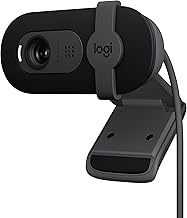
Logitech C920s HD Pro Webcam

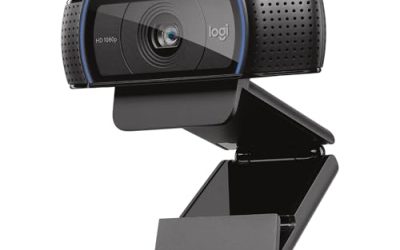
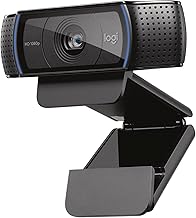
For many Windows 10 desktops, this is the straightforward replacement for a soft laptop camera or an ageing 720p model. The listing positions it around Full HD calls, stereo audio, and a privacy shutter, which together cover the basics without forcing you into 4K files or complicated controls. It suits a fixed monitor setup where the camera stays clipped in one place, focus stays automatic, and the main goal is looking clear and sounding intelligible in recurring meetings, classes, and family calls rather than producing edited video.
Specs
- Full HD 1080p video calling at 30fps, with 720p at 30fps also listed
- Five-element glass lens with HD autofocus
- HD light correction with RightLight 2 technology
- Dual stereo microphones for clear stereo audio
- Privacy shutter included in the listing
- 78-degree field of view
- USB connection with a 5 foot cable listed
- Listed as working with Skype, Zoom, FaceTime, and Hangouts, for PC, Mac, laptop, and tablet
Best for: Windows 10 users who want a dependable 1080p camera for daily calls on a fixed desk.
Watch out for: Confirm your monitor bezel and clip fit, and check whether you need the detachable shutter kept nearby so it does not get misplaced between calls.
ASIN: B07K95WFWM
NexiGo N60 1080P Webcam

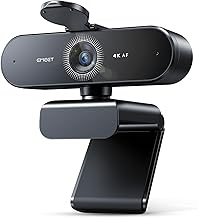
The N60 fits buyers who want the least friction possible: plug the USB camera in, open the meeting app on Windows 10, and get a sharper picture than a built-in laptop lens usually provides. Its listing emphasises software control, a microphone, and a privacy cover, which makes it a practical choice for a spare room, a shared family PC, or a second computer that still needs to join Zoom, Skype, and Teams calls. The wider framing also helps when two people occasionally sit together, although that same width needs a tidier background.
Specs
- 1080P HD video from the listing title
- Built-in microphone listed in the product name
- Software control for the camera settings
- Privacy cover included
- USB HD computer web camera, described as plug and play
- Listed for Zoom, Skype, Teams, conferencing, and video calling
- Model name and model number both listed as N60
- Adjustable field of view and zoom described in variant listings for the N60 line
Best for: A quick, simple 1080p upgrade for a Windows 10 laptop or desktop used for conferencing.
Watch out for: Check the exact N60 variant on the listing before ordering, because NexiGo also sells N60 Pro models with different features and controls.
ASIN: B088TSR6YJ
Anker PowerConf C200 2K Webcam
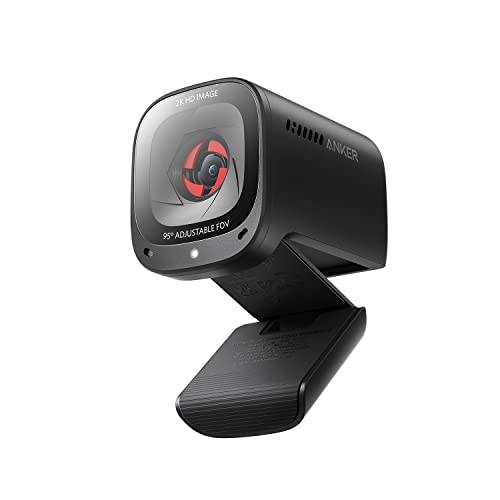
The C200 is the pick when 1080p feels like the ceiling rather than the target. Its Amazon page lists 2K resolution, low-light correction, and AI-noise cancelling microphones, plus a field of view you can change between narrower and wider presets through software. That combination suits a Windows 10 home office where you present, share the frame with a colleague at times, and deal with background household noise. The built-in privacy cover also makes it easy to close the lens at the end of the day without unplugging the cable.
Specs
- 2K video capture resolution listed, with 5MP CMOS sensor in the tech specs
- Dual microphones with AI noise cancellation
- Low-light correction listed in the product title
- Adjustable field of view at 65 degrees, 78 degrees, and 95 degrees via software
- Built-in privacy cover that slides over the lens
- Stereo microphones listed for meetings
- USB connectivity, USB 2.0 listed in the comparison table
- Operating system listed as Windows 7 or later and macOS 10.11 or later, which includes Windows 10
- Model A3369, with AnkerWork software for changing field of view and other settings
Best for: Windows 10 home workers who want a sharper 2K image and control over framing without moving the camera.
Watch out for: Field of view changes are handled in the AnkerWork software, so check that you are comfortable installing that app on your Windows 10 PC.
ASIN: B09MFMTMPD
Logitech Brio 4K Webcam
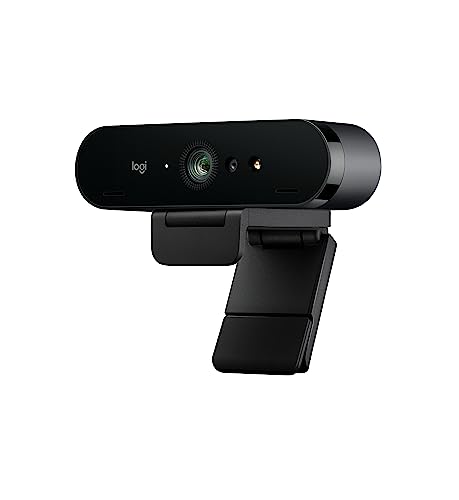
The Brio is for the Windows 10 user who records, streams, or crops the picture after capture, not only for someone joining calls. The listing describes 4K Ultra HD video, higher frame rates at lower resolutions, digital zoom, and light correction, giving you more detail to work with when a platform allows it. It also includes infrared support associated with Windows Hello sign-in on compatible systems, which can matter on a personal desktop. Because meeting apps may still send a lower resolution, the real reason to choose it is headroom for creation and framing flexibility.
Specs
- 4K Ultra HD video at 30fps listed
- 1080p at 30 or 60fps and 720p at 30, 60, or 90fps described for the Brio
- 5x HD digital zoom listed
- Field of view settings at 65 degrees, 78 degrees, and 90 degrees described for the Brio
- Autofocus and HD auto light correction in the listing title
- Noise-cancelling microphones listed
- Model number 960-001105, series Logitech BRIO
- USB webcam listed for PC, Mac, laptop, and tablet use, with Teams, Zoom, and Google Voice named
Best for: Creators and presenters on Windows 10 who want 4K headroom for recording, streaming, and cropping.
Watch out for: Check your USB port, cable, and app settings carefully, because 4K modes place higher demands on the connection and many meeting apps will not transmit 4K.
ASIN: B01N5UOYC4
Which One Fits Your Situation
Your Windows 10 Desktop Has No Camera at All
Start with the Logitech C920s or the NexiGo N60, depending on how simple you want setup to feel. Both centre on 1080p calls and built-in microphones, so a monitor, a free USB port, and your usual meeting app are enough to get going. The C920s adds the glass lens, autofocus, and light correction described on its listing, while the N60 leans into plug-and-play use and software control. Either is a clearer step than staying with no camera or an old low-resolution model.
You Work From Home and Your Room Lighting Changes
Look first at the Anker PowerConf C200. The listing highlights low-light correction and a 2K sensor, and its adjustable field of view lets you tighten the frame when a bright window or busy background competes with your face. The C920s is the alternative if you prefer 1080p and Logitech light correction in a more familiar design. In both cases, moving a lamp in front of you rather than behind you will help more than any setting, so arrange the room before blaming the camera.
You Sometimes Present With Another Person Beside You
Choose a model with a wider or adjustable view. The C200 can switch to its widest listed setting for two people, then return to a narrower view for solo calls, while the Brio also offers a wide setting among its listed options. The NexiGo N60 can suit a paired setup as well if its wider framing matches your desk distance. Sit closer to the camera than you think, because a wide lens makes faces smaller quickly when chairs move back from the monitor.
You Record Lessons, Demos, or Streams on the Same PC
The Logitech Brio makes the most sense here, because its 4K listing and higher frame rates at lower resolutions give recording software more to work with than a basic meeting camera. If your recordings are mostly screen shares with a small face window, the C200 in 2K is a balanced middle step and still improves on 1080p. Keep the meeting use separate in your mind: a sharper recording file does not mean Teams or Zoom will send that same resolution to other people.
Common Mistakes
- Buying a 4K webcam expecting every Windows 10 meeting app to send 4K, when the app, the call settings, and the network often limit the transmitted picture to a lower resolution.
- Ignoring the connector and port: ordering a USB-C camera for an older Windows 10 desktop with no free USB-C port, or running the camera through a crowded unpowered hub.
- Choosing the widest field of view by default, then discovering the picture shows the whole room, makes your face small, and reveals things you did not intend to share.
- Relying on the built-in microphone from across the room instead of sitting at a normal desk distance or planning to use a headset for important calls.
- Forgetting the privacy cover and software controls after setup, leaving the lens uncovered and the field of view, focus, or exposure set for a different room or app.
Frequently Asked Questions
Do these webcams need a special driver on Windows 10?
Most USB webcams in this class are designed to be recognised by Windows 10 as a standard video device, so the meeting app can select the camera without a driver disc. Brand software can still be useful for field of view, zoom, or image settings. Check the listing for your chosen model, install only the official app if you need those controls, and then confirm the camera is selected inside Teams, Zoom, or your recording program.
Will a 2K or 4K webcam look better in Zoom and Teams?
It can look sharper as a source, and the extra detail helps when you crop or record locally, but the app may compress or cap what other people receive. Lighting, lens quality, and sitting at a sensible distance often change the received picture more than resolution alone. Choose 2K or 4K for headroom and flexibility, not as a guarantee that every meeting will be transmitted at the full listed resolution.
Can I use the built-in microphone instead of a headset?
For a quiet room and a normal desk distance, the built-in microphones listed on these models are a reasonable starting point for everyday calls. Dual and noise cancelling designs aim to keep your voice clearer when a fan, keyboard, or household sounds are present. If you present for long periods, record narration, or sit far from the monitor, a separate headset or microphone will usually give you more consistent placement and control.
What should I check if Windows 10 does not show the webcam?
First, plug the camera directly into a different USB port and close any other app that might already be using it, because only one program can control some cameras at a time. Next, open the Windows privacy settings and confirm camera access is allowed for desktop apps, then check the device list and your meeting app settings. Also inspect the physical privacy cover: a closed shutter can look like a fault when the microphone and connection are actually working normally.
FAQ
Do these webcams need a special driver on Windows 10?
Will a 2K or 4K webcam look better in Zoom and Teams?
Can I use the built-in microphone instead of a headset?
What should I check if Windows 10 does not show the webcam?
More from Amazon
Programs that pair well with the guide above. Offers and eligibility are set by Amazon and may change.
Free shipping on eligible items, Prime Video and more. Eligible new members can start with a free trial.
Start a Prime free trialAd-free music streaming. Eligible new subscribers can start with a free trial.
Try Music Unlimited freeA Prime membership for ages 18-24 with a trial period. Eligibility is set by Amazon.
See Prime for Young AdultsAudiobooks and podcasts to listen to on the go. Eligible new members can start with a free trial.
Try Audible freeAs an Amazon Associate we earn from qualifying purchases.