Key takeaways
- Using the 2.4 GHz Band: Never connect your VR headset to a 2.4 GHz network. This band is highly congested, lacks the necessary bandwidth, and will result in unplayable, laggy slideshows.
- Overloading the VR Router: Do not share your dedicated VR router with other household members. If someone starts streaming a 4K movie on the same band, your VR frame rate will plummet instantly.
- Setting Bitrates Too High: It is tempting to slide the bitrate to its maximum limit (such as 200 Mbps or 500 Mbps). However, pushing your router or headset decoder past its physical limits introduces processing latency, leading to major tracking stutters.
- Running Background Downloads: Ensure programs like Steam, Epic Games Launcher, or cloud backups are paused on your PC while playing. Background disk write activity can stall your CPU, creating sudden frame drops in your headset.
Wireless PC VR streaming offers unmatched freedom of movement, freeing you from tripping over thick cords during intense gameplay. However, when wireless streaming goes wrong, it goes wrong spectacularly. Instead of a smooth, lifelike virtual world, you are hit with screen tearing, dropped frames, and a sickening lag known as stuttering. If done poorly, a misconfigured wireless setup can cause severe motion sickness within minutes, break your gaming immersion, and even lead to physical accidents in your living room as you struggle to react to delayed visual cues.
As virtual reality setups become sleeker and more integrated into modern smart homes in 2026, getting a seamless, stutter-free stream from your gaming rig is easier than ever if you organize your network environment correctly. Fortunately, learning how to fix pc vr stuttering on wireless streaming is entirely achievable if you systematically optimize your hardware placement, network channels, and software configurations.
Our top picks
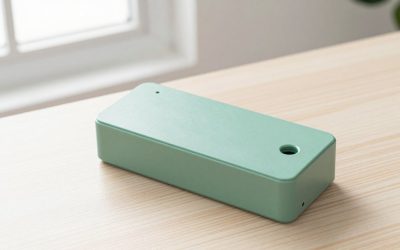
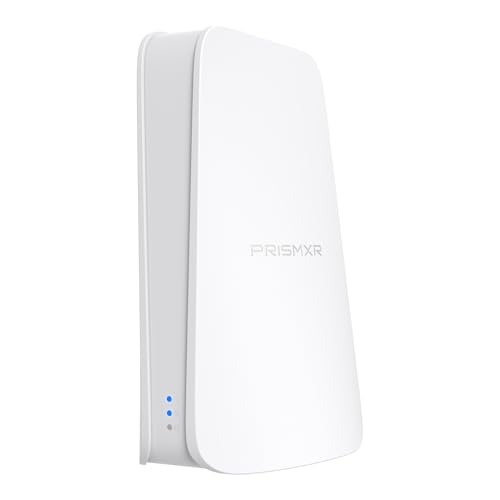 PC-VR Streaming Air Link WiFi6 VR Router
- High-Speed Cable-Free Streaming: Equipped with Wi-Fi 6 dual-band…
- One-Click Stream Check: The One-Click Scan feature in…
- Plug-and-Play: Just plug in the power and Ethernet…
 Syntech 16FT VR Link Cable with USB
- From Syntech—Crafted for VR Enthusiasts: Join over 100…
- Compatible with Meta Quest 3S/3/2 Accessories: The Syntech…
- 2-in-1 PC Link: Includes a USB 3.0 A…
As an Amazon Associate we earn from qualifying purchases at no extra cost to you.
What You Need
Before diving into the optimization steps, gather the necessary hardware. Eliminating wireless interference requires a solid physical foundation, starting with how your computer and router communicate.
| Item | Why You Need It | Optional / Required? |
|---|---|---|
| Dedicated Wi-Fi 6 Router (e.g., PC-VR Streaming Air Link WiFi6 VR Router, $45 – $55) |
Creates an isolated, high-speed wireless highway solely for your VR headset, preventing network congestion from other household smart devices. Consumes roughly 12 watts of power and fits easily on a desk (approx. 6 x 4 x 1 inches). | Highly Recommended (Resolves 90% of streaming issues) |
| Cat6 Ethernet Cable (10 to 50 feet) |
Connects your host PC directly to your router to eliminate latency between the computer and the network broadcast point. Supports speeds up to 10 Gbps. | Required |
| High-Speed VR Link Cable (e.g., Syntech 16FT VR Link Cable, $20 – $25) |
A 16-foot, lightweight (0.6 lbs) cable used to run diagnostics, update headset firmware, or serve as a zero-latency wired backup. | Optional (Excellent for troubleshooting) |
| Streaming Software (Meta Quest Link, Virtual Desktop, or SteamVR Link) |
The software bridge that compresses and transmits your PC’s graphics card output to your VR headset. | Required |
Step-by-Step: How to Fix PC VR Stuttering
Follow these progressive steps to isolate your network, optimize your computer’s performance, and eliminate wireless frame drops.
Step 1: Hardwire Your PC to the Router (Time Estimate: 5 minutes)
Never attempt to stream PC VR wirelessly if your gaming computer is also connected to your home network via Wi-Fi. This creates a “double wireless” bottleneck where your PC sends data wirelessly to the router, and the router broadcasts it wirelessly to your headset. Connect a Cat6 Ethernet cable from your PC’s network interface card directly into one of the LAN ports on your dedicated VR router. This ensures a stable, gigabit-speed pipeline for your VR data packets.
Step 2: Configure a Dedicated 5 GHz or 6 GHz Wi-Fi Band (Time Estimate: 10 minutes)
Log into your router’s admin portal via your web browser (typically by typing 192.168.1.1 or 192.168.0.1 into the address bar). Navigate to the wireless settings and separate your network bands. Give your 5 GHz (or 6 GHz, if using Wi-Fi 6E/7) band a completely unique SSID (network name) and password. Connect only your VR headset to this specific network. Keep all other household devices—like smartphones, smart TVs, and security cameras—on the standard 2.4 GHz network to prevent them from interrupting your VR stream.
Step 3: Position Your Router in the Play Space (Time Estimate: 5 minutes)
High-frequency wireless signals like 5 GHz struggle to penetrate solid objects. Place your dedicated Wi-Fi 6 VR router in the exact room where you plan to play. Ideally, mount the compact router on a shelf or desk at least 3 to 5 feet off the ground, ensuring a direct line of sight between the router antennas and your VR headset. Avoid hiding the router inside wooden cabinets, behind metal computer towers, or underneath your desk, as these obstacles degrade signal integrity and cause micro-stutters.
Step 4: Optimize Bitrate and Resolution in Your Streaming App (Time Estimate: 5 minutes)
Open your VR streaming software (such as Virtual Desktop or Meta Quest Link) on your computer. If your bitrate is set to “Dynamic,” it may fluctuate wildly and cause sudden stuttering. Switch the bitrate setting to “Constant” and start at a conservative baseline, such as 100 Mbps. Slowly increase this value by 10 Mbps increments until you find the sweet spot where the image looks crisp but gameplay remains completely smooth. For most Wi-Fi 6 setups, a constant bitrate between 120 Mbps and 150 Mbps offers the perfect balance of visual fidelity and low latency.
Step 5: Disable Hardware-Accelerated GPU Scheduling (Time Estimate: 5 minutes)
Sometimes, the bottleneck lies within Windows itself. On your host PC, press the Windows Key, type “Graphics Settings,” and press Enter. Locate the toggle for “Hardware-Accelerated GPU Scheduling” (HAGS). While beneficial for standard flat-screen gaming, HAGS is notorious for causing frame-pacing issues and stuttering in VR streaming pipelines. Toggle this setting to “Off” and restart your computer to apply the changes.
Mistakes to Avoid
- Using the 2.4 GHz Band: Never connect your VR headset to a 2.4 GHz network. This band is highly congested, lacks the necessary bandwidth, and will result in unplayable, laggy slideshows.
- Overloading the VR Router: Do not share your dedicated VR router with other household members. If someone starts streaming a 4K movie on the same band, your VR frame rate will plummet instantly.
- Setting Bitrates Too High: It is tempting to slide the bitrate to its maximum limit (such as 200 Mbps or 500 Mbps). However, pushing your router or headset decoder past its physical limits introduces processing latency, leading to major tracking stutters.
- Running Background Downloads: Ensure programs like Steam, Epic Games Launcher, or cloud backups are paused on your PC while playing. Background disk write activity can stall your CPU, creating sudden frame drops in your headset.
How Often Should You Optimize Your Setup?
You do not need to configure your network settings daily, but you should perform a quick health check every few months. Network channels can become crowded as neighbors install new routers. Download a free Wi-Fi analyzer app on your phone once a season to verify that your dedicated VR channel remains clear of local interference. Additionally, check for router firmware updates and graphics card driver updates twice a month to ensure maximum compatibility with the latest VR streaming software optimizations.
When to Call a Pro or Replace Your Hardware
If you have wired your PC, isolated your 5 GHz network, adjusted your settings, and still experience unplayable stuttering, your hardware may simply be outdated. If your gaming PC utilizes an older graphics card with less than 8GB of VRAM, it may struggle to compress the video stream in real-time. In this scenario, upgrading your GPU is the only permanent solution.
Furthermore, if you live in a dense apartment building with dozens of overlapping Wi-Fi signals, a standard Wi-Fi 6 router may not be strong enough to cut through the noise. If your network environment is oversaturated, it may be time to replace your wireless setup with a high-performance, shielded wired connection. Using a reliable physical cable, such as a 16-foot VR Link Cable, bypassed all wireless interference completely, giving you a smooth, high-fidelity experience when the airwaves are simply too crowded.
FAQ
Why does my wireless VR stutter even though my home internet is extremely fast?
Wireless VR streaming does not rely on your home’s internet speed (the speed you pay your ISP for). Instead, it relies entirely on your local area network (LAN) speed—how fast your computer can send data to your router, and how fast your router can broadcast that data to your headset. You can have slow internet but flawless wireless VR streaming, provided your local router is high-quality and hardwired to your PC.
Is a Wi-Fi 6 router absolutely necessary for stutter-free VR streaming?
While you can technically stream VR over an older Wi-Fi 5 (802.11ac) router, Wi-Fi 6 (802.11ax) is highly recommended. Wi-Fi 6 handles packet prioritization much more efficiently and offers significantly lower latency, which is crucial for preventing the micro-stutters that cause motion sickness.
What is the maximum distance I can be from my router while streaming VR?
For the best, stutter-free performance, you should remain in the same room as your router, ideally within 10 to 15 feet. Every wall, door, or large piece of furniture between your headset and your router weakens the high-frequency 5 GHz signal, rapidly increasing latency and the likelihood of frame drops.
How do I know if my stuttering is caused by my network or my PC’s graphics card?
Turn on the performance overlay in your streaming software (such as the Performance Overlay in Virtual Desktop). If the “Game” latency is high, your PC’s graphics card is struggling to render the game. If the “Network” or “Decode” latency spikes during stutters, your router, Wi-Fi signal, or headset decoder is the bottleneck.