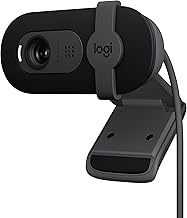
Our Top Picks
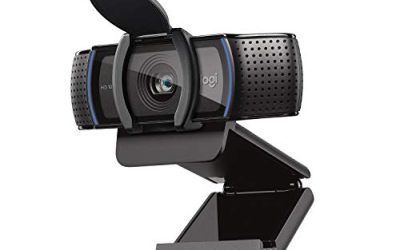
 Logitech C920x HD Pro PC Webcam with Microphone1 Pack2.8 x 1.7 x 3.7 inches0.4 poundsCheck on Amazon

On Linux the real decision is not headline resolution. It is whether a camera appears the moment it is plugged in, works in the app you actually use, and lets you change focus, exposure, and framing without a vendor program that only exists for another operating system. A glossy feature list means little if those controls stay locked away.
This guide is for remote workers on Ubuntu or Fedora, streamers building an OBS setup on Arch or Pop!_OS, and anyone replacing a weak laptop camera on a Linux desktop. The picks below were chosen from product names and specifications on the Amazon pages, with UVC plug-and-play support as the first filter.
Quick Picks
As an Amazon Associate we earn from qualifying purchases
| Product | Best for | Key spec from title |
|---|---|---|
| Logitech C920x HD Pro | Everyday calls and light streaming on any distro | Full HD 1080p/30fps Video |
| Logitech C920s HD Pro | Buyers who want a physical privacy shutter | 1080p Streaming Camera with Privacy Shutter |
| NexiGo N60 1080P | Wide room view and a simple fixed-focus setup | 1080P Webcam with Microphone and Privacy Cover |
| Anker PowerConf C200 | Sharper 2K calls and adjustable framing | 2K Webcam with Adjustable Field of View |
How to Choose
Start With UVC, Not the Brand Name
UVC, short for USB Video Class, is the standard the Linux kernel handles through its built-in uvcvideo driver. A camera that follows it should show up as a video device in Zoom, OBS, Cheese, or a browser without a separate driver download. That distinction matters more than a familiar logo. Some cameras record perfectly well yet reserve their settings panels for Windows or macOS software. Check the listing for UVC or plug-and-play wording, confirm your distribution sees the camera as a V4L2 device, and treat any feature that needs a companion app as optional rather than guaranteed.
Decide Which Controls Must Work in Linux
Resolution is only part of daily use. Exposure, white balance, focus, and zoom decide whether you look washed out beside a window or stay sharp when you lean back. On Linux, many of those adjustments come through V4L2 tools such as v4l2-ctl or guvcview, not through the polished app shown in product photos. A model with autofocus, for example, removes one manual chore, while a fixed-focus model asks you to sit at a steady distance. Before buying, list the two or three controls you will actually change each week and check that the camera exposes them as standard controls.
Match Resolution and Frame Rate to the App
A 2K or 4K sensor does not mean your meeting will leave your computer at that size. Many calling platforms cap outgoing video well below what the camera can capture, and browsers may choose a lower mode to save bandwidth. Higher modes still help when you record locally in OBS, crop into the frame, or want extra detail for tutorials. For ordinary meetings, clean 1080p at 30 frames per second is usually the sensible target. Pick 60 frames per second only if your app, lighting, and USB connection support it, because faster capture in a dim room can look noisier, not better.
Check the View, Microphone, and Mount Together
Field of view changes how much of the room becomes part of the call. A view near 78 degrees suits a single person at a desk, while a much wider lens can include a whiteboard, a second person, or more background than you intended. Microphones deserve the same practical check: dual microphones on the listing suggest stereo pickup, but a headset may still serve you better in a shared room. Finally, look at the clip, cable connector, and tripod thread. A camera that fits a thin laptop lid may sit poorly on a thick monitor, and a short cable can limit placement.
The 4 Best Options
Logitech C920x HD Pro
For most Linux users who want a camera that simply joins a call and stays in focus, the C920x is the safest starting point in this group. The listing presents it as a Full HD camera with autofocus and light correction, a combination that suits changing desk light and speakers who shift in their chair. Its moderate view keeps attention on one person rather than the whole room, which helps for work meetings, tutoring, and a straightforward OBS talking-head scene.
Specs
- Video capture resolution: 1080p
- Video: Full HD 1080p at 30fps, with 720p also listed
- Field of view: 78 degrees
- Lens: Glass lens, listed as a five-element lens in the product description
- Focus: Autofocus
- Light correction: HD light correction, RightLight 2
- Microphones: Dual built-in microphones, described as dual stereo mics
- Compatibility note in listing: Works in USB Video Device Class (UVC) mode
- Model number listed: 960-001335
Best for: Remote workers and light streamers who want autofocus and a familiar 1080p setup on Ubuntu, Fedora, or Arch.
Watch out for: The vendor software shown for other systems will not provide the Linux control panel, so plan on using V4L2 tools for manual adjustments.
ASIN: B085TFF7M1
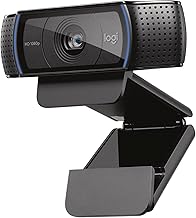
Logitech C920s HD Pro

The C920s will appeal to buyers who like the proven 1080p formula of this Logitech line but want a physical way to cover the lens between calls. The listing pairs Full HD video calling with a privacy shutter, autofocus, and automatic light correction, plus stereo audio. On a shared family computer, a teaching desk, or a work machine that stays plugged in all day, that shutter is a concrete benefit rather than a software promise. The rest of the package stays focused on ordinary calls rather than high frame rates.
Specs
- Video resolution: 1080p at 30fps and 720p at 30fps
- Field of view: 78 degrees
- Lens: Five-element glass lens
- Focus: Autofocus
- Light correction: HD automatic light correction
- Audio: Dual stereo microphones
- Privacy: Privacy shutter included in the listing
- Connectivity: USB
- Model name listed: C920S HD Pro Webcam
Best for: Privacy-conscious callers who want a covered lens when the camera is idle, without moving away from standard UVC use.
Watch out for: Confirm whether the shutter on the exact listing is the detachable cover style, and keep it somewhere safe if you remove it often.
ASIN: B07K95WFWM
NexiGo N60 1080P
Choose the N60 when the frame needs to be wider than a tight head-and-shoulders shot. Its listing describes a 1080p camera with a 110-degree view, which can suit a small group around a desk, a presenter who gestures toward a board, or a room tour recorded through OBS. The trade-off is clear: fixed focus and a very wide lens reward a planned seating position and a tidy background. The listing also notes compatibility extending to Linux 2.6.24 and Ubuntu, alongside a privacy cover and built-in microphone.
Specs
- Video capture resolution: 1080p
- Maximum resolution: 1920 x 1080 at 30 frames per second
- Sensor: 1080p Full HD 2-megapixel CMOS
- Field of view: 110 degrees
- Focus: Fixed focal, as listed in the product specifications
- Microphone: Built-in microphone, with dual stereo microphones noted in specifications
- Privacy: Privacy cover
- Connection: USB 2.0, plug and play with no additional drivers required in the listing
- Compatibility listed: Linux 2.6.24 or later and Ubuntu 10.04 or above
Best for: Linux users who need a wide view for a shared desk, a demonstration, or a room-facing recording.
Watch out for: A 110-degree view can distort faces near the edges and reveal more background, so check your seating position and distance before a recorded session.
ASIN: B088TSR6YJ
Anker PowerConf C200
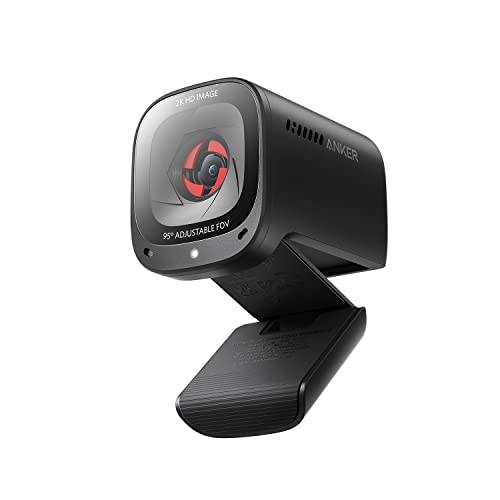
The C200 is the pick here for someone who records locally or joins platforms that can use more than basic 1080p detail. The listing leads with 2K capture, low-light correction, stereo microphones with AI noise cancelling, and an adjustable field of view, together with a built-in privacy cover. That adjustable framing is useful on Linux even if you set it once: a narrower view for solo calls, a wider one when you need to show a desk. As a UVC device, the camera itself can work without drivers, while advanced software framing belongs to the vendor app.
Specs
- Video capture resolution: 2K
- Resolution detail from product sources: 2K at 30 frames per second
- Field of view: Adjustable, listed as 65, 78, and 95 degrees in product information
- Microphones: Stereo mics with AI-noise cancelling, as listed in the title
- Light correction: Low-light correction
- Privacy: Built-in privacy cover
- Model number listed: A3369
- Brand series listed: PowerConf C200
Best for: Presenters and creators on Linux who want 2K capture for local recording and a choice of framing widths.
Watch out for: Do not assume every meeting app will send 2K, and check which field-of-view changes require the AnkerWork software on a supported system.
ASIN: B09MFMTMPD
Which One Fits Your Situation
Daily Work Calls From a Home Desk
Pick the Logitech C920x HD Pro if your calendar is a steady run of team meetings and you rarely record. Its autofocus, light correction, and 78-degree view match a single seated speaker, and the UVC mode named in the listing keeps setup simple across distributions. It avoids the extra width that would turn a home office background into a distraction, while still giving you dual microphones for days when a headset is not nearby.
A Shared Computer That Stays Plugged In
The Logitech C920s HD Pro fits a family desktop, classroom machine, or shared workstation where the camera remains connected after you log out. The privacy shutter gives the next user a visible, physical signal that the lens is covered. You still get 1080p video, autofocus, and stereo microphones for normal lessons and calls, so choosing privacy here does not mean accepting a basic fixed-focus camera or giving up light correction during the day.
Showing a Room, Board, or Second Person
Take the NexiGo N60 when one person centered in the frame is not the whole job. Its 110-degree view can hold a presenter and a board, two people at a table, or a wider demonstration area without moving the camera far back. Sit near the center to limit edge distortion, tidy what the lens will include, and keep a consistent distance because the focus is fixed rather than automatic.
Recording Tutorials While Also Taking Calls
The Anker PowerConf C200 suits a split routine of live meetings and locally recorded tutorials. The 2K capture gives OBS recordings more detail to crop, while the adjustable field of view lets one camera serve both a tight talking-head shot and a wider desk view. Use the narrower settings for calls where the platform limits outgoing quality anyway, and reserve the full capture mode for recordings you keep and edit yourself.
Common Mistakes
- Buying a camera for a feature that lives only in Windows or macOS software, then discovering the video works on Linux but the headline control does not.
- Assuming a 2K or 4K label means a meeting platform will transmit that resolution, instead of checking the app limit and recording locally when detail matters.
- Choosing the widest field of view by default and ending up with a small face, a distracting room, and distortion at the edges of the frame.
- Ignoring focus type: picking a fixed-focus camera for a desk where you lean, stand, and move, or paying for autofocus you never need at a fixed distance.
- Forgetting the physical setup, including monitor thickness, cable reach, USB port type, and whether a privacy cover is built in or easy to lose.
Frequently Asked Questions
Do these webcams need a driver on Linux?
A UVC camera should work through the kernel uvcvideo driver without a separate vendor driver, appearing as a V4L2 device for apps that support one. Plug it in, then check your calling app or OBS source list. If the camera is absent, try a direct USB port, confirm the app has camera permission, and check whether another program is already holding the device.
Why does the vendor app matter if the camera works?
The camera feed and the settings panel are separate things. On Linux the feed may work perfectly while zoom presets, framing modes, firmware tools, or noise controls stay inside software written for another system. Standard controls often remain available through v4l2-ctl or guvcview. Before buying, decide whether you need only the picture or also a specific software-only feature every time you record.
Is 1080p enough, or should a Linux user choose 2K?
For most live meetings, 1080p is enough because the platform, browser, and network often limit what leaves your computer. Choose 2K when you record locally, crop in editing, present fine detail, or want a wider shot that still holds up after trimming. The C200 in this guide covers that recording-led case, while the 1080p models keep daily calls simpler and lighter on bandwidth.
How can I check field of view before an important call?
Open the camera in OBS, Cheese, or your meeting app preview and sit where you will actually sit. Look for three things: how much room appears behind you, whether your face sits near a distorted edge, and whether gestures stay inside the frame. A view near 78 degrees suits a solo desk, while the N60 at 110 degrees needs a deliberate background check.
FAQ
Do these webcams need a driver on Linux?
Why does the vendor app matter if the camera works?
Is 1080p enough, or should a Linux user choose 2K?
How can I check field of view before an important call?
More from Amazon
Programs that pair well with the guide above. Offers and eligibility are set by Amazon and may change.
Free shipping on eligible items, Prime Video and more. Eligible new members can start with a free trial.
Start a Prime free trialAd-free music streaming. Eligible new subscribers can start with a free trial.
Try Music Unlimited freeA Prime membership for ages 18-24 with a trial period. Eligibility is set by Amazon.
See Prime for Young AdultsAudiobooks and podcasts to listen to on the go. Eligible new members can start with a free trial.
Try Audible freeAs an Amazon Associate we earn from qualifying purchases.