Our Short List of 3
All 3 Picks at a Glance
| Product | Specs | Action |
|---|---|---|
 1. Logitech C920s Pro HD — Best All-Round Budget Pick for OBS | Check price on Amazon | |
 3. Anker PowerConf C200 — Best Step-Up Resolution in This Tier | Check price on Amazon | |
 4. Logitech Brio 100 — Best Compact Entry-Level Option | Check price on Amazon |
Our Top Picks
As an Amazon Associate we earn from qualifying purchases.
Disclosure: This article contains affiliate links. If you buy through a link on this page, we may earn a commission at no extra cost to you.
Starting a stream in OBS Studio does not require an expensive camera. For most new streamers, the facecam is a small window in the corner of a gameplay scene, and what matters in that window is not a headline resolution number. What matters is that OBS recognises the camera instantly, that the frame rate stays steady while your game is also using the PC, and that your face stays reasonably sharp and well exposed under ordinary room lighting. Entry-level webcams built around the UVC standard do exactly that: they plug in over USB, appear in OBS as a Video Capture Device with no driver install, and let you set resolution and frame rate directly in the source properties.
This guide is deliberately limited to the low-cost tier. Every pick below is a mainstream, entry-level webcam positioned for first-time streamers, students, and anyone adding a facecam to an existing gaming PC without rebuilding their setup around the camera. Because this is a budget guide, the comparison is made on specifications and positioning rather than on any current price claim: resolution and frame rate options, field of view, focus type, microphone arrangement, connection type, and how cleanly each model works as an OBS source. If you want higher-end streaming cameras with larger sensors and advanced image controls, that is a different guide. Here, the question is narrower and more practical: which inexpensive UVC webcams give OBS a clean, reliable feed?
Quick Picks
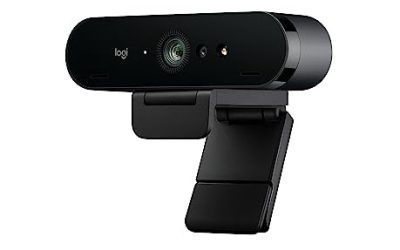
- Best all-round budget pick for OBS — Logitech C920s Pro HD: 1080p at 30fps, autofocus, a 78-degree field of view, dual stereo microphones, and a privacy shutter. The safest starting point if you want one camera that handles streaming and calls.
- Best for the tightest budgets — NexiGo N60: 1080p at 30fps, a wide field of view, a built-in noise-reducing microphone, and a privacy cover. Fixed focus keeps the design simple and the positioning firmly entry-level.
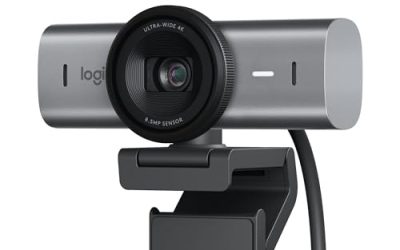
- Best step-up resolution in this tier — Anker PowerConf C200: 2K at 30fps with lower resolutions also available, adjustable 65, 78, and 95-degree framing, autofocus, stereo microphones with AI noise cancelling, and a built-in privacy cover.
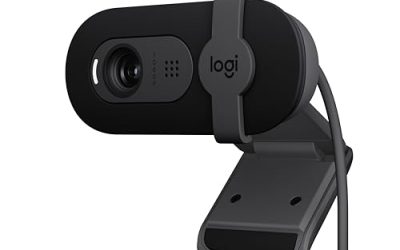
- Best compact entry-level option — Logitech Brio 100: 1080p at 30fps, a 58-degree field of view, RightLight light balancing, a built-in microphone, and a sliding privacy shutter in a small, simple body.
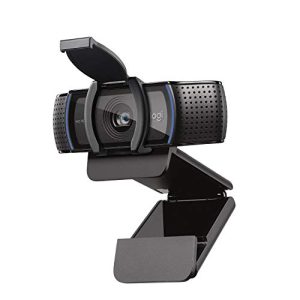
1. Logitech C920s Pro HD — Best All-Round Budget Pick for OBS
The C920s Pro HD is the long-running default recommendation in this tier, and its specification explains why it keeps that role. It records Full HD 1080p at 30 frames per second, uses autofocus so your face stays sharp if you lean in or sit back, and frames through a 78-degree field of view that suits a single-person facecam: wide enough to show some of the room behind you, narrow enough that you remain the subject. Dual stereo microphones are built in, and a physical privacy shutter closes over the lens when the camera is not in use.
For OBS, the appeal is simplicity. The C920s is a UVC device, so it appears as a standard video capture source on Windows and macOS without a separate driver package. In OBS you can add it once to a scene, set it to 1920×1080 at 30fps in the source properties, and then reuse the same source across scenes for gameplay, chatting, and break screens. Autofocus matters here because facecam windows are small: a soft, hunting image is more noticeable at small sizes, and the C920s focus system is designed to lock onto a face at typical desk distance and hold it.
There are clear limits to keep in mind. Thirty frames per second is the ceiling, so if you specifically want a 60fps facecam to match fast gameplay, this model is not built for that. The field of view is fixed rather than adjustable, so framing changes happen by moving the camera or cropping the source in OBS. Those are reasonable trade-offs at this positioning, and for a first OBS setup the balance of autofocus, stereo audio backup, and plug-and-play behaviour is hard to argue with.
Specifications: 1080p at 30fps; 78-degree field of view; autofocus; dual stereo microphones; USB-A connection; privacy shutter; universal monitor clip with tripod thread.
Pros:
– Autofocus keeps a small facecam window sharp as you move
– UVC plug-and-play recognition in OBS with no driver step
– Dual microphones provide a usable backup audio source
– Physical privacy shutter included
Cons:
– No 60fps mode at any resolution
– Fixed field of view; framing relies on placement or OBS cropping
– USB-A only, so newer laptops may need an adapter
View the Logitech C920s Pro HD on Amazon
2. NexiGo N60 — Best for the Tightest Budgets
The NexiGo N60 is positioned as the straightforward, entry-level way to get a 1080p feed into OBS. It captures 1080p at 30 frames per second, uses a wide-angle lens that shows more of your space than narrower office webcams, includes a built-in microphone with noise reduction, and ships with a privacy cover. The focus system is fixed, which is the main specification difference from the C920s above: you position the camera at a sensible desk distance, and subjects at that distance stay in the designed focus range.
That simplicity can actually suit an OBS facecam. Many streamers set the camera once, on top of the main monitor, and never move it. In that fixed setup, fixed focus is not a daily problem, and the wide framing gives you material to work with: you can crop the source in OBS to tighten the shot without adding a separate transform step elsewhere. The N60 connects over USB and works as a standard UVC camera, so OBS, streaming platforms, and call software all see it the same way.
The trade-offs follow from the positioning. Fixed focus is less forgiving if you move close to the lens for emphasis or stream from a standing position at varying distances. Built-in microphone quality on any webcam in this tier should be treated as a convenience and a backup; most streamers will prefer a headset or a separate USB microphone as their main voice source and keep the webcam feed for video only. Judged as a low-cost video source for OBS, though, the N60 covers the essential specification list without asking you to pay for features a corner facecam rarely uses.
Specifications: 1080p at 30fps; wide-angle field of view; fixed focus; built-in noise-reducing microphone; USB connection; privacy cover; monitor clip mount.
Pros:
– Entry-level positioning aimed squarely at first-time streamers
– Wide framing gives useful cropping room inside OBS
– UVC plug-and-play with OBS and call software
– Privacy cover included
Cons:
– Fixed focus is less flexible for presenters who move around
– No 60fps option
– Webcam microphone is best treated as a backup, not a main mic
3. Anker PowerConf C200 — Best Step-Up Resolution in This Tier
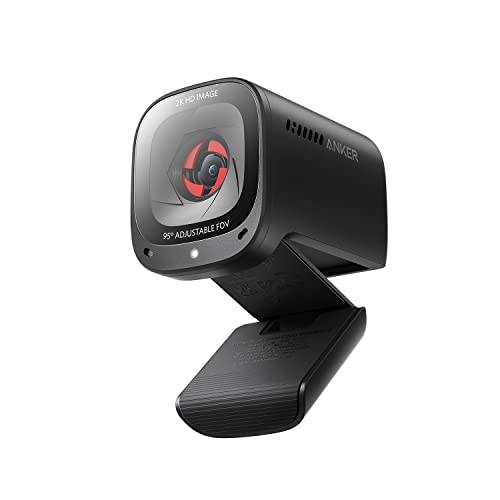
The Anker PowerConf C200 raises the ceiling of this group without leaving the low-cost tier behind. Its headline specification is 2K video capture at 30 frames per second, with 1080p and 720p also available, and that extra resolution has a specific use in OBS: cropping. If you add the camera at its full resolution and then scale or crop the source down to a small facecam window, you keep more detail than starting from a feed that is already at the window size. The same headroom helps if you run a larger full-screen chatting scene alongside your corner facecam layout.
Framing is adjustable in software between 65, 78, and 95 degrees, so you can choose a tighter head-and-shoulders shot, a standard view, or a wider view of your setup without physically moving the camera. The C200 uses autofocus, carries stereo microphones with AI noise cancelling, includes low-light correction, and has a built-in privacy cover. It connects over USB-C at the camera end, which suits newer laptops and PCs, and it works as a standard UVC source in OBS.
The considerations are practical. Running the camera at 2K asks more of your USB connection and your PC than 1080p does, and most streaming platforms will scale your output down anyway, so many users will sensibly run it at 1080p in OBS and keep 2K for recordings or cropped scenes. Field-of-view switching is done through Anker’s software rather than on the camera body. Neither point is a flaw at this positioning; they simply mean the C200 rewards a streamer who likes to adjust settings over one who wants to set and forget.
Specifications: Up to 2K at 30fps, plus 1080p and 720p modes; adjustable 65, 78, and 95-degree field of view; autofocus; stereo microphones with AI noise cancelling; low-light correction; USB-C connection; built-in privacy cover.
Pros:
– 2K capture gives cropping headroom for OBS scenes
– Three framing widths selectable in software
– Autofocus and low-light correction suit typical desk setups
– Privacy cover built in rather than clipped on
Cons:
– Highest modes demand more USB bandwidth and processing
– Framing changes need the companion software
– No 60fps mode
View the Anker PowerConf C200 on Amazon
4. Logitech Brio 100 — Best Compact Entry-Level Option
The Logitech Brio 100 is the simplest camera in this guide, and that is its purpose. It provides Full HD 1080p at 30 frames per second through a narrower 58-degree field of view, which frames a single person tightly without showing much of the room. Logitech’s RightLight feature boosts brightness in dimmer rooms, there is a built-in microphone for calls and backup audio, and a sliding privacy shutter is integrated into the compact body.
In OBS terms, the narrow field of view can be an advantage for a facecam. A tighter native framing means less of your source is wasted on background you would crop away anyway, and the small body sits unobtrusively on thin-bezel monitors and laptop lids. The Brio 100 is a UVC plug-and-play camera, so adding it to OBS is the same one-step Video Capture Device process as the other picks here, and its modest specification places minimal demand on the PC while a game is running.
The limits are the flip side of the simplicity. Focus is fixed rather than autofocus, the field of view cannot be widened for group shots or room tours, and there is a single built-in microphone rather than a stereo pair. For a solo streamer at a desk, which is the exact use this guide targets, those limits are easy to live with. For anyone who regularly presents standing up or shares the frame, one of the wider, autofocus picks above is the better fit.
Specifications: 1080p at 30fps; 58-degree field of view; fixed focus; built-in microphone; RightLight light balancing; USB-A connection; integrated sliding privacy shutter.
Pros:
– Tight native framing suits a solo facecam with minimal cropping
– Compact body fits laptop lids and slim monitor bezels
– UVC plug-and-play in OBS with very low system demand
– Integrated privacy shutter
Cons:
– Fixed focus and a narrow, fixed field of view
– Single microphone; best used for video with separate main audio
– No 60fps or higher-resolution modes
View the Logitech Brio 100 on Amazon
How to Choose a Low Cost Webcam for OBS
Start with UVC plug-and-play. Every pick in this guide is a USB Video Class camera. That means OBS Studio sees it as a standard Video Capture Device on Windows and macOS with no driver installation and no capture card. If a budget webcam does not state UVC or plug-and-play support, treat that as a warning sign for streaming use.
Match resolution and frame rate to the window size. A facecam usually occupies a small part of a 1080p stream canvas, so a clean 1080p30 feed is sufficient for most new streamers. A 2K option such as the C200 is useful when you crop heavily or run full-screen camera scenes. A 60fps facecam is a nice extra, but it is not a feature this low-cost tier generally provides, and a stable 30fps feed looks better than an unstable higher rate.
Think about field of view as built-in framing. Narrow fields of view around 58 to 65 degrees suit a tight solo shot. A standard view around 78 degrees balances face and background. Wide views around 90 to 95 degrees show your setup and give you cropping room in OBS, at the cost of making your face smaller in the uncropped feed.
Decide how much focus flexibility you need. Autofocus helps if you lean, gesture, or present objects to the camera. Fixed focus is fine for a seated streamer at a consistent distance, and it is one of the specifications that keeps entry-level models simple.
Plan audio separately. Built-in webcam microphones are useful for calls and as an emergency backup, but a headset or USB microphone will almost always be the better main voice source. In OBS, add the webcam for video and select your preferred microphone as the audio source.
Set the source correctly in OBS. Add the camera as a Video Capture Device, open its properties, and set the resolution and frame rate explicitly rather than leaving everything on default. Use a direct USB port rather than an unpowered hub, and check the preview under your normal room lighting before going live, since exposure and white balance behave differently in every room.
FAQs
Do these webcams need drivers to work with OBS Studio?
No. All four picks are UVC devices, so Windows and macOS recognise them as standard cameras and OBS lists them under Video Capture Device sources without a separate driver install. Optional manufacturer software may add framing or image controls, but it is not required for OBS to use the camera.
Is 1080p at 30fps enough for a Twitch or YouTube facecam?
For a typical corner facecam, yes. The window is small relative to the full stream canvas, and a stable 1080p30 feed keeps your face clear without adding much load. Higher resolutions mainly help when you crop the feed or show the camera full-screen, and higher frame rates mainly help fast movement, which a seated facecam rarely involves.
Can I use the webcam microphone as my main streaming mic?
You can, and it is fine for getting a first stream running, but a headset or a separate USB microphone will usually give you clearer, closer voice audio. A common low-cost setup is webcam for video, headset for voice, with the webcam microphone left as a backup source in OBS.
Why does my budget webcam look grainy in the evening?
Small webcam sensors rely on available light. In dim rooms they raise gain, which adds noise. Adding a simple desk lamp or facing an existing light source usually improves a budget webcam more than changing camera settings, and models with light-correction features can only do so much without light to work with.
Should I run the Anker C200 at 2K in OBS?
Only if you have a reason to, such as cropping into the feed or recording locally at higher quality. For a standard streamed facecam, setting it to 1080p in the OBS source properties reduces bandwidth and processing load while matching what viewers will actually see.
Conclusion
A low-cost webcam is a sensible first camera for OBS because the facecam job is narrow: appear reliably as a UVC source, hold a steady frame rate, and keep one seated person sharp and reasonably lit. The Logitech C920s Pro HD is the balanced default, with autofocus and stereo microphones. The NexiGo N60 is the pick for the tightest budgets, trading autofocus for a wide, simple 1080p feed. The Anker PowerConf C200 adds 2K headroom and adjustable framing for streamers who crop and build multiple scenes. The Logitech Brio 100 is the compact, tight-framing option for a simple solo desk setup. Choose by focus type, field of view, and how you plan to frame your scenes, set the resolution explicitly in OBS, add light before you add cost, and any of these entry-level cameras will get a clean facecam on stream.
More from Amazon
Programs that pair well with the guide above. Offers and eligibility are set by Amazon and may change.
Free shipping on eligible items, Prime Video and more. Eligible new members can start with a free trial.
Start a Prime free trialAd-free music streaming. Eligible new subscribers can start with a free trial.
Try Music Unlimited freeA Prime membership for ages 18-24 with a trial period. Eligibility is set by Amazon.
See Prime for Young AdultsAudiobooks and podcasts to listen to on the go. Eligible new members can start with a free trial.
Try Audible freeAs an Amazon Associate we earn from qualifying purchases.