Our Short List of 3

- 27-inch 4K IPS Black panel, 3840 x 2160 resolution, 60Hz refresh rate, USB-C with up to 90W power delivery, DisplayPort and HDMI inputs, built-in USB hub with Ethernet, height-adjustable stand.

- 27-inch 4K IPS panel, 3840 x 2160 resolution, 60Hz refresh rate, 99 percent DCI-P3 and 99 percent sRGB coverage, factory calibrated with Calman verification, USB-C with up to 96W power delivery, DisplayPort and HDMI inputs.

- 27-inch 4K IPS panel, 3840 x 2160 resolution, 60Hz refresh rate, 95 percent DCI-P3 coverage, HDR400 support, USB-C with up to 96W power delivery, DisplayPort and two HDMI inputs, height-adjustable stand.
All 4 Picks at a Glance
| Product | Specs | Action |
|---|---|---|
| 1. Dell UltraSharp U2723QE — Best Overall Monitor for MacBook |
| Check price on Amazon |
| 2. ASUS ProArt Display PA279CRV — Best Colour-Accurate Monitor for MacBook |
| Check price on Amazon |
| 3. LG 27UP850-W — Best Value 4K USB-C Monitor for MacBook |
| Check price on Amazon |
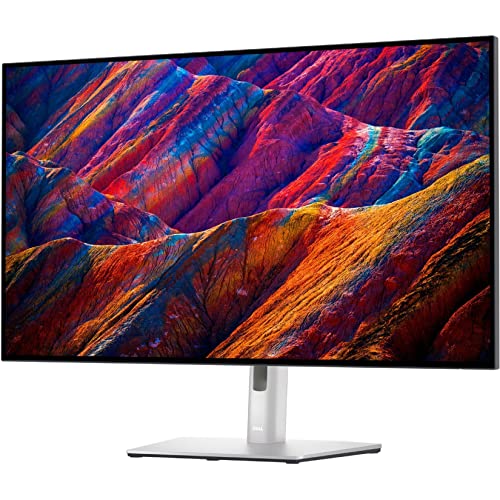 4. Dell UltraSharp U3223QE — Best Large Monitor for MacBook |
| Check price on Amazon |
Key takeaways
- The best monitors for Apple MacBook, from 27-inch 4K USB-C displays to wide 32-inch panels — compare ports, colour accuracy and charging.
The best monitors for Apple MacBook turn a laptop into a full desk setup with one cable. A MacBook already has a sharp built-in display, so an external monitor earns its place by adding space, a larger canvas for editing and code, and a single USB-C connection that carries video, data, and charging at the same time. When that connection works well, you sit down, plug in one cable, and the laptop charges while the big screen lights up.
Every monitor in this guide is a 4K display with a USB-C port, which is the combination that matters most for MacBook owners. A 4K panel keeps text crisp at the scaling levels macOS prefers, and USB-C with power delivery means the monitor doubles as the laptop charger. The picks below cover 27-inch and 32-inch sizes, creator-focused colour accuracy, and a wide-gamut option for photo and video work, so there is a sensible match whether the MacBook is used for office work, design, or editing.
One thing to know before buying: MacBooks handle external displays differently depending on the chip inside. Apple silicon MacBooks support fewer external displays than many Windows laptops, and some base models drive only one external screen at full resolution. Check how many external displays your exact MacBook model supports before planning a two-monitor desk, and confirm the monitor listing carries the exact model number shown here, since several of these displays come in closely named variants.
How to Choose
1. Resolution and scaling
A 4K panel is the right match for a MacBook because macOS scales best at high pixel densities. At 27 inches, 4K gives crisp text and clean interface elements at the default scaling settings, while 1440p on the same size can look slightly soft. At 32 inches, 4K keeps the same sharpness across a much larger canvas. Lower resolutions save money but give up the crispness that makes a MacBook display feel premium in the first place.
2. USB-C with power delivery
A single USB-C cable should carry the video signal and charge the laptop. Look for a monitor whose USB-C port delivers enough power for your MacBook: around 90 watts covers a 14-inch MacBook Pro, while a 16-inch model is happier with 90 watts or more. The monitor also needs a USB-C port that accepts video input, not just a downstream port for accessories, so check the port list on the exact listing before buying.
3. Colour accuracy
If the MacBook is used for photo editing, video work, or design, colour accuracy matters more than refresh rate. Look for a panel that covers a wide colour gamut, such as 99 percent sRGB or 95 percent DCI-P3, and factory calibration if the manufacturer states it. Creator monitors in this guide are calibrated at the factory, which means colours look right out of the box without extra hardware. For office work and browsing, standard sRGB coverage is enough.
4. Size and desk space
A 27-inch monitor suits most desks and keeps the whole screen inside a comfortable field of view. A 32-inch panel adds room for timelines, spreadsheets, and side-by-side windows, but it needs a deeper desk and a viewing distance of roughly an arm’s length or more. Measure the desk before choosing, and remember that a 32-inch screen on a shallow desk can feel overwhelming rather than spacious.
5. Ports and hub features
A monitor with a built-in USB hub turns the single-cable setup into a full docking station. Extra USB-A ports hold a keyboard, mouse, and external drive, while an Ethernet port adds a wired network connection. Some monitors also include DisplayPort and HDMI inputs for a second computer or a console. Count the devices that need a permanent home on the desk and match them against the hub.
6. Ergonomics and build
Height adjustment, tilt, and swivel matter when a monitor is used for long sessions. A stand that adjusts in height lets the top of the screen sit at eye level, which reduces neck strain over a working day. A monitor that rotates into portrait orientation is useful for code, long documents, and vertical timelines. If the stand does not adjust enough, a monitor arm on a VESA mount solves the problem.
Top Picks
1. Dell UltraSharp U2723QE — Best Overall Monitor for MacBook
- 27-inch 4K IPS Black panel, 3840 x 2160 resolution, 60Hz refresh rate, USB-C with up to 90W power delivery, DisplayPort and HDMI inputs, built-in USB hub with Ethernet, height-adjustable stand.
Dell UltraSharp U2723QE on Amazon
The Dell UltraSharp U2723QE is the most complete MacBook monitor in this guide, and the one to choose when a single display has to handle work, video calls, and media without fuss. It is a 27-inch 4K IPS panel with a USB-C hub that delivers up to 90 watts of power, so one cable carries the picture and charges the laptop. The IPS Black panel technology gives deeper blacks and stronger contrast than a standard IPS screen, which shows up immediately in dark documents, photo editing, and evening viewing.
Colour coverage is strong, with 98 percent DCI-P3 and full sRGB coverage, and the panel is factory calibrated, so colours look accurate from the first day. The hub includes USB-A ports, DisplayPort, HDMI, and Ethernet, which covers a keyboard, mouse, drive, and wired network through the same single cable. The stand adjusts for height, tilt, swivel, and pivot, and the monitor mounts on a standard VESA arm.
Who it is for: anyone who wants one cable to run a whole MacBook desk setup, and anyone who edits photos or watches a lot of video on the same screen they work on.
Caveats: the 60Hz refresh rate is standard for office and creator monitors, so it is not the pick for high-refresh gaming. Confirm the exact U2723QE model on the listing, since Dell sells several UltraSharp models with similar names.
2. ASUS ProArt Display PA279CRV — Best Colour-Accurate Monitor for MacBook
- 27-inch 4K IPS panel, 3840 x 2160 resolution, 60Hz refresh rate, 99 percent DCI-P3 and 99 percent sRGB coverage, factory calibrated with Calman verification, USB-C with up to 96W power delivery, DisplayPort and HDMI inputs.
ASUS ProArt Display PA279CRV on Amazon
The ASUS ProArt Display PA279CRV is a 27-inch 4K creator monitor built around colour accuracy, and the natural pick when a MacBook is used for photo editing, illustration, or video grading. It covers 99 percent DCI-P3 and 99 percent sRGB, is factory calibrated, and carries Calman verification, which means the colour claims rest on an independent calibration check rather than the manufacturer’s word alone.
The USB-C port carries video and up to 96 watts of power delivery, which covers a 14-inch MacBook Pro comfortably. The panel is an IPS display with wide viewing angles, so colours stay consistent when the screen is viewed slightly off-centre, which matters when a second person looks at the screen during a edit session. The stand adjusts for height, tilt, swivel, and pivot, and the monitor is light enough to move between rooms without a struggle.
Who it is for: photographers, illustrators, and video editors who need trustworthy colour on a MacBook desk, and anyone who wants a calibrated panel without buying separate calibration hardware.
Caveats: the hub is slimmer than the Dell in this guide, with fewer USB-A ports, so a separate dock may be needed for a large collection of peripherals. Confirm the PA279CRV model on the listing, since ASUS sells several ProArt displays in the same size.
3. LG 27UP850-W — Best Value 4K USB-C Monitor for MacBook
- 27-inch 4K IPS panel, 3840 x 2160 resolution, 60Hz refresh rate, 95 percent DCI-P3 coverage, HDR400 support, USB-C with up to 96W power delivery, DisplayPort and two HDMI inputs, height-adjustable stand.
The LG 27UP850-W is the value pick in this guide: a 27-inch 4K IPS monitor with USB-C, wide colour coverage, and HDR support at a lower outlay than the creator panels above. It covers 95 percent DCI-P3, supports HDR400, and uses an IPS panel with wide viewing angles, so it handles photo work, streaming, and office tasks on one screen without an obvious weakness.
The USB-C port delivers up to 96 watts of power, which covers most MacBook models, and the monitor includes DisplayPort and two HDMI inputs for a second device. The stand adjusts for height, tilt, and pivot, and the white finish suits bright desks and home offices where a black monitor would look heavy. AMD FreeSync support is included, which helps when the monitor is also connected to a console or a Windows machine for casual gaming.
Who it is for: MacBook owners who want a sharp 4K USB-C screen without paying for a professional calibration, and anyone building a bright home office where the white design fits.
Caveats: colour accuracy is good but not factory-calibrated to the same standard as the ProArt pick, so professionals who grade paid work should confirm calibration or choose the ASUS. Confirm the 27UP850-W model on the listing, since LG sells several 27-inch 4K monitors with similar names.
4. Dell UltraSharp U3223QE — Best Large Monitor for MacBook
- 32-inch 4K IPS Black panel, 3840 x 2160 resolution, 60Hz refresh rate, 98 percent DCI-P3 coverage, factory calibrated, USB-C with up to 90W power delivery, DisplayPort and HDMI inputs, built-in USB hub with Ethernet.
Dell UltraSharp U3223QE on Amazon
The Dell UltraSharp U3223QE takes everything that makes the 27-inch Dell in this guide work and stretches it across a 32-inch canvas. It is a 4K IPS Black panel with the same deep blacks and strong contrast, the same USB-C hub with up to 90 watts of power delivery, and the same factory calibration, but with far more room for timelines, spreadsheets, and windows side by side.
The larger size suits video editors who live in a timeline, developers who keep code and a browser open together, and anyone who spends long days in spreadsheets. The hub includes USB-A ports, DisplayPort, HDMI, and Ethernet, so the single-cable setup survives the jump in size. The stand adjusts for height, tilt, swivel, and pivot, and the monitor mounts on a VESA arm for a cleaner desk.
Who it is for: anyone who wants the biggest single-screen workspace for a MacBook, especially video editors, developers, and spreadsheet-heavy workers.
Caveats: a 32-inch screen needs a deep desk and a viewing distance of roughly an arm’s length or more, so measure first. The 60Hz refresh rate suits work and media rather than fast competitive gaming.
5. BenQ PD2705U — Best Designer Monitor for MacBook
The BenQ PD2705U is a 27-inch 4K designer monitor with a focus on colour modes and workflow tools. It covers 99 percent sRGB and 99 percent Rec. 709, is factory calibrated, and includes dedicated colour modes for darkroom work, CAD, and animation, which switch the panel behaviour to match the task rather than leaving one generic setting for everything.
The USB-C port carries video and up to 65 watts of power delivery, which covers a MacBook Air and a 13-inch MacBook Pro, while larger MacBook Pro models may charge more slowly under heavy load. The monitor includes a hotkey puck for switching colour modes and inputs without reaching for the on-screen menu, and the stand adjusts for height, tilt, swivel, and pivot. A KVM switch is built in, so one keyboard and mouse can control the MacBook and a second computer connected to the monitor.
Specs
- 27-inch 4K IPS panel, 3840 x 2160 resolution, 60Hz refresh rate, 99 percent sRGB and 99 percent Rec. 709 coverage, factory calibrated, USB-C with up to 65W power delivery, DisplayPort and HDMI inputs, KVM switch, hotkey puck included.
Who it is for: designers and illustrators who switch between colour modes during the day, and anyone who runs a MacBook alongside a second computer on the same desk.
Caveats: the 65-watt USB-C charging is the lowest in this guide, so owners of a 14-inch or 16-inch MacBook Pro should expect slower charging under load and may prefer a 90-watt or 96-watt pick. Confirm the PD2705U model on the listing, since BenQ sells several PD-series displays.
Comparison Table
| Monitor | Size | Resolution | USB-C Power | Colour Coverage | Best For |
|---|---|---|---|---|---|
| Dell UltraSharp U2723QE | 27-inch | 4K | Up to 90W | 98 percent DCI-P3 | All-round MacBook desk setup |
| ASUS ProArt PA279CRV | 27-inch | 4K | Up to 96W | 99 percent DCI-P3 | Colour-accurate photo and video work |
| LG 27UP850-W | 27-inch | 4K | Up to 96W | 95 percent DCI-P3 | Value 4K USB-C screen |
| Dell UltraSharp U3223QE | 32-inch | 4K | Up to 90W | 98 percent DCI-P3 | Large workspace, timelines |
| BenQ PD2705U | 27-inch | 4K | Up to 65W | 99 percent sRGB | Design work, dual-computer desks |
Which One Is Right for You?
Start with size. A 27-inch panel suits most desks and most MacBook owners, while the 32-inch Dell is the pick when the work itself needs space: video timelines, large spreadsheets, and side-by-side windows. If the desk is shallow, stay at 27 inches.
Then match charging to the MacBook. A MacBook Air or 13-inch MacBook Pro is happy with any pick in this guide. A 14-inch MacBook Pro wants 90 watts or more, which points to either Dell or the LG, while a 16-inch model is best served by the 96-watt ASUS or LG. The BenQ at 65 watts suits lighter laptops and dual-computer desks where charging speed matters less.
Colour decides the rest. If the MacBook earns its keep from photo or video work, the ASUS ProArt and its factory calibration is the safest choice, with the BenQ close behind for design work that uses dedicated colour modes. If the monitor is mainly for office work, browsing, and media, the LG gives up little in daily use and costs less than the calibrated panels. The Dell U2723QE sits in the middle: accurate colour, a full hub, and 90-watt charging in one package, which is why it leads this guide.
Frequently Asked Questions
Can I connect a MacBook to a monitor with one USB-C cable?
Yes, when the monitor has a USB-C port that accepts video input and delivers power. All five monitors in this guide do both, so one cable carries the picture and charges the laptop. Check that the cable itself supports video and power delivery, since some USB-C cables carry data only.
Does a 4K monitor work well with a MacBook?
Yes. macOS scales cleanly on 4K panels, and text stays crisp at the default scaling settings on a 27-inch or 32-inch screen. A 1440p panel on the same size can look slightly soft by comparison, which is why every pick in this guide is 4K.
How many external monitors can a MacBook drive?
It depends on the chip inside the MacBook. Some base Apple silicon models drive one external display, while Pro and Max chips drive two or more. Check the specifications for your exact MacBook model before planning a two-monitor desk, and remember that a hub or dock cannot add displays beyond what the chip supports.
Do I need a monitor with a built-in hub?
Not always, but it simplifies the desk. A monitor hub holds the keyboard, mouse, drive, and wired network, so the single USB-C cable is the only connection the MacBook needs. If the desk already has a separate dock, a slimmer monitor such as the ASUS or BenQ works just as well.
Disclosure: As an Amazon Associate, we may earn from qualifying purchases.
FAQ
Which One Is Right for You?
Can I connect a MacBook to a monitor with one USB-C cable?
Does a 4K monitor work well with a MacBook?
How many external monitors can a MacBook drive?
Do I need a monitor with a built-in hub?
More from Amazon
Programs that pair well with the guide above. Offers and eligibility are set by Amazon and may change.
Free shipping on eligible items, Prime Video and more. Eligible new members can start with a free trial.
Start a Prime free trialAd-free music streaming. Eligible new subscribers can start with a free trial.
Try Music Unlimited freeA Prime membership for ages 18-24 with a trial period. Eligibility is set by Amazon.
See Prime for Young AdultsAudiobooks and podcasts to listen to on the go. Eligible new members can start with a free trial.
Try Audible freeAs an Amazon Associate we earn from qualifying purchases.