Key takeaways
- Plugging into an Overloaded USB Hub: A standard USB port provides roughly 2.5 to 4.5 watts of power. If you plug your wireless adapter into an unpowered USB strip alongside external hard drives and RGB keyboards, the adapter may drop connections due to power starvation. Always use a direct motherboard port or a powered USB hub.
- Ignoring Line-of-Sight Blockages: Placing your adapter directly behind a massive metal monitor stand or inside a wooden drawer will cut your operational range in half and introduce micro-stutters. Keep the path between your controller and the adapter as clear as possible.
- Holding the Sync Buttons Too Long: Pressing the sync buttons for more than 10 seconds can trigger a hardware reset or put the device into a diagnostic loop. A brief 2-to-3-second press is all that is required to trigger the pairing mode.
- Mixing Battery Types: Never combine a half-dead battery with a brand-new one, or an alkaline battery with a nickel-metal hydride (NiMH) rechargeable cell. This causes uneven voltage discharge, which can lead to sudden controller shutdowns or battery leakage that ruins the internal contacts.
A clean, cable-free desk is the gold standard of modern home office and gaming room design. Eliminating unsightly wires not only elevates the aesthetic of your workspace but also improves your physical comfort during long sessions. However, transitioning to a wireless setup can quickly turn frustrating if your accessories refuse to communicate.
If you connect your wireless controller incorrectly, you risk encountering frustrating latency issues, dropped inputs in the middle of a session, or driver conflicts that can lock up your system’s USB controller. In worse-case scenarios, forcing a poorly designed dongle into a misaligned USB port can physically bend the internal pins of your computer’s motherboard, turning a simple wireless upgrade into an expensive repair. This guide will walk you through the correct, damage-free method of pairing your controller to your PC using a dedicated wireless adapter.
Our top picks
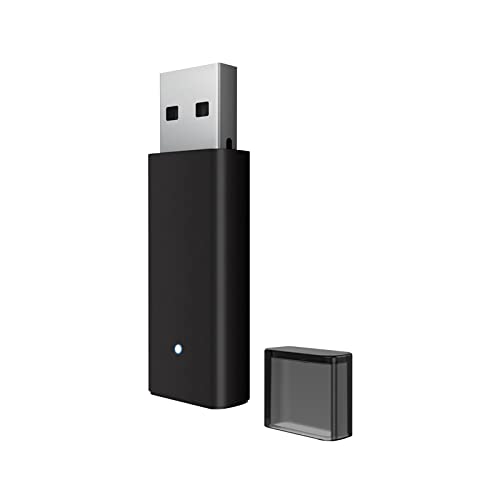
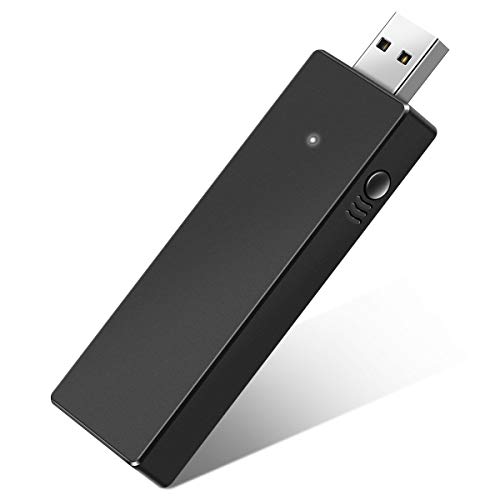 Cipon Wireless Adapter Compatible with Xbox One
- Manufactured by CIPON: This Wireless Adapter manufactured by…
- Widely Compatibility: For use with X One Wireless…
- Play with Others: Supports up to 8 wireless…
As an Amazon Associate we earn from qualifying purchases at no extra cost to you.
What You Need
Before beginning the pairing process, gather the necessary hardware. Having the right tools on hand prevents unnecessary troubleshooting delays and keeps your desk organized.
| Item | Why You Need It | Optional? |
|---|---|---|
| Xbox Wireless Controller | The primary input device for your gaming or productivity setup. Standard models weigh approximately 9.9 ounces. | No |
| Wireless USB Adapter | Translates the proprietary 2.4GHz wireless signal from the controller to your PC. Options include the official Xbox Wireless Adapter for PC ($17.99) or third-party alternatives like the Cipon Wireless Adapter ($17.99). | No |
| 2x AA Batteries or Rechargeable Pack | Powers the controller. Standard 1.5V alkaline batteries or a dedicated 2.4V rechargeable battery pack are standard. | No |
| USB Extension Cable | A 3-foot to 6-foot cable that brings the adapter closer to your seating position, bypassing metal desk frames or PC cases that block signals. | Yes |
Step-by-Step Connection Guide
Follow these structured steps to establish a stable, low-latency connection between your controller and your computer.
Step 1: Prepare Your PC and USB Ports (Time Estimate: 2 minutes)
In the modern design landscapes of 2026, where minimalism dictates clean desks, your computer tower is likely tucked away under a desk or inside a ventilated cabinet. Before plugging in any hardware, ensure your operating system is fully updated. Windows 10 and Windows 11 carry native drivers specifically designed for these adapters. Go to your system settings, select Update & Security, and run a check to ensure no crucial USB hub drivers are pending installation.
Step 2: Insert the Wireless Adapter (Time Estimate: 1 minute)
Insert your chosen adapter, such as the Cipon Wireless Adapter or the official Xbox dongle, into an active USB 2.0 or USB 3.0 port. If your computer tower is constructed of heavy steel or aluminum, or if it sits on the floor, do not plug the adapter directly into the back of the case. Metal chassis act as shields that degrade the high-frequency 2.4GHz radio waves. Instead, plug the adapter into a front-facing port or use a short USB extension cable to position the dongle on top of your desk, clear of physical obstructions.
Step 3: Power On the Controller (Time Estimate: 1 minute)
Open the battery compartment on the back of your 9.9-ounce controller. Insert two fresh AA batteries, paying close attention to the positive (+) and negative (-) orientation markers molded into the plastic. Press and hold the centralized Xbox button on the face of the controller for two seconds. The button will begin to pulse slowly with a white light, indicating that the device is powered on but searching for a paired receiver.
Step 4: Initiate the Sync Sequence (Time Estimate: 2 minutes)
Locate the physical bind button on your wireless adapter. On standard models, this is a small button located on the tip or side of the 2.0-inch-long housing. Press and hold this button until the tiny LED light on the adapter begins to flash rapidly. Immediately move to your controller and press and hold the small, circular bind button located on the top edge (between the left and right bumpers). Hold this button for 2 to 3 seconds until the main Xbox logo button flashes in a rapid, synchronized pattern matching the adapter’s LED.
Step 5: Confirm Calibration and Connection (Time Estimate: 1 minute)
Observe the lights on both devices. Within five seconds, the rapid flashing on both the adapter and the controller will stop, transitioning to a solid, continuous glow. This steady illumination confirms that the 2.4GHz handshaking protocol is complete. To verify the connection within your operating system, open your control panel, navigate to “Devices and Printers,” and confirm that the controller is listed as active. You are now ready to play without the clutter of dangling cables.
Mistakes to Avoid
Even seasoned computer users make small errors that degrade wireless performance. Avoid these common pitfalls to keep your setup running smoothly:
- Plugging into an Overloaded USB Hub: A standard USB port provides roughly 2.5 to 4.5 watts of power. If you plug your wireless adapter into an unpowered USB strip alongside external hard drives and RGB keyboards, the adapter may drop connections due to power starvation. Always use a direct motherboard port or a powered USB hub.
- Ignoring Line-of-Sight Blockages: Placing your adapter directly behind a massive metal monitor stand or inside a wooden drawer will cut your operational range in half and introduce micro-stutters. Keep the path between your controller and the adapter as clear as possible.
- Holding the Sync Buttons Too Long: Pressing the sync buttons for more than 10 seconds can trigger a hardware reset or put the device into a diagnostic loop. A brief 2-to-3-second press is all that is required to trigger the pairing mode.
- Mixing Battery Types: Never combine a half-dead battery with a brand-new one, or an alkaline battery with a nickel-metal hydride (NiMH) rechargeable cell. This causes uneven voltage discharge, which can lead to sudden controller shutdowns or battery leakage that ruins the internal contacts.
How Often Should You Maintenance Your Setup?
A wireless setup requires minimal active maintenance, but setting a schedule prevents unexpected failures. You will not need to re-pair your controller each time you turn on your PC; the adapter and controller remember their unique hardware addresses indefinitely. You only need to repeat the syncing steps if you pair your controller to a different console or a mobile device.
For power management, expect to change standard alkaline AA batteries every 20 to 30 hours of active use. If your controller features haptic feedback and vibration motors turned to maximum intensity, battery life may drop toward the 15-hour mark. Additionally, inspect the USB ports and the adapter’s gold-plated connector every six months. Use a can of compressed air to blow out any household dust or pet dander that has collected inside the port, as debris can insulate the pins and break the electrical connection.
When to Call a Pro or Replace Your Hardware
Most connection issues can be resolved with basic troubleshooting, but physical hardware failures require replacement. If you notice that the metal USB connector on your adapter is bent, or if the plastic casing has split open, do not attempt to plug it into your computer. A damaged adapter can short-circuit your motherboard’s USB controller, leading to costly system-wide repairs.
If your computer consistently displays “Device Descriptor Request Failed” (Error Code 43) in the Windows Device Manager even after trying different USB ports, the internal chip inside the adapter has likely reached the end of its operational life. Fortunately, because replacement adapters like the Cipon or official alternatives are inexpensive—ranging from $15.00 to $20.00—replacing the dongle is far more economical and time-efficient than attempting to solder micro-components yourself.
FAQ
Why does my controller disconnect when I lean back in my chair?
This is usually caused by physical interference. Your body is composed mostly of water, which is highly effective at absorbing 2.4GHz wireless signals. If your adapter is plugged directly into the back of a PC tower on the floor, leaning back puts your torso and your desk between the controller and the receiver, cutting off the signal. Using a USB extension cable to raise the adapter to desk level will solve this issue.
Can I connect multiple controllers to a single PC adapter?
Yes. A single official or high-quality third-party wireless adapter can support up to eight controllers simultaneously. This allows for local multiplayer setups without requiring individual dongles for each player. Note that if you also connect wireless chat headsets, the maximum number of supported controllers may drop to four.
Is the wireless adapter better than using standard Bluetooth?
Yes, significantly. Standard Bluetooth connections are prone to latency spikes and bandwidth limitations, especially if you have other Bluetooth devices active nearby. The dedicated wireless adapter uses a proprietary protocol that offers lower latency, supports high-quality stereo audio through the controller’s headphone jack, and provides a much more stable connection over long distances.
What should I do if the adapter’s light won’t turn on at all?
First, try plugging the adapter into a different USB port, preferably on a completely different side of the computer. If the light still does not illuminate, check your PC’s Device Manager to see if the USB controller is disabled or in a power-saving sleep mode. If the adapter remains dark on multiple computers, the device’s internal fuse has likely failed, and the unit must be replaced.