Key takeaways
- Set Render Distance to Medium or High instead of Ultra. Longer view distances increase the amount of world and enemy information that must be prepared.
- Reduce Object Detail to Medium or High. This is often more useful for CPU spikes than lowering texture quality.
- Lower Vegetation and Terrain Detail one step if dense environments produce repeated spikes.
- Reduce Reflection Quality, Volumetric Fog, and Particle Quality if combat effects coincide with the hitch.
- Use a sensible frame-rate cap. A cap at 60 FPS requires no frame to exceed roughly 16.7 ms; a cap at 50 FPS allows 20 ms, giving the CPU more scheduling headroom.
- Close browser tabs, recording tools, RGB utilities, and other background applications that periodically consume CPU time.
To fix stuttering in Helldivers 2, rebuild or refresh shader caches first, then identify whether the hitch is caused by CPU frame time, GPU load, or network/server behavior before changing settings at random.
Our top picks
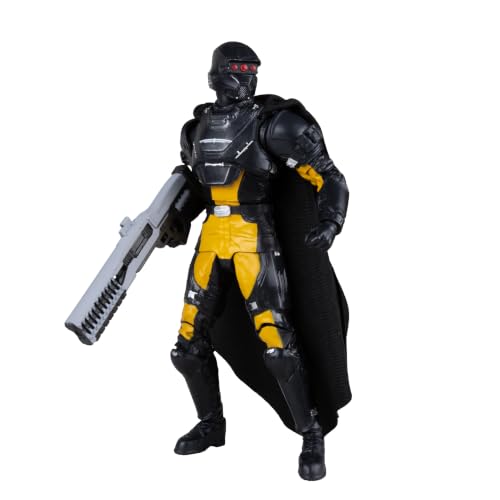

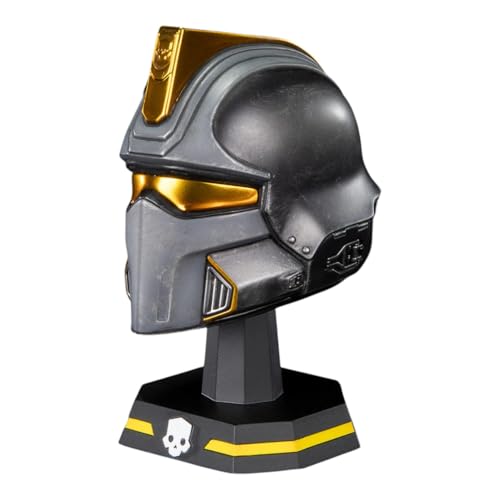

As an Amazon Associate we earn from qualifying purchases at no extra cost to you. Ratings are shown as listed on Amazon.
1. Confirm what kind of stutter you have
Use a frame-time graph rather than judging only by the FPS counter. FPS can look acceptable while individual frames arrive unevenly. At 60 FPS, each frame has 16.7 ms; at 30 FPS, it has 33.3 ms. A spike from 16 ms to 100 ms is a visible hitch even if the average FPS remains high.
Steam’s performance overlay, Radeon Software, NVIDIA App, MSI Afterburner with RivaTuner Statistics Server, or CapFrameX can display FPS and frame time. Run the same short test each time: drop into a mission, look across a busy area, fire a weapon, call down a stratagem, and fight a large group of enemies.
| What you see | Likely cause | First fix to try |
|---|---|---|
| Large spikes during the first mission or after a driver update | Shader compilation or cache rebuilding | Allow shaders to compile, then restart the game |
| GPU usage stays below about 90%, while one or more CPU threads are busy | CPU or game-thread bottleneck | Lower CPU-heavy settings and close background processes |
| GPU usage is near 95–99%, with consistently high frame time | GPU limit | Lower render scale, resolution, shadows, and volumetric effects |
| Frame rate is smooth but characters rubber-band or actions arrive late | Packet loss, latency, or server simulation | Test the connection; do not treat it as a graphics problem |
2. Let shader compilation finish properly
Shader-related stutter often appears after installing a new graphics driver, updating Helldivers 2, changing graphics APIs, or deleting the shader cache. Explosions, smoke, new environments, and enemy effects can trigger the worst spikes because the game is preparing effects while you play.
- Update Helldivers 2 and your graphics driver, but avoid changing several driver versions during troubleshooting.
- Start the game and wait at the main menu for a few minutes. If the game visibly pauses while preparing shaders, let that process complete.
- Play one low-risk mission or visit the same area repeatedly so commonly used effects can be cached.
- Restart the game after the initial cache-building session and check whether the same frame-time spikes return.
Do not repeatedly delete shader caches as a routine “fix.” Clearing them can remove corrupted data, but it also guarantees another compilation period. If the stutter began immediately after a driver update, use the graphics driver’s option to reset or clean its shader cache only once, then allow the cache to rebuild.
On Steam, verify the game files if updates were interrupted or files may be damaged. Verification is useful for corrupted assets; it will not make a CPU-limited system faster.
3. Separate a CPU bottleneck from a GPU bottleneck
Helldivers 2 can become CPU-limited during large enemy encounters, especially on processors with fewer cores or lower sustained clocks. Lowering resolution will not solve this type of hitch. It may even make the CPU limit more obvious because the GPU has less work to do.
Watch per-core CPU usage, total CPU usage, GPU usage, and frame time during a large fight. Overall CPU usage can be misleading: a game thread may be saturated while total usage appears to be only 50 percent.
If the CPU is the limit
- Set Render Distance to Medium or High instead of Ultra. Longer view distances increase the amount of world and enemy information that must be prepared.
- Reduce Object Detail to Medium or High. This is often more useful for CPU spikes than lowering texture quality.
- Lower Vegetation and Terrain Detail one step if dense environments produce repeated spikes.
- Reduce Reflection Quality, Volumetric Fog, and Particle Quality if combat effects coincide with the hitch.
- Use a sensible frame-rate cap. A cap at 60 FPS requires no frame to exceed roughly 16.7 ms; a cap at 50 FPS allows 20 ms, giving the CPU more scheduling headroom.
- Close browser tabs, recording tools, RGB utilities, and other background applications that periodically consume CPU time.
Use Windows Game Mode and a current chipset driver. Avoid disabling security features or forcing unusual process priorities as a first step; these changes can introduce instability without fixing the game thread.
If the GPU is the limit
Lower the game’s render scale before reducing texture quality. Textures mainly affect VRAM capacity, while render scale directly changes the number of pixels the GPU must shade.
For example, 2560×1440 contains about 3.69 million pixels, while 1920×1080 contains about 2.07 million. That is approximately 1.78 times as many pixels at 1440p. Moving from 1440p to 1080p can therefore remove substantially more GPU work than lowering a texture setting, although the exact improvement varies by scene and graphics card.
Try these changes in order:
- Change Render Scale from Ultra Quality to Quality.
- If frame time is still too high, try Balanced.
- Lower shadows, volumetric effects, reflections, ambient occlusion, and screen-space global illumination.
- Keep Texture Quality high if your graphics card has enough VRAM and you are not seeing texture pop-in or memory-related hitching.
4. Choose upscaling and a frame-rate target deliberately
Helldivers 2’s render-scale options are a practical way to trade image detail for frame time. Ultra Quality is closest to native rendering; Quality is a moderate reduction; Balanced and Performance use progressively lower internal resolutions. The best choice depends on your display and GPU rather than on the label alone.
| System situation | Starting render scale | Target and reasoning |
|---|---|---|
| Modern high-end GPU at 1080p | Ultra Quality or Quality | Preserve image clarity; investigate CPU limits if GPU usage is low |
| Mid-range GPU at 1440p | Quality or Balanced | Reduce pixel cost while retaining more detail than Performance |
| Older or entry-level GPU | Balanced or Performance | Prioritize stable frame time over native-resolution sharpness |
| CPU-limited system | Keep the current scale initially | Lower CPU-heavy settings; upscaling alone will not fix the main bottleneck |
Use a stable cap instead of chasing a fluctuating maximum. If your system varies between 45 and 75 FPS in combat, a 50 or 60 FPS cap may feel better than an uncapped average that produces frequent frame-time spikes. Set the cap in one place only—preferably the game or driver—not several overlapping tools.
5. Check memory, thermals, and power behavior
Monitor GPU memory, system RAM, CPU temperature, GPU temperature, and clock speed. If VRAM is full, lower texture quality and resolution-related settings. If system RAM is nearly exhausted, close applications and check for a background program leaking memory.
Thermal throttling can look like random stuttering: clocks fall, frame time rises, then performance returns after temperatures drop. A laptop should be connected to its AC adapter and set to a performance power mode. On a desktop, confirm that the graphics card is receiving its required power connectors and that the CPU cooler is working correctly.
Do not undervolt or overclock while diagnosing the game. Return the CPU, GPU, and RAM to stable default settings first. Memory overclocks that pass a short benchmark can still cause intermittent game crashes or asset-loading hitches.
6. Distinguish network hitching from rendering stutter
Network problems usually affect synchronization rather than local frame time. You may see enemies freeze and then move suddenly, delayed pickups, late damage registration, or a teammate teleporting. A graphics hitch usually affects the entire screen and appears as a frame-time spike even when the connection is stable.
- Use a wired connection where practical, or test close to the Wi-Fi access point.
- Stop large downloads, cloud synchronization, and video uploads during a mission.
- Restart the router if latency or packet loss affects multiple devices.
- Test another mission or region at a different time. If local frame-time graphs stay flat while synchronization problems persist, the issue may be server-side.
A congested server cannot be repaired by lowering shadows or enabling upscaling. Conversely, a local 100 ms frame-time spike will not be solved by changing DNS settings.
7. Apply changes in a controlled order
For the clearest result, change one group of settings at a time: shader preparation, CPU settings, GPU render scale, then background and thermal checks. Repeat the same combat scenario and compare the worst frame-time spikes, not only the average FPS.
If shader spikes disappear after the first few sessions, the cache was the main issue. If frame time improves when Render Distance and Object Detail are lowered, the CPU was limiting performance. If GPU usage remains near full and Balanced render scale reduces frame time, the GPU was the limiting component. If frame-time graphs are smooth but synchronization remains erratic, investigate the network or server instead.
Frequently asked questions
Will lowering resolution fix every Helldivers 2 stutter?
No. It helps when the GPU is saturated, but it does little for CPU-heavy battles, shader compilation, or network synchronization.
Should I delete the shader cache every time the game stutters?
No. Delete or reset it only when the cache is suspected to be corrupted or a driver update caused unusual behavior. Rebuilding the cache can temporarily make stutter worse.
Is a locked 60 FPS better than an uncapped 80 FPS?
If the uncapped mode repeatedly falls during combat, a stable 60 FPS can feel smoother. Compare frame-time consistency in the same mission rather than choosing by the highest number shown in a quiet area.