Key takeaways
- Picture a dorm desk or a shared bedroom corner: a monitor, a tower on the floor, a tangle of power and video cables.
Picture a dorm desk or a shared bedroom corner: a monitor, a tower on the floor, a tangle of power and video cables, a webcam clipped to the screen and a speaker somewhere. Now picture the same desk with one screen, one power cable and nothing underneath. That tidy picture is the whole pitch of an all-in-one desktop, and it is why the format keeps winning over students who want a proper keyboard-and-mouse workstation for essays, spreadsheets, lectures and video calls without turning a small room into a cable nest.
The trade-off is that an all-in-one is built around the screen. Processor, memory and storage are packed behind the display, so what you buy at checkout is largely what you keep for four years. This guide reads seven student-friendly listings closely, judging only what the titles state: screen size, processor, RAM, SSD capacity and wireless standard. It highlights the choices that make a difference by 2026, such as 16GB of memory versus 8GB, and tells you where a listing leaves out something you will want to check.
Quick Picks
Our top picks


As an Amazon Associate we earn from qualifying purchases at no extra cost to you.
| Product | Best for | Key spec from the title |
|---|---|---|
| MECHAZER 19-inch AIO | Tiny desks and basic coursework | Core i5, 8GB RAM, 256GB SSD, 1080p TN screen |
| Qehi 24-inch AIO | Video-call heavy schedules | Core i5, 16GB RAM, 256GB SSD, HD webcam |
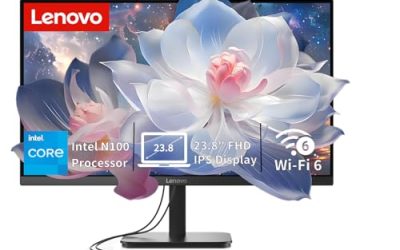
| Lenovo IdeaCentre 24-inch (8GB) | Everyday study on a quality panel | Intel 4-core, 8GB RAM, 512GB SSD, FHD IPS |
| Lenovo IdeaCentre 24-inch (16GB) | Multitasking and longevity | Intel 8-core i3, 16GB RAM, 512GB PCIe SSD |
| Generic 24-inch Core i5 AIO | Budget multitasking | Core i5 up to 3.3 GHz, 16GB RAM, 256GB SSD |
| Suevery 22-inch AIO | Bundled keyboard and mouse | Core i5 up to 3.5G, 16G RAM, 256G SSD |
| Dell 27-inch AIO | Big screen and newer platform | Intel Core 5 120U, 16GB DDR5, 512GB SSD, WiFi 6E |
The 7 Best Options
MECHAZER 19-inch All-in-One
The MECHAZER is the smallest machine here and the one for a desk that simply cannot take more. The title lists a 19-inch screen with 1080p resolution on a TN panel, a Core i5 processor, 8GB of RAM, a 256GB SSD, WiFi 6, Bluetooth 5.3, and a bundled mouse and keyboard. That is a complete setup in one box for writing, research and streaming lectures.
The TN panel is the detail worth thinking about. TN screens tend to have narrower viewing angles and weaker color than IPS, which matters if you share the screen with a roommate or edit photos. For plain text and web pages, it does the job, and the compact footprint is its real selling point.
- Compact 19-inch size fits almost any desk or shelf.
- Keyboard and mouse are listed as included, so there is nothing else to buy.
- Bluetooth 5.3 and WiFi 6 are the newest wireless standards in this guide besides the Dell.
- 8GB of RAM and a 256GB SSD leave little room for growth.
- TN panel means weaker viewing angles and color than IPS screens.
Skip it if your coursework involves design, photo or video work, or if you want a screen you can share comfortably. Compared with the Qehi, it trades screen size and memory for the smallest possible footprint, which is a fair swap only if space is your first problem.
A sensible way to use this machine is as a dedicated study station in a room that already holds a bed, a wardrobe and a shelf. Pair it with a pair of headphones and a cloud drive, and the small screen and modest memory stop feeling like limits, because the work you do on it is mostly text and web pages anyway.
Qehi 24-inch All-in-One
The Qehi is aimed at students whose days are full of video calls. The title lists a 24-inch class screen, shown as 23.8 inches, with FHD 1080p resolution, a Core i5, 16GB of RAM, a 256GB SSD, an HD webcam described as giving clear calls, and WiFi 6. It is pitched for home and office use, which also covers study.
Having a webcam built into the display removes one more peripheral and one more cable. The 16GB of memory is a strong point at this tier, since many entry-level all-in-ones ship with 8GB. The 256GB drive is the compromise, because large software suites and downloads will fill it faster than you expect.
- 16GB of RAM gives comfortable multitasking for browsers, documents and calls.
- Built-in HD webcam is listed, useful for online classes and interviews.
- Full HD 24-inch display is a pleasant size for split windows.
- 256GB of storage will require cloud storage or an external drive.
- The title does not state the panel type, so check whether it is IPS.
Skip it if you need lots of local storage for projects or media. Next to the Lenovo IdeaCentre with 8GB, it has twice the memory but half the storage, so decide which resource you will run out of first.
Students in remote programs or those who tutor online will appreciate that the camera is part of the display. It sits at a fixed, eye-level position, which usually looks better than a webcam balanced on a laptop lid, and it keeps your desk free of clips and cables for the rest of the day.
Lenovo IdeaCentre 24-inch All-in-One with 8GB RAM
This Lenovo is the practical default for a student who wants a name-brand machine and a good screen. The title lists a 24-inch FHD anti-glare IPS display, an Intel 4-core processor, 8GB of RAM, a 512GB SSD, WiFi 6, Bluetooth 5.2 and Windows 11.
The anti-glare IPS panel is the standout. IPS screens hold color and brightness from wider angles, and a matte finish cuts reflections from dorm windows and desk lamps. The 512GB drive is double that of several rivals. The limit is memory: 8GB works for light multitasking but will feel tight with many browser tabs plus a video call.
- Anti-glare IPS 24-inch panel is comfortable for long study sessions.
- 512GB SSD offers more room for files than the 256GB models.
- Well-known brand with Windows 11, WiFi 6 and Bluetooth 5.2 listed.
- 8GB of RAM can feel limiting for heavy multitasking.
- The listed 4-core processor suits light work more than demanding software.
Skip it if you routinely keep dozens of tabs open or run design software. Compared with the 16GB IdeaCentre that follows, it is the cheaper way into the same screen and brand, though the 16GB model is the one to buy if memory matters.
It also suits a household where the machine is shared. A matte screen and a familiar brand make it an easy computer to hand to a sibling or parent once your degree is done, and Windows 11 means it will keep receiving updates for a long time.
Lenovo IdeaCentre 24-inch All-in-One with 16GB RAM
For a student who wants the same brand with more headroom, this is the step up. The title lists a 24-inch FHD display, 16GB of RAM, a 512GB PCIe SSD, an Intel 8-core Core i3 processor with speeds up to 3.8 GHz, WiFi 6, and positions it as a business all-in-one. The year in the original listing is left out here.
Eight cores are a notable feature, because they help when many background tasks run together. The combination of 16GB and 512GB is the most balanced storage-and-memory pair in this guide, and it makes the machine a candidate for a full four-year degree.
- 16GB of RAM and a 512GB PCIe SSD form the most balanced pairing here.
- Eight-core processor helps with multitasking and background updates.
- Business-oriented positioning suggests a sturdy, office-style build.
- Core i3 branding may disappoint buyers who expect an i5 or i7.
- The title does not mention a webcam or panel type, so check both.
Skip it if you want the biggest screen or a built-in webcam confirmed in the title. Next to the generic 24-inch i5 model, it offers more storage and a recognized brand for a similar tier.
Think of this model as the one that ages best on paper. Extra memory and a larger drive postpone the day when the machine feels slow, and that matters most in the final year, when thesis files, reference libraries and many open documents all arrive together.
Generic 24-inch Core i5 All-in-One
This unbranded listing appeals to budget buyers who want a Core i5 and 16GB of RAM in a 24-inch body. The title lists a Core i5 up to 3.3 GHz, 16GB of RAM, a 256GB SSD, integrated graphics, and an external WiFi 6 and Bluetooth adapter that is included.
The external adapter is the detail to note. It means wireless is not built into the machine, so a small dongle sits in a USB port, and you will want to keep a free port for it. Integrated graphics are fine for study, browsing and video but not for gaming or editing.
- Core i5 and 16GB of RAM at a likely budget tier.
- 24-inch screen offers plenty of room for split windows.
- Space-saving all-in-one design noted in the title.
- Wireless depends on an external adapter, not an internal card.
- 256GB of storage and an unknown brand make support less certain.
Skip it if you want a brand with a clear warranty path. Compared with the Suevery, it provides a bigger screen but a less polished accessory story.
If you buy it, set aside a few minutes to check the dongle placement. A rear USB port tucked out of sight keeps the adapter from getting knocked, and a short extension cable can put it closer to the router side of the room for a steadier signal.
Suevery 22-inch All-in-One
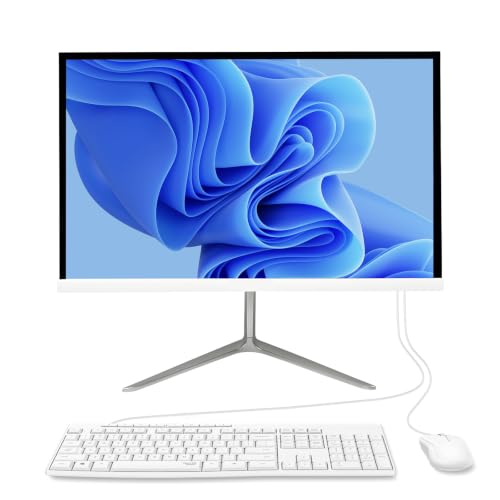
The Suevery targets students who want a complete kit in white. The title lists a 22-inch class display, shown as 21.5 inches, a keyboard and mouse included, 16GB of RAM, an Intel Core i5 up to 3.5 GHz and a 256GB SSD, positioned for business and home use.
The white finish and the bundle of keyboard and mouse give it a neat, ready-to-use appeal. At 21.5 inches the screen is a comfortable middle size between the 19-inch MECHAZER and the 24-inch models, and the 16GB of memory suits multitasking.
- Keyboard and mouse included in the bundle.
- 16GB of RAM and a Core i5 for everyday multitasking.
- Mid-size 21.5-inch screen suits small desks.
- 256GB of storage is modest for a four-year machine.
- Less established brand, so confirm warranty terms.
Skip it if you want a larger screen or a major-brand warranty. Against the Dell 27-inch, it is the smaller and simpler choice, with fewer premium features.
A student with a small desk and a preference for a clean look will like it. Because it ships with a keyboard and mouse, the first evening is plug in, sign in and begin working, which matters when assignments are already waiting on move-in day.
Dell 27-inch All-in-One
The Dell is the premium pick for a student who values a large screen and a newer platform. The title lists a 27-inch FHD display, an Intel Core 5 120U processor, Windows 11 Home, Intel graphics, a 512GB SSD, 16GB of DDR5 memory, WiFi 6E, Bluetooth, and a keyboard and mouse.
DDR5 memory and WiFi 6E signal a newer design than the others. A 27-inch screen also makes the desk feel like a proper workstation, handy for side-by-side documents. The title lists FHD resolution on a larger panel, so text will look slightly less sharp than on a smaller screen of the same resolution.
- Large 27-inch screen is the biggest in this guide.
- DDR5 memory and WiFi 6E suggest a more current platform.
- Keyboard and mouse listed, with 16GB of RAM and a 512GB SSD.
- Sits in a higher cost tier than the other picks.
- A 27-inch body needs more desk space and is heavier to move.
Skip it if your desk is small or you move between housing often. As the final pick, it is the machine to choose when you want to stay at one desk for years.
Students who plan to share a family workspace after graduation will also find it easy to repurpose. A large screen works for spreadsheets, video calls and streaming, and the newer platform listed in the title gives it a longer useful life than the older processors elsewhere in this guide.
Why an All-in-One Suits Student Life
Small spaces and clean desks
One screen, one power cable and no tower makes a dorm desk easier to organize. There is no separate monitor to match to a computer, and moving rooms involves lifting a single box. If your housing changes every year, that simplicity counts for a lot. The cable count also affects dust and cleaning, since fewer cables behind a desk means fewer places for dust to collect and less to untangle when you rearrange the room.
The study tasks it handles well
Writing, research, spreadsheets, presentations, streaming lectures and video calls are comfortably within reach of the processors and memory listed here. Choose 16GB when you can, because browsers and conferencing apps consume more memory than most students expect. A typical afternoon might involve a lecture stream, a shared document, a reference PDF and a chat window, and that mix is exactly where 8GB begins to hesitate and 16GB keeps up. Students who also run a note-taking app with synced files and a music player in the background will see the difference even sooner.
Where it falls short
All-in-ones are rarely upgradeable beyond memory or storage, and some do not allow even that. The screen and computer age together, so if the display fails the whole machine is affected. Gaming and heavy video work are out of reach with integrated graphics.
Think of an all-in-one as an appliance for study. It is excellent at being on your desk and ready, and less suited to experimenting with parts. If your major leans toward engineering, animation or game development, ask your department about software requirements before choosing, because some programs list graphics hardware that no machine here provides.
How to Choose
Screen size and panel type
For two windows side by side, a 24-inch screen at 1920 by 1080 is a comfortable floor. Smaller 19 to 22 inch screens suit tight desks but feel cramped for multitasking. Prefer IPS panels over TN for color and viewing angle, and choose an anti-glare finish if your desk faces a window. Check the brightness and the stand: a screen that tilts and sits at a comfortable height saves your neck during long study sessions, and some low-cost stands only tilt a few degrees.
Processor class
Core i5 class processors suit multitasking. A newer Core i3 with eight cores can feel as capable for study as an older i5, so check the generation and core count in the full specification. Avoid very old processors, because they limit Windows 11 support and speed. As a rough guide, four cores are fine for documents and browsing, six to eight cores are a better fit if you keep many programs running, and anything with fewer than four cores will feel dated within a couple of years.
Memory
Treat 8GB as the minimum and 16GB as the better choice. With browser tabs, a video call and a document open at once, 8GB can run out. If the listing allows memory upgrades, 8GB becomes more acceptable, but many all-in-ones do not. DDR5 memory, like the Dell lists, is newer and faster than DDR4, though for study tasks the amount of memory matters far more than the generation.
Storage size and type
Insist on an SSD. A 256GB drive is acceptable if you use cloud storage, while 512GB is a safer target for four years of files and software. Look for NVMe or PCIe wording, which indicates a faster drive. A fast SSD does more for day-to-day speed than a slightly faster processor, because boot time, app launch and file search all depend on it.
Wireless, ports and webcam
WiFi 6 or newer is the sensible baseline for a shared dorm network. Count the USB ports, check for HDMI input if you want to connect a laptop, and confirm a webcam and microphone if you attend online classes. An external WiFi adapter uses up a port. Also look for a headphone jack and an SD card slot if you work with cameras, and check whether the speakers are front-facing, since rear-facing speakers sound muffled against a wall.
What to ignore and where budget models cut corners
Ignore generic claims about business use or fast multitasking. Budget models usually cut corners with TN panels, small drives, weak speakers, thin warranties and unbranded support. Check what the box contains, and treat the keyboard and mouse as basic accessories you may replace.
Small, Medium or Large: Which Screen Size Fits
| Screen class | Picks in this guide | Best fit | Main catch |
|---|---|---|---|
| 19 to 22 inch | MECHAZER, Suevery | Tiny desks and shared rooms | Cramped for side-by-side windows |
| 24 inch | Qehi, both Lenovo models, generic i5 | Most students | Needs a bit more desk depth |
| 27 inch | Dell | Fixed desk workstations | Heavier and larger to move |
Why 24 inch is the sweet spot
A 24-inch Full HD screen fits two documents side by side and still sits on a normal desk. Four of the seven picks fall in this class, and it balances size, clarity and portability better than smaller or larger options.
When to go smaller or larger
Choose 19 to 22 inches if you share a very small desk or move often. Choose 27 inches if you stay at one desk and want a workstation feel. Remember that a larger screen at the same resolution looks less sharp, so sit a little farther back.
Viewing distance matters more than the number on the box. At arm’s length, a 24-inch Full HD display looks crisp, while a 27-inch screen at the same resolution rewards sitting back a few extra inches. If your desk is shallow, the larger panel may end up closer to your face than is comfortable, so measure the depth before choosing.
Setup, Compatibility and Upgrade Tips
What to check before buying
Measure the desk and the space behind the screen for ventilation. Confirm the keyboard and mouse are included, check the ports against your devices, and look at the return window in case the screen quality disappoints.
What to upgrade first
If the machine allows it, memory is the first upgrade, then storage. If not, use an external SSD for files and a cloud service for backups. A good pair of headphones fixes weak speakers cheaply. Once the basics are sorted, a webcam light or a cheap desk lamp can improve video calls more than any hardware change, so spend on lighting before you spend on upgrades.
Common compatibility traps
Some all-in-ones lack HDMI input, so they cannot act as a display for a console or laptop. Check the Windows version and license, and whether the machine ships with unwanted trial software that you will need to remove. Also confirm the power brick: some all-in-ones use an external adapter that adds one more item to hide behind the desk.
One more trap is the stand. Fixed stands that only tilt can leave the screen too low, and a few models offer no way to attach a standard mount. If your desk is awkward, look for height adjustment or a wall-mount option in the full specification, because the title usually does not mention it.
Which One Fits Your Situation
You have a tiny desk and a tight allowance
The MECHAZER 19-inch fits almost anywhere and includes a keyboard and mouse. It is the pick for a sublet, a shared room or a desk that doubles as a dining table.
Your classes happen on video calls
The Qehi 24-inch lists an HD webcam and 16GB of RAM, a good pairing for conferencing. Keep an external drive handy for lecture recordings, since the storage is on the small side.
You want one machine for the whole degree
The Lenovo IdeaCentre with 16GB of RAM and a 512GB SSD is the most balanced choice for four years. The generic 24-inch Core i5 model is the alternative if you are comfortable with an unbranded listing and want a lower entry point.
You want a big screen at a fixed desk
The Dell 27-inch offers the largest display plus DDR5 memory and WiFi 6E. It also suits a student who studies at a desk in a home office, where space is less of a constraint.
If you cannot decide between two scenarios, favor the one with more memory and storage. Screen size is easy to live with, but a full drive or a memory shortage affects every task you do, every day, for years.
Common Mistakes
- Buying 8GB of RAM when the machine cannot be upgraded.
- Ignoring the panel type and ending up with a TN screen.
- Choosing a 256GB drive without a plan for cloud or external storage.
- Forgetting to check whether a webcam is built in.
- Assuming the all-in-one can double as a monitor for a laptop.
- Skipping the warranty check on lesser-known brands.
Related guides
- Gaming Headsets For Competitive Fps Directional Audio
- Threadripper Vs Xeon Vs Core I9 For Workstations
- Compact Mini Itx Gaming Pcs For Small Desks
Frequently Asked Questions
Is an all-in-one good enough for college?
Yes for writing, research, video calls and light creative work. For gaming or heavy design, a tower or laptop with a dedicated graphics card is better.
How much RAM do I need?
Eight gigabytes is the minimum, and sixteen is a safer choice. If you rarely multitask, 8GB can be enough.
Can I use an all-in-one as a second monitor?
Only if it has an HDMI input, which many do not. Check the specifications before counting on it.
Is a TN screen a problem?
It is acceptable for text and browsing but weaker for color work and viewing from the side. An IPS panel is a better long-term pick.
Do these include a keyboard and mouse?
Several listings say so, including the MECHAZER, Suevery and Dell. Check each listing to be sure, and treat the bundled accessories as basic, since many students replace them with a more comfortable keyboard within a semester.
Will it last four years?
With 16GB of RAM, an SSD and a recent processor, it should. Keep the software updated and back up your files regularly. Most failures that students report come from full drives and neglected updates, not from the hardware itself.
Final Words
For most students, a 24-inch all-in-one with 16GB of RAM and a 512GB SSD is the right target, and the Lenovo IdeaCentre 16GB model comes closest on paper. Pick the MECHAZER if space is tight, the Qehi if video calls dominate your week, or the Dell if you stay at one desk and want a bigger screen. Read the full specification for panel type, ports and warranty before you buy. Choose memory and storage first, screen size second and brand third, and the result should carry you through to graduation and a bit beyond without a replacement.