Key takeaways
- Searching for the best dual band routers for under 200? This guide compares Wi-Fi 6 and Wi-Fi 5 models, coverage, ports and setup tips to help you pick well.
As an Amazon Associate we earn from qualifying purchases.
A dual-band router is the single piece of kit that decides whether your games stay smooth, your streams stay sharp and your video calls stay stable, so choosing one on a tight budget is a decision worth getting right. The real question is not which box looks fastest on the shelf, but which combination of coverage, device capacity and wired ports fits the way your household actually uses the internet every evening. Spend on the wrong strengths and you pay for speed your connection cannot use, while the far bedroom stays a dead zone.
This guide is written for PC gamers, streamers, remote workers and families who share one connection and want a dependable dual-band router without overspending. Rather than ranking boxes that could not be verified in stock, it explains the standards, features and trade-offs that separate a good budget router from a disappointing one, using the same specifications buyers see listed on Amazon product pages.
What Dual-Band Means for Your Home
A dual-band router broadcasts two separate wireless networks at once: one on the 2.4GHz band and one on the 5GHz band. The 2.4GHz band travels further and passes through walls and floors more easily, which makes it the right choice for devices in distant rooms, smart home gadgets and anything that needs a steady connection more than raw speed. The 5GHz band is faster and less crowded, but its signal fades sooner with distance and obstacles, so it suits devices in the same room as the router, such as a gaming PC, a console or a television streaming in high definition.
Most modern dual-band routers offer band steering, a feature that presents a single network name and moves each device to the band that suits it best at the time. That sounds convenient, and it usually is, but it can also move a gaming device to the slower band at the worst moment. A router that lets you split the bands into two network names gives you control: put latency-sensitive devices on 5GHz near the router, and leave distant or low-demand devices on 2.4GHz. Before buying, check whether the router allows separate network names, because that one setting often matters more than any headline speed figure.
The speed labels printed on the box combine both bands into a single number, so a label such as AX1800 or AX3000 adds the top speed of the 2.4GHz band to the top speed of the 5GHz band. No single device ever reaches that combined figure. What matters is the speed of the band your device actually uses, the number of spatial streams the router supports, and whether your internet plan is fast enough for any of it to matter. A household with a modest connection gains nothing from a router whose headline number is far above the plan it serves.
How to Choose
Match the Router to Your Internet Plan and Home Size
Start with the speed of your internet plan, because a router cannot deliver more than the connection feeding it. If your plan is modest, a mid-range dual-band router will cover it comfortably, so spend on coverage and device capacity instead of a headline speed figure you will never reach. Next, consider your home’s size and shape. A single router suits a small flat or one floor, while a larger home with thick walls or several floors may need stronger antennas or a mesh-ready model for later expansion. Count every room where you need a solid signal, and remember that a router hidden in a corner cupboard will struggle to reach the far end of the house.
Look for Wi-Fi 6 When You Have Many Devices
Wi-Fi 6, also known as 802.11ax, is the newer wireless standard, and its main advantage in a busy home is efficiency rather than top speed. It handles many connected devices at once better than the older Wi-Fi 5 standard, known as 802.11ac, thanks to features such as OFDMA and MU-MIMO, which let the router serve several devices in the same transmission window instead of one at a time. When phones, laptops, consoles, televisions and smart gadgets all run at once, Wi-Fi 6 keeps the queue moving and reduces the lag spikes that ruin a match. Wi-Fi 5 routers work well for smaller households and cost less, but Wi-Fi 6 is the safer choice if your device count will grow.
Check Ports, Antennas and Coverage Features
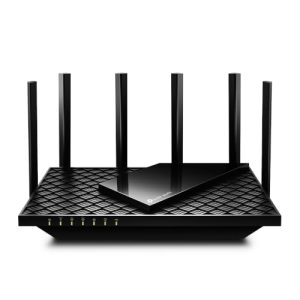
The ports on the back of a router matter as much as its wireless figures. A gaming PC and a console both deserve a wired connection, so look for three or four gigabit LAN ports beside the WAN port that connects to your modem. Gigabit ports carry the full speed of most home plans, while older fast Ethernet ports would cap a wired device below what the plan offers. External antennas give a stronger, more adjustable signal than internal ones, and four antennas usually cover a home more evenly than two. Also check for beamforming, which focuses the signal toward connected devices, and for a USB port for sharing a drive or printer across the network.
Weigh Software Features: QoS, Security and Parental Controls
A budget router earns its keep through software as much as through hardware. Quality of Service, usually shortened to QoS, lets you prioritise gaming or video-call traffic over downloads and background updates, which most directly protects a match from lag when someone else starts a large download. Security matters too: look for WPA3 encryption, automatic firmware updates and a guest network that keeps visitors away from your shared files and smart devices. Parental controls, scheduled access and per-device pause controls are useful in a family home, and a clear companion app makes them manageable from a phone. Read the product page for exactly which features are included, because two routers with similar wireless figures can differ widely in software.
Wi-Fi 6 or Wi-Fi 5: Which Makes Sense Here
The choice between Wi-Fi 6 and Wi-Fi 5 comes down to how many devices share your network and how long you plan to keep the router. Wi-Fi 5 routers use the 802.11ac standard and still deliver fast 5GHz speeds for a single device, which is why they remain a reasonable pick for a one- or two-person household with a handful of gadgets. Their prices are often lower, and for streaming and browsing they feel identical to a Wi-Fi 6 model in everyday use. Where Wi-Fi 5 shows its age is in a crowded home: when ten or twenty devices compete for airtime, the older standard serves them in turn, and the queue grows.
Wi-Fi 6 changes that queue. Its OFDMA feature splits each channel into smaller resource units, so the router can serve several small transmissions at once instead of making each device wait for a full turn. Target wake time lets battery-powered devices sleep between check-ins, which helps phones and smart gadgets last longer between charges. None of this makes a single game download dramatically faster, and it does not raise the speed of your internet plan. What it does is keep a busy network feeling responsive at the busiest hour of the evening, when the gaming PC, the television, two phones and a video call all want attention at once. For most buyers in this budget, Wi-Fi 6 is worth choosing when the household has more than a handful of connected devices, while Wi-Fi 5 remains a sensible saving for a quiet home with a modest plan.
Which One Fits Your Situation
Competitive Gaming on a Wired Connection
If online matches are the priority, wire the gaming PC or console directly to the router and let the wireless bands serve everything else. Look for gigabit LAN ports, a QoS setting that can prioritise the gaming device, and a 5GHz band with a clean channel for nearby wireless devices. The router should sit close to the gaming setup, or at least within easy reach of an Ethernet cable, because no wireless feature beats a wired connection for stable latency.
Streaming and Video Calls Across the House
For a household that streams films in high definition and takes video calls from several rooms, coverage matters more than headline speed. Choose a router with external antennas and beamforming, place it centrally and out in the open, and put the television and the main work laptop on the 5GHz band when they are near the router. Devices in distant rooms should use 2.4GHz, where the signal holds up better through walls.
A Busy Family Home With Dozens of Devices
When phones, tablets, laptops, consoles, televisions and smart gadgets all share one network, device capacity is the deciding factor. A Wi-Fi 6 router with MU-MIMO and OFDMA keeps the queue short at peak times, and a companion app with per-device controls helps you pause a tablet or prioritise a work call. Make sure the router has enough gigabit ports for the devices that can be wired, since every wired device is one fewer competing for wireless airtime.
A Small Flat or a Rented Room
In a small space, a compact dual-band router is all you need, and paying for long-range coverage would be wasted. Focus on a reliable 5GHz signal in the main room, a couple of gigabit ports for a PC or console, and simple setup through a phone app. If you rent, pick a router that works with your existing modem and needs no drilling or cabling, and choose a model you can take with you when you move.
Before You Buy: A Short Checklist
Run through this checklist before you commit, because most router regrets come from a detail that was easy to check in advance. First, confirm the router is a standalone router and not a modem-router combination unless your setup needs one, and check that it works with your internet provider’s connection type. Second, count your wired devices and make sure the router has enough gigabit LAN ports for them, plus one spare. Third, check the wireless standard, the number of antennas and whether the bands can be split into separate network names. Fourth, look for QoS, WPA3 security, a guest network and automatic firmware updates on the product page. Fifth, read the dimensions and check where the router will sit, because a router hidden inside a closed cabinet will always underperform. Finally, confirm the return policy, so a router that does not cover your home the way you hoped can go back without a fight.
Common Mistakes
- Buying the highest headline speed figure instead of matching the router to your internet plan and the number of devices in your home.
- Hiding the router inside a closed cabinet, behind a television or in a far corner, then blaming the router for weak coverage in distant rooms.
- Connecting a gaming PC or console over wireless when a wired connection is available, and losing stable latency for no reason.
- Ignoring the 2.4GHz band entirely, even though it is the right choice for distant rooms, smart home gadgets and devices that need range more than speed.
- Forgetting to check the number of gigabit LAN ports, then discovering there is no wired port left for the console or the work laptop.
Frequently Asked Questions
Do I need Wi-Fi 6 for a dual-band router in this budget?
Wi-Fi 6 is worth having when your household runs many devices at once, because it serves several devices in the same transmission window and keeps a busy evening feeling responsive. For a small household with a handful of gadgets and a modest plan, a Wi-Fi 5 router still performs well and costs less. Choose Wi-Fi 6 if your device count is growing, and Wi-Fi 5 if your home is quiet.
Will a new router fix slow speeds in a far bedroom?
A new router can help if the old one has weak antennas or an outdated standard, but placement matters just as much as the model. Move it to a central, open spot first, and try 2.4GHz in the far room, since it passes through walls better. If the signal is still weak, a mesh-ready router or a wired access point is a better answer than a pricier single router.
Is a mesh system better than a single dual-band router?
A mesh system suits larger homes or homes with thick walls, because its satellite nodes spread the signal into rooms a single router cannot reach. A single dual-band router is simpler, cheaper and often faster in a small flat or a single-floor home, where one well-placed box covers everything. Start with a single router unless you already know parts of your home are dead zones.
Can a dual-band router handle gaming and streaming at the same time?
Yes, provided the router has enough capacity and the traffic is managed well. Wire the gaming device for the most stable latency, put the streaming television on the 5GHz band nearby, and use QoS to prioritise gaming traffic over downloads and updates. A Wi-Fi 6 router helps further in a busy household, since it serves multiple devices at once instead of making them wait in turn.
FAQ
Do I need Wi-Fi 6 for a dual-band router in this budget?
Will a new router fix slow speeds in a far bedroom?
Is a mesh system better than a single dual-band router?
Can a dual-band router handle gaming and streaming at the same time?
More from Amazon
Programs that pair well with the guide above. Offers and eligibility are set by Amazon and may change.
Free shipping on eligible items, Prime Video and more. Eligible new members can start with a free trial.
Start a Prime free trialAd-free music streaming. Eligible new subscribers can start with a free trial.
Try Music Unlimited freeA Prime membership for ages 18-24 with a trial period. Eligibility is set by Amazon.
See Prime for Young AdultsAudiobooks and podcasts to listen to on the go. Eligible new members can start with a free trial.
Try Audible freeAs an Amazon Associate we earn from qualifying purchases.