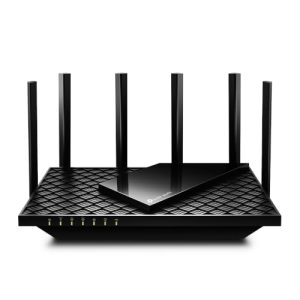
Key takeaways
- Compare the best family safe wireless routers for parental controls, content filtering, screen-time limits and per-device profiles, and pick the right fit.
As an Amazon Associate we earn from qualifying purchases.
Choosing a family-safe wireless router is a decision about how much control you want over what your children can reach online, and when they can reach it. A standard router hands every device the same open connection, while a family-safe model adds parental controls, content filtering, screen-time schedules and per-device profiles, so the network itself helps enforce the rules you set. The right choice depends less on raw speed than on how those controls work day to day, whether they are free or tied to a subscription, and whether they cover every device your children use.
This guide is written for parents setting up a first home network for children, for families replacing a router supplied by their internet provider, and for households where tablets, consoles and smart TVs all share one connection. It explains how family-safety features work, what to check before buying, and where the limits are, so you can pick a router that fits your home rather than one that only looks good on a spec sheet.
How Family-Safety Controls Work
Family-safety features sit between your internet connection and every device in the house, so the rules apply no matter which tablet, phone or console a child picks up. Most systems are managed from a phone app, where you create a profile for each child, assign their devices to it, and choose what that profile can reach and when. The details vary between brands, and some of the most useful features sit behind a subscription, so it pays to understand the three building blocks below before you compare models.
Content filtering
Content filtering blocks categories of websites and apps, such as adult content, gambling and violent games, and many systems let you set stricter filters for younger children and looser ones for teenagers. Some routers filter by category only, while others let you block or allow individual sites and set safe-search and video restrictions. Check whether filtering applies to every device on the network or only to devices in a child profile, and whether it covers apps as well as websites. A filter is only as good as its category list, so look for one that is updated regularly, and remember that no filter catches everything, which is why filtering works best alongside supervision and regular conversations about what your children see online.
Screen-time schedules and pausing
Schedules let you set the hours each child profile can be online, so homework time and bedtime are enforced by the network instead of by argument. Most family routers also offer a pause button that cuts internet access for one profile or one device with a single tap, which is handy at dinner time or when a device needs to be put away. Look for schedules that differ between school days and weekends, and for a bedtime mode that blocks new connections while letting a device finish what it is doing. Check too whether pausing blocks the whole device or only selected apps, because a child who loses video streaming but keeps messaging may still stay up late.
Per-device profiles and guest networks
Profiles group devices by person, so a shared tablet can follow the youngest child’s rules while a parent’s laptop stays unrestricted. When you add a new device, assign it to the right profile straight away, because an unassigned device often gets the default adult settings. A separate guest network is useful for visitors and for smart home gadgets, keeping them apart from the network your children use. Some routers also let you create a dedicated network for children’s devices with stricter filtering applied automatically. Keep a list of which devices belong to which profile, and review it when a child gets a new phone or console.
How to Choose
Free controls or a paid subscription
Some routers include parental controls free for the life of the product, while others include only basic controls and charge a monthly or yearly subscription for content filtering, detailed activity reports and advanced security. Before you buy, work out which features you actually need and whether they are in the free tier. A subscription that covers every child profile on one account is usually better value than one charged per device. Also check whether the subscription is optional: if you stop paying, the router should keep working as a normal router, with only the extra features switching off.
Coverage and the size of your home
A single router suits a small flat or a small house, but thick walls, multiple floors and a garden office can leave dead spots where the connection drops. Mesh systems use two or three units that talk to each other to spread one network across a larger home, and the parental controls apply across all of them. Measure the rooms your children actually use, including bedrooms and any study space, and choose a system rated to cover that area rather than the smallest option. Place the main unit near the centre of the home and keep satellite units in the open, away from thick walls and metal objects.
Speed, bands and the devices you own
Family routers need enough speed for several people streaming, gaming and video calling at once, so match the router to your internet plan rather than buying the fastest model on the shelf. Dual-band routers split traffic between two radio bands, which helps when many devices are online, while tri-band models add a third band that can ease congestion in busy households. Wi-Fi 6 handles many connected devices more efficiently than older standards, which matters in homes full of phones, tablets, consoles and smart gadgets. Check that the router has enough wired ports for a console or a desktop that benefits from a cable connection.
Setup, app quality and ongoing updates
You will manage family controls from an app, so the app matters as much as the hardware. Look for an app that makes it easy to create profiles, assign devices, set schedules and pause the internet without digging through menus. Read recent user feedback about the app before buying, since a confusing app means controls get set once and never adjusted. Automatic firmware updates are also important: they patch security holes and add features without you having to remember. Finally, check that the router works with your internet provider’s modem or connection type, and that support is available if setup goes wrong.
Which One Fits Your Situation
Young children and a first tablet
A household with young children needs simple, strict defaults: strong content filtering, a bedtime schedule and a pause button you can reach in seconds. Choose a system with profiles for each child and free filtering included, so the rules are in place from the day the first tablet arrives. Keep the setup simple enough that both parents can use the app.
Teenagers with phones, consoles and laptops
Teenagers need controls that can loosen gradually, with separate schedules for school nights and weekends and filtering that blocks adult content without blocking homework research. Pick a router with per-device profiles and activity reports, so you can see which devices are online late. Talk through the rules together, since a teenager who understands the limits is less likely to look for ways around them.
A large or multi-storey home
A larger home needs a mesh system so the controls follow your children from room to room on one network. Choose two or three units placed to cover bedrooms, study areas and living spaces, and check that filtering and schedules apply across every unit. Test the signal in the rooms that matter most before you settle the units in their final spots.
A home office sharing the family network
When parents work from home, the router has to protect work calls while still limiting the children’s access. Look for a system that lets you prioritise a work laptop or video calls while keeping child profiles on their schedules. A separate guest network for visitors and smart devices keeps the work network quieter, and a wired port for the office computer avoids the evening streaming rush.
Common Mistakes
- Buying on speed alone. A very fast router with weak parental controls still leaves children unprotected, so judge the filtering, schedules and profiles first and treat speed as a secondary check.
- Paying for features you will never open. A subscription with detailed reports and advanced security is wasted if you only need bedtimes and a pause button, so match the plan to the controls you will actually use.
- Leaving new devices unassigned. A phone or console that is never added to a child profile often gets unrestricted access by default, so assign every device the day it joins the network.
- Forgetting about mobile data. Router controls only apply on home Wi-Fi, so a child with a mobile data allowance can step outside them entirely; set the phone’s own limits and talk about data use as well.
- Setting rules once and never revisiting them. Children grow, devices change and filters need updating, so review profiles, schedules and the device list every few months and adjust as your family changes.
Frequently Asked Questions
Do parental controls work on every device?
They work on any device connected to your home Wi-Fi, including phones, tablets, consoles, smart TVs and laptops, as long as the device is assigned to a child profile. Devices that are not assigned, or that connect through mobile data instead of Wi-Fi, sit outside the controls. Check the app regularly to make sure every device in the house is listed under the right profile. Pay particular attention to new devices, because a console, smart TV or tablet added at a birthday or holiday can sit unassigned for weeks before anyone notices, and a guest device that a friend brings over will not be filtered at all unless you add it to a profile first.
Can my child get around the router’s controls?
Yes, in some cases. An older child can switch to mobile data, use a virtual private network app, or connect to a neighbour’s Wi-Fi, and none of those routes pass through your router. Router controls are a useful layer of protection, not a complete barrier, so combine them with device-level limits, an open conversation about online safety, and regular checks of what your children are doing online.
Do I need a subscription for parental controls?
It depends on the brand. Some routers include content filtering, schedules and profiles free for the life of the product, while others include only basic controls and charge a subscription for filtering and activity reports. Check exactly which features are free before you buy, and confirm what happens to the controls if you cancel the subscription later.
Will a family-safe router slow down gaming or streaming?
A modern family router should handle gaming and streaming without noticeable lag, as long as it matches your internet plan and covers your home properly. Filtering itself adds very little delay. If gaming or streaming stutters, the cause is usually weak coverage or too many devices on one band, not the parental controls, so check placement and band settings first.
FAQ
Do parental controls work on every device?
Can my child get around the router’s controls?
Do I need a subscription for parental controls?
Will a family-safe router slow down gaming or streaming?
More from Amazon
Programs that pair well with the guide above. Offers and eligibility are set by Amazon and may change.
Free shipping on eligible items, Prime Video and more. Eligible new members can start with a free trial.
Start a Prime free trialAd-free music streaming. Eligible new subscribers can start with a free trial.
Try Music Unlimited freeA Prime membership for ages 18-24 with a trial period. Eligibility is set by Amazon.
See Prime for Young AdultsAudiobooks and podcasts to listen to on the go. Eligible new members can start with a free trial.
Try Audible freeAs an Amazon Associate we earn from qualifying purchases.