Our Top Picks
A good personal webcam changes how you come across on video calls, in streams and in recorded clips. A laptop camera sits low, looks up at your chin and washes out in dim rooms. A dedicated webcam puts the lens at eye level, sharpens your face, steadies the light and picks up your voice without a separate mic in most cases. The five webcams in this guide all plug into a PC or laptop over USB, work for personal video calls and home streaming, and sit on a monitor or a small tripod. None of them is a dash camera, a security camera or a conference-room system.
This guide covers personal webcams for every platform, not one system alone. The site already has a roundup of webcams for Windows 10 computers, which is a platform-specific list. The picks below work across Windows and Mac unless a section says otherwise, so a household with more than one kind of computer can use the same shortlist. Each section names the video modes, the mics, the field of view, the mount and the cable from the listing, and flags anything the listing leaves unstated rather than borrowing a figure from another source.
What to look for
Resolution and frame rate come first. A 1080p camera at 30 frames per second covers video calls and most streams cleanly. A 4K camera adds room to crop in on your face without softening the image, and it holds up better when you record clips to watch later. A 60-frame mode smooths motion when you move a lot on camera, though calls rarely need it.
Autofocus and light correction come next. Autofocus keeps your face sharp when you lean in or sit back. Light correction evens out a bright window behind you or a dim room in the evening. A camera with both needs less fiddling before each call.
Mics matter more than most people expect. Two built-in mics with noise reduction handle quiet rooms well. A camera with no built-in mic needs a separate mic or a headset, so count that in your setup. A mic that picks up keyboard clatter will annoy everyone on the call, so a noise-reducing mic is worth having.
Field of view sets how much of your room shows. A narrow view frames a tight headshot. A wide view fits a second person beside you or a whiteboard behind you. Some cameras let you switch between two or three views, which covers both cases with one camera.
A privacy shutter is a small physical cover over the lens. It beats a software mute because you can see with your own eyes that the lens is covered. A mount that grips the monitor and a cable long enough to reach your computer round out the practical side. A USB-C cable suits newer laptops, while a USB-A cable suits older desktops and hubs.
The picks
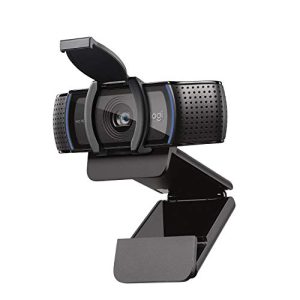
Logitech C920S HD Pro Webcam

The C920S is the long-running classic of the personal webcam world, and it still earns its place. It records Full HD 1080p video at 30 frames per second through a glass lens, with autofocus that keeps your face sharp as you move and light correction that evens out uneven rooms. Two stereo mics sit on either side of the lens, so most calls need no extra audio gear. A built-in privacy shutter slides over the lens when the call ends.
The listing names a 78-degree field of view, which frames one person at a desk without showing much of the room behind. It connects over USB-A and works with Skype, Zoom, FaceTime and Hangouts, on PC, Mac, laptop, tablet and Xbox, per the listing. The model number is 960-001257, and the camera weighs 5.8 ounces. It mounts on a monitor with a folding clip.
The limits are plain. Video tops out at 1080p and 30 frames per second, so there is no 4K mode and no 60-frame mode. The mount has no tripod thread, so a tabletop tripod is not an option unless you add a separate adapter. For everyday calls and home recording, those limits rarely matter, and the C920S remains the simplest way to look sharp on camera.
OBSBOT Tiny 2 4K PTZ Webcam

The OBSBOT Tiny 2 is the most capable camera in this guide, and the most unusual. It is a small pan-tilt-zoom camera with a 1/1.5-inch sensor, 4K video at up to 60 frames per second, a 50 MP photo sensor, an f/1.8 lens and 4x digital zoom. All-pixel autofocus locks on in 0.3 seconds per the maker, and HDR light correction handles bright windows and dim rooms.
What sets it apart is tracking. The camera follows you as you move, with four tracking modes: upper body, close-up, hand and zone. Voice control and gesture control let you zoom, mute or switch modes without touching the camera. Desktop mode tilts down to show objects on your desk, whiteboard mode frames a board behind you, and portrait and group modes cover vertical clips and wider shots. It connects over USB-C 3.0 and works on Windows 10 or later and macOS 11 or later, with 8 GB of memory and a 7th generation Intel Core i5 or later recommended by the maker. The box includes a 4 ft USB-C cable, a USB-A adapter, a metal adjustable mount and a storage case. It weighs 143.3 grams.
Two honest flags belong here. The tracking and voice features rest on the listing title and the maker description, while the spec sheet itself stays silent on them, so confirm them on the live listing before you buy. The listing also notes the camera may get warm during use and calls that normal, which will not damage any function. There is no onboard storage, so it records through your computer. For a presenter who moves around the room, no fixed webcam in this guide matches it.
Logitech MX Brio Ultra HD 4K Webcam

The MX Brio is the 4K flagship in this guide, aimed at people who spend hours a day on camera. It records 4K at 30 frames per second or 1080p at 60 frames per second, with autofocus and an 8.5 MP Sony CMOS sensor behind the lens. Dual beamforming mics focus on your voice and cut room noise, and a privacy shutter covers the lens when you are done.
Show Mode tilts the camera down to present objects on your desk, which suits teachers, makers and anyone who demos physical work on calls. The field of view switches between 65, 78 and 90 degrees, so you can frame a tight headshot or a wider shot with a whiteboard behind you. It connects over USB-C and works with the usual call apps on Windows and Mac.
One detail needs care. Logitech sells a business version, model 705, alongside the consumer model 960-001545, and the two listings look alike. Confirm the listing you open is the consumer model before you buy. The MX Brio is the pick for people who want the sharpest image in this guide and are happy to pay for the step up from 1080p.
Elgato Facecam MK.2

The Elgato Facecam MK.2 is a streaming-first webcam that also suits personal calls, and it is the only pick here built around uncompressed video. It records 1080p at 60 frames per second without compression, with HDR and a fixed focus range of 30 to 120 centimeters. The 84-degree field of view frames one person at a desk, and the Camera Hub software adds pan, tilt and zoom control plus onboard memory for your settings.
The lens is a fixed-focus studio glass lens, which keeps the image sharp across a desk without hunting for focus the way an autofocus lens can. Elgato states the aperture as f/2.4, while one Amazon table entry states f/2.8, so this guide uses the Elgato figure and flags the disagreement. It connects over USB 3.0 and works on Windows and Mac.
The big flag is the mic, or rather the lack of one. The Facecam MK.2 has no built-in microphone at all, which the maker calls a deliberate choice. You need a separate mic or a headset to be heard on calls. For streamers who already own a mic, that is no loss, and the uncompressed image is the cleanest 1080p in this guide. For someone who wants one cable and no extra gear, one of the Logitech picks fits better.
Logitech Brio 500 Full HD Webcam

The Brio 500 is the set-it-and-forget-it camera in this guide, built for people who join calls all day and never want to touch a setting. It records 1080p at 30 frames per second or 720p at 60 frames per second from a 4 MP sensor, with autofocus and a glass lens. RightLight 4 auto light correction with HDR keeps your face properly exposed as the light in the room changes through the day.
RightSight auto-framing keeps you centered if you shift in your chair, and Show Mode lets you tilt the camera down to show something on your desk. The field of view adjusts between 65, 78 and 90 degrees, so one camera covers a tight headshot and a wider shot. Dual noise-reducing mics pick up your voice from up to 4 feet away, and a built-in privacy shutter covers the lens. It connects over USB-C with an attached 5 ft cable and is certified for Microsoft Teams, Zoom and Google Meet. The model number is 960-001432, it weighs 4.3 ounces, and this listing is the graphite color.
The mount deserves a note. It grips the monitor with a micro-suction pad that allows one-handed adjustment, which some people find handy and others find fiddly to place right the first time. Confirm the mount sits where you want it before you press it down. The Brio 500 is the pick for a home office where the camera just needs to work, call after call, without attention.
Comparison
| Webcam | Video | Mics | Field of view | Connection |
|---|---|---|---|---|
| Logitech C920S HD Pro | 1080p at 30 fps | Dual stereo | 78 degrees | USB-A |
| OBSBOT Tiny 2 | 4K at up to 60 fps | Dual | Tracking, pan and tilt | USB-C 3.0 |
| Logitech MX Brio | 4K at 30 fps, 1080p at 60 fps | Dual beamforming | 65, 78 or 90 degrees | USB-C |
| Elgato Facecam MK.2 | 1080p at 60 fps, uncompressed | None, separate mic needed | 84 degrees | USB 3.0 |
| Logitech Brio 500 | 1080p at 30 fps, 720p at 60 fps | Dual noise-reducing | 65, 78 or 90 degrees | USB-C, attached cable |
FAQs
Do I need a separate microphone with these webcams?
Four of the five picks have built-in mics, so most people do not. The C920S, the MX Brio and the Brio 500 all carry dual mics with noise reduction, and the OBSBOT Tiny 2 has dual mics as well. The Elgato Facecam MK.2 is the exception: it has no built-in mic, so you need a separate mic or a headset to be heard. If you already own a good mic, the Facecam MK.2 gives you the cleanest 1080p image in this guide. If you want one cable and nothing else, pick a Logitech model or the OBSBOT.
Is 4K worth it for video calls?
It depends on what you do with the video. For a plain video call, 1080p looks clean on the other end, and the C920S or the Brio 500 covers it. 4K earns its place when you record clips to watch later, when you crop in on your face during a stream, or when you present to a large room on a big screen. The MX Brio and the OBSBOT Tiny 2 are the 4K picks here. The Tiny 2 adds tracking on top of 4K, while the MX Brio adds Show Mode and beamforming mics. If your calls are short and your room is small, save the step up and take a 1080p camera.
Will these webcams work on a Mac?
All five list Mac compatibility, with two conditions to confirm. The OBSBOT Tiny 2 needs macOS 11 or later and a computer with at least 8 GB of memory per the maker. The Elgato Facecam MK.2 works on Mac, but its pan, tilt and zoom controls live in the Camera Hub software, so install that to get the full feature set. The Logitech cameras are plug-and-play on Mac, with optional software for auto-framing and light correction on the Brio 500 and the MX Brio. Check the system notes on the listing you open, since older Macs may lack the USB-C port the newer cameras use.
How to choose
Match the camera to how you use it. If your day is video calls and you want the camera to vanish into the background, take the Logitech Brio 500 for its auto-framing and light correction, or the C920S if you want the simplest proven option. If you stream or record and want the sharpest image, take the MX Brio for 4K with a mic, or the Facecam MK.2 for uncompressed 1080p if you already own a mic. If you present while moving around the room, the OBSBOT Tiny 2 is the only pick that follows you.
Check the practical details before you buy. Confirm the mount fits your monitor, the cable reaches your computer, and the listing names the exact model you expect, since the MX Brio and the C920S both have look-alike variants. Confirm the live listing shows a buying option for the exact model and color, since listings change. And remember that a webcam only fixes the picture: a lamp behind the camera and a quiet room do as much for how you come across as any sensor.
Disclosure: As an Amazon Associate, we may earn a commission from qualifying purchases made through links in this article, at no additional cost to you.
FAQ
Do I need a separate microphone with these webcams?
Is 4K worth it for video calls?
Will these webcams work on a Mac?
More from Amazon
Programs that pair well with the guide above. Offers and eligibility are set by Amazon and may change.
Free shipping on eligible items, Prime Video and more. Eligible new members can start with a free trial.
Start a Prime free trialAd-free music streaming. Eligible new subscribers can start with a free trial.
Try Music Unlimited freeA Prime membership for ages 18-24 with a trial period. Eligibility is set by Amazon.
See Prime for Young AdultsAudiobooks and podcasts to listen to on the go. Eligible new members can start with a free trial.
Try Audible freeAs an Amazon Associate we earn from qualifying purchases.