Key takeaways
- Your laptop camera makes every call look grainy and dim. These three webcams replace a bad camera with sharper video, steadier focus, and clearer sound.
A bad built-in camera is easy to ignore until the moment you join a video call and see yourself as a grainy, dim smudge while everyone else looks clear. Most laptop cameras use tiny sensors and fixed focus, so they struggle in ordinary room light and soften every detail. An external webcam replaces that weak link entirely: you clip it to the top of your screen, plug it into a USB port, and your calls, classes, and streams get a sharper image, steadier focus, and a microphone that sits closer to your voice.
This guide is built around that replacement job, not around webcams in general. Every pick below is a clear step up from the camera built into a typical laptop or desktop monitor, and each one suits a different kind of user: the reliable everyday option for work calls, the sharper 2K option for people who record as well as meet, and the smoother 1440p option for streaming and video creation.
Quick Picks
As an Amazon Associate we earn from qualifying purchases
| Product | Best for | Key spec from title |
|---|---|---|
| Logitech C920s HD Pro Webcam | Everyday work calls and a dependable plug-and-play upgrade | Full HD 1080p video at 30fps with autofocus |
| Anker PowerConf C200 2K Webcam | Sharper video with a frame you can widen or narrow | 2K video at 30fps with an adjustable field of view |
| Razer Kiyo V2 X Webcam | Smoother motion for streaming and recording | 1440p video at 60fps with autofocus |
How to Choose
Resolution That Actually Shows on a Call
Resolution is the first number people compare, and it matters, but only up to the point your call software can use it. A 1080p webcam is a large jump from a grainy built-in camera that may only manage 720p with a small sensor, and it is enough for most work calls, classes, and interviews. A 2K or 1440p webcam adds visible detail when you record locally or present slides and documents on camera, because the extra pixels survive cropping and on-screen text stays readable. Match the resolution to how your video is used rather than chasing the largest number, and remember that a well-lit 1080p image often looks better than a dim 1440p one.
Low-Light Handling
Built-in laptop cameras fall apart fastest in dim rooms, so low-light handling is one of the most important upgrades an external webcam can bring. Look for a camera with automatic light correction that brightens shadows without washing out your face, and a larger sensor that gathers more light before the image turns noisy. A glass lens also helps, because it passes light more cleanly than the plastic optics found in many built-in cameras. If your desk sits far from a window or you take evening calls, put low-light performance ahead of extra resolution, and sit facing your main light source so the camera works with the light instead of fighting it.
Focus and Field of View
A fixed-focus built-in camera keeps everything at roughly the same softness, while a good external webcam uses autofocus to keep your face sharp as you lean in or sit back. Autofocus matters most if you move during calls, gesture while presenting, or hold up objects to show the camera. Field of view decides how much of the room appears behind you: a narrow angle around 65 degrees keeps the frame tight on one person, while a wider angle near 80 or 95 degrees fits two people or a whiteboard. Choose a field of view that matches your seating distance, because a camera that is too wide makes you look small and distant.
Microphones, Privacy, and Mounting
A webcam upgrade is also a microphone upgrade, since built-in laptop microphones sit far from your mouth and pick up keyboard noise and room echo. Dual stereo microphones or a noise-reducing microphone make your voice clearer without a separate headset, though a dedicated microphone still wins for recording. A physical privacy shutter matters if you leave the camera mounted all day, because it blocks the lens when you are not on a call. Check the mount as well: a clip that grips a thin laptop lid or a thick monitor bezel, plus a tripod thread, lets you place the camera at eye level instead of pointing up at your face from below.
The 3 Best Options
Logitech C920s HD Pro Webcam
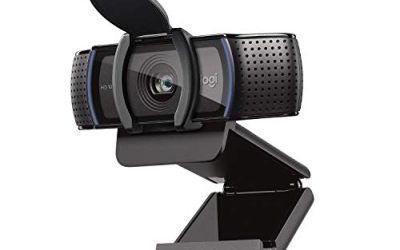
The C920s is the safe, proven replacement for a bad built-in camera, and it has earned that reputation by doing the basics well for years. Its glass lens and autofocus keep your face sharp through a whole call, the light correction brightens dim rooms without turning your skin pale, and the dual microphones capture your voice clearly enough that most people never need a headset. Setup is genuinely plug and play: clip it on, plug in the USB cable, and select it in your call software. If you want one dependable camera for work and classes, this is the one to buy first.
Specs
- Full HD 1080p video at 30fps
- 720p video at 30fps
- Five-element glass lens with autofocus
- 78-degree diagonal field of view
- Dual stereo microphones
- RightLight 2 light correction
- Privacy shutter included
- 5-foot attached USB-A cable
- Tripod-ready mounting clip
- Works with Skype, Zoom, FaceTime, Hangouts, PC, Mac, laptop, tablet, and Xbox
Best for: Everyday work calls, classes, and interviews from one desk.
Watch out for: Low-light video still shows grain in very dark rooms, and the frame rate tops out at 30fps.
Anker PowerConf C200 2K Webcam
The PowerConf C200 is the pick for people who want visibly sharper video than 1080p without stepping up to a 4K camera their call software cannot use. Its 2K sensor records a crisper image for local recordings and presentations, and the adjustable field of view is genuinely useful: narrow it to 65 degrees for a tight solo shot, or widen it to 95 degrees when a colleague joins you on screen. Low-light correction helps in rooms where a built-in camera would turn to mush, and the privacy cover slides closed when the call ends. The USB-C connection suits newer laptops, so check your ports before ordering.
Specs
- 2K video at 30fps (2560 x 1440)
- 1080p and 720p video at 30fps
- 5MP sensor with autofocus
- Adjustable field of view: 65, 78, or 95 degrees
- Dual stereo microphones
- Low-light correction
- Integrated privacy cover
- USB-C connection
- 18-month warranty
Best for: Sharper recorded video, presentations, and calls where framing flexibility matters.
Watch out for: Some call software caps the outgoing stream below 2K, so the extra detail shows mainly in local recordings.
Razer Kiyo V2 X Webcam
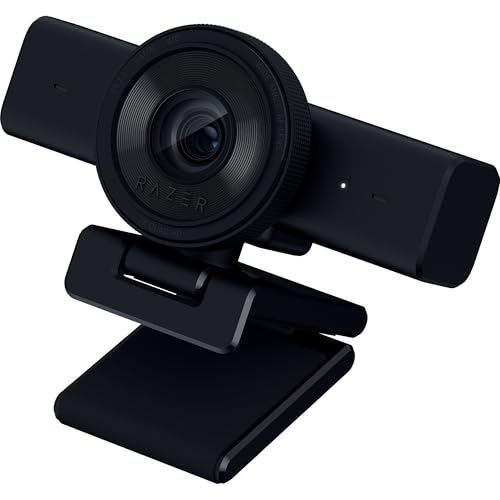
The Kiyo V2 X is the smoothest option here, and it is the one to choose if you stream, record, or present with a lot of movement. Recording at 1440p and 60 frames per second makes hand gestures, head turns, and on-camera demonstrations look fluid instead of choppy, which is the clearest visible difference from a standard 1080p webcam. Autofocus and manual focus give you control when the automatic setting hunts in tricky light, and the built-in privacy shutter closes with a twist of the lens ring. The software settings need Windows, so Mac users should plan to use the camera with its default settings.
Specs
- 1440p video at 60fps
- 1080p video at 60, 30, or 24fps
- 720p video at 60 or 30fps
- 3.7MP sensor
- 80-degree field of view
- Autofocus and manual focus
- 4x digital zoom
- Omni-directional microphone
- Integrated privacy shutter
- USB-A 2.0 connection with 5-foot attached cable
- 1/4-inch tripod thread
- Weight: 160 g
Best for: Streaming, recording, and presentations where smooth motion matters.
Watch out for: Software controls for focus, zoom, and color are Windows-only, and the microphone is basic compared with a dedicated microphone.
Which One Fits Your Situation
You Mainly Take Work Calls From One Desk
Choose the Logitech C920s. It is the most dependable of the three for daily calls, with autofocus and light correction that handle ordinary rooms without fuss, and it works with every major call platform on Windows and Mac. Clip it on once, leave it there, and your built-in camera becomes a backup you never need. Its privacy shutter also suits a camera that stays mounted all day.
You Want the Sharpest Image for Recordings
Choose the Anker PowerConf C200. The 2K sensor captures more detail than 1080p, which shows when you record lessons, presentations, or video messages and watch them back at full size. The adjustable field of view also helps you frame the shot exactly how you want it, tight for solo talking or wide when someone else joins the frame.
You Stream or Record With a Lot of Movement
Choose the Razer Kiyo V2 X. The 60 frames per second at 1440p or 1080p keeps gestures and movement smooth, and the manual focus option stops the camera from hunting when you lean in and out. It is the strongest choice for streaming, gameplay commentary, and any recording where choppy motion would distract the audience.
Your Room Is Dim and Your Lighting Will Not Change
Choose the Anker PowerConf C200 for its low-light correction and larger 2K sensor, with the Logitech C920s as the fallback if your laptop only has USB-A ports. Sit facing your brightest light source, keep the camera at eye level, and avoid a bright window directly behind you, because even the best low-light handling cannot rescue a shot that is backlit.
Common Mistakes
- Buying a webcam with the same resolution as your built-in camera and expecting a visible improvement, when the sensor, lens, and focus matter just as much as the pixel count.
- Mounting the camera below eye level or on top of a tall monitor, which produces an unflattering upward angle that no resolution can fix.
- Sitting with a bright window or lamp directly behind you, so the camera darkens your face to balance the background.
- Assuming a 2K or 1440p webcam will improve a call when your meeting software caps outgoing video at 1080p or lower.
- Forgetting to select the new webcam and microphone in your call software, so the call keeps using the built-in camera you meant to replace.
Frequently Asked Questions
Will an external webcam work if my laptop still has its built-in camera?
Yes. Your laptop keeps its built-in camera, and the external webcam simply appears as a second camera in your call software. Open the video settings in Zoom, Teams, Meet, or your recording software and select the external webcam as the video source, then select its microphone as the audio source. The built-in camera stays unused until you switch back to it.
Do I need to install software to use one of these webcams?
No, all three webcams work as plug-and-play cameras on Windows and Mac, so you can plug one in and select it in your call software without installing anything. Optional software exists for each camera and adds controls for zoom, focus, brightness, and color, but those extras are not required for normal calls. The Razer camera is the exception in one respect: its software settings are available on Windows only.
Why does my built-in camera look worse than a webcam with the same resolution?
Resolution is only one part of image quality. Built-in laptop cameras use small sensors, plastic lenses, and fixed focus, so they gather less light and soften fine detail even at the same pixel count. An external webcam adds a larger sensor, a glass lens, autofocus, and light correction, plus room for a better microphone. Together, those parts explain why a 1080p webcam looks far clearer than a 1080p built-in camera.
Will a 2K or 1440p webcam improve my Zoom or Teams calls?
It depends on what your call software sends. Most meeting platforms cap outgoing video at 1080p or lower, so the extra detail of a 2K or 1440p camera may not reach the other side of a live call. The sharper sensor still helps with local recordings, presentations, and streaming, where the full resolution is kept. If you only take ordinary work calls, a good 1080p webcam is enough.
FAQ
Will an external webcam work if my laptop still has its built-in camera?
Do I need to install software to use one of these webcams?
Why does my built-in camera look worse than a webcam with the same resolution?
Will a 2K or 1440p webcam improve my Zoom or Teams calls?
More from Amazon
Programs that pair well with the guide above. Offers and eligibility are set by Amazon and may change.
Free shipping on eligible items, Prime Video and more. Eligible new members can start with a free trial.
Start a Prime free trialAd-free music streaming. Eligible new subscribers can start with a free trial.
Try Music Unlimited freeA Prime membership for ages 18-24 with a trial period. Eligibility is set by Amazon.
See Prime for Young AdultsAudiobooks and podcasts to listen to on the go. Eligible new members can start with a free trial.
Try Audible freeAs an Amazon Associate we earn from qualifying purchases.