Key takeaways
- Outstanding Ergonomic Build: The 9.9-ounce weight distribution and textured micro-etched grip sit comfortably in hands during long 4-to-6-hour gaming or editing sessions.
- Zero-Software Steam Integration: Plug in via USB-C or pair via Bluetooth, open Steam, and play hundreds of games without downloading third-party utilities.
- Next-Gen Tactile Fidelity: When plugged in with compatible PC titles, the precise haptic feedback and dynamic trigger tension offer immersion unmatched by standard rumble motors.
- Modern USB-C Standardization: Charges effortlessly from your existing desk hub, monitor pass-through port, or phone charger using universal cables.
- Built-In Audio Passthrough: Connects standard 3.5mm headsets directly into the controller base when wired, acting as a clean desktop audio device.
The Short Answer
No, you do not strictly need special third-party software to use a Sony PlayStation 5 DualSense controller on a PC, but it depends on one key condition: whether you launch your games through Steam or play native games over a wired USB connection.
If you launch your titles through Steam, Valve’s built-in Steam Input system handles all driver translation automatically behind the scenes. However, if you plan to play non-Steam games, use services like Xbox Game Pass for PC wirelessly, or want to customize lightbars and remap buttons across desktop applications, you will need lightweight third-party utilities. When asking yourself, “do i need special software to use dualsense on pc,” the practical rule is simple: Steam users need zero extra apps, while standalone non-Steam gamers benefit greatly from free helper programs.
What You Actually Get
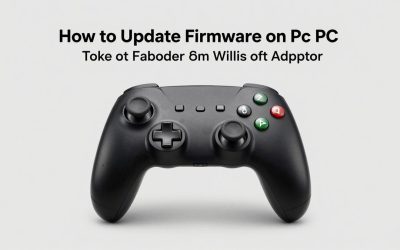
When you place a DualSense controller on your desk setup, you are holding a beautifully engineered piece of hardware. Measuring 6.3 x 4.1 x 2.6 inches (160 x 106 x 66 mm) and weighing 9.9 ounces (280 grams), it carries a reassuring, premium heft compared to lighter budget gamepads. It houses an internal 1,560 mAh rechargeable lithium-ion battery rated for 5V at 1.5A charging via its top USB-C port.
Connecting the pad to Windows via a standard USB-C cable or Bluetooth 5.1 yields different results depending on the software layer handling the signal:
1. The Steam Input Layer (No Extra Downloads Required)
Steam translates the DualSense signal into standard Windows commands seamlessly. You can customize stick deadzones, adjust trackpad mouse emulation, and map buttons directly within the Steam overlay. Most modern games launched via Steam display PlayStation button prompts (Square, Triangle, Circle, Cross) automatically.
2. Native Windows DirectInput (Without Software)
Windows recognizes the controller out of the box as a generic DirectInput audio and game device. While basic buttons work in select games, non-Steam games expecting an Xbox controller layout (XInput) will not register button presses. In this scenario, running free open-source translation software converts DualSense signals into virtual Xbox 360 or DualShock 4 inputs instantly.
3. Dynamic Haptics and Adaptive Triggers
The controller’s flagship features—dual electromechanical linear resonant actuators for localized haptics and dynamic resistance motors on the L2/R2 triggers—require specific conditions on PC. These features operate natively only when connected via a physical USB-C cable in PC games that explicitly support Sony’s dynamic audio-based feedback rumble protocols. Over Bluetooth without software, the controller reverts to standard basic rumble motors.
Pros
- Outstanding Ergonomic Build: The 9.9-ounce weight distribution and textured micro-etched grip sit comfortably in hands during long 4-to-6-hour gaming or editing sessions.
- Zero-Software Steam Integration: Plug in via USB-C or pair via Bluetooth, open Steam, and play hundreds of games without downloading third-party utilities.
- Next-Gen Tactile Fidelity: When plugged in with compatible PC titles, the precise haptic feedback and dynamic trigger tension offer immersion unmatched by standard rumble motors.
- Modern USB-C Standardization: Charges effortlessly from your existing desk hub, monitor pass-through port, or phone charger using universal cables.
- Built-In Audio Passthrough: Connects standard 3.5mm headsets directly into the controller base when wired, acting as a clean desktop audio device.
Cons
- Wireless PC Feature Reductions: Advanced haptics, dynamic trigger resistance, and 3.5mm jack audio pass-through are disabled over Bluetooth without direct wired USB connections.
- Non-Steam Friction: Games on alternative launchers (like Xbox Game Pass for PC or EA App) often require background translation software like DS4Windows or DualSenseX to translate signals to XInput.
- Modest Battery Endurance: The 1,560 mAh internal battery provides roughly 6 to 12 hours of wireless playtime, which is significantly lower than the 30+ hours offered by battery-operated Xbox controllers.
- No First-Party Desktop Customization Suite: Sony provides an official Windows tool for firmware updates, but does not offer an official first-party desktop app for key remapping or lightbar editing outside of games.
Who Should Buy It
The DualSense controller is an exceptional desktop addition for PC gamers who primarily manage their gaming library through Steam. If you already appreciate refined aesthetic design, symmetrical thumbstick layouts, and modern matte finishes that complement an elevated desk setup, it fits perfectly into a clean workstation. It is also an ideal purchase for players who do not mind keeping a clean 6-foot USB-C cable routed near their keyboard to unlock maximum haptic detail in supported narrative-driven PC titles.
Who Should Skip It
If your PC gaming setup relies heavily on Xbox Game Pass for PC, native Microsoft Store titles, or legacy emulator setups, you should consider skipping the DualSense. Gamers who insist on pure wireless simplicity without ever touching a cable or configuring controller translation layers will find an Xbox controller far less tedious. Additionally, if you dislike charging your peripherals every few days, the 6-to-12-hour wireless lifespan may frustrate your daily routine.
Cheaper Alternatives
| Option | Cost | Trade-off |
|---|---|---|
| Xbox Wireless Controller | $49.99 – $59.99 | Native Windows XInput support; lacks advanced haptics and built-in lithium-ion battery (uses AA batteries). |
| 8BitDo Ultimate Wireless | $44.99 – $49.99 | Includes charging dock and Hall Effect anti-drift sticks; uses asymmetrical Xbox stick layout instead of PlayStation layout. |
| GameSir Nova Lite | $24.99 – $29.99 | Extremely affordable with multi-platform wireless dongle; lighter plastic build with basic, less nuanced tactile rumble motors. |
| Sony DualShock 4 (Refurbished) | $35.00 – $45.00 | Compact ergonomics and wide heritage support; uses outdated Micro-USB charging ports and lacks dynamic adaptive triggers. |
FAQ
Can I use a DualSense controller wirelessly on PC without extra software?
Yes, you can pair the DualSense to any PC via standard Bluetooth 5.1 without installing drivers. If you launch games through Steam, Steam translates the wireless controller inputs automatically. However, if you play non-Steam wireless games, Windows will recognize the device but games may not accept button inputs until you run software like DS4Windows.
Do adaptive triggers work on PC games?
Yes, but with strict conditions. The adaptive triggers and advanced haptic feedback work on supported PC games only when the controller is connected directly using a USB-C cable. Over a wireless Bluetooth connection, adaptive trigger resistance is disabled by default unless forced by community utilities.
Is DS4Windows safe and necessary?
DS4Windows is a safe, widely used open-source program that converts PlayStation controller signals into virtual Xbox controllers for full Windows compatibility. It is only necessary if you play non-Steam games, want to use the controller as a desktop mouse, or desire custom LED lightbar controls outside Steam’s native system.
How do I update the DualSense controller firmware on a PC?
Sony provides an official desktop application called “Firmware updater for DualSense wireless controller.” You simply download the program to your Windows PC, connect the controller using a USB-C cable, and follow the on-screen instructions to update the internal software in under two minutes without ever needing a PlayStation 5 console.