Key takeaways
- 144 Hz display: cap at 141, frame time 7.1 ms.
- 165 Hz display: cap at 161, frame time 6.2 ms.
- 240 Hz display: cap at 237, frame time 4.2 ms.
- 60 Hz display without variable refresh: uncap or cap high (for example 200) and accept tearing for the lowest latency, since each frame then reflects a more recent input.
To reduce input lag in Call of Duty: Black Ops 6, turn on NVIDIA Reflex Low Latency (On + Boost if your CPU is the limit), keep frame generation off in multiplayer, cap your frame rate a few frames below your monitor’s refresh rate with G-Sync or FreeSync enabled, use Fullscreen Exclusive, and set your mouse to at least 1,000 Hz polling with acceleration off. Those five changes remove the biggest sources of delay between your click and the shot appearing on screen; the rest of this guide explains why each one works and how to check what is left.
Where the delay comes from
Input lag is the sum of several stages: the mouse reporting a click, the CPU processing it, frames waiting in a render queue, the GPU drawing the frame, and the monitor displaying it. Knowing the size of each stage tells you which fix matters most on your system.
| Stage | Typical delay | What controls it |
|---|---|---|
| Mouse polling | 8 ms at 125 Hz, 1 ms at 1,000 Hz, 0.25 ms at 4,000 Hz | Mouse software polling rate |
| Frame time (CPU and GPU work) | 16.7 ms at 60 FPS, 8.3 ms at 120 FPS, 6.9 ms at 144 FPS, 4.2 ms at 240 FPS | Your frame rate and graphics settings |
| Render queue | 0 to 2 or more extra frames; at 120 FPS, two queued frames add about 16.7 ms | NVIDIA Reflex, frame cap, V-Sync |
| Frame generation | Holds back a rendered frame, adding roughly one base frame of delay | Frame Generation toggle |
| Display refresh | 16.7 ms per refresh at 60 Hz, 6.9 ms at 144 Hz, 4.2 ms at 240 Hz | Monitor refresh rate and mode |
The render queue is the largest avoidable chunk. When your GPU runs at 99% usage, the CPU gets ahead and frames stack up waiting to be drawn, so every input you make is shown one or two frames late. Most of the fixes below target that queue.
In-game settings for low latency
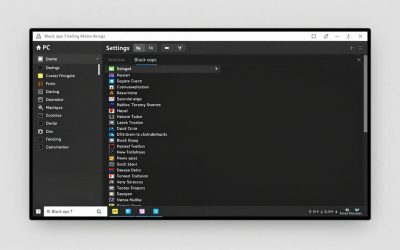
These settings are in the Graphics menu under the Display and Quality tabs, and in Keyboard & Mouse settings.
| Setting | Value | Why |
|---|---|---|
| NVIDIA Reflex Low Latency | On + Boost (On if your GPU is much stronger than your CPU) | Keeps the render queue near empty; Boost stops the GPU from clocking down in CPU-heavy moments |
| Display Mode | Fullscreen Exclusive | Gives the game direct control of the display with the fewest compositing steps |
| V-Sync (Gameplay) | Off | In-game V-Sync can add a frame or more of buffering |
| Custom Frame Rate Limit | Refresh rate minus 3 to 5 (141 at 144 Hz, 237 at 240 Hz) | Keeps you inside the variable refresh range and stops the GPU sitting at 99% |
| Frame Generation (DLSS or FSR) | Off | Smoother motion, but each displayed frame reflects your input later |
| Upscaling | DLSS, FSR or XeSS on Quality or Balanced if GPU-bound; off if CPU-bound | Higher real frame rate means shorter frame times |
| Mouse acceleration and filtering | 0 / Off | Keeps aim one-to-one with hand movement and avoids added smoothing delay |
If you see hitches when new areas or operator skins load, set the on-demand streaming option to Minimal. It lowers texture detail streamed from the internet but reduces background downloading during matches.
Choosing the right Reflex mode
Reflex works by pacing the CPU so it submits each frame just in time for the GPU, which keeps the queue empty. It helps most when you are GPU-bound, meaning GPU usage is at or near 100%. Use On + Boost if your graphics card is strong and your CPU is the bottleneck, or if you see GPU clock speeds dropping in quieter moments. Use plain On if you are on a laptop or a small case where extra GPU clocks just add heat.
On AMD Radeon cards, turn on Radeon Anti-Lag in AMD Software: Adrenalin Edition for the game profile, and combine it with a frame cap; it targets the same CPU-ahead queue. Do not stack a driver-level low latency mode on top of Reflex on NVIDIA cards; when Reflex is active in game, it takes priority.
Frame cap and variable refresh, worked through
With a 144 Hz G-Sync or FreeSync monitor, your target is to stay inside the variable refresh range at all times. If the frame rate goes above 144, the display either tears or, with V-Sync, adds buffering. A cap of 141 keeps you below the ceiling with a small margin for frame-time variance.
- 144 Hz display: cap at 141, frame time 7.1 ms.
- 165 Hz display: cap at 161, frame time 6.2 ms.
- 240 Hz display: cap at 237, frame time 4.2 ms.
- 60 Hz display without variable refresh: uncap or cap high (for example 200) and accept tearing for the lowest latency, since each frame then reflects a more recent input.
If you use NVIDIA’s recommended setup of G-Sync plus V-Sync enabled in the NVIDIA Control Panel, Reflex automatically applies a cap just below your refresh rate, so you can leave the in-game limit slightly above that value or unlimited.
Also confirm Windows is running your monitor at its full refresh rate in Settings, Display, Advanced display. A 144 Hz monitor left at 60 Hz is one of the most common causes of laggy-feeling aim.
Mouse, controller and monitor
- Set mouse polling to 1,000 Hz as a baseline. 4,000 Hz and 8,000 Hz reduce polling delay further but cost CPU time, which can lower your frame rate on older processors.
- Use a wired connection or the 2.4 GHz dongle for wireless mice and controllers, not Bluetooth, which typically adds more delay.
- For controller players, keep inner dead zones as low as possible without stick drift; a large dead zone feels like delay because small movements are ignored.
- On the monitor, enable its game or low-latency mode and use the normal overdrive level. On a TV, select Game mode to bypass motion processing that can add dozens of milliseconds.
Is it input lag or network lag?
Shots that land late, hit markers that arrive after the enemy disappears, and dying behind cover are usually network problems, not input lag. Enable the telemetry options in the Interface settings to show latency and packet loss during matches. If latency climbs or packet loss appears, switch to wired Ethernet, close background uploads, and check that no one else on the network is streaming in high quality. Input lag feels like the crosshair responding late to your hand; network lag feels like the game disagreeing with what you saw.
Black Ops 6 in 2026
Black Ops 6 launched in October 2024 and has since been followed by Black Ops 7, with Modern Warfare 4 due on October 23, 2026. Black Ops 6 remains playable on PC, and the same principles apply to the newer releases: keep the render queue short with Reflex or Anti-Lag, cap below your refresh rate, skip frame generation in competitive modes, and confirm the basics like refresh rate and polling rate before buying new hardware.
Hardware That Lowers Input Lag Further
Once the settings above are dialed in, most of the remaining delay in Call of Duty: Black Ops 6 comes from the monitor and mouse. A higher refresh rate and a high polling-rate mouse are the next steps.
Our top picks
 AOC 27" Gaming Monitor QHD 260Hz Overclocked
240Hz refresh with 0.3ms response suits competitive gaming
Adaptive-Sync works across both AMD and Nvidia GPUs
Wide tilt range from -3 to 21 degrees aids ergonomics
Full 240Hz speed requires a DisplayPort connection
300-nit brightness trails premium HDR monitors
 Logitech G PRO X Superlight 2 Wireless
95-hour battery life reduces how often you need to charge
60-gram weight suits fast, low-effort mouse movement
HERO 2 sensor tracks up to 44,000 DPI with no smoothing
POWERPLAY wireless charging pad is sold separately
Premium features add a more complex setup than basic mice
 Razer Viper V3 Pro Wireless Esports Gaming
54-gram ultra-lightweight build suits fast competitive flicks
8000Hz polling rate minimizes wireless input lag
Up to 95 hours of battery life per charge
Premium esports features add complexity above basic wireless mice
Glass-surface tracking still depends on sensor calibration
As an Amazon Associate we earn from qualifying purchases at no extra cost to you.