Key takeaways
- Find the best looking webcams for a desk setup that turns heads. We compare five cameras on design, build, image quality, and everyday use.
The best looking webcams do more than capture a sharp image. They sit on top of your monitor in plain view during every call and meeting, so the way they look matters as much as the way they perform. A webcam with a clean shape, a quality finish, and a thoughtful mount can lift an entire desk setup, while a bulky plastic box can drag the whole look down. This guide covers five webcams that earn their place on your monitor through design first, without giving up the image quality, microphones, and mounting options that make a webcam worth owning. Whether you want a slim aluminum bar, a compact cylinder, or a small gimbal camera that moves with you, there is an option below that fits your desk and your routine.
Looks alone never tell the whole story. A beautiful camera that produces a soft or noisy image in normal room light will disappoint you on every call. Each pick below pairs its design with proven imaging hardware: a large sensor, a quality glass lens, and software that handles color and exposure without constant fiddling. Read on for the criteria that matter and a simple way to match one of the five cameras to your setup.
How to Choose
Shape and footprint
A webcam lives on the top edge of your monitor, so its silhouette is the first thing you and everyone on your calls will notice. Slim horizontal bars blend into a monitor bezel and suit minimal desks. Compact cylinders and cubes read as deliberate design objects and work well on open shelves and streaming rigs. Gimbal-style cameras are taller and more noticeable, but they bring movement and tracking that a fixed camera cannot match. Measure your monitor bezel first, and decide whether you want the camera to disappear or stand out.
Materials and finish
Plastic bodies keep a webcam light and affordable, but they can look cheap under bright desk lighting and pick up fingerprints quickly. Aluminum housings feel cooler to the touch, resist scuffs, and give a camera a premium edge that photographs well on camera. Matte finishes hide dust and fingerprints better than glossy ones, while a fabric or textured accent can soften an otherwise technical shape. Check the color options too: a camera that clashes with your monitor and keyboard draws the eye for the wrong reasons.
Lens and sensor quality
Design means little if the image looks muddy. Look for a glass lens rather than a plastic one, and a sensor large enough to gather light in a normal room. A camera that records in 4K gives you room to crop and frame your shot, while a good 1080p camera with a large sensor can look better than a cheap 4K camera with a tiny one. Autofocus keeps your face sharp when you lean in or sit back, and a wide dynamic range keeps bright windows from washing out your face. Smooth 60 frames per second video also looks more natural when you move or gesture.
Field of view
Field of view decides how much of your room the camera shows. A narrow view around 65 degrees frames one person tightly and hides a messy background. A medium view near 78 degrees suits most desks and keeps one or two people in frame. A wide view of 90 degrees or more fits a group around a table but can make a single person look small and distant. Some cameras let you switch between preset angles in software, which is the most flexible option if your desk layout changes or you sometimes share the frame with someone else.
Microphones and audio
A webcam with clear built-in microphones saves you from adding a separate mic to your desk, which keeps the setup looking clean. Dual microphones with noise reduction handle keyboard clicks and room hum far better than a single mic. If you take calls all day, look for beamforming mics that focus on your voice and ignore sound from the sides. A dedicated headset or desk microphone still sounds richer, so treat built-in mics as a convenience for everyday calls.
Mounting and cable management
A good mount grips your monitor firmly without leaving marks, folds flat for travel, and includes a tripod thread for a desk stand or boom arm. Some cameras ship with a magnetic mount or a clip that adapts to curved monitors and laptop lids. Cable length matters too: a short cable looks tidy but may not reach a tower under your desk, while a long detachable cable gives you routing options. USB-C is the modern standard for current laptops and hubs.
Privacy and software
A physical privacy shutter is the simplest way to know your camera is off, and the best designs integrate it into the body so it never gets lost. Some cameras use a magnetic cover instead, which works well as long as it stays attached. Companion software should let you adjust framing, zoom, exposure, and white balance without a confusing menu, and remember your settings between sessions. Cameras that work without software are the easiest to live with.
Top Picks
Logitech MX Brio

The Logitech MX Brio is the most polished-looking webcam in this guide, and it earns that spot with a slim aluminum body, a clean cylindrical lens housing, and a choice of graphite, pale gray, and black finishes that blend into almost any desk. The camera measures small enough to sit unobtrusively on a monitor bezel, yet it feels dense and solid in the hand, with a magnetic privacy shutter that snaps into place with a satisfying click. A Show Mode tilts the camera down to share a document or object on your desk, handy for demos as well as calls.
Under the design, the MX Brio records 4K video at 30 frames per second or 1080p at 60 frames per second, using a large sensor with AI-enhanced image processing that brightens faces in dim rooms without blowing out highlights. Dual noise-reducing microphones capture clear voice audio, and the adjustable field of view offers 65, 78, and 90 degree presets so you can frame a tight headshot or a wider desk scene. The USB-C connection and clip mount fit modern monitors and laptops, and companion software adds fine control over zoom, framing, and exposure.
This camera suits someone who wants a premium-looking webcam for daily calls, streaming, and content work, and who values a clean desk. Its main caveats are that 4K tops out at 30 frames per second, so fast movement looks smoother at 1080p, and the AI image processing can occasionally over-brighten a scene with strong backlight. If your desk is the centerpiece of your room and you want the camera to look like it belongs there, the MX Brio is the pick to beat.
Logitech Brio 4K

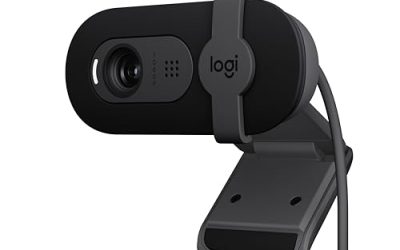
The Logitech Brio 4K takes a more classic approach to good looks: a low-profile black bar with a centered glass lens, subtle branding, and a clip that folds neatly behind a monitor. It is the kind of camera that looks professional rather than flashy, and it has stayed in production for years precisely because the design works on any desk without drawing attention to itself. The included privacy shade and carrying pouch add to the tidy, work-ready feel.
Image quality is where the Brio 4K justifies its place. It captures 4K video at 30 frames per second and 1080p at up to 60 frames per second, with autofocus, a 5x digital zoom, and RightLight 3 light correction that uses HDR to balance bright and dark areas in the same frame. Three field-of-view presets at 65, 78, and 90 degrees let you control how much of your room appears on screen. Dual noise-canceling microphones sit on either side of the lens, and infrared sensors enable Windows Hello facial login on compatible PCs.
This camera suits someone who wants a proven, professional-looking 4K webcam for work calls and streaming, and who values Windows Hello and strong low-light handling. Its main caveats are that the design is older and plainer than the MX Brio, and the camera needs a USB 3.0 connection for full 4K output. If you prefer a discreet, business-ready look over a statement piece, the Brio 4K remains a strong choice.
Razer Kiyo Pro

The Razer Kiyo Pro stands out with a bold cylindrical body that looks like a small studio lens rather than a typical webcam, and that shape is exactly what makes it one of the best looking webcams for a gaming or streaming desk. The matte black barrel, wide-angle glass lens, and minimal branding give it a purposeful, camera-first appearance that pairs naturally with a gaming monitor, a mechanical keyboard, and a boom arm. It mounts on a monitor clip or tripod thread, and its compact footprint leaves your desk clear.
Inside the cylinder, the Kiyo Pro uses an adaptive light sensor that adjusts to changing room light, HDR support, and uncompressed 1080p video at 60 frames per second. The adjustable field of view switches between 80, 90, and 103 degrees, so you can go from a tight solo frame to a wide shot that includes your whole setup. Autofocus stays locked on your face as you move, and the built-in omnidirectional microphone handles voice chat and casual calls without a separate mic. It works with major streaming software, so it folds easily into an existing setup.
This camera suits streamers and gamers who want a webcam that looks the part on a gaming desk and delivers smooth 1080p video at 60 frames per second. Its main caveats are that it tops out at 1080p rather than 4K, and Razer’s software has drawn criticism for being intrusive, though the camera works well without it for basic use. If your desk has a gaming identity and you want a camera that matches it, the Kiyo Pro is a natural fit.
Elgato Facecam

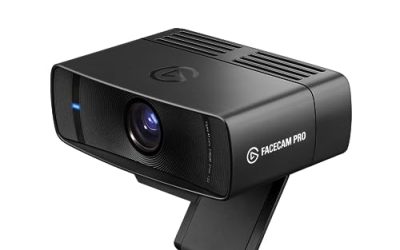
The Elgato Facecam brings a studio-camera look to the desktop with a clean rectangular body, a large all-glass prime lens, and a fixed-focus design that keeps the camera simple and reliable. The front face is uncluttered, with a small indicator light and restrained branding, and the whole unit feels like a piece of camera gear rather than a computer accessory. A detachable USB-C cable and sturdy monitor mount keep the setup tidy, and the camera sits low on the bezel.
Performance matches the design. The Facecam records true 1080p video at 60 frames per second with uncompressed output, so the image stays crisp and free of compression artifacts during streams and recordings. A Sony STARVIS sensor optimized for indoor light keeps the picture bright and clean in a normal room, while advanced light correction handles mixed lighting without manual adjustment. The fixed-focus glass lens stays sharp at typical desk distance, and Camera Hub software gives you DSLR-style control over ISO, shutter speed, and white balance, saved to the camera itself.
This camera suits streamers and creators who want a clean, studio-style webcam with uncompressed 1080p video and deep manual control. Its main caveats are that fixed focus means you need to stay near your usual seating position for the sharpest image, and there is no built-in privacy shutter, so you will want a cover or a USB switch if privacy matters to you. If you like the look of real camera gear on your desk, the Facecam delivers it.
OBSBOT Tiny 2

The OBSBOT Tiny 2 is the most distinctive-looking webcam here, and it earns its place through motion: a compact camera head on a motorized pan-tilt base that follows you around the room. The small black body with a subtle lens ring looks modern and minimal when parked, and it comes alive when it turns to track you, which makes it a conversation piece as well as a tool. The base includes a monitor clip and tripod thread, and the unit is small enough to carry in a bag.
The Tiny 2 records 4K video at 30 frames per second and 1080p at 60 frames per second, using a large 1/1.5 inch sensor that gathers far more light than most webcams in its class. AI tracking offers several modes, including close-up, upper body, and full body framing, and gesture control lets you start or stop tracking with a wave of your hand. Voice control adds another hands-free option, and dual noise-canceling microphones capture clear audio while you move. Its software adds preset positions and framing controls.
This camera suits presenters, teachers, and creators who move while they talk and want a webcam that follows them without a camera operator. Its main caveats are that the tracking can occasionally lose you in a cluttered background, and the software takes a few minutes to learn. If you want a webcam that looks futuristic and behaves like one too, the Tiny 2 is the most interesting pick in this guide.
Comparison Table
| Webcam | Max Resolution | Frame Rate | Field of View | Focus | Connection | Privacy Shutter | Standout Design Trait |
|---|---|---|---|---|---|---|---|
| Logitech MX Brio | 4K | 30 fps at 4K, 60 fps at 1080p | 65, 78, 90 degrees | Autofocus | USB-C | Magnetic shutter | Slim aluminum body, three finishes |
| Logitech Brio 4K | 4K | 30 fps at 4K, 60 fps at 1080p | 65, 78, 90 degrees | Autofocus | USB-C | Privacy shade | Low-profile professional bar |
| Razer Kiyo Pro | 1080p | 60 fps | 80, 90, 103 degrees | Autofocus | USB-A | No built-in shutter | Bold cylindrical lens body |
| Elgato Facecam | 1080p | 60 fps | 82 degrees | Fixed focus | USB-C | No built-in shutter | Studio-style rectangular body |
| OBSBOT Tiny 2 | 4K | 30 fps at 4K, 60 fps at 1080p | Wide with tracking | Autofocus | USB-C | No built-in shutter | Motorized pan-tilt tracking base |
Which One Is Right for You?
If you want the best-looking webcam overall for a modern home office, choose the Logitech MX Brio. Its aluminum body, three finishes, and magnetic shutter make it the most design-conscious pick, and its 4K image covers daily calls and content work with ease.
If you prefer a proven, professional look and use Windows Hello to unlock your PC, choose the Logitech Brio 4K. It is discreet, well built, and its HDR light correction handles tricky room lighting well.
If your desk is a gaming or streaming setup, choose the Razer Kiyo Pro. The cylindrical body looks right at home next to gaming gear, and smooth 1080p video at 60 frames per second keeps your stream fluid.
If you create content and want DSLR-style control in a clean, studio-looking body, choose the Elgato Facecam. Its uncompressed 1080p video and onboard memory suit streamers who like to fine-tune their image.
If you present, teach, or move around while on camera, choose the OBSBOT Tiny 2. No other webcam here follows you around the room, and its large sensor keeps the image bright while it tracks. Pick the camera that matches how you actually use your desk.
Frequently Asked Questions
What makes a webcam look good on a desk?
A good-looking webcam combines a clean shape, quality materials, and a mount that fits your monitor without clutter. Slim aluminum bodies and matte finishes tend to look better than glossy plastic, and a camera in a color that matches your monitor and keyboard blends into the setup. A tidy cable, a smooth privacy shutter, and a firm clip also help a setup look intentional.
Does a good-looking webcam also take good video?
Looks and image quality are separate qualities, and a beautiful camera can still produce a soft image in low light. The safest approach is to check the sensor size, lens quality, and frame rate alongside the design. A large sensor with a glass lens usually outperforms a small sensor with a plastic lens, even if the prettier camera lists a higher resolution.
Is 4K worth it for a webcam?
4K is worth it if you crop your frame, present to a large audience, or want headroom for future use, because the extra detail keeps the image sharp when you zoom in. For everyday calls, a good 1080p camera at 60 frames per second often looks smoother and more natural, especially when you move or gesture.
Do I need a privacy shutter on my webcam?
A privacy shutter is a simple and reliable way to block the lens when the camera is not in use, and it removes any doubt about whether the camera is active. If your pick has no built-in shutter, a clip-on cover or a USB switch does the same job. Either way, a physical block is more reassuring than a software toggle alone, and it is worth factoring into your choice if you keep the camera mounted all day.
Disclosure: As an Amazon Associate, we may earn from qualifying purchases.
FAQ
Which One Is Right for You?
What makes a webcam look good on a desk?
Does a good-looking webcam also take good video?
Is 4K worth it for a webcam?
Do I need a privacy shutter on my webcam?
More from Amazon
Programs that pair well with the guide above. Offers and eligibility are set by Amazon and may change.
Free shipping on eligible items, Prime Video and more. Eligible new members can start with a free trial.
Start a Prime free trialAd-free music streaming. Eligible new subscribers can start with a free trial.
Try Music Unlimited freeA Prime membership for ages 18-24 with a trial period. Eligibility is set by Amazon.
See Prime for Young AdultsAudiobooks and podcasts to listen to on the go. Eligible new members can start with a free trial.
Try Audible freeAs an Amazon Associate we earn from qualifying purchases.