Our Top Picks


As an Amazon Associate, we earn from qualifying purchases made through links on this page.
A video call is only as good as the camera feeding it, and the built-in camera on most laptops is the weakest link in the chain. It sits at an unflattering angle, struggles the moment a room gets dim, and pairs a small sensor with a microphone that picks up the whole room. If you spend your calls on Skype-style apps — catching up with family, joining work meetings from home, or sitting through long calls where people need to read your face clearly — a dedicated USB webcam is the simplest upgrade you can make.
The good news is that calling apps are not demanding about hardware. Skype, and the apps that have taken over its role such as Microsoft Teams, Zoom and Google Meet, all work with standard USB Video Class (UVC) cameras. That means every webcam in this guide connects the same way: plug it into a USB port, let the operating system recognise it as a camera, and select it inside your calling app. No drivers to install, no capture software to configure.
This guide collects five webcams that suit Skype-style calling first and foremost. Each one has a built-in microphone, automatic focus or a sensible fixed-focus design, and some form of light correction for ordinary rooms. They range from a simple wide-angle camera for a family PC to a 4K model for people whose calls double as presentations. Every pick below is a standard UVC device, so the same camera keeps working whichever calling app you open.
What to Look for in a Webcam for Skype and Video Calls
Plug-and-play UVC support. A UVC webcam works with Windows, macOS, Linux and ChromeOS without extra drivers, and calling apps detect it automatically. This matters more for calling than for streaming: you want the camera ready the moment a call comes in, not after a software update or a settings hunt. All five cameras here are UVC devices.
Resolution and frame rate, in real calling terms. Calling apps cap the video they send, and most one-to-one calls travel at 720p or 1080p depending on the app and your connection. A 1080p camera at 30 frames per second covers Skype-style calls completely. Higher resolutions still help in two ways: a 2K or 4K sensor gives the app a sharper image to downscale, and it leaves room to crop or zoom digitally without going soft. Frame rate above 30 frames per second makes motion smoother, which you notice when you move around, but it is a bonus rather than a requirement for seated calls.
Autofocus versus fixed focus. Autofocus keeps your face sharp as you lean in, sit back or hold something up to the camera. Fixed-focus lenses are set for a typical desk distance and stay acceptably sharp across a small range, but they soften if you move close to show a document or a product. If your calls involve showing objects, autofocus is worth prioritising.
Built-in microphones. For most home callers the webcam microphone is the only microphone. Dual microphones with noise reduction keep your voice forward and push keyboard clicks, fan hum and room echo into the background. A single microphone works in a quiet room, but voices thin out quickly once there is background noise. If you already own a headset or a USB microphone, this matters less; if not, treat the microphone as half the purchase.
Light correction. Ordinary rooms are badly lit for cameras: a window to one side, a ceiling light behind you, a lamp that leaves half your face in shadow. Automatic light correction and low-light modes adjust exposure and gain so your face stays readable. This is the feature that separates call-ready webcams from basic ones, and it matters more than raw resolution in a dim room.
Field of view and privacy. A field of view around 65 to 78 degrees frames one person at a desk. Wider views, up to 90 or 110 degrees, fit two people or a whole room, at the cost of showing more background. Several cameras below let you switch between preset angles in their companion software. A physical privacy shutter or lens cover is worth having on a shared or work computer, because it blocks the lens completely between calls.
Connection type. Older desktops and laptops use USB-A ports; newer thin laptops often carry only USB-C. Check which connector each camera uses, and whether an adapter is included, before it arrives.
The 5 Best Webcams for Skype
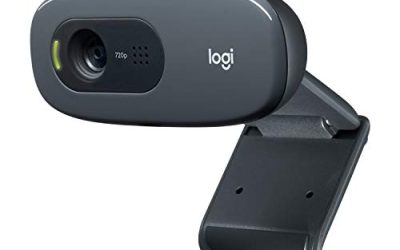
1. Logitech C920s Pro HD — the default choice for everyday calls
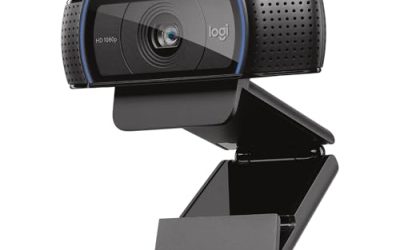
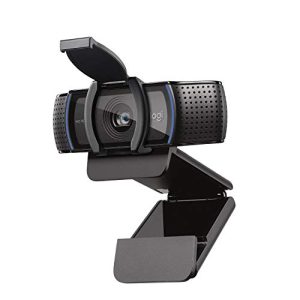
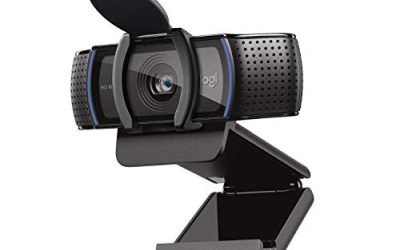
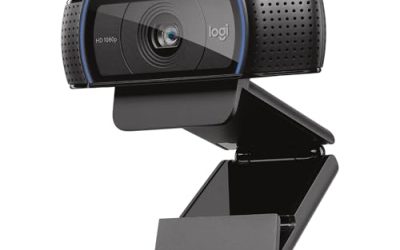
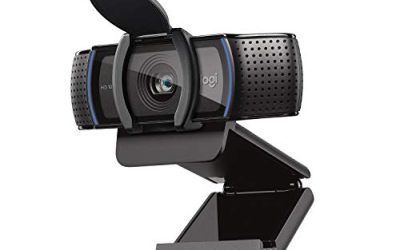
The C920s has been the standard recommendation for video calling for years, and its listing names Skype compatibility directly. It records and sends Full HD 1080p at 30 frames per second, which matches what calling apps use, and its autofocus keeps your face sharp as you shift in your chair. Logitech’s RightLight 2 light correction adjusts exposure automatically when a room is dim or unevenly lit.
Two built-in stereo microphones capture your voice from desk distance, so you can take calls without reaching for a headset. The clip folds around a monitor or laptop screen, the base includes a tripod thread, and an attached privacy shutter flips down over the lens when the call ends — a small detail that makes it easy to recommend for shared family computers.
Best for: everyday Skype and Teams callers who want one camera that handles picture, sound and privacy without any setup beyond plugging it in.
Limitations: the frame rate stops at 30 frames per second, so fast movement is less smooth than on 60-frame models. It connects over USB-A, so a laptop with only USB-C ports needs an adapter. Resolution tops out at 1080p, with no extra headroom for digital zoom.
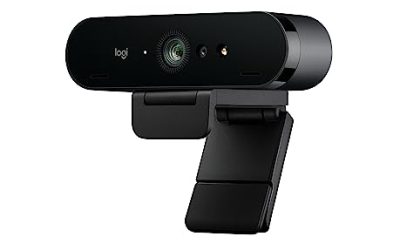
2. Logitech Brio 501 — business polish with auto-framing

The Brio 501 comes from Logitech’s business line and is built specifically for meeting apps; Logitech lists it as working with Microsoft Teams, Zoom and Google Meet, and as a standard UVC camera it works the same way in any Skype-style calling app. It sends 1080p at 30 frames per second with autofocus, and its RightLight auto light correction is tuned for faces in office lighting.
Dual noise-reducing microphones handle a home office well, cutting down fan and keyboard noise. Through the Logi Tune software you can switch the field of view between 90, 78 and 65 degrees, turn on auto-framing to stay centred as you move, and use Show Mode, which tilts the camera down to present a sketch or document on your desk. A sliding privacy cover is built into the housing, and the camera connects over USB-C.
Best for: people whose calls are mostly work meetings, especially anyone who presents documents or moves around while talking.
Limitations: the resolution ceiling is 1080p, so there is no cropping headroom beyond the framing presets. Auto-framing, Show Mode and the field-of-view presets live in the Logi Tune software rather than on the camera, so the extra features need that app installed. The cable is USB-C, which older desktops may need an adapter for.
3. Anker PowerConf C200 — 2K sharpness with AI noise cancelling
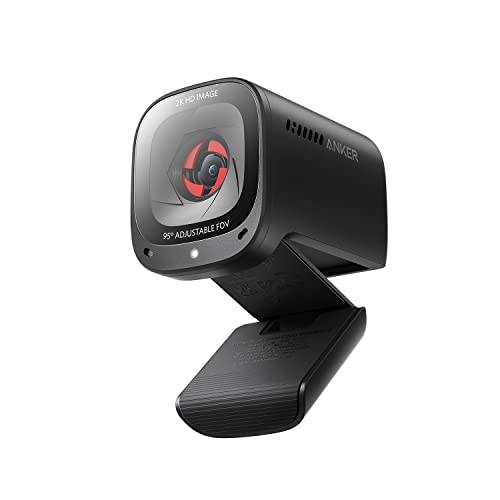
The PowerConf C200 records at 2K resolution (2560 by 1440) at 30 frames per second, a step above the 1080p cameras here. Calling apps will usually send a downscaled version of that image, and the downscale is where the extra sensor resolution pays off: edges stay cleaner and a modest digital zoom stays usable. Autofocus is built in, and Anker’s low-light correction brightens dim rooms automatically.
The dual stereo microphones use AI-based noise cancelling, which targets steady background sounds such as air conditioning and computer fans — the noises that most often creep into home calls. The field of view adjusts between 65, 78 and 95 degrees in the AnkerWork software, so one camera can frame a single caller or a wider room view. A privacy cover slides over the lens, and the USB-C connection includes a USB-A adapter in the box, which removes the port problem the other cameras leave to you.
Best for: home workers on calls all day who want a sharper picture than 1080p and a microphone that actively cleans up room noise.
Limitations: the frame rate is capped at 30 frames per second at every resolution. Field-of-view changes require the AnkerWork software; plugged into a computer without it, the camera uses its default framing. The 2K sensor only helps if your app and connection make use of the extra detail.
4. Logitech MX Brio — the 4K flagship for calls that double as presentations
The MX Brio is Logitech’s flagship webcam, built around an 8.5-megapixel Sony STARVIS sensor. It captures 4K at 30 frames per second or 1080p at 60 frames per second. No calling app sends a 4K call, so the point of the big sensor is headroom: the image your app downscales starts from far more detail, digital zoom stays clean, and the larger sensor handles low light better than the smaller sensors in cheaper cameras. Logitech adds AI-enhanced auto light correction on top.
Dual beamforming microphones with noise reduction are built in, autofocus is standard, and Show Mode lets you tilt the camera down to share your desk. The field of view switches between 90, 78 and 65 degrees in software, a privacy shutter rotates over the lens, and the connection is USB-C.
Best for: professionals whose calls involve clients, teaching or presenting, and who want the sharpest available picture plus smooth 1080p motion when they move.
Limitations: you pay for resolution that calling apps cannot fully use, so the benefit is downscaling quality and zoom headroom rather than a 4K call. The highest modes expect a USB 3.0 connection. It is also the largest camera in this guide, which matters on thin laptop lids.
5. NexiGo N60 — the simple wide-angle pick for a family PC
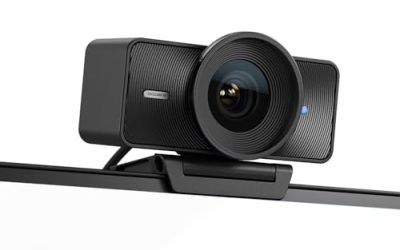
The N60 takes the opposite approach to the flagship above: a straightforward 1080p camera at 30 frames per second whose listing is aimed at Zoom, Skype and Teams calling. Its wide 110-degree field of view is the widest here, wide enough to fit two people on a sofa or a whole room around a table, which suits family calls where everyone crowds into frame.
A built-in noise-reducing microphone handles voice in quiet rooms, a privacy cover is included, and the camera is fixed-focus: it is set for typical calling distances and needs no adjustment. It connects over USB-A and works as a standard UVC device with no drivers. NexiGo’s software adds digital zoom and framing adjustments for callers who want them.
Best for: a shared family computer, group calls with several people in frame, and anyone who wants to plug in a camera and forget about settings.
Limitations: fixed focus means the image softens if you lean in close to show something small. The single microphone is the weakest audio setup in this guide, so a noisy room will push you toward a headset. The very wide view also shows a lot of your room, which not every caller wants.
Comparison Table
| Webcam | Max resolution | Frame rate | Focus | Microphones | Connection |
|---|---|---|---|---|---|
| Logitech C920s Pro HD | 1080p | 30 fps | Autofocus | Dual stereo | USB-A |
| Logitech Brio 501 | 1080p | 30 fps | Autofocus | Dual, noise-reducing | USB-C |
| Anker PowerConf C200 | 2K (1440p) | 30 fps | Autofocus | Dual stereo, AI noise cancelling | USB-C (USB-A adapter included) |
| Logitech MX Brio | 4K (2160p) | 30 fps at 4K, 60 fps at 1080p | Autofocus | Dual beamforming, noise-reducing | USB-C |
| NexiGo N60 | 1080p | 30 fps | Fixed focus | Single, noise-reducing | USB-A |
FAQ
Do these webcams need drivers or special software to work with Skype?
No. All five are USB Video Class devices, so Windows, macOS, Linux and ChromeOS recognise them as standard cameras as soon as they are plugged in. Open your calling app, choose the webcam in its video settings, and you are ready. The companion apps mentioned above (Logi Tune, AnkerWork, NexiGo’s software) only unlock extra framing and field-of-view controls; the cameras make calls without them.
What happened to Skype, and will these webcams still work?
Microsoft retired the consumer Skype app in 2025 and moved its users to Microsoft Teams, and workplace calling has largely shifted to Teams, Zoom and Google Meet as well. Because every camera here is a standard UVC device rather than a Skype-specific accessory, the same webcam works across all of those apps, including any remaining Skype for Business setups. Buying for the UVC standard, not for one app, is what keeps a webcam useful as apps change.
Is 1080p enough, or should I buy a 2K or 4K webcam for calls?
For the call itself, 1080p is enough: calling apps compress and cap the video they send, and most calls travel at or below that resolution. A 2K or 4K camera still produces a cleaner picture after downscaling and lets you zoom in digitally without going soft, which is why the C200 and MX Brio are on this list. If you sit still and talk, 1080p covers you; if you present, teach or move around, the extra headroom is real.
Is a webcam’s built-in microphone good enough for calls?
For a quiet home office, yes — especially the dual-microphone models here, which add noise reduction for fans and keyboards. A dedicated headset or USB microphone still sounds better and isolates your voice in a busy house, but it is an upgrade you can add later. The webcam microphone is the right starting point for most callers.
Which of these is best for two people calling together?
The NexiGo N60, because its 110-degree field of view fits two people without either of you squeezing toward the centre. The Brio 501 and MX Brio can also widen to 90 degrees through their software settings, which works for two people at a desk while keeping autofocus.
Conclusion
For most people making Skype-style calls, the Logitech C920s remains the easiest recommendation: it focuses automatically, corrects for dim rooms, includes its own stereo microphones and a privacy shutter, and asks nothing of you beyond a free USB port. Step up to the Brio 501 if your calls are work meetings with documents to show, or to the Anker PowerConf C200 if you want a sharper 2K image and microphones that actively cancel room noise. The MX Brio is the flagship choice for presenters who will use its resolution headroom, while the NexiGo N60 covers the shared family PC and the crowded group call better than anything else here. Whichever you choose, the UVC standard underneath all five means the camera keeps working as calling apps come and go.
More from Amazon
Programs that pair well with the guide above. Offers and eligibility are set by Amazon and may change.
Free shipping on eligible items, Prime Video and more. Eligible new members can start with a free trial.
Start a Prime free trialAd-free music streaming. Eligible new subscribers can start with a free trial.
Try Music Unlimited freeA Prime membership for ages 18-24 with a trial period. Eligibility is set by Amazon.
See Prime for Young AdultsAudiobooks and podcasts to listen to on the go. Eligible new members can start with a free trial.
Try Audible freeAs an Amazon Associate we earn from qualifying purchases.