Our Top Picks
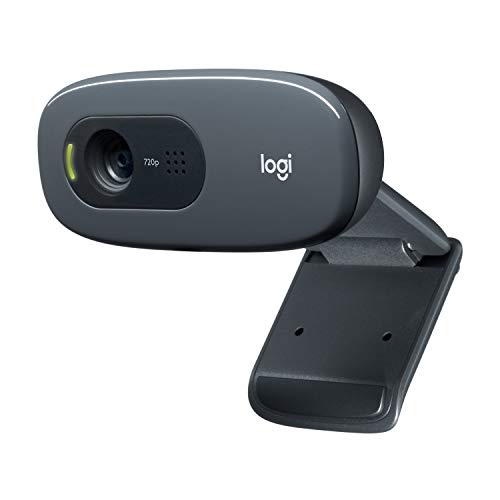 Logitech C270 720p Webcam Plug-and-Play Wide Screen Video1 Pack6 x 4 x 8 inches0.16 poundsCheck on Amazon


A first webcam decides how every video, stream and call looks, and the choice is simpler than the shelf of options suggests. A new creator needs a camera that plugs in and works straight away, with a clear picture in normal room light and a microphone that carries a voice without extra gear. Pick wrong and the result is dark, soft video and muffled sound; pick right and a first channel looks polished from the very first upload.
This guide is for people recording their first videos, joining their first live streams, or replacing a grainy laptop camera. The five webcams below were chosen from the names and specs on their Amazon pages, favouring simple setup, a built-in microphone and a picture that holds up in ordinary light.
Quick Picks
As an Amazon Associate we earn from qualifying purchases
| Product | Best for | Key spec from title |
|---|---|---|
| Logitech Brio 100 | The easiest first step from a laptop camera | 1080p Full HD |
| Logitech C920s HD Pro | A proven all-round first webcam | 1080p/30fps |
| Razer Kiyo | Recording in a dim room | Built-in ring light |
| Anker PowerConf C200 | The sharpest picture with framing choices | 2K resolution |
| Logitech C270 HD | The simplest way to start on a small outlay | 720p/30fps |
How to Choose
Resolution That Flatters a First Setup
Start with 1080p at 30 frames per second, because that is the quality most video platforms expect and the level where a face stays sharp on a laptop or phone screen. A 720p camera still works for casual calls, yet the picture softens when the video fills a full screen, so treat 720p as a starting point rather than a camera to grow with. Higher resolutions such as 2K add detail, but they also demand more light and a faster upload connection. For a first setup, steady 1080p with good light correction beats a bigger number on the box every time.
Setup That Takes Minutes, Not an Evening
Every webcam in this guide connects over USB and is picked up by Zoom, Teams, Meet, Discord, OBS and similar tools without a driver download or an account to create. That is the whole point of a first webcam: plug it in, choose it as the video source, and start recording. Before buying, check the cable length, since a short cable limits where the camera can sit, and check that the clip grips a laptop lid or monitor firmly. A camera that needs its own app for basic use adds friction a beginner does not need, so plain controls and a solid mount beat a long feature list.
Sound, Light and Framing on a First Desk
A built-in microphone is what makes a first webcam usable on its own, so look for one or two mics with some form of noise reduction that keeps keyboard taps and room hum in the background. Light matters just as much: a camera with automatic light correction brightens a dim room and keeps a face visible when a window sits behind the desk. A ring light, like the one on the Razer Kiyo, does the same job without extra gear. Keep the field of view near 58 to 78 degrees for one person, since a very wide view pulls the whole room into frame.
Privacy, Mounting and Room to Grow
A physical privacy shutter is a small feature that earns its place on a first webcam, because it blocks the lens between calls and streams without any software step. A solid clip mount matters too, since a camera that slips off a monitor mid-stream ruins a take. Look for a tripod thread if a desk stand may follow later, and a cable long enough to reach a laptop on a riser. Finally, buy a camera that still fits when the setup grows: a 1080p camera with autofocus stays useful as a second angle long after a sharper main camera arrives.
The 5 Best Options
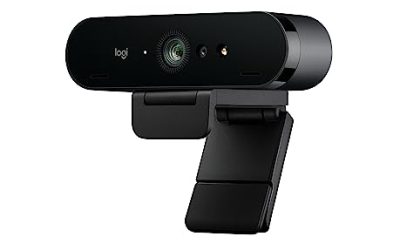
Logitech Brio 100
The Brio 100 is the simplest way to move past a laptop camera, and it suits a creator who wants a clear picture with almost no effort. It records in 1080p at 30 frames per second with a 58-degree field of view that keeps the frame on one person, and its auto light balance brightens a dim desk without any settings to learn. A built-in microphone handles calls and voiceovers, and a sliding privacy cover blocks the lens when the camera is not in use. It plugs in over USB and works with Teams, Zoom and Google Meet straight away.
Specs
- 1080p Full HD at 30fps
- 58-degree diagonal field of view
- RightLight auto light balance
- Built-in microphone
- Integrated privacy shutter
- USB-A plug-and-play, attached 5 ft cable
- Works with Microsoft Teams, Zoom, Google Meet
- Model 960-001589, 1-year limited hardware warranty
Best for: A first-time buyer who wants the easiest step up from a laptop camera.
Watch out for: Fixed focus and a narrow frame, so it suits one person at a desk rather than a group shot.
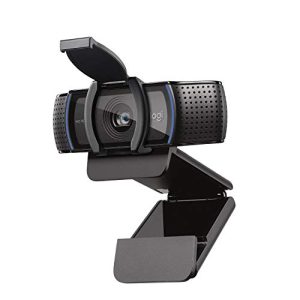
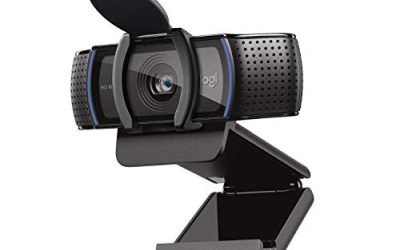
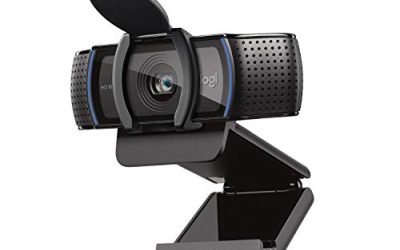
Logitech C920s HD Pro
The C920s is the safe first webcam for a beginner creator, because it does the basics well and asks for nothing in return. It records in full HD 1080p at 30 frames per second through a glass lens with autofocus, and its light correction keeps a face clear in ordinary room light. Two built-in microphones pick up a voice at a normal desk distance, and a physical privacy shutter slides over the lens between sessions. It plugs into a USB port and works with Zoom, Teams, Meet, Discord and OBS, so a first stream can start minutes after the box is opened.
Specs
- 1080p/30fps full HD video, glass lens with autofocus
- RightLight 2 light correction
- Dual stereo microphones
- Privacy shutter included
- USB connection, works with Skype, Zoom, FaceTime, Hangouts
- 5.8 oz, 1 x 3.7 x 1.2 inches, model 960-001257
Best for: A beginner who wants the most proven first webcam with no setup fuss.
Watch out for: Capped at 30fps, so fast motion looks less smooth than on a 60fps camera; the mount has no tripod thread.
Razer Kiyo

The Kiyo is the pick for a beginner who records in a dim room, because its built-in ring light does the work of a separate lamp. The light sits around the lens, runs at a daylight-balanced 5600K, and brightens or dims with a twist of the ring, so there is no app to open and no extra gear on the desk. The camera itself records in 1080p at 30 frames per second, or 720p at 60 frames per second for smoother motion, with autofocus and a built-in microphone. It clips to a monitor and connects over USB, which keeps the whole setup to one cable.
Specs
- 1080p at 30fps / 720p at 60fps
- Built-in ring light, 5600K daylight-balanced, adjustable brightness
- Advanced autofocus
- Built-in microphone
- USB connection, works with Zoom, Teams, Skype
- 200 g, model RZ19-02320100-R3U1
Best for: A beginner recording in a dim room who wants good light without buying a lamp.
Watch out for: The ring light adds bulk, and this is an older model, so check the listing is the new version before buying.
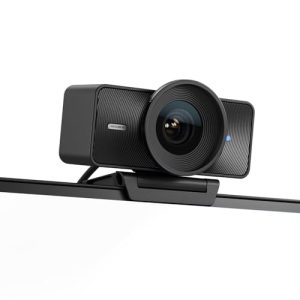
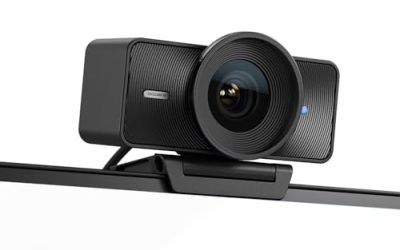
Anker PowerConf C200
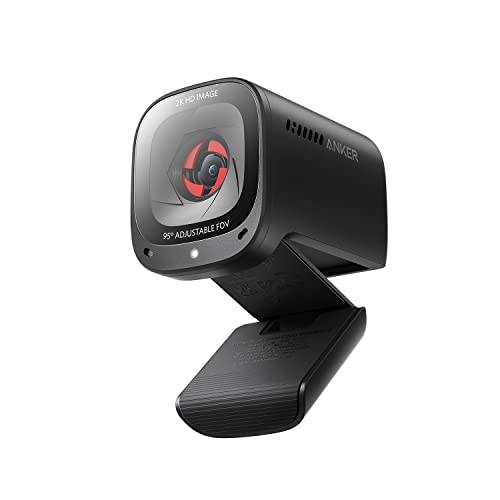
The C200 is the sharpest camera in this set, and it suits a beginner who wants room to grow without learning new software. It records in 2K with autofocus and a 5MP CMOS sensor, and its low-light correction keeps the picture usable after dark. Dual microphones with AI noise canceling cut background sound, and the field of view can be set to 65, 78 or 95 degrees through the AnkerWork app, which lets a creator show just a face or a whole desk. A built-in privacy cover slides over the lens, and the camera is sold by AnkerDirect with Amazon handling shipping.
Specs
- 2K resolution, 30fps, 5MP CMOS sensor, f/2.0 aperture
- Autofocus
- Dual mics with AI noise cancellation
- Low-light correction
- Adjustable field of view: 65, 78 or 95 degrees
- Built-in privacy cover
- USB 2.0, Windows 7 or later, macOS 10.11 or later
- 7 oz, 1.97 x 1.57 x 2.17 inches, model A3369
Best for: A beginner who wants the sharpest picture and control over how much of the room shows.
Watch out for: Changing the field of view needs the AnkerWork app, and 2K recording needs a steady upload connection.
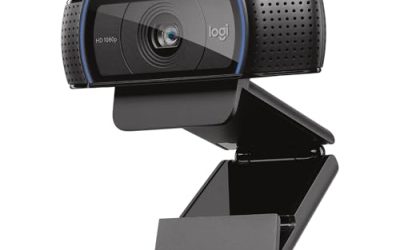
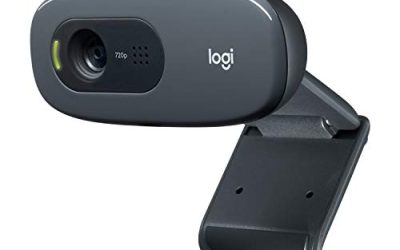
Logitech C270 HD
The C270 is the lowest-cost way to start, and it fits a creator who only needs a clear picture for calls and simple recordings. It records in HD 720p at 30 frames per second with a 55-degree field of view, and its RightLight 2 correction adjusts the picture as room light changes. A noise-reducing microphone keeps a voice clear at a normal desk distance, and the camera works with Skype, Zoom, FaceTime and Hangouts on Windows, Mac and Chrome OS. The 5-foot cable gives enough reach to sit the camera on top of a monitor without pulling the laptop closer.
Specs
- HD 720p at 30fps, widescreen
- 55-degree diagonal field of view
- RightLight 2 auto light correction
- Noise-reducing microphone, clear up to 1.5 meters
- 5-foot cable
- 3MP photo capture
- USB, Windows 7 or higher, macOS 10.10 or higher, Chrome OS
- Model 960-000694
Best for: A creator on the smallest outlay who mainly needs clear video for calls.
Watch out for: 720p softens on a full-screen view, so it is a starting point rather than a long-term main camera.
Which One Fits Your Situation
First Streams from a Bedroom Desk
Pick the Razer Kiyo if the room is dim, since its ring light fixes the most common beginner problem without extra gear. If the room is bright, the C920s gives the same easy setup with a sharper autofocus picture. Either way, sit facing a window or a lamp and keep the camera at eye level.
Video Calls and Classes First, Streaming Later
Pick the Brio 100 for calls and classes, since it is the simplest camera here and its narrow frame keeps the focus on one person. The C270 does the same job at a lower outlay if the picture only needs to be clear rather than sharp. Both plug in and work with Teams, Zoom and Meet.
A Small Upgrade That Should Last a While
Pick the Anker PowerConf C200 when the goal is a camera that stays useful as skills grow. Its 2K picture and adjustable framing give more control than the simpler picks, and the noise-canceling microphones suit longer recordings. The C920s is the fallback if 2K feels like more than a first setup needs.
Recording in a Shared or Noisy Room
Pick the C200 for its dual microphones with AI noise canceling, which cut keyboard taps and background sound better than a single mic. The C920s is the simpler alternative, with dual stereo microphones that still keep a voice clear at a desk. Either way, close the door and sit close to the camera.
Common Mistakes
- Buying a 4K camera for a first setup and then finding the computer or upload connection cannot keep up with it.
- Sitting with a bright window behind the desk, which turns a face into a dark shape no camera can fix.
- Placing the camera below eye level, which films the ceiling and the top of a head instead of a face.
- Skipping the microphone check and only learning the sound is muffled after the first recording is done.
- Choosing a camera without a privacy shutter and then covering the lens with tape between calls.
Frequently Asked Questions
Do I need a separate microphone for my first webcam?
No. Every webcam in this guide has a built-in microphone that is clear enough for calls, classes and first recordings at a normal desk distance. A separate microphone improves sound later, but it is not needed to start. Sit close to the camera, keep the room quiet, and check the sound on a short test recording before a long session.
Is 1080p enough for a beginner creator?
Yes. Most video platforms show 1080p as their standard quality, and a steady 1080p picture with good light looks better than a shaky 4K feed. Resolution only helps when the lighting, framing and sound are already right. Start with 1080p, learn to frame a shot and light a room, and move to a sharper camera when those basics feel easy.
Can I use these webcams with OBS and streaming software?
Yes. All five connect over USB and are picked up by OBS, Streamlabs, Discord, Zoom, Teams and Meet without special drivers. Plug the camera in, open the app, and choose the webcam as the video source. If the picture does not appear, close other apps that may already be using the camera, then try again.
What should I check first if my video looks dark?
Check the light before the camera settings. Sit facing a window or a lamp so light falls on the face, not from behind. Turn on the camera’s automatic light correction if it has one, and move the camera closer to eye level. A ring light, like the one on the Razer Kiyo, fixes most dark-room problems in one step.
FAQ
Do I need a separate microphone for my first webcam?
Is 1080p enough for a beginner creator?
Can I use these webcams with OBS and streaming software?
What should I check first if my video looks dark?
More from Amazon
Programs that pair well with the guide above. Offers and eligibility are set by Amazon and may change.
Free shipping on eligible items, Prime Video and more. Eligible new members can start with a free trial.
Start a Prime free trialAd-free music streaming. Eligible new subscribers can start with a free trial.
Try Music Unlimited freeA Prime membership for ages 18-24 with a trial period. Eligibility is set by Amazon.
See Prime for Young AdultsAudiobooks and podcasts to listen to on the go. Eligible new members can start with a free trial.
Try Audible freeAs an Amazon Associate we earn from qualifying purchases.