Key takeaways
- Stability first: Manufacturers prioritize a guaranteed boot over speed for the default.
- Profiles are validated: XMP and EXPO settings are tested by the RAM maker to be safe and stable.
- One toggle unlocks it: Enabling the profile applies frequency, timings, and voltage together.
You spent good money on fast RAM, but out of the box it is almost certainly running slower than advertised. That is because memory ships at a conservative default speed for universal compatibility, and it only reaches its rated performance once you enable a memory profile. On Intel systems that profile is called XMP, and on AMD it is EXPO. Turning it on is the single easiest performance win in all of PC building.
This guide explains what XMP and EXPO are, walks you through enabling them step by step, and helps you confirm your RAM is finally running at full speed. Whether you own a Corsair Vengeance or G.Skill Flare X5 kit, this five-minute tweak unlocks the memory performance you already paid for.
Our top picks
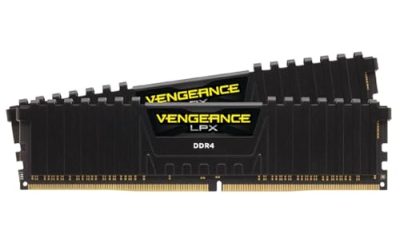
 Corsair Vengeance RGB RS DDR5 16GB
- Disclaimer: Maximum Speed requires overclocking/PC BIOS adjustments
- AMD EXPO & Intel XMP 3.0 Compatible Only:…
- Dynamic RGB Lighting: Individually addressable RGB lighting delivers…
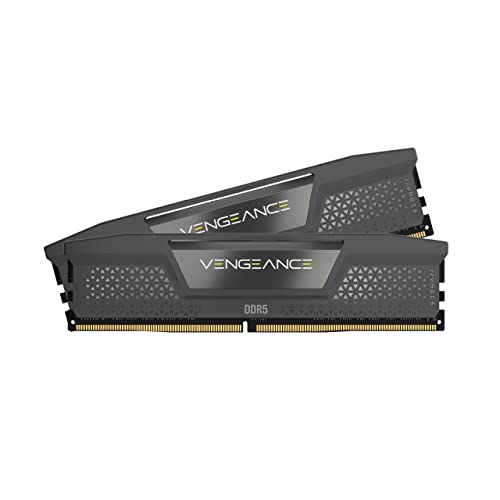 CORSAIR Vengeance DDR5 32GB
- Disclaimer: Maximum Speed requires overclocking/PC BIOS adjustments
- AMD EXPO & Intel XMP 3.0 Compatible Only:…
- Onboard Voltage Regulation: Enables easier, more finely-tuned, and…
| Product | Key specs | |
|---|---|---|
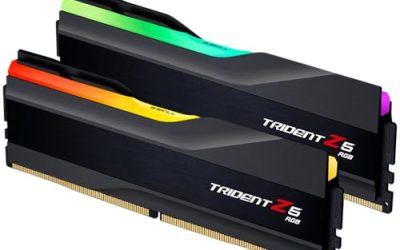
 G.SKILL Trident Z5 Neo RGB Series DDR5 G.SKILL Trident Z5 Neo RGB Series DDR5 | Check price | |
| Corsair Vengeance RGB RS DDR5 16GB | Disclaimer: Maximum Speed requires overclocking/PC BIOS adjustments AMD EXPO & Intel XMP 3.0 Compatible Only:… Dynamic RGB Lighting: Individually addressable RGB lighting delivers… | Check price |
| CORSAIR Vengeance DDR5 32GB | Disclaimer: Maximum Speed requires overclocking/PC BIOS adjustments AMD EXPO & Intel XMP 3.0 Compatible Only:… Onboard Voltage Regulation: Enables easier, more finely-tuned, and… | Check price |
 CORSAIR Vengeance DDR5 32GB CORSAIR Vengeance DDR5 32GB | Disclaimer: Maximum Speed requires overclocking/PC BIOS adjustments AMD EXPO & Intel XMP 3.0 Compatible Only:… Onboard Voltage Regulation: Enables easier, more finely-tuned, and… | Check price |
 CORSAIR Vengeance RGB DDR5 32GB CORSAIR Vengeance RGB DDR5 32GB | Disclaimer: Maximum Speed requires overclocking/PC BIOS adjustments AMD EXPO & Intel XMP 3.0 Compatible Only:… Dynamic Ten-Zone RGB Lighting: Illuminate your system with… | Check price |
| Corsair Vengeance DDR5 16GB | Disclaimer: Maximum Speed requires overclocking/PC BIOS adjustments AMD EXPO & Intel XMP 3.0 Compatible Only:… Onboard Voltage Regulation: Enables easier, more finely-tuned, and… | Check price |
| Corsair Vengeance RGB RS DDR5 64GB | Disclaimer: Maximum Speed requires overclocking/PC BIOS adjustments AMD EXPO & Intel XMP 3.0 Compatible Only:… Dynamic RGB Lighting: Individually addressable RGB lighting delivers… | Check price |
 G.SKILL Flare X5 Series DDR5 RAM G.SKILL Flare X5 Series DDR5 RAM | * Requires overclocking/BIOS adjustments G.SKILL Flare X5 Series DDR5 U-DIMM Memory Kit,… Non-ECC, DDR5 U-DIMM, 288-pin, for Desktop PC &… | Check price |
As an Amazon Associate we earn from qualifying purchases at no extra cost to you.
⚡ Save on Your Next PC — Amazon Prime
Prime members get fast free shipping on the systems above, plus early access to Prime Day & Black Friday PC deals. New members get a 30-day free trial.
Watch: How to Enable XMP / EXPO for Faster RAM — Video Review
What XMP and EXPO Actually Do
Both are pre-configured overclocking profiles stored on the memory itself. Extreme Memory Profile (XMP) is Intel’s standard, while EXPO (Extended Profiles for Overclocking) is AMD’s equivalent for Ryzen systems. When enabled, the profile tells your motherboard the correct frequency, timings, and voltage to run your kit at its rated speed, for example jumping a DDR5 kit from a default 4800 MT/s to its rated 6000 MT/s.
Why Your RAM Runs Slow by Default
Motherboards boot new memory at a safe JEDEC standard speed to guarantee the system starts on any hardware combination. That conservative default is well below what enthusiast kits are capable of. Without enabling a profile, a 6000 MT/s kit might run at 4800 MT/s or lower, leaving a significant chunk of gaming performance and 1% lows on the table.
- Stability first: Manufacturers prioritize a guaranteed boot over speed for the default.
- Profiles are validated: XMP and EXPO settings are tested by the RAM maker to be safe and stable.
- One toggle unlocks it: Enabling the profile applies frequency, timings, and voltage together.
How to Enter Your BIOS
Restart your PC and press the BIOS key repeatedly as it boots, usually Delete or F2, depending on your motherboard. This brings you into the firmware interface. Most modern boards open in an EZ or simple mode that shows a prominent memory profile toggle right on the main screen, so you often do not even need the advanced menus.
Enable the Profile and Save
Look for a setting labeled XMP, EXPO, DOCP, or A-XMP, depending on your board brand. Select it and choose Profile 1, which is the rated profile for most kits. If your kit offers both XMP and EXPO, use EXPO on an AMD system and XMP on Intel. Then save and exit, usually with F10, and let the system reboot. It may restart a couple of times as it applies the new settings, which is normal.
Verify It Worked
After booting into Windows, confirm the change. Open Task Manager, go to the Performance tab, and check the reported memory speed, or use a tool like CPU-Z, which shows the actual running frequency. Remember that DDR memory is double data rate, so a 6000 MT/s kit displays as 3000 MHz in some tools, which is correct. If the speed matches your kit’s rating, you are done.
Tips
- Use EXPO on AMD, XMP on Intel: Match the profile to your platform for the best compatibility.
- If it won’t boot, clear CMOS: A failed profile is harmless; reset CMOS and try Profile 2 or a lower speed.
- Update your BIOS first: Newer firmware often improves memory profile stability and compatibility.
- Check all sticks are seated: Firmly seated RAM in the correct slots ensures the profile applies cleanly.
Frequently Asked Questions
Is enabling XMP or EXPO safe?
Yes, it is very safe. These are manufacturer-validated profiles designed to run your memory at its rated, tested speed. The voltage and timings are set by the RAM maker to be stable, so enabling the profile carries almost no risk compared to manual overclocking.
What’s the difference between XMP and EXPO?
They do the same job, applying your RAM’s rated speed, but XMP is Intel’s standard and EXPO is AMD’s. Many DDR5 kits include both profiles. Use EXPO on a Ryzen system and XMP on an Intel one for the best compatibility and stability.
My PC won’t boot after enabling it, what now?
Do not panic, nothing is damaged. Clear the CMOS using your motherboard’s jumper or button, or remove the battery briefly, to reset to defaults. Then try Profile 2 if available, update your BIOS, or run the memory at a slightly lower speed for stability.
How much performance does enabling it give?
The gain varies but is often significant, especially on AMD Ryzen where memory speed feeds the CPU directly. Jumping from a 4800 MT/s default to a rated 6000 MT/s can add several frames and noticeably improve 1% lows in CPU-bound games, all for free.
Conclusion
Enabling XMP or EXPO is the easiest and most impactful thing you can do after building a PC, unlocking the memory speed you already paid for in about five minutes. Enter the BIOS, toggle the profile that matches your platform, save, and verify the speed in Windows. If it does not boot, a simple CMOS reset puts you back to safe defaults, so there is no reason not to try it.