Key takeaways
- Listen for the click on the 12V-2×6 connector, a partial seat is the number-one cause of RTX 50-series detection loss.
- If the card has a status LED, a solid amber or red usually flags a power fault.
Your gaming PC boots, the fans spin, Windows loads, but Device Manager shows no dedicated graphics card, or games fall back to sluggish integrated graphics. A GPU that isn’t detected is one of the most common headaches after a fresh build, a driver update, or simply a year of the card sagging in its slot. The good news for 2026: the fix is usually mechanical or software, not a dead card.
This guide covers the full detection chain, from the PCIe slot and power cables to BIOS settings and driver stack, in the order that resolves the most cases first. A GPU support bracket to stop sag and a PCIe riser or diagnostic tool can help you rule out a bad slot; you’ll find a few useful items below.
Our top picks
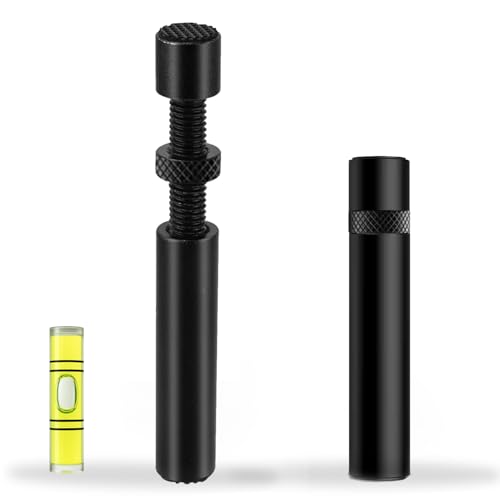 California JOS California JOS GPU Support Bracket
- ✅ Package Includes: 1 PCS Large Black GPU…
- ✅Prevents GPU Sag and Damage
- ✅Durable All-Aluminum Build
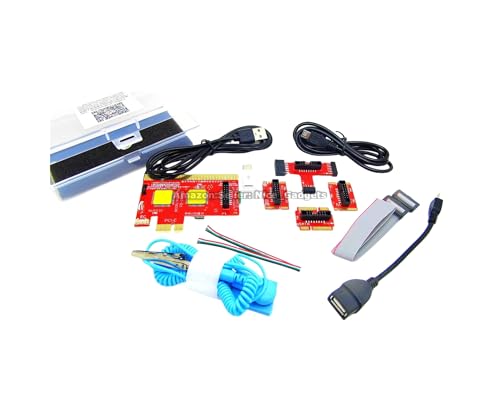 New USB PCIe Motherboard Diagnostic Tester Kit
- Please DO study the listing page the "Product…
- Easy To Use Unique USB Diagnosis with Videos…
- USB Diagnosis Unique Feature - Save hassles of…
 greenDracaena Dracaena.io 2-Pack PCIe Riser Adapter Card
- PCIe 16X to 1X riser card links GPUs…
- Powered by 6-pin, MOLEX or SATA input for…
- Built for multi-GPU mining rigs and expansion builds
| Product | Key specs | |
|---|---|---|
| California JOS California JOS GPU Support Bracket | ✅ Package Includes: 1 PCS Large Black GPU… ✅Prevents GPU Sag and Damage ✅Durable All-Aluminum Build | Check price |
| New USB PCIe Motherboard Diagnostic Tester Kit | Please DO study the listing page the "Product… Easy To Use Unique USB Diagnosis with Videos… USB Diagnosis Unique Feature - Save hassles of… | Check price |
| greenDracaena Dracaena.io 2-Pack PCIe Riser Adapter Card | PCIe 16X to 1X riser card links GPUs… Powered by 6-pin, MOLEX or SATA input for… Built for multi-GPU mining rigs and expansion builds | Check price |
 Pilipane Pilipane Graphics Card Virtual Display Emulator Pilipane Pilipane Graphics Card Virtual Display Emulator | [MINING STABILITY SOLUTION] : Tackle mining interruptions effortlessly [COMPACT DESIGN , LOW POWER] : With a… [HIGH RESOLUTION SPOOFING] : Simulate 4K resolutions like… | Check price |
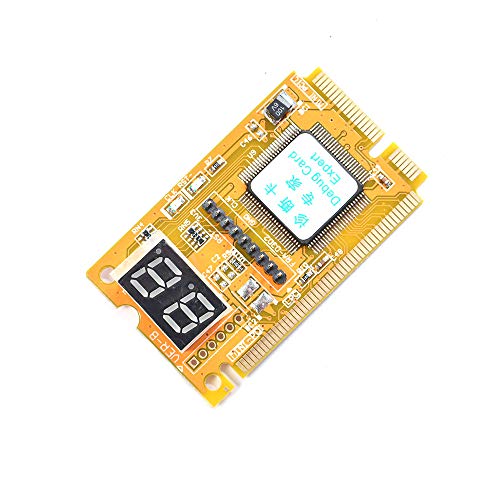 Comimark Comimark 1Pcs Mini 3 in1 PC Comimark Comimark 1Pcs Mini 3 in1 PC | 3 in 1 tester. For PCI, PCI-E, and LPC. Diagnostic post-test card. | Check price |
 Wisoqu Computer Accessory Graphics Card Tester with Wisoqu Computer Accessory Graphics Card Tester with | High Efficiency: The computer graphics card tester can… Versatile Testing Capabilities: The graphics card tester diagnostic… Comprehensive Fault Diagnosis: When troubleshooting computer graphics card… | Check price |
 Hilitand Computer Graphics Card Tester Hilitand Computer Graphics Card Tester | [Quick Fault Detection] The graphics card tester quickly… [ Design] The graphics card tester with indicator… [Comprehensive Testing] Specifically designed to test data bus… | Check price |
| Masyrt Purpose AGP PCI E Graphics Card | High Efficiency: The computer graphics card tester can… Versatile Testing Capabilities: The graphics card tester diagnostic… Comprehensive Fault Diagnosis: When troubleshooting computer graphics card… | Check price |
As an Amazon Associate we earn from qualifying purchases at no extra cost to you.
⚡ Save on Your Next PC — Amazon Prime
Prime members get fast free shipping on the systems above, plus early access to Prime Day & Black Friday PC deals. New members get a 30-day free trial.
Watch: Why Is My GPU Not Being Detected? (2026 Fixes) — Video Review
Reseat the Card and Fix Sag
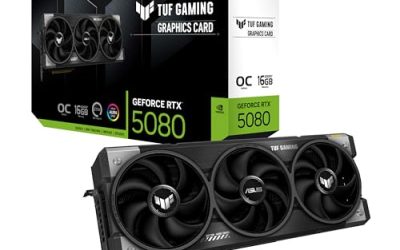
Heavy triple-fan cards like an RTX 5070 or 5080 weigh well over a kilogram, and over months they tilt down and lose full contact with the PCIe slot. Power down, unclip the PCIe latch, pull the card, clean the gold contacts with isopropyl alcohol, and reseat until it clicks. Install a GPU support bracket to hold the far end level, this alone fixes a shocking number of intermittent detection failures.
Verify Power Connectors
A modern GPU that doesn’t get full power may spin its fans but never enumerate on the bus. Confirm every 8-pin or 12V-2×6 connector is fully clicked in, on both the card and the PSU on modular units. Avoid daisy-chained “pigtail” cables on high-wattage cards; use separate cables from the PSU for each connector to guarantee stable delivery.
- Listen for the click on the 12V-2×6 connector, a partial seat is the number-one cause of RTX 50-series detection loss.
- If the card has a status LED, a solid amber or red usually flags a power fault.
Test the Slot and Card Separately
To isolate whether the slot or the card is at fault, try the card in a second PCIe x16 slot if your board has one. A PCIe riser adapter also lets you test outside the slot entirely. If the card works elsewhere, the primary slot is damaged; if it works nowhere, the card itself is suspect. This two-minute swap saves you from ordering the wrong replacement.
Check BIOS Settings
Firmware settings quietly disable dedicated cards more often than people realize. Enter BIOS and confirm the primary display output is set to PEG or PCIe, not Auto or IGFX. Enable Above 4G Decoding and Resizable BAR, both are expected by 2026-era cards and drivers. If you flashed a BIOS update recently, these can reset to defaults that favor integrated graphics.
Rebuild the Driver Stack
A corrupted driver, common after a Windows feature update, can hide a perfectly good card. Use Display Driver Uninstaller (DDU) in Safe Mode to strip every trace of the old driver, then install the latest package cleanly. Confirm the card first appears in Device Manager even as a generic “Microsoft Basic Display Adapter”, if it shows there, the hardware is detected and the fix is purely software.
Tips
- Update your motherboard BIOS if the card is newer than the board; older firmware sometimes can’t initialize current GPUs.
- Keep the monitor cable in the GPU’s output, plugging into the motherboard forces integrated graphics.
- Blow dust out of the PCIe slot with compressed air; grime causes intermittent contact.
- Test with one RAM stick if you enabled Resizable BAR and the system now refuses to post.
Frequently Asked Questions
The GPU fans spin but it’s not in Device Manager. Dead card?
Spinning fans only prove the card gets some power, not that it enumerates. Reseat it, verify power cables, and test in another slot before concluding it’s dead. A diagnostic POST card can confirm whether the VGA stage passes.
My games use integrated graphics instead of my card.
Set the primary display to PEG/PCIe in BIOS and assign the game to the high-performance GPU in Windows Graphics settings. Also make sure your monitor is plugged into the card, not the board.
Do I need Resizable BAR enabled?
It’s not mandatory for detection, but current cards and drivers expect it, and leaving it off can cause odd behavior. Enable it along with Above 4G Decoding for the smoothest experience.
Could a weak power supply cause this?
Yes. An undersized or aging PSU can fail to deliver the transient spikes a modern GPU demands, causing it to drop off the bus under load or never initialize. Rule it out with a known-good unit rated well above your card’s draw.
Conclusion
An undetected GPU is far more often a seating, power, or driver issue than a hardware death. Reseat and support the card, confirm every power connector clicks home, set BIOS to prioritize PCIe, and rebuild the driver with DDU. Work through those in order and you’ll have your card back in Device Manager, and your frame rates back, without an unnecessary replacement.