Key takeaways
- Best competitive setup: Fullscreen Exclusive, Reflex On + Boost, upscaler Quality or native 100% render, most quality settings Low, FOV 100-115.
- Best for visuals in campaign and Zombies: Recommended or High preset, textures High, shadows High, ray tracing off.
- Best for older 4-6 GB GPUs: FSR on Quality or Balanced, Texture Resolution Low, everything else Low or Off.
- Setting to always disable: ray traced reflections; PCOptimizedSettings measured about a 65% performance cost.
- Required before you can play: TPM 2.0 and Secure Boot enabled in your BIOS.
The best Black Ops 7 PC settings for competitive multiplayer are Fullscreen Exclusive, V-Sync off, NVIDIA Reflex On + Boost, DLSS or FSR on Quality (or native render resolution with FidelityFX CAS), ray traced reflections off, Screen Space Reflections off, low Shadow Quality and Occlusion off, and Motion Blur off. That combination keeps the image clear for spotting enemies while pushing frame rates toward your monitor’s refresh rate. For the campaign and Zombies, you can safely raise textures, shadows and occlusion on any GPU with 12 GB or more of VRAM, but ray traced reflections remain the one setting that costs far more than it gives.
Call of Duty: Black Ops 7 launched on November 14, 2025, and has received seasonal updates since, with Dexerto’s settings guide revised for Season 3 in April 2026. The game runs well on a wide range of hardware compared with many 2025-2026 releases, but its menu is long and some defaults are tuned for visuals rather than visibility. This guide explains the current menu, which settings matter for frame rate, recommended presets for entry, mid and high-end GPUs, and the TPM 2.0 and Secure Boot requirements that stop some PCs from launching the game at all.
Verdict at a glance
- Best competitive setup: Fullscreen Exclusive, Reflex On + Boost, upscaler Quality or native 100% render, most quality settings Low, FOV 100-115.
- Best for visuals in campaign and Zombies: Recommended or High preset, textures High, shadows High, ray tracing off.
- Best for older 4-6 GB GPUs: FSR on Quality or Balanced, Texture Resolution Low, everything else Low or Off.
- Setting to always disable: ray traced reflections; PCOptimizedSettings measured about a 65% performance cost.
- Required before you can play: TPM 2.0 and Secure Boot enabled in your BIOS.
System requirements, TPM 2.0 and Secure Boot
Activision published three PC tiers. All of them require TPM 2.0 and Secure Boot, which work alongside the kernel-level Ricochet anti-cheat.
| Tier | CPU | GPU | RAM / VRAM | Target |
|---|---|---|---|---|
| Minimum | Ryzen 5 1400 or Core i5-6600 | RX 470, GTX 970 / 1060 or Arc A580 | 8 GB / 3 GB | Playable on low settings |
| Recommended | Ryzen 5 1600X or Core i7-6700K | RX 6600 XT, RTX 3060 or Arc B580 | 12 GB / 8 GB | 60 fps in most situations, high settings |
| Competitive / Ultra 4K | Ryzen 5 5600X or Core i7-10700K | RX 9070 XT, RTX 4080 or RTX 5070 | 16 GB / 16 GB | High refresh rates or 4K Ultra |
Activision lists 116 GB of SSD space at launch, Windows 11 for the upper tiers, an AVX-capable CPU, and Resizable BAR for Intel Arc GPUs. Seasonal updates add to the install size over time.
Enabling TPM 2.0 and Secure Boot
- Press Windows + R, type
tpm.mscand confirm the TPM is present and version 2.0. - Run
msinfo32and check that BIOS Mode shows UEFI and Secure Boot State shows On. - If TPM is off, enter your BIOS and enable Intel PTT (8th gen Core or newer) or AMD fTPM (Ryzen 2000 series or newer).
- If Secure Boot is off, the system disk must use GPT and the BIOS must be in UEFI mode with CSM disabled. Converting an MBR disk requires care; back up first and use Microsoft’s MBR2GPT tool.
- Enable Secure Boot, save and reboot.
Most modern PCs have firmware TPM built into the CPU, so a separate TPM module is rarely needed.
How Black Ops 7 performs on PC
The game is mostly GPU-limited and scales well across hardware. Wccftech’s launch-build testing at native 1080p on the Extreme preset gives a good sense of where common cards land.
| GPU (Wccftech, 1080p Extreme, native) | Average fps |
|---|---|
| RTX 5090 | 237 |
| RX 9070 XT | 221 |
| RTX 5080 | 206 |
| RTX 5070 Ti | 174 |
| RTX 5070 | 150 |
| RX 9060 XT 16GB | 134 |
| RTX 5060 Ti 16GB | 121 |
| RTX 5060 | 96 |
| Arc B580 | 80 |
Turning on ray tracing changes the picture sharply. With RT on High at 1080p, Wccftech recorded the RTX 5070 dropping to 84 fps and the RTX 5060 to 63 fps. PCOptimizedSettings put the cost of ray traced reflections at roughly 65%, even on high-end GPUs. XDA saw the same issue on an RTX 4070 Ti at 1440p and only reached three-digit frame rates after enabling DLSS Balanced.
Radeon cards perform unusually well here. Wccftech found the RX 9070 XT matching or beating the RTX 5080 at 1080p and 1440p, and ComputerBase’s beta testing, reported by Wccftech, showed the 9070 XT 31% ahead of the RTX 5070 Ti at 1440p. DSOGaming found every GPU it ran stayed above 60 fps at 1080p Max, including an RTX 2080 Ti at over 75 fps.
For older hardware, XDA measured a GTX 1660 Ti at 1080p native at 40 fps on minimum and 35 fps on ultra, rising to 83 fps and 57 fps with FSR 3.1 Quality. Upscaling is the key to playable frame rates on budget cards.
Recommended settings: Display tab
| Setting | Recommended value | Why |
|---|---|---|
| Display Mode | Fullscreen Exclusive | Lowest latency and most consistent frame pacing |
| Screen Refresh Rate / Display Resolution | Your monitor’s maximum | Native resolution with upscaling is sharper than a lower output resolution |
| Display Gamma | 2.2 [sRGB] | Matches most monitors |
| NVIDIA Reflex Low Latency | On + Boost | Cuts system latency on GeForce cards |
| V-Sync (Gameplay and Menus) | Off | Avoids added input lag; use G-Sync or FreeSync instead |
| Custom Frame Rate Limit, Gameplay | A few fps below refresh (for example 141 on 144 Hz) with VRR, or uncapped | Keeps adaptive sync active |
| Custom Frame Rate Limit, Menu / Out of Focus | 60 / 10-30 | Saves power and heat |
| HDR | Off unless you have a good HDR monitor | Poor HDR panels wash out the image |
Recommended settings: Quality tab by GPU tier
The menu names below match the current Quality tab. The competitive column follows Dexerto’s Season 3 recommendations; the other columns balance visibility with visuals for each GPU class.
| Setting | Entry (GTX 1660, RX 6600, RTX 3060, RTX 4060) | Mid (RTX 4070, RTX 5070, RX 7800 XT, RX 9070) | High (RTX 5080, RTX 4090, RX 9070 XT) |
|---|---|---|---|
| Graphic Preset | Custom from Minimum | Custom from Recommended | Custom from High |
| Render Resolution | 100 with upscaler | 100 | 100 |
| Upscaling / Sharpening | FSR or DLSS Quality (Balanced on 4-6 GB cards) | DLSS / FSR 4 Quality, or FidelityFX CAS at native | DLAA, or DLSS / FSR 4 Quality at 4K |
| Frame Generation | Off | Off for multiplayer | Optional for campaign at 4K |
| VRAM Scale Target | 70-80 | 80 | 80-90 |
| Variable Rate Shading | On | On | On |
| Texture Resolution | Low (Normal on 8 GB) | Normal or High | High |
| Texture Filter Anisotropic | Normal | High | High |
| Depth of Field | Off | Off | Off |
| Detail Quality | Low | Low or Normal | Normal |
| Particle Resolution | Very Low | Low | Normal |
| Shader Quality | Low | Low | Normal |
| Local Texture Streaming Quality | Low | Low | Normal |
| Shadow Quality | Low | Low or Normal | Normal or High |
| Occlusion and Screen Space Lighting | Off | Off for MP, on for campaign | On |
| Screen Space Reflections | Off | Off | Off for MP |
| Ray Traced Reflections | Off | Off | Off (campaign only if you want them) |
| Terrain Quality | Low | Low | Normal |
| Volumetric Quality | Low | Low | Normal |
| Water Quality | Off | Off | Normal |
Entry-level GPUs
Older and budget cards benefit most from upscaling. Use FSR on Quality, or Balanced on 4-6 GB cards, keep Texture Resolution Low or Normal to stay inside VRAM, and set VRAM Scale Target to 70-80 so the game does not over-allocate. Turn off Occlusion, Screen Space Reflections and Water Quality. Mid-tier players following LagoFast’s advice aim for a steady 120 fps rather than peak visuals.
Reasons to pick: stable frame rates and clean visibility on modest hardware.
Reasons to skip: on a 12 GB RTX 3060, you can raise textures to Normal or High with little FPS loss.
The catch: quad-core CPUs at the minimum spec will limit frame rates in large modes even at low settings.
Mid-range GPUs
Cards in this tier can exceed 144 fps at 1080p and run 1440p at high refresh with DLSS or FSR 4 Quality. Keep shadows Low or Normal for clarity, occlusion off in multiplayer, and ray tracing off. Texture Resolution has a large VRAM impact but a small frame-rate impact when memory is sufficient, so raise it if you have 12 GB or more.
Reasons to pick: high refresh competitive play with good-looking textures.
Reasons to skip: if you mostly play campaign, switch occlusion and shadows up for a richer image.
The catch: Frame Generation raises the counter but adds latency; leave it off in multiplayer.
High-end GPUs
Flagship GPUs are CPU-limited at 1080p in multiplayer, so 1440p or 4K becomes the sensible target. PCOptimizedSettings recorded averages of 190 fps at 1080p, 141 fps at 1440p and 87 fps at 4K on the Extreme preset with its high-end test rig. Use DLAA at 1440p, DLSS or FSR 4 Quality at 4K, and leave ray traced reflections off unless you are playing the campaign for visuals.
Reasons to pick: sharp image quality at very high frame rates.
Reasons to skip: 360 Hz and 480 Hz players should drop to the competitive column for maximum frame rate.
The catch: TweakTown found even an RTX 5080 cannot reach 144 fps at native 4K without DLSS and Frame Generation.
Recommended settings: View tab
- Field of View: 100-115 (wider shows more but makes distant targets smaller)
- ADS Field of View: Affected
- Weapon Field of View: Wide
- World Motion Blur and Weapon Motion Blur: Off
- 1st Person Camera Movement: Least (50%)
- Inverted Flashbang: On, if you prefer a dark screen to a white one
Extra performance tips
- After changing settings, use Restart Shaders Pre-Loading in the Graphics menu, as Dot Esports recommends, and let it finish before playing.
- Install the latest GPU driver; Activision listed specific launch drivers from AMD, NVIDIA and Intel.
- Install on an NVMe SSD to cut texture streaming hitches.
- Enable Resizable BAR in the BIOS, required for Intel Arc and helpful on Radeon.
- Close overlays and browser tabs; multiplayer frame rates are sensitive to background CPU load.
Settings by mode: multiplayer, Zombies and campaign
Black Ops 7 is really three games in one menu, and the best settings differ for each. You can save time by keeping a competitive profile and switching a handful of options when you change modes.
| Setting | Multiplayer and Ranked | Zombies | Campaign |
|---|---|---|---|
| Priority | Visibility and frame rate | Steady frame rate in hordes | Visual quality |
| Shadow Quality | Low | Normal | High |
| Occlusion and Screen Space Lighting | Off | On | On |
| Particle Resolution | Very Low | Low (heavy effects in large rounds) | Normal or High |
| Volumetric Quality | Low | Low | Normal or High |
| Ray Traced Reflections | Off | Off | Optional on high-end GPUs |
| Frame Generation | Off | Optional | Optional |
| Depth of Field | Off | Off | On if you like a cinematic look |
Zombies deserves its own note. Late rounds fill the screen with enemies, explosions and elemental effects, which raises both GPU and CPU load far above a typical multiplayer match. Players who hold 144 fps in multiplayer often see sharp drops in high Zombies rounds. Keeping Particle Resolution and Volumetric Quality low is the most effective way to keep frame rates steady there.
Monitor and peripheral tips
- Refresh rate: confirm Windows display settings and the in-game Screen Refresh Rate both show your monitor’s maximum; a mismatch is a common cause of a “locked” 60 Hz feel.
- Adaptive sync: enable G-Sync or FreeSync in your GPU control panel, keep V-Sync off in game, and cap a few frames below refresh.
- Mouse polling: 1000 Hz is the safe default. Very high polling rates of 4000-8000 Hz add CPU load that can lower frame rates on mid-range processors.
- Audio: footstep clarity is as important as visuals in competitive play; a stereo headset with the game’s headphone mix often beats virtual surround.
Keeping performance steady across seasons
Each new season brings new maps, modes and sometimes engine changes, and seasonal patches occasionally reset or alter graphics options. After every major update, re-check three things: that Display Mode is still Fullscreen Exclusive, that your upscaler and render resolution have not reverted to defaults, and that shaders have finished pre-loading. If performance drops after a season launch, update your GPU driver first, because NVIDIA, AMD and Intel usually ship game-ready drivers timed to major Call of Duty updates. Clearing and rebuilding the shader cache from the Graphics menu also fixes many post-patch stutters. Finally, if you play through Battle.net or Steam, run the client’s file verification tool when you see crashes after an update; corrupted downloads are a common culprit and the repair only replaces damaged files.
Checking where your bottleneck is
Black Ops 7 includes an in-game telemetry overlay you can enable from the Interface settings to display FPS, GPU and CPU temperatures and usage. If GPU usage stays near 100%, lower GPU-heavy options such as shadows, occlusion and render resolution. If GPU usage drops while frame rate falls, you are CPU-limited; reduce Particle Resolution and Detail Quality, close background apps, and check that Windows Game Mode is on.
Common mistakes
- Leaving ray traced reflections on. It can more than halve frame rates for a barely visible change in multiplayer.
- Lowering Display Resolution instead of using an upscaler. DLSS or FSR at native output stays much sharper.
- Using Frame Generation in multiplayer. Higher numbers, worse responsiveness.
- Setting VRAM Scale Target to 100 on 8 GB cards. It invites stutter when memory fills.
- Ignoring TPM and Secure Boot errors. They are mandatory; no setting works around them.
Products Mentioned in This Guide
These are specific models from the Black Ops 7 system requirements, performance results and GPU tiers discussed above.
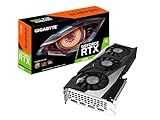
ASUS Prime Radeon RX 9070 XT 16GB OC Edition
As an Amazon Associate we earn from qualifying purchases at no extra cost to you.

Listed in the Competitive / Ultra 4K tier, and Wccftech found the RX 9070 XT matching or beating the RTX 5080 at 1080p and 1440p in this game.
ASUS Prime GeForce RTX 5070 12GB OC Edition

Also named in the Competitive / Ultra 4K tier and in the mid-range column, where DLSS Quality with mostly Low settings suits multiplayer.
ASUS TUF Gaming GeForce RTX 5080 16GB OC Edition

A high-end column card for DLAA at 1440p or DLSS Quality at 4K, with ray traced reflections kept off for multiplayer.
ASUS Dual GeForce RTX 5060 Ti 16GB OC Edition

The 16GB RTX 5060 Ti appears in the 1080p Extreme results above, and its extra VRAM gives more room for the VRAM Scale Target and Texture Resolution settings.
Sparkle Intel Arc B580 Titan OC 12GB

Named in the Recommended tier for 60 fps at high settings; remember Activision requires Resizable BAR on Intel Arc GPUs.
AMD Ryzen 5 5600X

The processor Activision lists for the Competitive / Ultra 4K tier aimed at high refresh rates.
How we compared
We compared settings using Activision’s official requirements and launch blog, independent measurements from Wccftech, PCOptimizedSettings, XDA, DSOGaming, TweakTown and ComputerBase, and settings recommendations from Dexerto, Dot Esports, Timesaver and LagoFast. We did not bench-run these settings ourselves. Frame-rate figures come from launch-era builds and may shift with seasonal updates.
Sources
- Activision / Call of Duty blog: Black Ops 7 PC specs, preloading and handheld systems
- Guru3D and TechRadar: TPM 2.0 and Secure Boot requirement coverage
- Wccftech: Black Ops 7 PC performance benchmarks
- PCOptimizedSettings: Call of Duty Black Ops 7 PC settings optimization guide
- XDA Developers: Black Ops 7 optimization across three GPUs
- DSOGaming: Black Ops 7 PC performance analysis
- TweakTown: Black Ops 7 early access 4K and 1440p benchmarks
- Dexerto: Best Black Ops 7 PC settings (Season 3 update)
- Dot Esports, Timesaver and LagoFast settings guides
Frequently Asked Questions
What is the best FOV in Black Ops 7?
Between 100 and 115 for most players. Higher values show more of the map but shrink distant enemies and raise GPU load slightly.
Does Black Ops 7 require TPM 2.0?
Yes. Activision requires both TPM 2.0 and Secure Boot on every PC tier to support its Ricochet anti-cheat.
Should I use DLSS or native resolution?
DLSS or FSR 4 Quality gives higher frame rates with little visual loss. Players who prefer native sharpness can use 100% render resolution with FidelityFX CAS.
Why is my frame rate so low with ray tracing?
Ray traced reflections cost about 65% of performance in PCOptimizedSettings’ testing. Turn them off for multiplayer.
What does VRAM Scale Target do?
It sets how much of your graphics memory the game is allowed to use. A value of 70-80 leaves headroom and reduces stutter on 8 GB cards.
Is Black Ops 7 better on AMD or NVIDIA?
Radeon cards perform unusually well. Wccftech found the RX 9070 XT matching or beating the RTX 5080 at 1080p and 1440p.
Can a GTX 1660 run Black Ops 7?
Yes. XDA measured a GTX 1660 Ti at 83 fps at 1080p minimum settings with FSR 3.1 Quality.
Should I cap my frame rate?
With G-Sync or FreeSync, a cap a few frames below your refresh rate keeps adaptive sync active and smooths frame pacing.