Key takeaways
- How many RAM slots does a motherboard need? Two or four DIMMs, dual-channel rules, stability with four sticks and capacity planning explained clearly.
Most gaming motherboards need two RAM slots to run dual-channel memory, and four slots give you room to expand later. Two slots are enough for the majority of builds, while four-slot boards suit people who want upgrade flexibility or very high capacities. The catch is that filling all four slots can reduce the speed some platforms support. This guide explains the differences, using published specifications and manufacturer documentation, and ends with a planning example so you can pick a board and a memory kit that fit together.
Two slots versus four slots at a glance
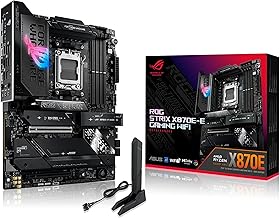
Memory slots on a desktop board are called DIMM slots. Boards come in two main layouts, and the form factor is the usual predictor. Compact boards, especially Mini-ITX, commonly carry two slots because space is tight. Standard ATX and micro-ATX boards usually carry four. Some enthusiast ATX boards ship with only two on purpose, to keep the electrical paths short for higher memory speeds.
| Feature | Two DIMM board | Four DIMM board | Why it matters |
|---|---|---|---|
| Typical form factor | Mini-ITX, some enthusiast ATX | ATX, micro-ATX | Size drives the layout |
| Upgrade path | Replace the kit | Add a second kit, or replace | Four slots allow cheaper partial upgrades |
| Speed headroom | Often easier at high speeds | May need lower speeds when full | Memory controller load rises with module count |
| Capacity ceiling | Set by the largest module size | Higher, with four modules | Matters for workstation or creator use |
What dual-channel actually does
Dual-channel means the processor reads and writes memory over two parallel paths, which roughly doubles the data width compared with a single module. In practice, you get more bandwidth, and games that depend on fast memory, especially those with integrated graphics, benefit the most. A single stick works, but it leaves performance on the table.
To get dual-channel, install a matching pair in the correct slots. On most four-slot boards the manual says to use the second and fourth slots from the processor, commonly labeled A2 and B2. Two-slot boards are simple: fill both. DDR5 changes the internal details, since each module has two smaller sub-channels, but the practical advice is the same: use two modules, not one.
Why four sticks can be harder to run
Each additional module adds electrical load on the memory controller built into the processor. With two modules, the controller handles two. With four, it must drive twice as many, and modules with a higher internal density, known as dual-rank, add to the burden. The result on many platforms is a lower supported top speed with four modules and a greater chance of instability at aggressive settings.
This varies by platform and by kit. Some systems handle four sticks at rated speeds with no trouble, and others need manual loosening of speed or timings. If you plan to fill all four slots, check the processor and board documentation for the supported speed in that configuration. When a system refuses to start or restarts repeatedly, reseat modules first and then reset the BIOS to defaults, remembering to unplug the power supply before using a CMOS reset.
Planning capacity: a worked example
Capacity planning is easier on paper. Imagine you want 32 GB now and the option of 64 GB later. Here are the paths.
- Four-slot board, two 16 GB sticks now: you have two empty slots. Later you can add a second 32 GB kit, but the four-stick setup may limit speed.
- Four-slot board, four 8 GB sticks now: every slot is full, so growing requires replacing modules and discarding the old ones.
- Two-slot board, two 16 GB sticks now: simple and fast, but growing to 64 GB means replacing both with 32 GB modules, if the board supports them.
The choice that costs least over time depends on whether you value speed headroom or incremental upgrades. Check the maximum capacity and module size on the specification page first, since not every board accepts the largest modules available.
How much capacity do you really need?
Many gaming systems run well with 16 GB, and 32 GB gives extra room for streaming, browser tabs and mods. Beyond that, the gains are narrow unless you edit video or run virtual machines. For a deeper look, see the guide on how much RAM you need for gaming. The point for slot count is that you rarely need more than two high-capacity modules for gaming, which is why two-slot boards are a reasonable choice.
If you do need a lot of memory, four slots help, but fewer larger modules usually beat many small ones. Two 32 GB sticks are generally easier on the controller than four 16 GB sticks with the same total, although the best configuration depends on the platform.
Installing memory safely
Whatever layout you pick, install modules with care. Power off, switch off the supply, unplug the power cable, and touch bare case metal to discharge static before handling parts. Hold modules by the edges, line up the notch with the key in the slot, and press down evenly until the latches click. Do not force a module; DDR4 and DDR5 use different notch positions, so a mismatched module will not seat properly, and pushing hard can damage the slot.
- Open the manual to the memory page and find the recommended slots.
- Open the latches on those slots.
- Align the notch and press down on both ends of the module.
- Confirm the latches have locked on each side.
- Power on and check that the BIOS reports the full capacity and the expected speed.
Myths about RAM slots
A few ideas circulate that are worth dropping. One is that more slots always mean a faster system; slot count sets room to grow, while speed depends on the memory kit, the processor and the settings. Another is that empty slots hurt performance, which they do not. A third is that you must fill every slot to use all the capacity; the total comes from the modules you install, not the slots you leave empty.
It is also a myth that any two sticks form a dual-channel pair. They need to sit on different channels, which is why slot position matters. If your system reports single-channel in a system information tool, move one module to the other labeled slot and check again.
Choosing a motherboard slot count
Pick two slots if you want a small build, plan to buy the capacity you need at once, and prefer less fuss about speed. Pick four slots if you like upgrading in stages, need more total capacity, or want the flexibility of a standard ATX layout. In either case, buy one matched kit rather than mixing, confirm the memory type on the board’s specification page, and check the supported speeds for your processor.
Keep in mind that capacity and slot count are separate questions. A four-slot board does not automatically mean better performance, and a two-slot board is not a limitation if you buy sensibly. The best option is the one that fits your plan for the next few years.
RAM slot questions answered
Is a two-slot motherboard enough for gaming?
Yes, for most gaming builds. Two modules in dual-channel can reach 32 GB with a pair of 16 GB sticks, and some platforms support larger modules. Two-slot boards are common in compact Mini-ITX designs and are often easier to run at rated memory speed. The trade-off is that upgrades mean replacing modules, not adding more. Pick the capacity you want up front and check the board’s maximum supported total.
Do four RAM sticks run slower than two?
They can. Populating all four slots puts more electrical load on the processor’s memory controller, so many platforms support a lower top speed with four modules, and stability can become more sensitive, particularly with fast DDR5 kits. The exact limit depends on the processor, the board and the modules. Check the processor and board documentation for the supported speed with two and with four modules.
Which slots should two sticks go in?
On four-slot boards, two modules usually go in the second and fourth slots counting from the processor socket, which are often the ones the manual labels A2 and B2. This puts one module on each channel and enables dual-channel operation. Always confirm in your board’s manual, since layouts differ. Installing both in adjacent slots can leave you running single-channel.
Can different RAM kits be mixed in one motherboard?
Technically often yes, but it is not recommended. Different brands, speeds, timings or capacities may force every module to run at the slowest shared settings, and some combinations will not boot reliably. The best approach is one kit that provides your full capacity, sold and validated as a set. If you must mix, match capacity and type, and expect to lower the speed or adjust settings.
How much total memory can a motherboard support?
The limit is set by the processor’s memory controller and the board’s design, and it is listed on the specification page as a maximum capacity. It also depends on the largest module size the board supports per slot. Newer boards with high-capacity modules can reach very large totals, but gaming rarely needs them. Always compare the board’s stated maximum with your plan before buying memory.
Related guides
- Gaming Headsets For Competitive Fps Directional Audio
- Motherboards For Ryzen 5 5600X
- Xmp Vs Expo Explained