Key takeaways
- Passthrough resolution and refresh (4K60 is the floor; 4K120 is the ceiling you want on HDMI 2.1 consoles)
- HDR passthrough — HDR10 at minimum
- VRR passthrough — usually listed as “VRR” or “ALLM/VRR support”
- Capture ceiling separate from passthrough (e.g. 4K60 passthrough / 1080p60 capture)
- On-card 3.5 mm audio in/out
Best Black Friday Streaming Equipment Deals 2026: What Actually Matters by Setup Tier
The best Black Friday streaming equipment deals in 2026 are not the ones with the biggest percentage off — they are the ones that clear a specific spec bar for your setup tier. For a solo camera stream, that bar is a cardioid (or switchable cardioid/omni) USB or XLR microphone plus a camera with a clean HDMI output; for a dual-PC build, it’s a capture card with 1080p240 or 1440p120 passthrough and a HDMI 2.1 path; for console capture, it’s 4K60 HDR passthrough with VRR support and a 3.5 mm headphone jack on the card itself. Everything below is grouped by those three tiers, with the one number that decides whether the deal is worth taking.
Quick comparison: the picks by tier
| Pick | Best for | Key spec that matters | Typical Black Friday range |
|---|---|---|---|
| Elgato Wave:3 (or Wave DX + Wave XLR) | Solo cam start | Cardioid pickup pattern, 24-bit/96 kHz, built-in clipguard | USB mic roughly $90–$130; XLR bundle roughly $230–$300 |
| Shure MV7+ / SM7B-class dynamic | Solo cam, untreated room | Cardioid dynamic, tight off-axis rejection, XLR + USB | Roughly $200–$400 |
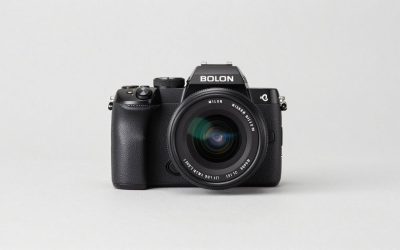
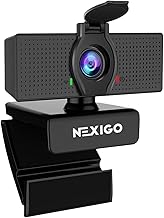
| Elgato Facecam MK.2 / Sony ZV-series body | Solo cam video | Clean HDMI out, 1/4″-20 mount thread, no auto-record timeout | Webcam roughly $120–$180; camera body roughly $600–$900 |
| Elgato 4K60 Pro MK.2 or AVerMedia Live Gamer 4K-class PCIe | Dual-PC | 4K60 HDR passthrough, 1080p240 capture, PCIe x4 slot | Roughly $160–$250 |
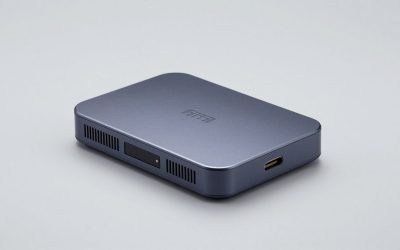
| Elgato 4K X / USB 3.2 Gen 2 class | Dual-PC or laptop | 4K144 passthrough on HDMI 2.1, 4K60 capture over USB | Roughly $180–$250 |
| Elgato HD60 X / AVerMedia Live Gamer Ultra-class | Console capture | 4K60 HDR passthrough, VRR passthrough, 3.5 mm on-card jack | Roughly $130–$200 |
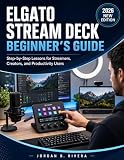
| Stream Deck MK.2 / Stream Deck + | All tiers | 15 or 8+4 keys, USB-C, 1/4″-20 thread on the + model | Roughly $100–$200 |
Prices above reflect the general market outside of sale season. Per manufacturer spec sheets, model numbers in these families have refreshed across generations, so confirm the exact revision on the box before buying — the passthrough ceiling is often the one spec that changed between revisions of the same name.
As an Amazon Associate we earn from qualifying purchases at no extra cost to you.

Tier 1: Solo camera stream — where the mic pattern beats the mic price
Best overall for solo cam: a cardioid dynamic mic with XLR and USB
For a single-person stream in a normal room, a cardioid dynamic microphone is the correct default. Cardioid means the capsule is most sensitive to sound arriving from directly in front and progressively rejects the sides and rear; a dynamic capsule needs more gain but picks up far less room reflection, keyboard clatter and fan noise than a condenser. If your room is untreated — hard walls, no acoustic panels — this pattern choice matters more than the price bracket. The trade-off is that a dynamic mic usually needs an audio interface or a mixer with 60 dB+ of clean gain, which is a second purchase.
Best budget solo cam pick: USB cardioid condenser
A USB cardioid condenser in the roughly $90–$130 band is the fastest path to acceptable audio. It’s self-powered, needs no interface, and most models in this class include a headphone jack for zero-latency monitoring. The trade-off: a condenser is more sensitive to the whole room, so a mechanical keyboard or an open door will be audible. If you can’t treat the room, spend the extra on a dynamic instead.
Best video pick for solo cam: clean HDMI out
The number to check on any camera or webcam is whether the HDMI output is “clean” — no on-screen icons, no focus boxes, no auto-shutoff after 30 minutes. Manufacturer spec sheets list this as “clean HDMI output” or “HDMI info display: off,” and mirrorless bodies often ship with a 30-minute recording cap that applies to internal recording but not to HDMI out. Check the mount thread too: a 1/4″-20 thread is the universal standard for tripods, magic arms and desk clamps, and anything else means an adapter you’ll have to buy separately.
Tier 2: Dual-PC — the passthrough resolution is the whole decision
Best overall for dual-PC: internal PCIe capture
A PCIe capture card in the 4K60 Pro / Live Gamer 4K class is the right call when the streaming PC has a free PCIe x4 slot and you game at 1440p or 4K. The critical spec is passthrough, not capture: the card sits between your GPU and your monitor, so the signal your monitor sees passes through the card. If the card’s passthrough ceiling is 4K60, your 1440p240 monitor gets a 4K60-class passthrough image and you lose high-refresh gaming on that display. Internal cards also avoid USB bandwidth contention, which matters when you’re already running a webcam, a mic and a Stream Deck off the same controller.
Best for laptop or single-PC streamers: USB 3.2 Gen 2 class
External USB capture cards in the 4K X / Live Gamer Ultra class pass through up to 4K144 on HDMI 2.1 and capture at 4K60 or 1440p120 depending on the model. The number to verify is the passthrough refresh at your monitor’s native resolution — 4K144 passthrough means your 4K144 monitor keeps its refresh while the card captures a copy at 4K60. The trade-off is a small added latency on the passthrough path and a hard dependency on a USB 3.2 Gen 2 (10 Gbps) port; plugging into a USB 3.0 (5 Gbps) port will force the card down to a lower capture mode.
Do the bandwidth math before you buy
Uncompressed 4K60 at 8-bit RGB is 3840 × 2160 × 60 × 3 bytes ≈ 1.49 GB per second, or about 11.9 Gbps. That exceeds what a 10 Gbps USB link can carry, which is why every USB capture card in this class compresses to a lower capture format while leaving passthrough uncompressed. If your target is 1440p120 capture, the raw figure is 2560 × 1440 × 120 × 3 ≈ 1.33 GB/s, or roughly 10.6 Gbps — same story. This is the reason PCIe cards, with far more headroom, remain the choice for anyone capturing at high frame rates.
Tier 3: Console capture — VRR and the headphone jack
For a PS5 or Xbox Series X, the card needs 4K60 HDR passthrough at minimum, and if you care about smoothness, VRR passthrough as well. VRR (variable refresh rate) passthrough means the card passes the console’s variable refresh signal through to the TV rather than stripping it; when a card doesn’t support it, your display falls back to a fixed refresh and you lose the benefit entirely on that input. The other spec that’s easy to miss: a 3.5 mm headphone jack on the card itself. On consoles, party chat audio often arrives on the HDMI signal, and a card with an on-board jack lets you monitor and mix that audio without routing it back through the console controller.
What to check on the box
- Passthrough resolution and refresh (4K60 is the floor; 4K120 is the ceiling you want on HDMI 2.1 consoles)
- HDR passthrough — HDR10 at minimum
- VRR passthrough — usually listed as “VRR” or “ALLM/VRR support”
- Capture ceiling separate from passthrough (e.g. 4K60 passthrough / 1080p60 capture)
- On-card 3.5 mm audio in/out
How to choose: map your situation to one spec
| Your situation | Buy this class | The number to verify |
|---|---|---|
| One person, one camera, untreated room | Cardioid dynamic mic + USB interface | 60 dB+ preamp gain, cardioid pattern |
| One person, treated or quiet room | USB cardioid condenser | 24-bit/48 kHz minimum, headphone monitoring |
| Two PCs, gaming at 1440p/4K | PCIe capture card | Passthrough equals your monitor’s max refresh at native res |
| One PC or laptop, single machine gaming + streaming | USB 3.2 Gen 2 capture card | 10 Gbps port available; passthrough refresh ≥ monitor refresh |
| Console, capturing to a PC | External card with VRR + headphone jack | 4K60 HDR passthrough, VRR passthrough, 3.5 mm jack |
A practical rule: spend roughly 40% of a solo-cam budget on audio, because audio quality is what viewers notice first and it degrades worst under a discount-bin microphone. For dual-PC and console setups, spend it on the capture card — a cheap card that forces your monitor down to 60 Hz costs you the very thing you bought the high-refresh display for. And check mount thread size on every clamp, arm and stand; the industry default is 1/4″-20, with 3/8″-16 appearing on heavier studio arms.
Frequently Asked Questions
Do I need a capture card for a single-PC stream?
No. A single PC can run the game and the encoder on the same machine, with the encoder either on the GPU’s dedicated hardware encoder or on the CPU. A capture card adds a second machine or a console to the chain. The exception is a camera that outputs HDMI only — then you need an HDMI-to-USB converter or a capture card to get that signal into the PC.
Does passthrough resolution affect my gaming monitor’s refresh rate?
Yes, and this is the most expensive spec mistake in streaming gear. When a capture card sits between your GPU and monitor, your monitor receives the card’s passthrough signal. If the card’s passthrough ceiling is 4K60, your 1440p240 monitor is capped at a 4K60-class passthrough image, and you lose the high-refresh benefit. Always confirm passthrough refresh at your resolution before buying.
Cardioid or omni — which mic pattern do I want?
Cardioid for a single speaker, because it rejects the sides and rear of the capsule and picks up less room noise. Omni is for a group or a room-capture setup. A few mics offer switchable patterns, which is useful if you sometimes record interviews; otherwise cardioid is the correct default for streaming.
Is 4K capture worth it in 2026?
Only if you archive or upload at 4K. Platforms commonly transcode streams to 1080p or lower for most viewers anyway, and 4K capture roughly doubles storage and encoding load. For live streaming, 1080p60 at a healthy bitrate usually looks better to the audience than a bitrate-starved 4K stream.
What USB port do external capture cards need?
A USB 3.2 Gen 2 port, rated at 10 Gbps, is the target for cards that capture at 4K60. Plug a 10 Gbps card into a 5 Gbps USB 3.0 port and it will negotiate down to a lower capture mode, often 1080p60. Check the port’s rated speed in your motherboard or laptop spec sheet before assuming the card is faulty.
What mount thread size should I look for?
1/4″-20 is the near-universal thread for tripods, desk clamps and magic arms, and it’s what most webcams, mic arms and small LED panels use. 3/8″-16 appears on heavier studio arms and some light stands; adapters are cheap and widely stocked, but it’s easier to buy the thread you need. If a mount lists no thread size at all, assume you’ll need an adapter.