The best external hard drives for Mac in 2026 are the Samsung T7 Shield for most backups, the Crucial X10 Pro for fast photo and video work, and a large desktop-class hard disk for affordable Time Machine archives.
Our top picks
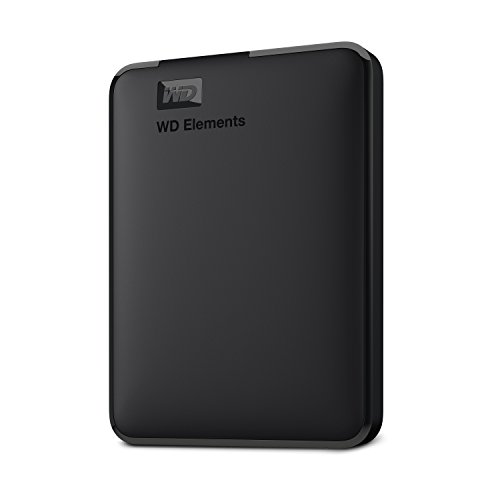 WD 6TB Elements Portable External Hard Drive
- World’s First 6TB 2.5” Portable Hard Drive
- Plug-and-play expandability
- Vast capacities up to 6TB[1] to store your…
 Seagate Portable 5TB External Hard Drive HDD
- Easily store and access 5TB of content on…
- Designed to work with Windows or Mac computers,…
- To get set up, connect the portable hard…
 WD 2TB Elements Portable External Hard Drive
- High capacity in a small enclosure
- Plug-and-play expandability
- Vast capacities up to 6TB[1] to store your…
| Product | Key specs | |
|---|---|---|
| WD 6TB Elements Portable External Hard Drive | World’s First 6TB 2.5” Portable Hard Drive Plug-and-play expandability Vast capacities up to 6TB[1] to store your… | Check price |
| Seagate Portable 5TB External Hard Drive HDD | Easily store and access 5TB of content on… Designed to work with Windows or Mac computers,… To get set up, connect the portable hard… | Check price |
| WD 2TB Elements Portable External Hard Drive | High capacity in a small enclosure Plug-and-play expandability Vast capacities up to 6TB[1] to store your… | Check price |
| Seagate Portable 1TB External Hard Drive HDD | Easily store and access 1TB to content on… Designed to work with Windows or Mac computers,… To get set up, connect the portable hard… | Check price |
As an Amazon Associate we earn from qualifying purchases at no extra cost to you.
Quick recommendations
| Best for | Recommended drive | Typical capacity range | What makes it suitable for Mac |
|---|---|---|---|
| Portable backups | Samsung T7 Shield | 1–4TB | USB-C, bus-powered, durable, and fast enough for Time Machine |
| Photo libraries and editing | Crucial X10 Pro | 1–4TB | High sustained transfer speeds over USB 3.2 Gen 2×2 |
| Thunderbolt video workflows | LaCie Rugged SSD Pro5 | 2–4TB | Thunderbolt 5 connectivity for compatible Macs |
| Large, inexpensive archive | Desktop external HDD | 8–24TB | Much lower cost per terabyte, ideal for a stationary backup drive |
| Travel and occasional backups | LaCie Rugged Mini HDD | 1–5TB | Compact protective enclosure and broad USB compatibility |
What Mac compatibility actually means
Nearly any USB storage device can connect to a modern Mac, but “works with Mac” can mean several different things. The drive may be physically compatible yet arrive formatted as NTFS, which macOS can usually read but not write without additional software. It may also use a USB connector that requires an adapter, or advertise a speed your Mac cannot reach.
For a drive used only with Macs, format it as APFS. APFS is the most natural choice for a Mac bootable clone or an SSD used for active editing. For a dedicated Time Machine drive, macOS can format the disk as APFS during setup. If you need to move files between macOS and Windows, choose exFAT instead, accepting that it is less resilient than APFS if the drive is unplugged during a write.
Time Machine does not require a special “Mac” drive. It requires enough capacity, a reliable connection, and a macOS-compatible file system. A practical target is a backup disk at least two to three times the amount of data stored on your Mac. That gives Time Machine room to retain older versions instead of quickly deleting them.
Best external hard drives for Mac: the head-to-head
Samsung T7 Shield: best overall portable SSD
The Samsung T7 Shield is the safest all-round recommendation for Mac owners who want a compact backup drive that can also handle everyday file transfers. It uses USB 3.2 Gen 2, with a theoretical interface speed of 10Gbps and advertised sequential speeds around 1,050MB/s. Actual macOS transfers vary with file size, the Mac’s USB controller, and the amount of free space remaining.
Its rubberized exterior and IP65-rated dust and water resistance make it better suited to travel than a bare portable SSD. It is bus-powered, so it does not need a wall adapter. That makes it a strong match for MacBook Air and MacBook Pro users backing up away from a desk.
Choose the T7 Shield in 2TB if you have roughly 500GB to 800GB of data and want room for historical Time Machine versions. The 4TB version makes more sense for large Photos libraries, music projects, or a laptop that is routinely near capacity. It is not the fastest option for a Thunderbolt video workstation, but its speed is more than adequate for backups and most photo work.
Crucial X10 Pro: best for fast photo storage
The Crucial X10 Pro is aimed at users who regularly move large folders of RAW photos, video footage, or project files. Its USB 3.2 Gen 2×2 interface can reach up to 20Gbps on a host that supports that standard, with advertised sequential speeds up to about 2,100MB/s.
There is an important Mac caveat: many Macs do not expose USB 3.2 Gen 2×2 at its full 20Gbps rate. On an incompatible port, the X10 Pro can behave more like a 10Gbps drive. Check your exact Mac model before paying extra for this speed class. If your Mac has only 10Gbps USB-C, a less expensive T7 Shield may deliver nearly the same practical result.
For an active Lightroom, Capture One, or Final Cut Pro library, use APFS and leave at least 15% of the drive empty. Free space helps maintain write performance and provides working room for caches and temporary exports. Keep a second backup: an editing drive is not a backup merely because it contains important files.
LaCie Rugged SSD Pro5: best for Thunderbolt 5 video work
The LaCie Rugged SSD Pro5 is a premium portable SSD built for Thunderbolt 5 systems. Its advertised performance reaches several gigabytes per second, far beyond ordinary 10Gbps USB storage. It is designed for demanding workflows such as multicamera footage, high-bitrate video, and large project libraries where waiting for media transfers has a measurable cost.
This is a specialist purchase rather than the best value for ordinary backups. The Mac, cable, and enclosure all need to support the relevant Thunderbolt standard for the top speeds. On a slower USB connection, it can still function as external storage, but you will not receive the headline performance. Its rugged enclosure is useful for production travel, while the premium price is difficult to justify for documents and Time Machine alone.
Desktop external HDD: best value for a large Time Machine archive
A desktop-class external hard disk remains the capacity winner. Drives in the 8TB to 24TB range typically cost far less per terabyte than SSDs, although prices vary substantially by capacity and promotions. They are suitable for a Mac mini, iMac, or MacBook that spends most of its backup time on a desk.
The trade-offs are noise, vibration, lower transfer speed, and the need for a power adapter. A typical external HDD may sustain roughly 120–250MB/s depending on its rotational speed, cache, and file pattern. That is perfectly adequate for incremental Time Machine backups, which usually change a relatively small amount of data each day.
Use an HDD for a deep archive or second backup, not as the ideal location for editing 4K or 8K video. Mechanical disks also dislike being carried around while operating. If reliability matters, buy two drives and keep one disconnected or stored elsewhere rather than depending on RAID as your only copy.
LaCie Rugged Mini: best portable budget HDD
The LaCie Rugged Mini is a compact mechanical drive with a protective exterior, available in capacities commonly ranging from 1TB to 5TB. It is considerably slower than a portable SSD, but it can be a sensible choice for a travel archive when capacity matters more than speed.
It works well for storing completed photo shoots, downloaded video, and a secondary copy of a MacBook’s files. It is less pleasant for browsing a large Photos library because thumbnails and small files load more slowly. Treat its protective casing as damage resistance, not immunity: always eject it in macOS before unplugging it.
Choose by workload, not advertised speed
| Your situation | Best storage type | Recommended format | Reason |
|---|---|---|---|
| Daily MacBook backup | Portable SSD | APFS | Quiet, bus-powered, fast incremental backups |
| One large archive at a desk | Desktop HDD | APFS or exFAT | Lowest cost per terabyte |
| Editing photos directly from the drive | 10Gbps or faster SSD | APFS | Faster catalogue browsing and previews |
| High-bitrate multicamera video | Thunderbolt SSD | APFS | Higher sustained bandwidth and lower project-transfer times |
| Mac and Windows file exchange | SSD or HDD | exFAT | Native read/write support on both platforms |
How much speed do you need?
Consider a 4K video stream with a 400Mbps bitrate. Divide by eight to convert bits to bytes: 400Mbps ÷ 8 = 50MB/s. Even a hard disk can often read one such stream. Editing becomes more demanding when the software reads multiple camera angles, generates thumbnails, scrubs unpredictably, and writes renders at the same time. A 10Gbps SSD, which can theoretically carry about 1,250MB/s before overhead, provides much more headroom than the video’s headline bitrate.
For a 100GB project, a drive sustaining 1,000MB/s would theoretically transfer it in about 100 seconds. A disk sustaining 150MB/s would take about 11 minutes. Real times are longer because of file-system overhead, small files, thermal throttling, and source-drive limits. This is why SSD speed matters most when moving large projects or working directly from external storage, not when running small nightly backups.
Setting up a drive for Time Machine
- Connect the drive and open Disk Utility.
- Select View > Show All Devices, then choose the physical drive rather than only its existing volume.
- Erase it as APFS for a Mac-only Time Machine disk. Use exFAT only when cross-platform file exchange is required.
- Open System Settings > General > Time Machine, add the disk, and enable automatic backups.
- Exclude disposable folders such as video-render caches if they are recreated easily; this preserves space for meaningful file history.
Before erasing anything, copy files you need elsewhere. Formatting destroys the existing contents. After setup, leave the disk connected long enough for the first backup to finish, then periodically verify that older files can be restored through Time Machine.
Final verdict
Buy the Samsung T7 Shield if you want one portable drive for dependable Mac backups and general storage. Choose the Crucial X10 Pro only when your Mac can use its 20Gbps interface or when its pricing is close to a conventional 10Gbps SSD. Select the LaCie Rugged SSD Pro5 for a Thunderbolt video workflow, and choose a desktop external HDD when capacity and cost per terabyte matter more than silence or portability.
Whichever model you select, use APFS for Mac-only work, maintain at least one additional copy of irreplaceable files, and match the drive’s interface to the ports on your specific Mac. Those decisions affect the result more than the maximum speed printed on the box.