Key takeaways
- Enable the high-bandwidth HDMI mode per input (labelled “HDMI Ultra HD Deep Color”, “HDMI 2.1 Enhanced” or similar). Most TVs ship with ports capped at HDMI 2.0 bandwidth; until you switch this on you are limited to 4K 60 Hz 8-bit and get no VRR.
- Rename the input to “PC”. On several brands this forces 4:4:4 chroma, disables overscan and drops edge enhancement — the difference between crisp and smeared desktop text.
- Set the picture mode to Game (or Filmmaker with Game mode active). It bypasses most video processing, which is where the input lag lives.
- Turn motion smoothing off entirely. Interpolation adds well over 100 ms in some modes — more than a frame of lag at 60 fps.
- Enable VRR and ALLM, and turn black-frame insertion off while VRR is on. BFI and VRR generally conflict, and BFI halves brightness.
- Set local dimming to High on mini-LED. Many sets quietly reduce dimming strength in Game mode; leaving it on Medium flattens contrast for no lag benefit.
- Set colour temperature to Warm (~D65/6500 K). Default “Standard” and “Cool” presets run 8,000–10,000 K and read blue once you compare them.
- Sharpness 0–10. Anything above the panel’s native setting adds ringing, not detail.
- Disable energy saving / Eco mode. It dims the backlight based on ambient light and can cut peak brightness substantially.
- For HDR, use HGIG if your console has been calibrated in its HDR calibration screen. HGIG hands tone mapping to the source and prevents the TV and console double-mapping the same signal.
The best-rated 65-inch TV for a dark or moderately lit gaming room is a 65-inch QD-OLED — the Samsung S90-series class — because per-pixel contrast, near-instant pixel response and full-bandwidth HDMI 2.1 on every port cover anything a console or PC can output. If your room has a large window and you play mostly during the day, a flagship mini-LED (Sony Bravia 9 or TCL QM-series class) is the better buy: it gives up perfect blacks in exchange for 2,000–4,000 nits of highlight punch OLED cannot reach. The rest of this guide is organised around the eight things that actually change how a 65-inch TV performs in a game — picture quality, HDR brightness, contrast, viewing angles, input lag, HDMI 2.1 features, smart platform and sound.
Our top picks
 Insignia 65" Class F50 Series LED 4K
- 4K Ultra HD (2160p resolution): Enjoy breathtaking HDR10…
- High Dynamic Range: Provides a wide range of…
- Alexa voice control: The Alexa Voice Remote lets…
 INSIGNIA 65-inch Class QF Series LED 4K
- 4K UltraHD Resolution: Experience incredible detail with 4X…
- Quantum Dot Technology enhances brightness and color for…
- Direct LED Backlight: Enjoy uniform brightness and rich…
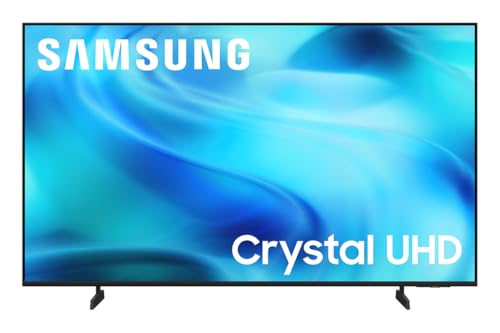 Samsung 65-Inch Class Crystal UHD U8000H Series
- Powerful processor enhances colors and sharpens details for…
- Watch 2,700+ free streaming options, including 750+ subscription-free…
- Experience clear picture and smooth motion in games…
| Product | Key specs | |
|---|---|---|
| Insignia 65" Class F50 Series LED 4K | 4K Ultra HD (2160p resolution): Enjoy breathtaking HDR10… High Dynamic Range: Provides a wide range of… Alexa voice control: The Alexa Voice Remote lets… | Check price |
| INSIGNIA 65-inch Class QF Series LED 4K | 4K UltraHD Resolution: Experience incredible detail with 4X… Quantum Dot Technology enhances brightness and color for… Direct LED Backlight: Enjoy uniform brightness and rich… | Check price |
| Samsung 65-Inch Class Crystal UHD U8000H Series | Powerful processor enhances colors and sharpens details for… Watch 2,700+ free streaming options, including 750+ subscription-free… Experience clear picture and smooth motion in games… | Check price |
 Roku 65-Inch Select Series Smart TV 2026-4K Roku 65-Inch Select Series Smart TV 2026-4K | Breathtaking picture: Sharp 4K brings out rich detail… Seamless streaming: With fast Wi-Fi and apps that… TV, simplified: With setup that only takes minutes,… | Check price |
As an Amazon Associate we earn from qualifying purchases at no extra cost to you.
Quick comparison: the best-rated 65-inch TVs by use case
Panel families roll over every model year, so treat “C-series”, “S90-series”, “QM-series” and “U8-series” as families rather than single products. Check the current model’s spec sheet for panel type, port bandwidth and dimming-zone count before you buy — those three numbers separate two TVs that look identical on a shelf.
| Pick | Best for | Panel / key specs | Typical price range |
|---|---|---|---|
| QD-OLED, Samsung S90-series class | Best overall picture in a controlled room | QD-OLED, 4K 144 Hz, 4× HDMI 2.1 (48 Gbps), ~1,000+ nits on a 10% window, FreeSync Premium Pro + G-Sync Compatible | usually $1,500–$2,500 |
| Flagship mini-LED, Sony Bravia 9 / TCL QM-series class | Best for bright rooms and daytime viewing | VA mini-LED, 4K 144 Hz, 500–2,000 dimming zones, ~2,000–4,000 nits claimed peak, 2× HDMI 2.1 + 2× HDMI 2.0 on many models | usually $1,400–$2,800 |
| WOLED, LG C-series class | Best for a PC-first setup | WOLED, 4K 144 Hz, 4× HDMI 2.1 (40 Gbps on this class), ~0.1 ms pixel response, G-Sync Compatible | usually $1,300–$1,900 |
| Mid-range mini-LED, Hisense U8 / TCL QM-series class | Best value | VA mini-LED, 4K 144 Hz, 100–500 zones, ~1,200–2,000 nits claimed peak, 2× HDMI 2.1 | usually $800–$1,300 |
Best overall: QD-OLED (Samsung S90-series class)
QD-OLED adds a quantum-dot layer to a blue OLED emitter, which is why it holds colour volume at high brightness better than the WOLED panels used in most other OLED TVs. In practice that means reds and greens stay saturated in HDR instead of washing toward white. Contrast is per-pixel, so black level is effectively zero and blooming is not a category that applies. Input lag on this class typically lands around 4–6 ms at 120 Hz and 9–13 ms at 60 Hz in Game mode, per published lab measurements — well below the roughly 16 ms per frame at 60 fps that would matter.
Who it suits: anyone who plays in a room where they can control light, watches a lot of dark content, and wants one TV that does both gaming and film well. Main trade-off: sustained full-screen brightness. OLEDs dim large bright areas to protect the panel, so a snowy daytime scene in a sunlit room looks flatter than it does on mini-LED. Burn-in risk is low for normal mixed use but real for thousands of hours of a static HUD or desktop taskbar.
Best for bright rooms: flagship mini-LED (Sony Bravia 9 / TCL QM-series class)
Mini-LED backlights pack hundreds to a couple of thousand individually dimmed zones behind a VA panel. VA’s native contrast runs roughly 4,000–7,000:1, and local dimming pushes perceived contrast far higher, while peak brightness on a small window reaches 2,000–4,000 nits on the flagship tier. That headroom is what makes HDR specular highlights — a muzzle flash, a sun glint on water — read as bright rather than merely white.
Who it suits: living rooms with south-facing windows, households that watch sport and daytime TV as much as they game. Main trade-off: blooming around bright objects on dark backgrounds, and viewing angles. Off-axis beyond roughly 30–35° a VA panel loses contrast and shifts colour, so a wide sectional sofa will see a degraded picture at the ends. Some premium models add a wide-angle layer that improves this at the cost of some contrast.
Best for a PC-first setup: LG C-series OLED class
This is the class that made 65-inch OLEDs a plausible desktop display. Four full HDMI 2.1 inputs mean a PC, two consoles and a soundbar can all stay connected without a switcher. The catch on this class is port bandwidth: 40 Gbps rather than 48 Gbps, which matters at 144 Hz — see the bandwidth table below.
Who it suits: a desk or a couch setup at 4–6 ft where you drive the panel from a GPU, want 4:4:4 chroma for readable text, and value pixel response over peak brightness. Main trade-off: brightness and the static-element risk of a Windows desktop. Set a screensaver at 5 minutes and hide the taskbar.
Best value: mid-range mini-LED (Hisense U8 / TCL QM-series class)
Below roughly $1,300 you still get 4K 144 Hz, VRR, ALLM and two HDMI 2.1 ports on most 65-inch mini-LEDs. What you give up is zone count and processing: fewer zones means more visible blooming, and the cheaper video processor handles 24p film cadence and low-bitrate streaming artefacts less gracefully. For gaming specifically the gap is smaller than the price gap suggests.
Main trade-off: port count. Two HDMI 2.1 ports is fine for a console plus a PC, tight for a console, a PC and a 120 Hz-capable soundbar pass-through.
How to choose: the numbers that actually matter
Worked example 1 — how far to sit from a 65-inch 4K panel
A 65-inch 16:9 panel is about 56.7 inches wide, so its pixel pitch is 56.7 ÷ 3840 = 0.0148 in, or 0.375 mm. Pixels per degree (PPD) is distance ÷ (pitch × 57.3). Below roughly 60 PPD most people start seeing pixel structure and text edges; above it, the panel reads as smooth.
| Viewing distance | Pixels per degree | What it feels like |
|---|---|---|
| 3 ft (0.9 m) | ~42 PPD | Pixel grid visible; desktop text looks soft |
| 4 ft (1.2 m) | ~57 PPD | Borderline — acceptable for games, not for spreadsheets |
| 5 ft (1.5 m) | ~71 PPD | Clean desktop use |
| 6.5 ft (2 m) | ~92 PPD | Comfortable living-room distance |
| 9 ft (2.7 m) | ~128 PPD | Too far to benefit from 4K over 1440p |
Translation: if you want to use a 65-inch as a monitor, sit at 5 ft or more, or accept that you are effectively running a 1440p-class desktop. If you sit 9 ft away, a 4K panel buys you almost nothing over a cheaper 1440p-capable one.
Worked example 2 — HDMI 2.1 bandwidth, and where 144 Hz breaks
Raw payload = horizontal pixels × vertical pixels × refresh × bits per pixel (3 components for 4:4:4). HDMI 2.1’s Fixed Rate Link adds 16b/18b coding, so on-wire rate = payload × 1.125. A 48 Gbps link carries 48 Gbps on the wire; a 40 Gbps port carries 40.
| Signal (4K, 4:4:4) | Raw payload | On-wire | 48 Gbps link | 40 Gbps port |
|---|---|---|---|---|
| 60 Hz, 8-bit | 11.9 Gbps | 13.4 Gbps | Yes | Yes |
| 120 Hz, 10-bit | 29.9 Gbps | 33.6 Gbps | Yes | Yes |
| 120 Hz, 12-bit | 35.8 Gbps | 40.3 Gbps | Yes, tight | No — DSC or drop to 10-bit |
| 144 Hz, 10-bit | 35.8 Gbps | 40.3 Gbps | Yes, tight | No — DSC required |
| 144 Hz, 12-bit | 43.0 Gbps | 48.4 Gbps | No — DSC required | No |
This is why “4K 144 Hz” on a spec sheet is not the whole story. On a 40 Gbps set, 4K 144 Hz 10-bit arrives via Display Stream Compression or 4:2:2 chroma — fine for games, slightly soft for desktop text. 4K 120 Hz 10-bit 4:4:4 fits everywhere, which is why it is the safe target for a PC.
Contrast and viewing angles: pick by seating, not by spec
OLED and IPS-style panels hold colour and contrast to roughly 60–70° off-axis; VA mini-LEDs start shifting past 30–35°. If your seating is a wide arc more than about 40° across, a VA mini-LED will look noticeably worse at the edges — that is a bigger real-world penalty than losing a few hundred nits.
Room lighting decision matrix
| Your situation | Choose | Why | Watch out for |
|---|---|---|---|
| Dark room, film + games, seating centred | QD-OLED | Per-pixel contrast; no blooming | Full-screen brightness limits; static HUD risk |
| Bright room, daytime viewing, sport | Flagship mini-LED | 2,000–4,000 nit highlights fight reflections | Blooming; off-axis shift |
| PC at 5–6 ft, mixed desktop and games | WOLED with 4× HDMI 2.1 | Pixel response, four inputs, 4:4:4 | 40 Gbps port caps 144 Hz at 10-bit with DSC |
| Wide seating arc, mixed content | OLED or IPS-type LED | Angle stability beats contrast here | IPS native contrast is only ~1,000–1,400:1 |
| Budget under ~$1,300, console only | Mid-range mini-LED | 120 Hz VRR + 2 HDMI 2.1 covers a console | Low zone count; weaker processing |
Settings to change on day one — and the reason for each
- Enable the high-bandwidth HDMI mode per input (labelled “HDMI Ultra HD Deep Color”, “HDMI 2.1 Enhanced” or similar). Most TVs ship with ports capped at HDMI 2.0 bandwidth; until you switch this on you are limited to 4K 60 Hz 8-bit and get no VRR.
- Rename the input to “PC”. On several brands this forces 4:4:4 chroma, disables overscan and drops edge enhancement — the difference between crisp and smeared desktop text.
- Set the picture mode to Game (or Filmmaker with Game mode active). It bypasses most video processing, which is where the input lag lives.
- Turn motion smoothing off entirely. Interpolation adds well over 100 ms in some modes — more than a frame of lag at 60 fps.
- Enable VRR and ALLM, and turn black-frame insertion off while VRR is on. BFI and VRR generally conflict, and BFI halves brightness.
- Set local dimming to High on mini-LED. Many sets quietly reduce dimming strength in Game mode; leaving it on Medium flattens contrast for no lag benefit.
- Set colour temperature to Warm (~D65/6500 K). Default “Standard” and “Cool” presets run 8,000–10,000 K and read blue once you compare them.
- Sharpness 0–10. Anything above the panel’s native setting adds ringing, not detail.
- Disable energy saving / Eco mode. It dims the backlight based on ambient light and can cut peak brightness substantially.
- For HDR, use HGIG if your console has been calibrated in its HDR calibration screen. HGIG hands tone mapping to the source and prevents the TV and console double-mapping the same signal.
Sound and smart platforms
A 65-inch panel is thin, so built-in audio is usually a 2.1-channel system with roughly 40–70 W of total output. It is adequate for dialogue and poor for anything with a low-frequency effect channel. Plan on a soundbar connected over eARC — but note that eARC occupies an HDMI port, and on two-port mini-LEDs that can push a console down to a non-2.1 input. Check the port map before buying.
Smart platforms (webOS, Tizen, Google TV, Roku, Titan OS) all carry sponsored tiles on the home row and all support the major game-streaming and media apps. Treat the platform as a tiebreaker, not a reason to buy — an external streaming stick will outlive the TV’s built-in software by years. What matters more is whether the set supports the HDMI 2.1 feature set you need and whether the Game Bar or Game Optimizer gives you quick access to VRR status, frame rate and latency readouts.
Frequently Asked Questions
Is OLED or mini-LED better for a 65-inch gaming TV?
It depends on room light and seating. In a room you can darken, OLED’s per-pixel contrast and ~0.1 ms pixel response win clearly. In a room with uncontrolled daylight, mini-LED’s 2,000–4,000 nit peak brightness keeps HDR highlights readable where OLED’s automatic brightness limiting flattens them. If your seating spans more than about 40°, favour OLED or an IPS-type LED panel, because VA mini-LEDs shift colour off-axis.
What input lag should I look for in a 65-inch TV?
In Game mode, expect roughly 9–13 ms at 60 Hz and 4–8 ms at 120 Hz on current OLEDs and mini-LEDs, based on typical published lab measurements. That is one to two frames at 60 fps and well under a frame at 120 fps. Anything above about 20 ms at 60 Hz starts to be perceptible in competitive shooters; the fix is usually enabling Game mode and disabling motion smoothing rather than buying a different TV.
How many HDMI 2.1 ports do I need?
Count your 4K 120 Hz devices: a console, a PC, and possibly a second console. Two ports is the practical minimum for a console plus a PC; four removes all compromise. Remember that a soundbar over eARC consumes a port, and on many mid-range sets only two of the four inputs are full-bandwidth HDMI 2.1 — the others are HDMI 2.0 capped at 4K 60 Hz.
Is a 65-inch 4K TV sharp enough to use as a PC monitor?
Yes, from about 5 ft away. At that distance a 65-inch 4K panel delivers roughly 71 pixels per degree, above the ~60 PPD where most people stop seeing individual pixels. At 3–4 ft you are at 42–57 PPD and text will look soft, so treat anything closer than 4 ft as a compromise and consider 1440p output with upscaling instead of native 4K.
Do I need 144 Hz, or is 120 Hz enough?
120 Hz is enough for consoles, which cap at 120 fps output. 144 Hz only matters for a PC, and even then the gain over 120 Hz is modest. More importantly, 144 Hz at 10-bit 4:4:4 needs about 40 Gbps on the wire, which exceeds a 40 Gbps port — so on those sets 144 Hz arrives with compression or chroma subsampling.
How bright does a 65-inch TV need to be for a bright room?
Look at peak brightness on a small window and full-screen brightness separately. A set claiming 2,000+ nits on a 10% window but only 500 nits full-screen will still look flat during a bright daytime hockey broadcast. For a room with direct sun on the screen, prioritise full-screen brightness and an anti-reflective coating over the peak figure, and consider that ambient light on the panel is often the real limiting factor rather than the TV’s output.