Finding the right dock for MacBook Air can be a frustrating exercise. Apple’s thin-and-light laptops traded generous port selection for portability, leaving you scrambling for adapters the moment you need to connect an external display, wired ethernet, or multiple USB peripherals. Worse, many docks on the market are designed primarily for Windows machines and fail to properly support macOS display handling, resulting in flickering screens, power delivery issues, or ports that simply don’t register.
Our top picks
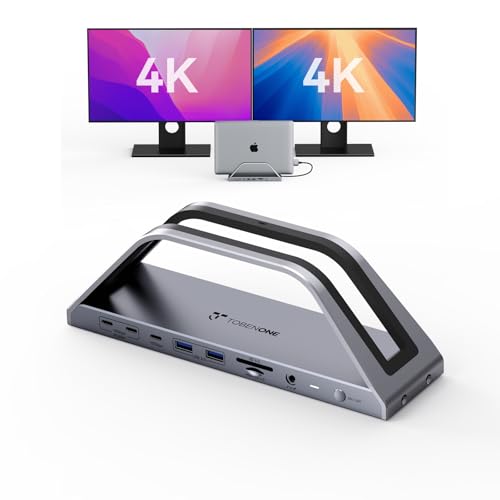 TobenONE MacBook Pro Docking Station Dual 4K
- 𝟏𝟕-𝐢𝐧-𝟐 𝐌𝐚𝐜𝐁𝐨𝐨𝐤 𝐏𝐫𝐨 𝐃𝐨𝐜𝐤𝐢𝐧𝐠 𝐒𝐭𝐚𝐭𝐢𝐨𝐧-𝐂𝐮𝐭 𝐂𝐚𝐛𝐥𝐞 𝐂𝐥𝐮𝐭𝐭𝐞𝐫 &…
- Exclusive MacBook Compatibility-Reliable Performance for Your Device
- 𝐏𝐥𝐮𝐠-𝐚𝐧𝐝-𝐏𝐥𝐚𝐲 𝐃𝐮𝐚𝐥 𝟒𝐊@𝟔𝟎𝐇𝐳 𝐃𝐢𝐬𝐩𝐥𝐚𝐲-𝐌𝐮𝐥𝐭𝐢𝐭𝐚𝐬𝐤 𝐖𝐢𝐭𝐡𝐨𝐮𝐭 𝐋𝐢𝐦𝐢𝐭𝐬
 MOKiN MacBook Pro Docking Station Dual Monitor
- MacBook Pro Docking Station(9 in 2): Special designed…
- Dual HDMI Monitors for your New MacBook
- Fast Data Speed (3*USB3.0+SD/TF Card Reader): This mac…
| Product | Key specs | |
|---|---|---|
| TobenONE MacBook Pro Docking Station Dual 4K | 𝟏𝟕-𝐢𝐧-𝟐 𝐌𝐚𝐜𝐁𝐨𝐨𝐤 𝐏𝐫𝐨 𝐃𝐨𝐜𝐤𝐢𝐧𝐠 𝐒𝐭𝐚𝐭𝐢𝐨𝐧-𝐂𝐮𝐭 𝐂𝐚𝐛𝐥𝐞 𝐂𝐥𝐮𝐭𝐭𝐞𝐫 &… Exclusive MacBook Compatibility-Reliable Performance for Your Device 𝐏𝐥𝐮𝐠-𝐚𝐧𝐝-𝐏𝐥𝐚𝐲 𝐃𝐮𝐚𝐥 𝟒𝐊@𝟔𝟎𝐇𝐳 𝐃𝐢𝐬𝐩𝐥𝐚𝐲-𝐌𝐮𝐥𝐭𝐢𝐭𝐚𝐬𝐤 𝐖𝐢𝐭𝐡𝐨𝐮𝐭 𝐋𝐢𝐦𝐢𝐭𝐬 | Check price |
| MOKiN MacBook Pro Docking Station Dual Monitor | MacBook Pro Docking Station(9 in 2): Special designed… Dual HDMI Monitors for your New MacBook Fast Data Speed (3*USB3.0+SD/TF Card Reader): This mac… | Check price |
 TobenONE 18-in-2 MacBook Docking Station Dual Monitor TobenONE 18-in-2 MacBook Docking Station Dual Monitor | Check price | |
 TobenONE 18-in-2 Docking Station Dual 4K Monitor TobenONE 18-in-2 Docking Station Dual 4K Monitor | Check price | |
 iVANKY 12-in-2 FusionDock 1 for M5 MacBook iVANKY 12-in-2 FusionDock 1 for M5 MacBook | 【M1/M2/M3 CHIP NOTE】Due to inherent limitations in the… 【Dual 4K@120Hz Displays】Only M4/M5 base and M1/M2/M3/M4/M5 Pro/Max… 【Full Speed Charging】This dock features a 150W power… | Check price |
 Dock for 15" Apple MacBook Air Dock for 15" Apple MacBook Air | The variant you are viewing is designed exclusively… The Ascrono Docking Station features the easiest connection… | Check price |
 Dock for 13" Apple MacBook Air Dock for 13" Apple MacBook Air | Made for every 13-inch MacBook Air with an… Plug your monitor, hub or adapters and your… MacBook Air M3, M4 and M5 drive two… | Check price |
As an Amazon Associate we earn from qualifying purchases at no extra cost to you.
This guide narrows the field to the most reliable, well-reviewed MacBook-compatible docks available today. We focused on models that deliver stable dual-monitor output, sufficient power delivery to keep your MacBook Air charged under load, and the mix of USB, ethernet, and SD card ports that creative professionals and remote workers actually use. Whether you need a vertical stand dock or a compact travel hub, these are the options worth your money.
🛒 Best Price Today on Amazon
Prime members get fast, free shipping on everything above, plus member-only deals. New members get a 30-day free trial — cancel anytime.
Watch: Dock For Macbook Air: Review & Buyer’s Guide — Video Review
How to Choose a Dock For Macbook Air
- Display Support: macOS handles multi-monitor output differently than Windows, so verify the dock explicitly supports dual external displays on MacBook Air and offers the HDMI or USB-C video connections your monitors require.
- Power Delivery: Look for a dock that provides at least 85W to your MacBook, though 100W or higher is preferable if you also charge peripherals or want headroom under heavy workloads.
- Port Selection: Prioritize docks with at least three USB-A ports, gigabit or 2.5GbE ethernet, and SD/microSD card readers to cover the connectivity gaps Apple left on the MacBook Air.
- Form Factor: Consider whether you need a vertical stand dock that saves desk space and elevates your MacBook, or a horizontal hub that travels more easily and sits flat under a monitor.
- Plug-and-Play Reliability: Skip docks requiring driver installs on macOS; the best options work immediately via DisplayLink or native USB-C alt mode, with no software maintenance or update headaches.
The Best Dock For Macbook Airs Reviewed
TobenONE MacBook Pro Docking Station Dual 4K Monitor
This 150W dock doubles as a vertical stand for your MacBook Air, delivering dual 4K display output and a generous selection of seven USB ports plus 2.5GbE ethernet. With 10Gbps data speeds and 30W power delivery to connected devices, it is an excellent all-in-one solution for a permanent desk setup.
MOKiN MacBook Pro Docking Station 9-in-1
The MOKiN 9-in-1 adapter keeps things compact and affordable while still offering dual HDMI output, gigabit ethernet, and 100W passthrough charging. It is ideal for MacBook Air owners who want a travel-friendly hub that covers the essentials without a bulky desktop footprint.
TobenONE 18-in-2 Vertical Dock Stand
With 18 ports packed into a space-saving vertical stand, this TobenONE dock supports dual 4K@60Hz monitors via HDMI and DisplayPort alongside 2.5GbE ethernet and dual audio jacks. It is a strong pick if you need near-workstation-level connectivity without cluttering your desk.
TobenONE 18-in-2 Dual 4K Dock
Sharing the 18-port architecture of its sibling, this model swaps in USB-C video output alongside HDMI for broader monitor compatibility and delivers a solid 150W power adapter. The sleek, horizontal design suits remote-office environments where you want robust connectivity in a lower-profile chassis.
iVANKY 12-in-2 FusionDock 1
The iVANKY FusionDock 1 stands out for supporting dual 4K@120Hz output on Apple Silicon MacBooks, a refresh rate advantage for smooth creative work and gaming on compatible displays. Its 150W AC power and focused 12-port layout make it a streamlined choice, though it is explicitly incompatible with Windows.
Frequently Asked Questions
Do all docks work with MacBook Air?
No. Many docks are engineered around Windows display protocols and may only drive a single external display on macOS, or none at all. Always confirm the manufacturer specifically lists MacBook compatibility and the number of displays supported on macOS.
Can a MacBook Air run two external monitors?
Apple Silicon MacBook Air models officially support a single external display over the built-in USB-C port. To run dual monitors you need a dock that uses DisplayLink technology or a Thunderbolt dock, which enables the second display through its own processing.
Will a dock charge my MacBook Air while in use?
Most docks listed here provide power delivery to your MacBook Air through a single cable, meaning you charge and connect peripherals simultaneously. Check the wattage output; 85W minimum covers the MacBook Air comfortably, while 100W or higher offers extra headroom.
Is a vertical stand dock better than a horizontal hub?
Neither is inherently better. Vertical stands save desk space and often pack more ports, making them ideal for permanent setups. Horizontal hubs are more portable and easier to pack for travel, which suits MacBook Air owners who work from multiple locations.
Final Thoughts
For most MacBook Air users, the TobenONE MacBook Pro Docking Station Dual 4K Monitor is the standout choice, combining a vertical stand, 150W charging, and a comprehensive port array in a single package. If refresh rate matters for creative or gaming displays, the iVANKY 12-in-2 FusionDock 1 and its dual 4K@120Hz support is worth the premium. Travelers should look at the MOKiN 9-in-1 for a no-frills, portable hub that still covers dual displays and ethernet without the bulk.