Key takeaways
- Both cables into the graphics card, not the motherboard.
- DisplayPort for the high-refresh gaming screen.
- Verify the cable spec matches your refresh rate and resolution.
A second monitor is the upgrade most gamers wish they had done sooner. Game on the primary, keep a guide, Discord, a stream, or your stats on the secondary—no more alt-tabbing out of a fullscreen match and risking a crash. A dual-monitor setup also transforms productivity between sessions, and it is one of the cheapest ways to make an existing rig feel dramatically more capable. In 2026, with GPUs sporting multiple DisplayPort and HDMI 2.1 outputs, running two displays is trivial once you know the steps.
This guide covers choosing compatible displays, the physical connections, and the Windows and driver settings that make two screens behave as one seamless workspace. It also covers the gaming-specific gotchas—mismatched refresh rates, G-Sync behavior, and keeping games on the right screen—that trip up first-timers. Budget 30 minutes for a clean setup.
Our top picks
 Kado 2-Pack Dual 24" Curved 1500R 1920x1080
- Curved monitors in a dual setup provide a…
- The 1500R curved design provides a more comfortable…
- Fast response times reduce ghosting & blurring while…
 Kado 2-Pack Dual 27" Curved 1500R 1920x1080
- Curved monitors in a dual setup provide a…
- The 1500R curved design provides a more comfortable…
- Fast response times reduce ghosting & blurring while…
 Kado Dual Monitor 2-Pack 24" Curved 1500R
- Curved monitors in a dual setup provide a…
- The 1500R curved design provides a more comfortable…
- Fast response times reduce ghosting & blurring while…
| Product | Key specs | |
|---|---|---|
| Kado 2-Pack Dual 24" Curved 1500R 1920x1080 | Curved monitors in a dual setup provide a… The 1500R curved design provides a more comfortable… Fast response times reduce ghosting & blurring while… | Check price |
| Kado 2-Pack Dual 27" Curved 1500R 1920x1080 | Curved monitors in a dual setup provide a… The 1500R curved design provides a more comfortable… Fast response times reduce ghosting & blurring while… | Check price |
| Kado Dual Monitor 2-Pack 24" Curved 1500R | Curved monitors in a dual setup provide a… The 1500R curved design provides a more comfortable… Fast response times reduce ghosting & blurring while… | Check price |
 Kado Dual Monitor 2-Pack 27" Curved 1500R Kado Dual Monitor 2-Pack 27" Curved 1500R | Curved monitors in a dual setup provide a… The 1500R curved design provides a more comfortable… Fast response times reduce ghosting & blurring while… | Check price |
 Kado 2-Pack Dual 22" Flat Screen 1920x1080 Kado 2-Pack Dual 22" Flat Screen 1920x1080 | Flat monitors in a dual setup provide a… Fast response times reduce ghosting & blurring while… Experience vibrant and true-to-life colors with a 99%… | Check price |
 Kado 2-Pack Dual 27" Flat Screen 1920x1080 Kado 2-Pack Dual 27" Flat Screen 1920x1080 | Flat monitors in a dual setup provide a… Fast response times reduce ghosting & blurring while… Experience vibrant and true-to-life colors with a 99%… | Check price |
 Kado Dual 2-Pack 27" 165Hz 1ms 1920x1080 Kado Dual 2-Pack 27" 165Hz 1ms 1920x1080 | DUAL 27" FLAT SCREENS Ultra-smooth visuals with lightning-fast response times. Reduces motion blur for crisp, competitive gameplay. | Check price |
 Sceptre New 22-Inch Gaming Monitor Sceptre New 22-Inch Gaming Monitor | 【INTEGRATED SPEAKERS】Whether you're at work or in the… 【EASY ON THE EYES】 Protect your eyes and… 【WIDEN YOUR PERSPECTIVE】Our sleek minimal bezel design ensures… | Check price |
As an Amazon Associate we earn from qualifying purchases at no extra cost to you.
⚡ Save on Your Next PC — Amazon Prime
Prime members get fast free shipping on the systems above, plus early access to Prime Day & Black Friday PC deals. New members get a 30-day free trial.
Watch: How to Set Up Dual Monitors for Gaming — Video Review
Choose Compatible Monitors
Two identical monitors give the cleanest result because their color, brightness, and stand height match, and Windows treats them uniformly. A matched pair such as the Kado Dual Monitor 2-Pack in 24″ or 27″ is purpose-built for this, arriving as two calibrated panels ready to sit side by side. If you mix models, expect to spend time matching brightness and color and to physically shim one stand so the screen edges align. Match resolution if you can—two 1080p or two 1440p panels feel far more cohesive than a mismatched pair.
Connect to the Right Ports
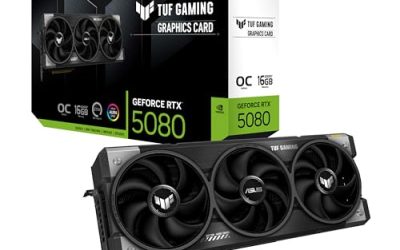
Plug both monitors into your graphics card, never the motherboard’s video outputs (those run off the CPU’s integrated graphics and will not use your GPU). Use DisplayPort for your primary gaming display because it handles high refresh rates and variable refresh best; HDMI 2.1 is fine for the secondary. Confirm the cable rating supports your panel’s refresh rate—a cheap cable can silently cap a 165Hz monitor at 60Hz.
- Both cables into the graphics card, not the motherboard.
- DisplayPort for the high-refresh gaming screen.
- Verify the cable spec matches your refresh rate and resolution.
Configure Windows Display Settings
Right-click the desktop and open Display settings. Drag the two monitor icons to match their physical arrangement so your mouse crosses between them naturally, then set “Extend these displays.” Pick your main gaming panel and check “Make this my main display” so games and the taskbar default to it. Crucially, set each monitor to its native resolution and its maximum refresh rate—Windows often defaults a high-refresh panel to 60Hz, which you must raise manually under Advanced display settings.
Handle Refresh Rate and Sync
Historically, a lower-refresh secondary monitor could drag down the primary or interfere with G-Sync, but modern drivers handle mixed refresh rates well. Still, for the smoothest gaming, keep video playback off the secondary screen while gaming if you have an older GPU, as decoding video on one display occasionally caused stutter on the other. Enable G-Sync or FreeSync on the primary in your GPU control panel and confirm it stays active with the second screen connected.
Keep Games on the Right Screen
Fullscreen games launch on whichever monitor is set as primary. If a game opens on the wrong screen, set it to borderless windowed mode and drag it over, or press Shift+Win+Arrow to move it, then switch back to fullscreen. Set your primary display correctly in Windows first and most games will behave. For overlays and second-screen apps, position them on the secondary before launching your game so they do not steal focus.
Tips
- Physically align the top edges of both screens so your mouse tracks straight across.
- Use the secondary for Discord, a browser, or hardware monitoring—keep it low-motion while gaming.
- Calibrate both panels’ brightness to match so the pair does not look uneven.
- A dual-monitor arm frees desk space and makes alignment effortless.
Frequently Asked Questions
Do both monitors need to be the same model?
No, but matching models is the easiest path—identical color, brightness, height, and resolution mean no manual tweaking. A matched 2-pack removes all the alignment and calibration hassle. Mixing models works fine too; you will just spend time matching settings and possibly shimming one stand.
Will a second monitor lower my gaming FPS?
Minimally, if at all. Driving a static or low-motion second screen costs almost nothing. You only see a real impact if you run demanding content—like video or another game—on the secondary while gaming. Keep the second screen to chat, guides, or monitoring and your frame rate stays effectively unchanged.
Can I use different refresh rates on each monitor?
Yes. Modern GPUs and Windows handle mixed refresh rates well—you can run a 165Hz gaming panel alongside a 60Hz secondary. Just set each display to its own maximum refresh in Windows display settings, since a high-refresh panel often defaults to 60Hz until you change it.
Why did my game open on the wrong monitor?
Fullscreen games launch on the Windows primary display. Set your main gaming monitor as primary in Display settings, and most games will follow. For stubborn titles, use borderless windowed mode and drag the window over, or press Shift+Win+Left/Right to move it between screens.
Conclusion
Setting up dual monitors is a 30-minute job that permanently upgrades how you game and work. Connect both to the GPU, use DisplayPort for the high-refresh primary, extend the desktop with the correct monitor set as main, and force each panel to its native resolution and full refresh rate. A matched pair makes the whole process painless—plug in, align, and enjoy the extra screen.