Our Top Picks
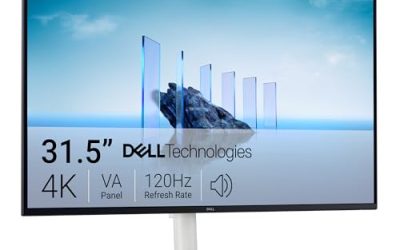
 Dell UltraSharp U4025QW 40" Class 5K2K WUHD Curved16.5" x 37.3" x 4.3"4.3 x 37.3 x 16.5 inches41.93 poundsCheck on Amazon

As an Amazon Associate I earn from qualifying purchases.
The Short Answer
If you want the best ultrawide 4k monitors in one sentence, here it is: buy a 21:9 panel with a native resolution of 5120 x 2160, because that resolution gives you the vertical sharpness of a 4K display stretched across an ultrawide canvas. Every monitor in this guide meets that definition.
Our pick is the Dell UltraSharp U4025QW. It pairs the 5120 x 2160 panel with a 120Hz refresh rate, an IPS Black panel, and a Thunderbolt 4 hub that can charge a laptop and drive a wired network connection through one cable. Gamers who want the fastest motion should look at the Samsung Odyssey G7 G75F instead, which runs the same resolution at 180Hz with a deep 1000R curve. Creative professionals who want the newest connectivity should look at the LG UltraFine evo 40U990A-W, with Thunderbolt 5. The LG 40WP95C-W rounds out the group as a creator-focused option with Thunderbolt 4, at a slower 72Hz refresh rate.
In this category, “4K ultrawide” means 5120 x 2160, which makers call WUHD or 5K2K. It is not the 3840 x 2160 resolution of a 16:9 4K monitor, and it is not 3440 x 1440, the resolution most ultrawide monitors actually use.
Our Top Picks
- Best overall: Dell UltraSharp U4025QW — 120Hz, IPS Black, Thunderbolt 4 hub, 140W charging, Ethernet.
- Best for gaming: Samsung Odyssey G7 G75F — 180Hz, VA panel, 1000R curve, DisplayHDR 600.
- Best for creators who want the newest ports: LG UltraFine evo 40U990A-W — 120Hz, Nano IPS Black, Thunderbolt 5, DisplayPort 2.1.
- Best creator value: LG 40WP95C-W — 72Hz, Nano IPS, wide DCI-P3 color, Thunderbolt 4, 96W charging.
Quick Comparison
| Monitor | Size | Resolution | Refresh rate | Panel | Key connectivity |
|---|---|---|---|---|---|
| Dell UltraSharp U4025QW | 39.7 inches | 5120 x 2160 | 120Hz | IPS Black | Thunderbolt 4, 140W charging, Ethernet |
| Samsung Odyssey G7 G75F | 40 inches | 5120 x 2160 | 180Hz | VA | DisplayPort, HDMI, FreeSync Premium Pro |
| LG UltraFine evo 40U990A-W | 39.7 inches | 5120 x 2160 | 120Hz | Nano IPS Black | Thunderbolt 5, 96W charging, DisplayPort 2.1 |
| LG 40WP95C-W | 39.7 inches | 5120 x 2160 | 72Hz | Nano IPS | Thunderbolt 4, 96W charging |
How to Choose
Check the native resolution first
The single most important check is the native resolution written on the listing. A true ultrawide 4K monitor in this guide shows 5120 x 2160. Many monitors sold as ultrawide 4K are actually 3440 x 1440, with visibly softer text, or 5120 x 1440, a 32:9 super ultrawide with less vertical space. If the listing does not show 5120 x 2160 as the native resolution, the monitor does not belong in this category, no matter what the headline says.
Match the refresh rate to how you use the screen
Refresh rate decides how smooth motion looks when you scroll, drag windows, or play games. A 60Hz or 72Hz panel is fine for documents, spreadsheets and photo or video editing, where the image is mostly still. A 120Hz panel makes everyday scrolling feel noticeably smoother, and it is a good middle ground for people who mix work and games. A 180Hz panel suits fast-paced gaming, but it needs a powerful graphics card to reach those frame rates at 5120 x 2160.
Panel type shapes contrast and color
The four picks here use three panel families. IPS Black, used by the Dell and the newer LG, roughly doubles the contrast of a standard IPS panel while keeping wide viewing angles and consistent color. Nano IPS, used by the older LG, is known for wide color coverage and accurate color. VA, used by the Samsung, has the deepest native contrast of the three and produces the darkest blacks, but its viewing angles are narrower and fast motion can smear more than on the IPS options.
Connectivity decides whether the monitor replaces your dock
A 40-inch ultrawide usually sits at the center of a desk, and the best models here can also act as a docking station. A single Thunderbolt cable can carry the video signal, charge your laptop, and connect the monitor’s USB hub. The Dell goes furthest here, with Thunderbolt 4, 140W charging and a built-in Ethernet port. The newer LG uses Thunderbolt 5, the latest version of the standard, with 96W charging. The older LG uses Thunderbolt 4 with 96W charging. The Samsung is the exception in this group: it is built for gaming first, so it focuses on DisplayPort and HDMI inputs and adaptive sync rather than docking features.
Size, curve and desk space
All four monitors are around 40 inches wide, which means the screen itself measures roughly 37 inches across. Measure your desk before you order. A curved panel helps at this size, because the edges sit closer to your eyes. The Samsung uses an aggressive 1000R curve that wraps around your field of view, while the Dell and both LG models use a gentler 2500R curve that suits straight-on work. All four come with height, tilt and swivel adjustment on the included stand, and all four support VESA mounting.
Color coverage and HDR
If you edit photos or video, look for the color gamut figures on the listing. The Dell covers 100 percent of sRGB and 98 percent of DCI-P3, the newer LG covers 99 percent of DCI-P3, and the older LG covers 98 percent of DCI-P3. Wider coverage gives you more accurate color when you work with wide-gamut material. Three of the four picks carry an HDR certification: the Samsung and the newer LG are DisplayHDR 600, and the older LG supports HDR10. Treat HDR as a welcome extra rather than the reason to choose one model over another.
The Picks in Detail
1. Dell UltraSharp U4025QW — Best Overall
View the Dell UltraSharp U4025QW on Amazon
The Dell UltraSharp U4025QW is our overall pick. Its 39.7-inch curved IPS Black panel runs at 5120 x 2160 with a 120Hz refresh rate. The IPS Black panel gives it a 2000:1 contrast ratio, roughly double a standard IPS screen, with wide viewing angles. Dell lists 100 percent sRGB and 98 percent DCI-P3 color coverage.
Where the Dell pulls ahead is connectivity. Its Thunderbolt 4 hub delivers up to 140W of charging, and it includes an Ethernet port, a downstream Thunderbolt 4 port for daisy-chaining a second display, HDMI 2.1, DisplayPort 1.4, and a USB hub. The stand adjusts for height, tilt and swivel, and the panel supports VESA mounting.
The trade-offs are modest. The 120Hz refresh rate is slower than the Samsung’s 180Hz. The 450-nit typical brightness is solid for a bright office but not exceptional for HDR.
Pros:
- 120Hz refresh rate on a 5120 x 2160 IPS Black panel
- Thunderbolt 4 hub with 140W charging and built-in Ethernet
- Strong contrast for an IPS screen, with wide color coverage
- Height, tilt and swivel stand with VESA support
Cons:
- Slower refresh rate than the Samsung gaming pick
- Brightness is solid rather than outstanding for HDR
- Large footprint needs a deep desk
2. Samsung Odyssey G7 G75F — Best for Gaming
View the Samsung Odyssey G7 G75F on Amazon
The Samsung Odyssey G7 G75F is the gaming pick in this group. Its 40-inch curved VA panel runs at 5120 x 2160 with a refresh rate of up to 180Hz and a 1ms response time. The 1000R curve is the most aggressive in this guide, wrapping the wide 21:9 image around your field of view, and the VA panel’s 3000:1 contrast ratio produces deep blacks that suit dark games and movies. Samsung lists VESA DisplayHDR 600 certification and AMD FreeSync Premium Pro support.
The G75F is a gaming monitor first, and its design shows it. The focus is on DisplayPort and HDMI inputs and adaptive sync, rather than the docking features the Dell and LG models provide. The stand adjusts for height and swivel, and the panel supports VESA mounting.
The trade-offs follow from that focus. There is no Thunderbolt port and no built-in Ethernet, so laptop users who want single-cable docking should look at the Dell or the LG models instead. VA panels can smear in fast motion, and viewing angles are narrower. The 40-inch size also demands a powerful graphics card to reach high frame rates at full resolution.
Pros:
- Fastest refresh rate in this guide at up to 180Hz
- Deep 1000R curve and strong VA contrast for immersion
- DisplayHDR 600 and FreeSync Premium Pro support
- Sharp 5120 x 2160 resolution across a 40-inch panel
Cons:
- No Thunderbolt port or docking features
- VA panel can smear in fast motion and narrows viewing angles
- Needs a powerful graphics card to use the full refresh rate
3. LG UltraFine evo 40U990A-W — Best for Creators Who Want the Newest Ports

View the LG UltraFine evo 40U990A-W on Amazon
The LG UltraFine evo 40U990A-W is the first 5K2K ultrawide with Thunderbolt 5. Its 39.7-inch curved Nano IPS Black panel runs at 5120 x 2160 with a refresh rate of up to 120Hz, and LG lists a 2000:1 contrast ratio, 99 percent DCI-P3 color coverage, and VESA DisplayHDR 600 certification.
Thunderbolt 5 is the headline feature. It delivers up to 96W of laptop charging, faster data transfer than Thunderbolt 4, and daisy-chain support for a second display over a single link. The monitor also includes DisplayPort 2.1, two HDMI 2.1 inputs, a USB hub, an Ethernet port, and a built-in KVM switch. The stand adjusts for height, tilt and swivel, and the panel is VESA-mountable. Built-in speakers are included. Note that the Amazon listing for this ASIN is a bundle — the monitor plus an HDMI cable, cable ties and a cleaning kit — so confirm the contents on the listing.
Thunderbolt 5 is new, so only recent laptops and desktops can use its full speed. The 96W charging is also lower than the Dell’s 140W, so confirm on the listing that 96W covers your machine.
Pros:
- Thunderbolt 5 with 96W charging and daisy-chain support
- Nano IPS Black panel with 120Hz and wide DCI-P3 coverage
- DisplayPort 2.1 and HDMI 2.1 inputs, plus Ethernet and KVM
- DisplayHDR 600 certification and built-in speakers
Cons:
- Thunderbolt 5 needs a recent host to reach full speed
- 96W charging is lower than the Dell’s 140W
- Newest model here, with the shortest track record
4. LG 40WP95C-W — Best Creator Value

View the LG 40WP95C-W on Amazon
The LG 40WP95C-W is the creator-focused option in this group. Its 39.7-inch curved Nano IPS panel runs at 5120 x 2160 with a 72Hz refresh rate, and LG lists 98 percent DCI-P3 color coverage with HDR10 support. The panel is a Nano IPS type, known for accurate color and wide viewing angles, and the gentle 2500R curve suits long work sessions.
The monitor includes Thunderbolt 4 with up to 96W of laptop charging, DisplayPort 1.4, two HDMI 2.0 inputs, and a USB hub, so it can serve as a single-cable dock for a laptop. The stand adjusts for height, tilt and swivel, and the panel supports VESA mounting.
The trade-offs are the refresh rate and the age of the design. At 72Hz, motion is noticeably less smooth than on the 120Hz and 180Hz picks, so gamers should look elsewhere. The 300-nit typical brightness is also the lowest in this group, which limits HDR impact in very bright rooms. Confirm on the listing that you are buying the current model and not an older or renewed variant.
Pros:
- Wide DCI-P3 color coverage on a Nano IPS panel
- Thunderbolt 4 with 96W charging for single-cable docking
- Gentle 2500R curve suits long work sessions
- Height, tilt and swivel stand with VESA support
Cons:
- 72Hz refresh rate is the slowest in this group
- 300-nit typical brightness is the lowest here
- Older design, so check the listing for the current model
Who Should Choose What
- Choose the Dell UltraSharp U4025QW if you want one monitor for work, creative tasks and gaming, with the strongest docking features, 140W charging and Ethernet.
- Choose the Samsung Odyssey G7 G75F if gaming comes first and you want the fastest refresh rate, the deepest curve, and the strongest contrast.
- Choose the LG UltraFine evo 40U990A-W if you edit photos or video, want wide color coverage, and want the newest connectivity with Thunderbolt 5 and DisplayPort 2.1.
- Choose the LG 40WP95C-W if your work is mostly documents, timelines and color-accurate creative tasks, and you do not need a high refresh rate.
Common Mistakes
Buying a 3440 x 1440 monitor by accident. Most ultrawide monitors use 3440 x 1440, and many listings use “4K” loosely in their headlines. Always check the native resolution on the listing and confirm it reads 5120 x 2160.
Underestimating the graphics card you need. Driving 5120 x 2160 at 120Hz or 180Hz needs far more graphics power than 1080p or 1440p gaming. Before ordering, check that your graphics card can reach the frame rates you expect at this resolution, and check which port carries the full refresh rate.
Ignoring desk depth. A 40-inch ultrawide is roughly 37 inches wide and needs a deep desk, especially with the included stand. Measure your desk width and depth, and check the monitor’s dimensions with the stand attached. If the stand takes up too much room, a VESA monitor arm is an option, since all four picks support VESA mounting.
Expecting Thunderbolt from a gaming monitor. The Samsung is built for gaming and does not include Thunderbolt or Ethernet. If you use a laptop and want single-cable docking, pick the Dell or one of the LG models instead.
Assuming every game supports 21:9. Most modern games support ultrawide aspect ratios, but some older games and cutscenes do not, and they may show black bars on the sides or stretch the image.
FAQ
What resolution is an ultrawide 4K monitor?
In this guide, an ultrawide 4K monitor has a native resolution of 5120 x 2160 in a 21:9 aspect ratio. That is the vertical resolution of a 4K display stretched across a wider panel, and makers often call it WUHD or 5K2K. It is not 3840 x 2160, the resolution of a standard 16:9 4K monitor, and it is not 3440 x 1440, the resolution most ultrawide monitors use.
Is 5120 x 2160 better than 3440 x 1440?
For sharpness and workspace, yes. The 5120 x 2160 panel has more than 11 million pixels, against roughly 5 million for 3440 x 1440, so text looks sharper and you can fit more windows side by side. The trade-off is that it needs a more powerful graphics card for gaming.
Do I need a special cable for 5120 x 2160 at 120Hz or 180Hz?
DisplayPort 1.4 generally handles 5120 x 2160 at 120Hz, and Thunderbolt can carry it as well, but the exact maximum depends on the monitor, the graphics card, and the cable. Check the listing for which ports support the full resolution and refresh rate.
Are ultrawide 4K monitors good for work as well as gaming?
Yes. A 40-inch 5120 x 2160 screen replaces a dual-monitor setup with one seamless canvas, which suits coding, spreadsheets, video timelines, and photo editing. The Dell and both LG models add docking features for office use, while the Samsung suits mixed work and gaming.
Can I use an ultrawide 4K monitor with a laptop?
Yes, if your laptop can drive the resolution. The Dell, the newer LG, and the older LG all include Thunderbolt ports that carry video and charge the laptop over one cable, with up to 140W on the Dell and up to 96W on the LG models. Confirm on the listing that the monitor’s charging wattage covers your machine.
What is the difference between IPS Black and Nano IPS?
IPS Black is an IPS panel variant with roughly double the contrast of a standard IPS panel, which gives deeper blacks while keeping wide viewing angles. Nano IPS is an LG panel technology that uses nanoparticles to widen the color gamut, which gives strong DCI-P3 coverage for color-accurate work. The newer LG model combines both ideas in a Nano IPS Black panel.
Conclusion
The best ultrawide 4k monitors all share the same foundation: a 21:9 panel with a native resolution of 5120 x 2160. From there, the choice comes down to how you use the monitor. The Dell UltraSharp U4025QW is the best all-rounder, with a 120Hz IPS Black panel and the strongest docking features. The Samsung Odyssey G7 G75F is the gaming pick, with a 180Hz refresh rate and a deep 1000R curve. The LG UltraFine evo 40U990A-W is the creator pick with the newest connectivity. And the LG 40WP95C-W remains a solid creator option with wide color coverage and Thunderbolt 4.
Whichever you choose, check the native resolution on the listing, measure your desk, and confirm that your computer can drive 5120 x 2160 at the refresh rate you want.
FAQ
What resolution is an ultrawide 4K monitor?
Is 5120 x 2160 better than 3440 x 1440?
Do I need a special cable for 5120 x 2160 at 120Hz or 180Hz?
Are ultrawide 4K monitors good for work as well as gaming?
Can I use an ultrawide 4K monitor with a laptop?
What is the difference between IPS Black and Nano IPS?
More from Amazon
Programs that pair well with the guide above. Offers and eligibility are set by Amazon and may change.
Free shipping on eligible items, Prime Video and more. Eligible new members can start with a free trial.
Start a Prime free trialAd-free music streaming. Eligible new subscribers can start with a free trial.
Try Music Unlimited freeA Prime membership for ages 18-24 with a trial period. Eligibility is set by Amazon.
See Prime for Young AdultsAudiobooks and podcasts to listen to on the go. Eligible new members can start with a free trial.
Try Audible freeAs an Amazon Associate we earn from qualifying purchases.