Key takeaways
- A 1080p, 144Hz monitor is the sweet spot for players who want fluid motion without buying a graphics card that can drive a four-figure display.
A 1080p, 144Hz monitor is the sweet spot for players who want fluid motion without buying a graphics card that can drive a four-figure display. At 1920 x 1080, a mid-range GPU can keep frame rates high in competitive shooters, battle royales and racing games, and the 144Hz refresh rate turns those frames into visibly smoother movement than a standard 60Hz office panel. The catch is that the label hides plenty of differences: panel type, size, ports, adaptive sync support and whether the stand lets you adjust height or tilt.
This guide is for budget builders, console-and-PC hybrid players, and anyone upgrading a second monitor who wants a clear comparison of eight 1080p 144Hz options. It covers 22-, 24- and 27-inch desktop screens, a portable 16-inch model and one panel that goes beyond 144Hz. In 2026 the 1080p 144Hz class is mature, so the real choices are about ergonomics, sync support and which connectors fit your setup rather than raw refresh rate.
Quick Picks
Our top picks
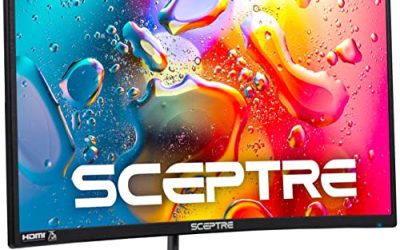
 Sceptre New 22-Inch Gaming Monitor
- 【INTEGRATED SPEAKERS】Whether you're at work or in the…
- 【EASY ON THE EYES】 Protect your eyes and…
- 【WIDEN YOUR PERSPECTIVE】Our sleek minimal bezel design ensures…

 LG 24G411A-B 24-inch Ultragear Full HD
- Vivid Color, Fast Response, Total Control - The…
- Vivid Color That Puts You in the Action…
- 120Hz Native Speed (144Hz Overclock) - Enjoy fluid,…


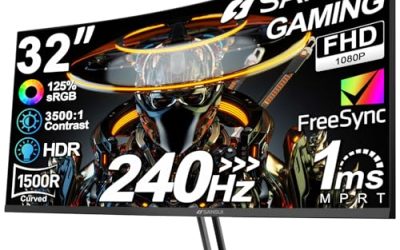
 SANSUI 24 Inch 180Hz Gaming Computer Monitor
- SANSUI 24 Inch 180Hz Refresh Rate FHD 1080P…
- Smooth Gaming - 180Hz & 1ms MPRT response…
- Convenient Ports - One HDMI 2.0 ports plus…
As an Amazon Associate we earn from qualifying purchases at no extra cost to you.
| Product | Best for | Key spec from the title |
|---|---|---|
| Sceptre 22-inch E225W-FW144 | Small desks | 22-inch, FHD, up to 144Hz, HDMI and DisplayPort |
| MSI PRO MP243L E14 | Gaming plus office work | 24-inch IPS, 144Hz, FreeSync, VESA mountable |
| LG 24G411A-B | Adaptive sync flexibility | 24-inch IPS, 144Hz (O/C), 1ms MBR, G-Sync Compatible |
| LG 27G414B-B | Larger screen | 27-inch IPS, 144Hz, 1ms, G-Sync, FreeSync |
| ARZOPA 16.1-inch portable | Second screen on the go | 16.1-inch, 144Hz, 106% sRGB, kickstand |
| ASUS TUF VG249QE5A | Esports-style 24-inch | 144Hz overclock to 146Hz, IPS, 1ms, ELMB Sync |
| LG 24G414B-B | Straightforward 24-inch | 24-inch IPS, 144Hz, 1ms, FreeSync, HDR10 |
| SANSUI 24-inch | Extra refresh headroom | 180Hz, 1ms, 110% sRGB, FreeSync, HDMI and DP |
How to Choose
Screen size and pixel density
At 1080p, pixel density falls as the screen grows. A 24-inch panel looks crisp at a normal desk distance, roughly 92 pixels per inch, while a 27-inch panel drops to about 82 and text looks softer. If you sit about an arm’s length away and play fast shooters, 24 inches is a comfortable maximum. Choose 27 inches for living-room distance or couch use. A 22-inch screen suits tight desks, and a 16-inch portable works as a travel or secondary display.
Panel type, response time and motion clarity
IPS panels give wider viewing angles and better color than older TN designs, which helps when you share the screen. A listed 1ms response is usually a gray-to-gray figure achieved with overdrive, so treat it as a ceiling rather than a guarantee. Motion blur reduction modes, labeled MBR or ELMB Sync here, can reduce trailing but often disable adaptive sync and lower brightness. Ignore any claim without a clear refresh rate figure.
Adaptive sync, ports and cables
FreeSync and G-Sync Compatible reduce tearing when your frame rate varies, and they work on most modern GPUs. For 144Hz at 1080p, DisplayPort is the safest connection; HDMI works if the monitor and cable support the required version. Check that the monitor includes the cable you need, or budget for one. VGA ports are legacy features and do not carry 144Hz, so ignore them. HDR claims like HDR Ready or HDR10 rarely look dramatic on these panels.
Stand, mounting and where budget models cut corners
Entry-level monitors often ship with a tilt-only stand and rely on VESA mounting for height changes. Built-in speakers are convenient but thin, so treat them as a backup. Budget units may skip height adjustment, use plastic bezels and offer limited color accuracy beyond a stated sRGB percentage. Check bezel thickness if you plan multi-monitor use, and confirm the warranty and dead-pixel policy. A monitor arm is a cheap fix for a rigid stand, and it also frees desk space for a keyboard and a large mouse pad.
The 8 Best Options
Sceptre E225W-FW144
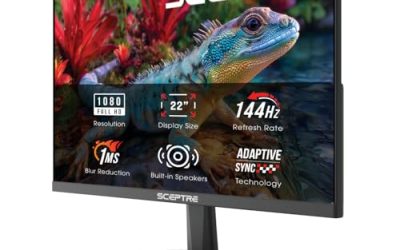
A compact choice for gamers who want smooth motion on a small desk. The title lists a 22-inch FHD 1080p panel with up to 144Hz refresh, HDMI, DisplayPort and built-in speakers, in a machine black finish. It suits students and anyone moving from a basic 60Hz screen, especially in dorm rooms or apartments where every inch of desk space counts and a second display would not fit.
- Both HDMI and DisplayPort inputs allow flexible connections.
- 22 inches keeps desk footprint small and pixel density high.
- Trade-off: the title lists no panel type or adaptive sync details.
Skip it if you want an IPS panel confirmed in the listing or a larger display.
MSI PRO MP243L E14
A 24-inch IPS monitor positioned for both gaming and office work. The listing cites 1920 x 1080 resolution, 144Hz, FreeSync, HDR Ready, HDMI, a VGA port, VESA mounting, tilt adjustment and slim bezels on four sides. It suits people who split time between spreadsheets and games, and the slim-bezel look makes it a natural fit for a two-screen desk where the gap between panels should stay small.
- IPS panel and slim bezels suit multi-monitor desks.
- VESA mount support allows an arm for better ergonomics.
- Trade-off: the stand offers tilt only, and the VGA port is legacy hardware.
Skip it if you need a height-adjustable stand out of the box.
LG 24G411A-B
A 24-inch UltraGear IPS monitor aimed at players who want broad adaptive sync support. The title lists 1080p, 144Hz (overclocked), 1ms MBR, G-Sync Compatible, FreeSync, HDR10, HDMI and DisplayPort. It works for either GPU brand, which matters if you plan to swap graphics cards in a year or two and do not want to rebuy the display along with it.
- G-Sync Compatible and FreeSync cover both major GPU makers.
- 1ms MBR helps reduce visible motion blur in fast scenes.
- Trade-off: 144Hz is listed as an overclock figure.
Skip it if you want a larger 27-inch screen.
LG 27G414B-B
The larger LG option for players who want more screen. The title cites a 27-inch UltraGear IPS 1080p panel at 144Hz with 1ms response, G-Sync and FreeSync support, HDR10, a built-in speaker and LG Switch software. It suits couch-adjacent setups or desks with some depth, and it makes sense for players who also stream video or watch shows on the same screen and prefer a bigger picture.
- 27 inches delivers an immersive image from a modest resolution.
- LG Switch software helps manage screen layouts.
- Trade-off: 1080p stretched to 27 inches looks softer than a 24-inch panel.
Skip it if you sit very close or care about text sharpness.
ARZOPA 16.1-inch portable
A portable second screen for laptop users and console players. The listing highlights 144Hz, 106% sRGB, 1080P FHD, a kickstand, HDR, ultra-slim design and eye care features. It is meant to sit beside a laptop or connect to a console, so it appeals to students, travelers and streamers who need a second display that packs into a bag.
- Portable build and kickstand make travel setups easy.
- 144Hz refresh on a portable screen is unusual.
- Trade-off: 16.1 inches is small as a primary display.
Skip it if you want one main desktop monitor.
ASUS TUF Gaming VG249QE5A
A 24-inch esports-leaning monitor with an IPS panel. The title lists 1080P, 144Hz overclockable to 146Hz, 1ms, Extreme Low Motion Blur Sync and speakers. It suits competitive players who want a recognized gaming brand and who prefer a conventional 24-inch size that lets them see the whole screen without moving their eyes much.
- ELMB Sync aims to reduce motion blur with variable refresh.
- IPS panel and speakers add flexibility.
- Trade-off: the 146Hz bump is a small gain over 144Hz.
Skip it if you want a 27-inch screen or a portable form.
LG 24G414B-B
A straightforward 24-inch UltraGear IPS option. The listing cites 1080p, 144Hz, 1ms, G-Sync, FreeSync, HDR10, a built-in speaker and LG Switch. It is the simple 24-inch pick when you want a recognizable brand and no extra decisions, and it pairs well with a second identical panel for a matched dual-monitor desk.
- IPS panel and adaptive sync cover most gaming needs.
- 24 inches balances sharpness and screen size.
- Trade-off: it looks similar to the other 24-inch LG, so differences are subtle.
Skip it if you want an overclock headroom listing.
SANSUI 24-inch 180Hz
A 24-inch panel for players who want more than 144Hz. The title lists 180Hz, FHD 1080P, 1ms response, 110% sRGB, FreeSync, HDMI, DisplayPort, VESA support and a cable. It suits high-frame-rate shooters whose graphics cards can push past 144 frames per second, though you will need to confirm that your GPU and cable can actually deliver the higher refresh rate.
- 180Hz gives extra headroom beyond 144Hz.
- 110% sRGB claim suggests vivid color.
- Trade-off: it is a lesser-known brand, so support is less certain.
Skip it if brand reputation matters most.
Which One Fits Your Situation
You play competitive shooters
The ASUS TUF VG249QE5A or the SANSUI 180Hz panel deliver the most refresh headroom. Pair either with a graphics card that holds steady frame rates, since a high refresh rate only helps when the GPU keeps up.
You split time between work and games
The MSI PRO MP243L E14 offers VESA mounting and slim bezels for productive desks. Add a monitor arm and you get the height and tilt control that the stock stand lacks.
You want a bigger screen
The LG 27G414B-B gives a 27-inch IPS view with G-Sync and FreeSync support. Sit a little farther back than you would with a 24-inch screen to keep the picture looking sharp.
You travel or use a console on the go
The ARZOPA portable monitor travels well and offers 144Hz. It connects to a laptop or a handheld console and works as a handy extra screen for chat windows or guides while the main display stays on the game.
Common Mistakes
- Forgetting that the cable limits the refresh rate and falling back to 60Hz.
- Choosing 27 inches at 1080p and then disliking the soft text.
- Believing HDR labels on budget monitors mean a dramatic picture.
- Skipping the refresh rate setting in the operating system after setup, so the screen keeps running at its default rate.
- Ignoring stand adjustability and ending up with a bad viewing height that strains the neck over long sessions.
Related guides
- Gaming Headsets For Competitive Fps Directional Audio
- Threadripper Vs Xeon Vs Core I9 For Workstations
- Compact Mini Itx Gaming Pcs For Small Desks
Frequently Asked Questions
Is 144Hz worth it at 1080p?
Yes, since mid-range GPUs can reach high frame rates at 1080p. The smoother motion is easy to notice in shooters, and even desktop scrolling feels more responsive after a few days of use.
Do I need DisplayPort?
It is the safest connection for 144Hz. HDMI can work if both the monitor and the cable support the needed bandwidth.
Is FreeSync usable on NVIDIA cards?
Often yes, since many FreeSync monitors work as G-Sync Compatible. Check the listing and driver settings, because the option is usually off until you enable it in the graphics control panel.
Why does my monitor show 60Hz?
You likely need to select 144Hz in display settings or use a different cable or port. Plugging into the graphics card rather than the motherboard output is another common fix.