Our Short List of 3

- Best for: Mac owners who want a compact, plug-and-play webcam for everyday calls.
- Full HD 1080p video
- Auto-light balance with RightLight
- Built-in microphone
- Integrated privacy shutter

- Best for: Mac owners who want a proven 1080p webcam with autofocus and dual microphones for work and streaming.
- Full HD 1080p video at 30 frames per second
- Five-element glass lens with autofocus
- HD light correction
- Dual stereo microphones

- Best for: Mac creators and presenters who want 4K video, flexible framing and a USB-C connection.
- Ultra HD 4K video at 30 frames per second
- 1080p video at 60 frames per second
- 8.5MP Sony STARVIS image sensor
- Diagonal field of view settings of 90, 78 and 65 degrees
All 3 Picks at a Glance
| Product | Specs | Action |
|---|---|---|
| Logitech Brio 100 Full HD 1080p Webcam |
| Check price on Amazon |
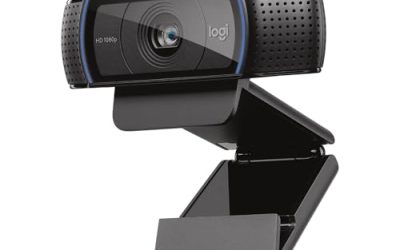
| Logitech C920S HD Pro Webcam |
| Check price on Amazon |
| Logitech MX Brio Ultra HD 4K Webcam |
| Check price on Amazon |
Our Top Picks
A Mac already has a built-in camera, so an external Logitech webcam has to earn its place on top of the screen. The decision is not only about sharper video. It is about whether the camera connects cleanly to a MacBook or an iMac, whether it works with FaceTime, Zoom, Microsoft Teams and Google Meet without extra drivers, and whether its microphone, field of view and light correction suit the room where calls actually happen. A camera that needs a Windows-only utility for basic settings is a poor fit.
This guide is for Mac owners who take daily work calls, for creators who record lessons and live streams from a Mac, and for households that share one Mac between work, study and family video chats. I picked the three Logitech webcams below by reading the titles and specification lists on their Amazon pages, with macOS support listed for each one, so you can compare a compact everyday camera, a long-serving 1080p workhorse and a 4K camera for demanding video.
Quick Picks
As an Amazon Associate we earn from qualifying purchases
| Product | Best for | Key spec from title |
|---|---|---|
| Logitech Brio 100 Full HD 1080p Webcam | Everyday Mac calls on a simple USB-A connection | Full HD 1080p webcam with auto-light balance and built-in mic |
| Logitech C920S HD Pro Webcam | Reliable 1080p video with autofocus and dual stereo microphones | Full HD 1080p at 30 frames per second with HD light correction |
| Logitech MX Brio Ultra HD 4K Webcam | Sharp 4K video and flexible framing for streaming and presentations | Ultra HD 4K webcam with 1080p at 60 frames per second and Show Mode |
How to Choose
Check macOS support and the connection on your Mac
Start with the operating system and the port. Each webcam below lists macOS support on its Amazon page, and that matters more than any single video feature, because a camera that depends on Windows-only software leaves Mac owners with fixed settings. Next, look at the cable. Older Macs and many USB hubs still use USB-A, while recent MacBooks and iMacs use USB-C, so match the camera to the port you actually have or to an adapter you already own. A plug-and-play camera that appears in FaceTime and Zoom as soon as it is connected saves time on every call.
Match resolution and frame rate to how the video is used
Resolution decides how much detail the camera can capture, while frame rate decides how smooth movement looks. Full HD 1080p at 30 frames per second is enough for most work calls, lessons and family chats, and it keeps file sizes and processing demands modest on an older Mac. A camera that records 1080p at 60 frames per second gives smoother motion for demonstrations and live streaming. Ultra HD 4K suits creators who record video for editing, crop into the frame, or present to a large audience, although many calling apps compress the picture before the other side ever sees it.
Weigh field of view against the size of your space
Field of view controls how much of the room appears behind you. A narrow view keeps the focus on one person and hides a messy room, which suits a small home office or a shared desk. A wider view fits two people side by side, a whiteboard, or a desk demonstration, although it also shows more background and can make one person look small in the frame. Some Logitech webcams let you change the field of view in software, which is useful when the same Mac moves between a solo call, a paired presentation and a recorded lesson in different rooms.
Look at microphones, light correction and privacy
A webcam microphone is the part callers notice first when it fails, so dual microphones with noise reduction are worth having when the room has a fan, a keyboard, or street noise outside. Light correction matters just as much, because a Mac often sits beside a window or under a single lamp, and a camera that balances bright and dark areas keeps a face visible instead of washed out or lost in shadow. A built-in privacy shutter is a simple safeguard for a camera that stays mounted on a Mac in a bedroom or a shared living space, and autofocus keeps the picture sharp when you lean in or move back.
The 3 Best Options
Logitech Brio 100 Full HD 1080p Webcam
- Best for: Mac owners who want a compact, plug-and-play webcam for everyday calls.
- Full HD 1080p video
- Auto-light balance with RightLight
- Built-in microphone
- Integrated privacy shutter
Mac owners who want a compact, plug-and-play webcam for everyday calls.
USB-A only, so a Mac with USB-C ports alone needs an adapter or a hub.
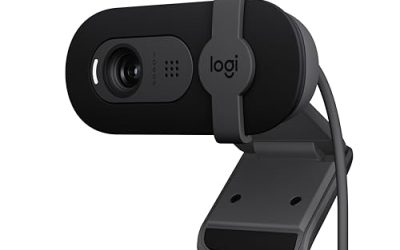
The Brio 100 is the simplest Logitech webcam for a Mac in this guide, and that simplicity is its main strength. It connects through USB-A, appears as a camera in common calling apps, and needs no complicated setup before a meeting. Its Full HD picture suits daily work calls and online lessons, while the built-in microphone removes the need for a separate headset on short calls. The compact body sits neatly on a MacBook lid or an external display, and the privacy shutter gives a clear visual sign that the lens is covered.
Watch out for: USB-A only, so a Mac with USB-C ports alone needs an adapter or a hub.
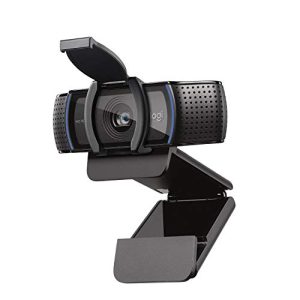
Logitech C920S HD Pro Webcam
- Best for: Mac owners who want a proven 1080p webcam with autofocus and dual microphones for work and streaming.
- Full HD 1080p video at 30 frames per second
- Five-element glass lens with autofocus
- HD light correction
- Dual stereo microphones
Mac owners who want a proven 1080p webcam with autofocus and dual microphones for work and streaming.
It tops out at 1080p, so it cannot match the detail of a 4K camera for recorded video.
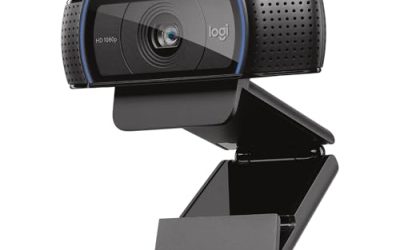
The C920S has been a familiar sight on desks for years, and its appeal for Mac owners is its dependable combination of sharp video and clear sound. Autofocus keeps the picture crisp when you shift position, and the five-element glass lens pairs with HD light correction to handle rooms that are brighter on one side than the other. Dual stereo microphones capture a voice from a broader angle than a single microphone, which helps when you sit a little further from the screen. A privacy shutter is built in, so the lens can be covered between calls without unplugging the camera.
Watch out for: It tops out at 1080p, so it cannot match the detail of a 4K camera for recorded video.
Logitech MX Brio Ultra HD 4K Webcam
- Best for: Mac creators and presenters who want 4K video, flexible framing and a USB-C connection.
- Ultra HD 4K video at 30 frames per second
- 1080p video at 60 frames per second
- 8.5MP Sony STARVIS image sensor
- Diagonal field of view settings of 90, 78 and 65 degrees
Mac creators and presenters who want 4K video, flexible framing and a USB-C connection.
Many calling apps compress video before sending it, so the 4K picture may not reach the other side at full quality.
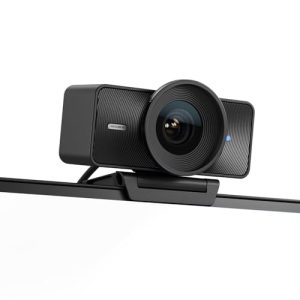
The MX Brio is the most capable Logitech webcam for a Mac in this guide, built for people who record, stream or present as part of their work. Its large 8.5MP Sony STARVIS sensor captures Ultra HD 4K video, and it can also record 1080p at 60 frames per second for smoother motion. Three field-of-view settings let you frame a solo shot, a wider desk view or a paired presentation, while Show Mode tilts the picture down to share notes and sketches on the desk. Dual noise-reducing microphones and a USB-C connection complete a camera aimed at a modern Mac setup.
Watch out for: Many calling apps compress video before sending it, so the 4K picture may not reach the other side at full quality.
Which One Fits Your Situation
You take daily work calls on a MacBook
Choose the Brio 100 when calls are the main job and simplicity matters most. Its USB-A cable suits a MacBook that already uses a hub, its 1080p picture is clear enough for colleagues, and the privacy shutter is easy to slide shut at the end of the day. There is little to configure, which keeps the morning routine short and avoids fiddling with settings before a meeting starts.
You record lessons, streams or videos from a Mac
Choose the MX Brio when the recording itself is the work. Its 4K resolution and 1080p at 60 frames per second give smoother, more detailed footage for editing, and the adjustable field of view frames a solo presenter or a desk demonstration without moving the camera. Show Mode is a genuine help for teachers and presenters who need to show paper, notes or small objects during a session.
You want one dependable webcam for work, study and family calls
Choose the C920S when one camera has to cover everything. Its autofocus and dual microphones handle a mix of close calls and calls from further back, its 1080p picture suits every major calling app, and its long track record means its behaviour on a Mac is well understood. It is the middle ground: more capable than a basic camera, without the demands of a 4K setup.
Your Mac sits in a bright or dim room
Choose a camera with strong light correction when the room fights the picture. The Brio 100 uses RightLight auto-light balance, the C920S uses HD light correction, and the MX Brio adds a larger sensor with auto light correction, so all three cope better than a basic built-in camera. The MX Brio has the strongest low-light handling of the three, which suits a room lit by a single lamp in the evening.
Common Mistakes
- Choosing a webcam by resolution alone, without checking that it lists macOS support and works with your calling apps.
- Buying a USB-A webcam for a Mac that only has USB-C ports, then discovering an adapter is needed on the first day.
- Picking a wide field of view for a small room, so the picture shows more background than the person speaking.
- Ignoring the microphone, then relying on a camera microphone in a noisy room where a headset would have sounded clearer.
- Expecting a 4K camera to change how you look on a call, when the calling app compresses the video before the other side sees it.
Frequently Asked Questions
Do Logitech webcams work with a Mac?
Yes, the three webcams in this guide list macOS support on their Amazon pages. They connect as standard USB video devices, so FaceTime, Zoom, Microsoft Teams and Google Meet can use them without a separate driver. Some advanced settings use Logitech software that is available for Windows and macOS, although the exact features vary by model, so check the software page for your camera before relying on a setting.
Which Logitech webcam is best for Mac video calls?
For most Mac owners, the C920S is the safest all-round choice, because it pairs 1080p video with autofocus, HD light correction and dual microphones. The Brio 100 suits simpler needs and a tighter desk, while the MX Brio suits creators who record or stream. The right pick depends on whether calls, recording or a mix of both fills most of your time on the Mac.
Do I need a USB-C webcam for a recent MacBook?
Not always, although it helps. Recent MacBooks use USB-C ports, so a USB-C camera such as the MX Brio connects directly. A USB-A camera such as the Brio 100 or C920S still works through a hub or an adapter, and many Mac owners already have one on the desk. Check which ports and adapters you own before choosing, so the camera connects on arrival.
Can a Logitech webcam replace the built-in Mac camera?
Yes, in most cases it can, and that is the point of buying one. Once the webcam is connected, choose it as the camera in FaceTime, Zoom, Microsoft Teams or Google Meet, and the app will use the external camera instead of the built-in one. Keep the built-in camera as a backup, and remember to select the external camera again if the app resets its settings after an update.
FAQ
Do Logitech webcams work with a Mac?
Which Logitech webcam is best for Mac video calls?
Do I need a USB-C webcam for a recent MacBook?
Can a Logitech webcam replace the built-in Mac camera?
More from Amazon
Programs that pair well with the guide above. Offers and eligibility are set by Amazon and may change.
Free shipping on eligible items, Prime Video and more. Eligible new members can start with a free trial.
Start a Prime free trialAd-free music streaming. Eligible new subscribers can start with a free trial.
Try Music Unlimited freeA Prime membership for ages 18-24 with a trial period. Eligibility is set by Amazon.
See Prime for Young AdultsAudiobooks and podcasts to listen to on the go. Eligible new members can start with a free trial.
Try Audible freeAs an Amazon Associate we earn from qualifying purchases.