Key takeaways
- Find the best low cost wireless routers for your home with our guide to Wi-Fi standards, coverage, ports and firmware updates — choose and stay connected.
As an Amazon Associate we earn from qualifying purchases.
A low-cost wireless router asks you to make a trade-off: spend less up front while still getting steady Wi-Fi in every room you actually use. The cheapest box on the shelf can look identical to a costlier one, yet the differences hide in the Wi-Fi standard, the number of wired ports, the quality of the antennas and how long the maker keeps shipping firmware updates. Sorting those details before you buy matters more than chasing the biggest speed number on the box. A router that drops video calls or leaves a bedroom without signal costs more in frustration than it saved.
This guide is for renters setting up a first home network, families sharing one connection across phones, laptops and a television, students in a small flat, and gamers who need a stable link without stretching their budget. It explains which features deserve your attention, which corners are safe to cut, and how to match a router to the size of your home and the way you use the internet.
How to Choose
Wi-Fi Standard and Speed Class
Start with the Wi-Fi standard, because it sets the ceiling for everything else the router does. Wi-Fi 6 handles crowded networks better than Wi-Fi 5, keeping connections steadier when several devices are active, while Wi-Fi 5 remains usable for browsing, streaming and light gaming in a small household. Dual-band models split traffic between the 2.4 GHz band, which reaches further through walls, and the 5 GHz band, which is faster at short range. Ignore the headline speed figure on the box, since it adds both bands together. Match the standard to the devices you already own, and look for features such as OFDMA and MU-MIMO, which help a busy household share the connection fairly.
Coverage and Antenna Layout
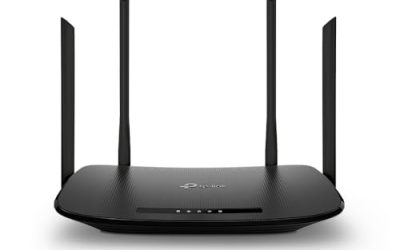
Coverage decides whether a budget router feels fast or frustrating, and it depends on your home more than on the box. A single compact router usually serves a one-bedroom flat well, while larger homes with thick walls or several floors may need a mesh-ready design. Antenna count alone tells you little, since placement and the layout of your rooms matter just as much. Put the router in a central, open spot, raised off the floor and away from thick furniture, metal objects and the corner of the house. If the signal still fades in a far bedroom, a wired access point or a mesh add-on solves the problem more reliably than a second cheap router.
Ports, Wired Connections and USB
Wired ports are where budget routers most often cut corners, so count them before you buy. A gigabit WAN port keeps your connection to the modem from becoming a bottleneck, and four gigabit LAN ports give you room for a gaming PC, a console, a television and a network drive without reaching for a switch. Some low-cost models still ship with slower Fast Ethernet ports, which cap wired speeds far below what most modern broadband plans deliver, so check the specification sheet rather than the marketing on the box. A USB port is a useful bonus for sharing a printer or a storage drive across the home, though it is not essential if every device you own connects over Wi-Fi.
Firmware, Security and Long-Term Support
A router is only as safe as its latest firmware, and budget models vary widely in how long makers keep updating them. Before choosing, look for a maker with a visible record of security patches and a simple update process, ideally with automatic updates you can switch on and forget. Modern security features to expect include WPA3 encryption, a separate guest network for visitors and smart-home gadgets, and basic parental controls for managing screen time. Avoid routers whose setup apps demand accounts you do not want or whose last update is years old. A model that still receives patches protects every device on your network, from laptops to doorbells.
Which One Fits Your Situation
You Live in a Small Flat or Studio
A compact dual-band router is usually all a small flat needs, and it leaves money for the rest of your setup. Place it centrally, connect your television and console by cable if the ports allow, and let phones and laptops use the 5 GHz band nearby. Skip mesh systems and extra antennas; in a small space they add complexity without improving everyday browsing, streaming or video calls. A short cable for the television keeps streaming smooth.
You Share a Home with Several People
When several people stream, game and work under one roof, prioritise a Wi-Fi 6 router with solid device handling and a guest network for visitors. Give the wired ports to the devices that suffer most from lag, such as a gaming PC or a work laptop, and keep the 2.4 GHz band for smart-home gadgets. Regular firmware updates matter even more here, since more devices mean more ways in. Keep one network name for the whole household to avoid confusion.
You Game Online on a Tight Budget
Gamers on a budget should spend their attention on stability rather than headline speeds. A wired Ethernet connection to the router beats any wireless upgrade, so choose a model with enough gigabit ports for your PC and console. Look for quality-of-service settings that let you prioritise gaming traffic, and keep the router close to your desk with a clear line of sight if a cable is not possible. Restart the router occasionally to clear temporary glitches before an important session.
You Work from Home and Need a Steady Link
Remote work punishes dropouts more than slow downloads, so reliability comes first. Choose a router from a maker with a good update record, set up a guest network for everything except your work devices, and use a wired connection for video calls when you can. If your office sits far from the router, test the signal there before committing, and consider a wired access point rather than gambling on a stronger antenna. Keep a phone tethering option ready for outages.
Setting Up Your New Router for the Best Signal
Find the Best Spot in Your Home
Start by placing the router where its signal can reach the rooms you use most, usually near the centre of the home and out in the open. A shelf at waist height or higher works well, while the floor, a closed cupboard or a spot behind a large television all weaken the signal before it spreads. Thick walls, mirrors and metal shelving absorb or reflect wireless signals, so keep the router clear of them where possible. If your broadband socket sits in a corner, run a longer Ethernet cable from the modem so the router can sit centrally instead of staying trapped beside the wall socket.
Secure the Network on Day One
Change the default admin password and Wi-Fi password as soon as the router is online, since factory logins are widely known and easy to guess. Choose a strong, unique Wi-Fi password and turn on WPA3 encryption if the router supports it, falling back to WPA2 only when an older device refuses to connect. Set up a separate guest network for visitors and smart-home gadgets, so a compromised gadget cannot reach your laptops or shared files. Switch on automatic firmware updates, check for an update manually on the first day, and note the admin login somewhere safe so you can reach the settings later without resetting the router.
Test the Connection Room by Room
Once the router is running, walk through your home with a phone and check the signal in every room you actually use, including bedrooms, the kitchen and any home office. Run a speed test in each spot at the time of day you normally work or play, since evening congestion can make a borderline signal feel far worse. If one room is weak, try moving the router a metre or two, raising it higher, or turning its antennas to face that direction before buying anything extra. Keep a note of the results, so you can tell whether a later change helped or made things worse.
Keep It Running Well Over Time
A budget router lasts longer when you give it a little attention after setup. Check for firmware updates every month or two, restart the router occasionally to clear temporary glitches, and keep its vents free of dust so it does not overheat in a warm room. Check the connected devices list now and then, and remove gadgets you no longer own, since forgotten devices can still hog bandwidth or pose a security risk. If performance slowly fades, a factory reset followed by a fresh setup often restores it, and it costs nothing to try before replacing the hardware.
Common Mistakes
- Buying for the biggest speed number on the box instead of checking the Wi-Fi standard, the coverage your home needs and the wired ports on the back.
- Hiding the router inside a cabinet, behind the television or on the floor, then blaming the broadband plan for weak Wi-Fi in the next room.
- Choosing a model with Fast Ethernet ports that cap wired speeds below what the connection can deliver, which quietly limits every wired device.
- Skipping firmware updates after setup, leaving known security gaps open on every connected device in the home.
- Picking a router with too few LAN ports and then crowding the network with extra switches, adapters and cables.
Frequently Asked Questions
Is a low-cost router enough for online gaming?
Yes, for most players, provided the router gives a stable connection and a wired port for the gaming device. Online games use far less bandwidth than video streaming, so low latency and a steady signal matter more than headline speed. Connect by Ethernet where possible, keep the firmware updated, and use quality-of-service settings to give gaming traffic priority over downloads. Wired links also avoid interference from neighbouring networks.
Do I need Wi-Fi 6 in a budget router?
Wi-Fi 6 is worth having when your household runs many devices at once, because it manages crowded airwaves more efficiently than Wi-Fi 5 and keeps video calls steadier. If you own only a few devices and your broadband plan is modest, a well-made Wi-Fi 5 router still handles browsing, streaming and light gaming without trouble, so weigh the standard against coverage and port count. Check what your devices support first.
How many devices can a budget router handle?
Most modern budget routers cope comfortably with a dozen or so active devices, covering phones, laptops, a television and a handful of smart-home gadgets. Problems usually appear beyond that, when dozens of always-on devices compete for attention. If your home is full of connected gadgets, favour a Wi-Fi 6 model with better device handling and keep smart-home gear on the 2.4 GHz band.
When should I replace a cheap router?
Replace it when the maker stops shipping firmware updates, when it cannot keep up with your broadband plan, or when dead zones persist after you have tried better placement. Frequent restarts, dropped video calls and a setup app that no longer works are also clear signs. A router that still receives updates and covers your home well can serve for years, even at the budget end. Check the return window.
FAQ
Is a low-cost router enough for online gaming?
Do I need Wi-Fi 6 in a budget router?
How many devices can a budget router handle?
When should I replace a cheap router?
More from Amazon
Programs that pair well with the guide above. Offers and eligibility are set by Amazon and may change.
Free shipping on eligible items, Prime Video and more. Eligible new members can start with a free trial.
Start a Prime free trialAd-free music streaming. Eligible new subscribers can start with a free trial.
Try Music Unlimited freeA Prime membership for ages 18-24 with a trial period. Eligibility is set by Amazon.
See Prime for Young AdultsAudiobooks and podcasts to listen to on the go. Eligible new members can start with a free trial.
Try Audible freeAs an Amazon Associate we earn from qualifying purchases.