Key takeaways
- Unplug your Bluetooth dongle from the back of your computer.
- Plug a 3-foot to 6-foot USB 2.0 extension cable into a black USB 2.0 port on your PC (USB 2.0 ports do not emit the same 2.4 GHz interference).
- Route the cable up onto your desktop, hiding it behind a monitor stand, a desk plant, or a decorative tray.
- Plug your Bluetooth dongle into the female end of the extension cable. Ensure the dongle has a direct, unobstructed line of sight to where you sit with your controller.
There is nothing quite as disruptive to a beautifully curated home office or gaming sanctuary as input lag. You have spent hours perfecting your workspace, selecting the ideal ergonomic chair, positioning a solid walnut desk, and managing every cable out of sight to achieve a clean, wireless aesthetic. But the moment you pick up your controller to unwind, a frustrating half-second delay between your button presses and the on-screen action ruins the immersion.
If you do not address this issue correctly, frustration can quickly lead to worse problems. Aggressive button-mashing can prematurely wear down a premium $70 controller, and in worst-case scenarios, gamers end up cluttering their minimalist desks with long, unsightly USB cables just to get a stable connection. Worse yet, you might waste money buying expensive new controllers or high-end motherboards when the actual culprit is a simple, easily fixable wireless bottleneck. Learning how to fix latency on bluetooth pc controller dongle setups is essential to reclaiming your clutter-free environment and enjoying responsive, seamless entertainment.
Our top picks
 TP-Link USB Bluetooth Adapter for PC
- Product Group: Personal Computer
- Binding: Electronics
As an Amazon Associate we earn from qualifying purchases at no extra cost to you. Ratings are shown as listed on Amazon.
What You Need
Before diving into the optimization process, gather these basic tools and accessories. Improving your signal path and hardware is the most effective way to eliminate wireless delay.
| Item / Tool | Why It’s Needed | Optional? |
|---|---|---|
| USB 2.0 Extension Cable (3 to 6 feet) | Moves the dongle away from the metal PC chassis and USB 3.0 interference. Cost: $5.00 – $9.00. | Highly Recommended |
| Modern USB Bluetooth Dongle | Upgrades older, lag-prone Bluetooth 4.0 standards to modern, high-bandwidth protocols. | Optional (if current dongle is broken/outdated) |
| PC with Internet Access | Required to download the latest manufacturer drivers and controller firmware updates. | No |
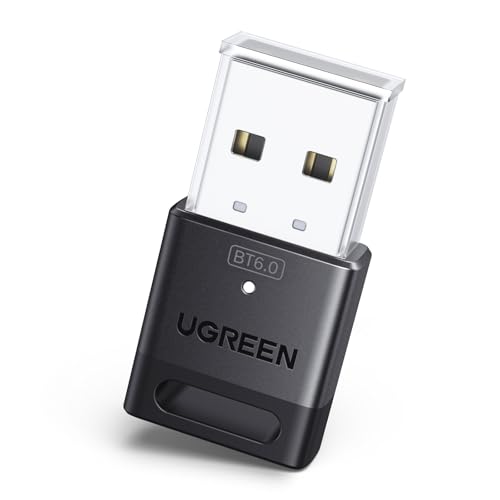
If you decide your current receiver is past its prime, there are highly affordable, compact upgrades available. The TP-Link USB Bluetooth Adapter for PC – Bluetooth 5.4 USB Dongle Receiver (priced at $11.99) offers excellent backward compatibility and robust signal strength. Alternatively, the ultra-slim UGREEN USB Bluetooth Adapter for PC Bluetooth 6.0 Dongle Receiver (priced at $7.99) delivers the latest wireless protocol efficiency in a tiny 0.3-ounce package, making it perfect for keeping your USB ports looking clean and uncluttered.
Step-by-Step: How to Fix Latency on Bluetooth PC Controller Dongle
Follow these structured steps to diagnose, isolate, and eliminate wireless lag from your PC setup. This entire process takes less than half an hour and requires no advanced technical skills.
Step 1: Relocate Your Dongle with a USB Extension Cable (Time: 5 Minutes)
The single most common cause of Bluetooth latency is physical and electromagnetic interference. Standard USB 3.0 ports (the ones with blue plastic interiors) radiate electromagnetic noise in the 2.4 GHz frequency band—which is the exact frequency Bluetooth uses. If your tiny 0.8-inch dongle is plugged directly into a USB 3.0 port on the back of a metal PC tower, it is surrounded by signal-blocking metal and bathed in wireless noise.
- Unplug your Bluetooth dongle from the back of your computer.
- Plug a 3-foot to 6-foot USB 2.0 extension cable into a black USB 2.0 port on your PC (USB 2.0 ports do not emit the same 2.4 GHz interference).
- Route the cable up onto your desktop, hiding it behind a monitor stand, a desk plant, or a decorative tray.
- Plug your Bluetooth dongle into the female end of the extension cable. Ensure the dongle has a direct, unobstructed line of sight to where you sit with your controller.
Step 2: Clear Away Wireless Obstacles (Time: 5 Minutes)
Bluetooth signals are low-wattage and easily absorbed by dense materials. Solid wood desks thicker than 2 inches, metal grommets, computer monitors, and large speakers can degrade the signal. Additionally, other wireless devices sitting on your desk can crowd the airwaves.
- Maintain a clear path between the relocated dongle and your controller. The distance should ideally be under 10 feet for gaming, though modern adapters can technically reach further.
- Move wireless routers, smart home hubs, and wireless phone chargers at least 3 to 4 feet away from your PC and your Bluetooth receiver.
- If you use a wireless headset, keyboard, and mouse alongside your controller, try to connect some of those peripherals via their own dedicated 2.4 GHz USB dongles rather than crowding everything onto a single Bluetooth receiver.
Step 3: Disable Windows Power Saving for the Bluetooth Radio (Time: 5 Minutes)
By default, Windows is configured to save energy by putting USB ports and wireless radios into a low-power state. This power-saving behavior can cause the Bluetooth dongle to lag, drop inputs, or take a moment to wake up when you press a button.
- Right-click the Windows Start button and select Device Manager.
- Expand the Bluetooth category to view your connected adapters.
- Right-click your main Bluetooth adapter (it may be listed as Generic Bluetooth Adapter, Realtek, TP-Link, or Intel) and select Properties.
- Navigate to the Power Management tab. If you do not see this tab, move to the “Universal Serial Bus controllers” section at the bottom of Device Manager and look for your USB Root Hub properties.
- Uncheck the box that says “Allow the computer to turn off this device to save power”.
- Click OK to save the settings and restart your computer.
Step 4: Install Dedicated Manufacturer Drivers (Time: 10 Minutes)
While Windows is excellent at automatically installing generic drivers to make devices work right out of the box, these generic drivers are rarely optimized for low-latency gaming. Installing the official driver package from your dongle manufacturer ensures the hardware communicates efficiently with your operating system.
- Identify the brand and model of your adapter (for example, the TP-Link Bluetooth 5.4 or the UGREEN Bluetooth 6.0).
- Visit the manufacturer’s official support website, navigate to the download section, and enter your model number.
- Download the latest driver package designed for your operating system.
- Run the installer, follow the on-screen prompts, and restart your computer when prompted to replace the generic Windows driver.
Mistakes to Avoid
- Plugging into USB 3.0 Ports: Do not plug your Bluetooth dongle directly into a USB 3.0 port right next to active USB 3.0 external hard drives or flash drives. The shielding on these ports is often insufficient, creating a wall of wireless noise that chokes out your controller’s signal.
- Hiding the Dongle in Cabinets: If you use a closed media console or a wooden computer cabinet to hide your PC tower, do not leave the dongle trapped inside. Wood, glass, and metal enclosures act as natural signal dampeners.
- Overloading a Single Adapter: Avoid pairing a wireless keyboard, mouse, headset, and controller to one cheap, older Bluetooth adapter simultaneously. Standard Bluetooth bandwidth is limited; trying to stream high-quality audio and rapid controller inputs through one low-tier receiver will inevitably cause lag and audio stuttering.
- Neglecting Controller Firmware: Don’t forget that your controller has its own internal software. Whether you use an Xbox, PlayStation, or third-party controller, connect it to your PC via a USB cable occasionally and use the manufacturer’s accessory app to update its firmware.
How Often Should You Maintain Your Connection?
To keep your wireless desktop setup performing flawlessly, perform a quick check of your connection environment every 6 months. This is especially important during seasonal deep cleans of your desk setup. When wiping down surfaces and organizing cables, verify that your USB extension cable has not slipped behind the desk and that the dongle still has a clear line of sight to your seating position.
Additionally, check for driver and controller firmware updates once or twice a year, or immediately if you notice a sudden return of input delay after a major Windows operating system update.
When to Call a Pro or Replace Your Hardware
Most Bluetooth latency issues can be solved with the physical adjustments and driver updates outlined above. However, if you have moved the dongle to a clear line of sight, updated all software, and still experience dropped inputs or delays exceeding 100 milliseconds, it is likely time to replace your hardware.
If your current USB receiver uses Bluetooth 4.0 or 4.2 technology, it simply lacks the bandwidth and interference-mitigation protocols required for modern, high-performance gaming. Upgrading to a modern, budget-friendly receiver like the UGREEN Bluetooth 6.0 ($7.99) or the TP-Link Bluetooth 5.4 ($11.99) is an incredibly cheap, highly effective fix. If a hardware upgrade does not solve the issue, the problem may lie in a damaged internal antenna within your controller, which would require professional repair or controller replacement.
FAQ
Why does my controller lag more when I sit further back on my couch?
Bluetooth signals degrade exponentially with distance. While a dongle may advertise a range of up to 30 feet, that estimate assumes an open environment with zero physical obstacles or competing wireless signals. Sitting 10 to 15 feet away on a couch introduces more physical air space for other 2.4 GHz signals (like your home Wi-Fi or mobile phones) to interfere with the connection, resulting in noticeable latency.
Can USB 3.0 ports really interfere with my Bluetooth controller?
Yes. The USB 3.0 data spectrum overlaps directly with the 2.4 GHz to 2.5 GHz range used by Bluetooth. When data is actively moving through a USB 3.0 port or cable, it radiates broadband noise. If your Bluetooth dongle is plugged directly adjacent to an active USB 3.0 port, this noise overpowers the weak Bluetooth signal. Using a USB 2.0 extension cable completely isolates the dongle from this interference.
Will upgrading to a Bluetooth 6.0 dongle require me to buy a new controller?
No. Newer Bluetooth standards are fully backward compatible. A Bluetooth 6.0 receiver will easily pair with older controllers running Bluetooth 4.0, 5.0, or 5.2. Upgrading your dongle is an excellent way to future-proof your desktop ecosystem as we optimize our smart home setups in 2026, ensuring that any future devices you buy will perform at their absolute best.
Should I use Windows default drivers or manufacturer-specific drivers?
Whenever you are troubleshooting latency, you should always download the manufacturer-specific drivers. While generic Windows drivers are excellent for basic plug-and-play functionality, they lack the fine-tuned power management profiles and data packet optimization provided by dedicated manufacturer software, which are essential for reducing input lag in games.