Key takeaways
- Using Unpowered USB Hubs: Flashing firmware requires a stable, uninterrupted 5-volt power supply. Plugging your adapter into a cheap, unpowered multi-port USB splitter can lead to power drops mid-flash, which can permanently ruin the device’s internal EEPROM chip.
- Pulling the Adapter Out Early: Even if the progress bar on your screen appears to freeze at 99%, leave the adapter plugged in for at least two full minutes before assuming the process has stalled. Removing the device during a write cycle is the leading cause of hardware bricking.
- Installing Wrong Model Firmware: Ensure you know the exact version of your adapter. For instance, the 8BitDo Wireless USB Adapter (orange/gray) uses different firmware than the 8BitDo Wireless USB Adapter 2 (black). Installing the wrong binary file will cause the adapter to stop functioning entirely.
- Leaving Other Controller Software Open: Close applications like Steam, DS4Windows, or JoyToKey before running a firmware update tool. These background programs may try to read inputs from the adapter while the flash tool is writing data, causing a communication conflict.
A clean, organized gaming desk or home entertainment console relies on seamless wireless connectivity. There is nothing quite like sinking into a comfortable lounge chair with a controller in hand, free from the clutter of tangled cords. However, keeping that wireless connection stable requires behind-the-scenes maintenance. Learning how to update firmware on pc wireless gamepad adapter is the single best way to prevent input lag, connection dropouts, and compatibility issues with newer controllers.
When firmware updates are ignored or executed poorly, several things can go wrong. A interrupted firmware flash can “brick” your adapter, turning a highly functional piece of hardware into a useless piece of plastic. Poorly updated adapters can also suffer from severe latency, driver conflicts that crash your Windows operating system, or an inability to pair with modern bluetooth controllers. Fortunately, the updating process is highly straightforward when done with the correct sequence of steps.
Our top picks

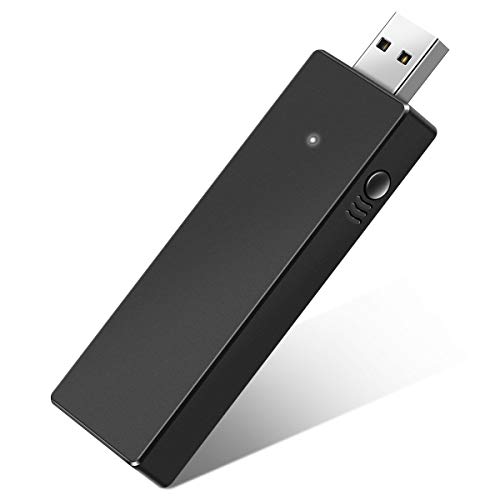 Cipon Wireless Adapter Compatible with Xbox One
- Product Group: Personal Computer
- Binding: Electronics
As an Amazon Associate we earn from qualifying purchases at no extra cost to you. Ratings are shown as listed on Amazon.
What You Need
Before beginning the update process, gather the necessary hardware and software. Having these items ready prevents interruptions during the critical flashing phase.
| Item | Why You Need It | Optional? |
|---|---|---|
| PC Wireless Gamepad Adapter | The hardware receiving the firmware upgrade (e.g., 8BitDo Wireless USB Adapter 2, retailing around $15.00 to $18.00, or a Cipon Wireless Adapter, priced between $16.00 and $20.00). | No |
| Windows PC | To host the update utility program and supply 5V USB power. | No |
| Manufacturer’s Update Software | Dedicated tool to download and push the firmware binary file to the adapter’s chip. | No |
| USB-A to USB-C Cable or Extender | Ensures a stable connection if your PC ports are difficult to reach or tightly spaced. | Yes |
Step-by-Step
Follow these numbered instructions to safely update your wireless adapter. This guide uses standard procedures compatible with major third-party adapters, including the popular 8BitDo Wireless USB Adapter 2 (which supports Switch, Windows PC, and PS5 controllers) and Cipon adapters designed for Xbox controllers.
Step 1: Download the Official Firmware Update Utility (Time: 3 minutes)
Do not rely on Windows Device Manager to find the latest firmware; it only searches for basic Windows driver packages, not the internal microcode of your adapter. Navigate directly to the manufacturer’s support website. For an 8BitDo adapter, download the “8BitDo Upgrade Tool.” For a Cipon or other Xbox-compatible adapter, you may need the Xbox Accessories app from the Microsoft Store or a proprietary driver update file provided by the manufacturer. Download the software package and extract the ZIP folder to your desktop.
Step 2: Prepare and Connect the Adapter (Time: 1 minute)
Disconnect any other unnecessary USB devices from your PC to prevent power fluctuations. Plug your wireless gamepad adapter directly into a motherboard USB port (typically located on the back of a desktop tower) rather than an unpowered external USB hub. If you are using a compact adapter with a weight of only 10 grams and a standard 12mm USB-A connector, ensure it sits completely flush in the port without any physical strain or bending.
Step 3: Put the Adapter into Update Mode (Time: 2 minutes)
Some adapters require you to hold down a physical pairing button while inserting them into the USB port to force them into “bootloader” or “update” mode. For example, with certain older wireless USB adapters, holding the sync button while plugging it in triggers a solid or rapidly blinking LED light, indicating it is ready to receive new software. Check your specific adapter’s documentation to see if this manual step is required, or if the software utility can detect the device automatically.
Step 4: Run the Software and Flash the Firmware (Time: 3 minutes)
Launch the downloaded updater application. The tool should display your current firmware version (e.g., v1.02) and the latest available version (e.g., v1.08 in 2026). Select the newest version from the dropdown menu and click “Update” or “Run.” A progress bar will appear. It is absolutely critical that you do not touch the adapter, close the software, or shut down your PC during this phase, which typically takes less than 60 seconds.
Step 5: Re-Pair and Test Your Controller (Time: 2 minutes)
Once the software displays a “Success” or “Update Complete” message, safely unplug the adapter from your computer, wait 5 seconds, and plug it back in. Press the sync button on both the adapter and your controller (such as an Xbox Series X, Switch Pro, or PS5 DualSense controller) to re-establish the wireless connection. Open a game or a controller tester website to verify that all inputs, rumble functions, and latency levels are performing perfectly.
Mistakes to Avoid
- Using Unpowered USB Hubs: Flashing firmware requires a stable, uninterrupted 5-volt power supply. Plugging your adapter into a cheap, unpowered multi-port USB splitter can lead to power drops mid-flash, which can permanently ruin the device’s internal EEPROM chip.
- Pulling the Adapter Out Early: Even if the progress bar on your screen appears to freeze at 99%, leave the adapter plugged in for at least two full minutes before assuming the process has stalled. Removing the device during a write cycle is the leading cause of hardware bricking.
- Installing Wrong Model Firmware: Ensure you know the exact version of your adapter. For instance, the 8BitDo Wireless USB Adapter (orange/gray) uses different firmware than the 8BitDo Wireless USB Adapter 2 (black). Installing the wrong binary file will cause the adapter to stop functioning entirely.
- Leaving Other Controller Software Open: Close applications like Steam, DS4Windows, or JoyToKey before running a firmware update tool. These background programs may try to read inputs from the adapter while the flash tool is writing data, causing a communication conflict.
How Often
You do not need to update your wireless gamepad adapter weekly or even monthly. As a general rule, perform an update under the following circumstances:
- Immediately After Purchase: Adapters often sit in warehouse boxes for months. Out-of-the-box firmware is almost always outdated.
- When Buying a New Controller: If you purchase a newly released controller, your older adapter will likely need a firmware patch to recognize the new button layouts and Bluetooth protocols.
- After Major OS Updates: If Windows releases a massive system update that changes USB handling or Bluetooth stacks, check the adapter manufacturer’s site for a corresponding update.
- When Experiencing Issues: If you notice sudden input lag, frequent disconnects, or dead zones, a quick firmware flash can recalibrate the internal radio frequencies.
When to Call a Pro or Replace
Because PC wireless adapters are small, consumer-grade electronic accessories, professional repair services are rarely cost-effective. If your adapter has suffered physical damage—such as a bent USB connector, cracked plastic casing, or water exposure—it is far safer to replace the unit entirely.
If the adapter gets extremely hot to the touch during normal use, or if the internal LED light fails to turn on when plugged into multiple different computers, the internal circuitry has likely failed. With reliable replacements like the Cipon Wireless Adapter costing around $17.99 and the 8BitDo Adapter 2 priced at approximately $15.99, purchasing a new device is much more practical than spending time or money attempting a complex hardware repair.
FAQ
Can I update my PC wireless gamepad adapter using a Mac?
Yes, many manufacturers provide macOS versions of their firmware update utilities. However, ensure that you grant the software the necessary system permissions in your Mac’s Security & Privacy settings to allow direct access to USB hardware devices.
Why does my PC say “USB Device Not Recognized” when I plug the adapter in?
This usually indicates a driver conflict, a dirty USB port, or a damaged connector. Try plugging the adapter into a different USB port (preferably on the back of the PC motherboard). If the error persists, you may need to go to Windows Device Manager, uninstall the failed device, restart your PC, and let Windows reinstall the default USB controller drivers.
Do I also need to update my controller’s firmware?
Yes, keeping both the adapter and the controller updated is highly recommended. For example, Xbox controllers can be updated via the Xbox Accessories app on Windows, while DualSense controllers have a dedicated PC update tool provided by Sony. Keeping both devices on current software ensures maximum compatibility.
My firmware update failed mid-way and the adapter won’t turn on. Is it ruined?
Not necessarily. Many modern adapters have a built-in recovery mode. Unplug the adapter, open the firmware update software on your PC, hold down the physical pairing button on the adapter, and plug it back into the USB port while holding the button. The software may recognize the device in “recovery mode” and allow you to force-flash the firmware again.