Key takeaways
- Best overall: High preset, upscaler on Balanced, Lighting Medium, Reflections Low, Foliage Medium.
- Best for 8 GB GPUs: Low or Medium preset, upscaler on Performance at 1440p, Texture Quality Medium, Volumetric Fog and Clouds Low.
- Best for high-end GPUs: Very High preset with DLSS or FSR 4 Quality; reserve Badass for 1080p or screenshots.
- Biggest single gain: upscaling. PCOptimizedSettings measured Balanced mode about 85% faster than native at 4K.
- Biggest stutter fix: rebuild the shader cache once with the -ClearPSODriverCache launch option, then remove it.
The best Borderlands 4 PC settings for most players are the Medium or High preset with DLSS, FSR or XeSS on Balanced, then Lighting Quality dropped to Medium, Reflection Quality to Low, Foliage Density to Medium, Volumetric Fog one step down and Shadow Quality to Medium. Those five changes recover roughly 30-40% combined in PCOptimizedSettings’ per-setting measurements, with little visible loss in Pandora-style combat. Pair them with Gearbox’s 2026 patches and a one-time shader cache rebuild, and most of the stutter and low frame rates from launch are fixed.
Borderlands 4 launched on September 12, 2025, as the first Borderlands built on Unreal Engine 5, with Lumen lighting and Nanite geometry. That brought much better visuals and much heavier hardware demands. Early players reported frame drops and stutters even on high-end PCs, and Gearbox has spent the months since shipping fixes, including the large v1.5 update in March 2026. This guide covers the current menu, which settings actually cost frames, recommended presets for entry, mid and high-end GPUs, and the fixes that help when FPS dips or stutters persist.
Verdict at a glance
- Best overall: High preset, upscaler on Balanced, Lighting Medium, Reflections Low, Foliage Medium.
- Best for 8 GB GPUs: Low or Medium preset, upscaler on Performance at 1440p, Texture Quality Medium, Volumetric Fog and Clouds Low.
- Best for high-end GPUs: Very High preset with DLSS or FSR 4 Quality; reserve Badass for 1080p or screenshots.
- Biggest single gain: upscaling. PCOptimizedSettings measured Balanced mode about 85% faster than native at 4K.
- Biggest stutter fix: rebuild the shader cache once with the -ClearPSODriverCache launch option, then remove it.
Where performance stands after the 2026 patches
If you last played at launch, the game runs noticeably better now. Gearbox’s own figures and outside coverage show steady progress.
| Update | Date | Performance change |
|---|---|---|
| Launch build | September 2025 | Widespread reports of FPS drops, stutter and crashes, even on high-end systems |
| Early hotfix | September 25, 2025 | Players reported new stutter; Gearbox said it should resolve as shaders compile in the background |
| December update | December 11, 2025 | Reorganised texture and mesh memory pools, improved shader pre-compilation; DSOGaming saw near-doubled performance at max settings on 8 GB GPUs |
| v1.5 | March 26, 2026 | Gearbox reported about 20% higher average FPS since v1.0.2; minimum-spec rig at 1080p Low rose from 37.3 to 52.8 fps; recommended rig at 1440p High from 44.9 to 56.5 fps; crashes down to 0.38% of sessions |
Gearbox has said it has more to do and committed to weekly patches and monthly updates through 2026. Benchmark charts recorded before December 2025 understate what current hardware achieves, especially on 8 GB cards.
Official system requirements
| Tier | CPU | GPU | RAM | Notes |
|---|---|---|---|---|
| Minimum | Core i7-9700 or Ryzen 7 2700X | RTX 2070, RX 5700 XT or Arc A580 | 16 GB | 1080p, 30 fps, Low preset; 8 cores and 8 GB VRAM required |
| Recommended | Core i7-12700 or Ryzen 7 5800X | RTX 3080, RX 6800 XT or Arc B580 | 32 GB | Higher VRAM advised |
Both tiers require an SSD and about 100 GB of space, according to the official 2K specifications page. Corsair’s guide calls 32 GB of system RAM strongly recommended for smooth traversal.
The Borderlands 4 graphics menu: what each setting costs
PCOptimizedSettings measured each option individually on a Ryzen 9 7950X with an RTX 4090. The percentages below are the gain from lowering the setting to the recommended level. On mid-range hardware the gains are often larger, because Lumen lighting and reflections scale with GPU load.
| Setting (in-game name) | Gain when lowered | Recommended value | What you lose |
|---|---|---|---|
| Upscaling (DLSS / FSR / XeSS / TSR) | About 85% at Balanced, 110% at Performance vs native 4K | Balanced at 1080p/1440p, Performance at 4K | Slight softness; DLSS and FSR 4 hold up best |
| Reflection Quality | About 12% at Low | Low | Off-screen Lumen reflections, some diffuse bounce |
| Lighting Quality | About 10% at Medium (Corsair saw up to 27% in some scenes) | Medium | Minor global illumination detail |
| Foliage Density | Up to 8% | Medium or Low | Less grass and ground clutter |
| Directional Shadows | 6-8% | Medium or High (Low is noisy) | Sharpness of sun shadows |
| Volumetric Fog | 5-6% | High (Low on weak GPUs) | Fog density and light shafts |
| Shading Quality | 4-5% | Medium | Looks very similar to High |
| Shadow Quality | About 4% | Medium | Small shadow detail |
| Post Process Quality | 1-2% | Any | Negligible |
| Geometry Quality | Near zero | High | Nothing worth the trade |
| HLOD Loading Range | Varies | Far | Far gives steadier frame times |
| Texture Quality | VRAM dependent | High on 8 GB+, Medium on 6 GB | Texture sharpness |
To put the preset load in context, PCOptimizedSettings recorded the RTX 4090 at 34 fps at native 4K on the Badass preset, 60 fps at native 1440p and 82 fps at native 1080p. TechSpot’s launch-version testing showed the RTX 5060 Ti 16GB averaging 55 fps on Low and 39 fps on High at native 1440p, and found DLSS added 76%. In other words, native resolution at high presets is not realistic on mainstream hardware; upscaling is part of the intended experience.
Recommended settings by GPU tier
| Setting | Entry (RTX 3060, RTX 4060, RTX 5060, RX 7600) | Mid (RTX 4070, RTX 5070, RX 7800 XT, RX 9070) | High (RTX 5080, RTX 4090, RX 9070 XT, RTX 5090) |
|---|---|---|---|
| Target | 1080p, 60 fps | 1440p, 60-90 fps | 1440p high refresh or 4K |
| Base preset | Low | Medium or High | Very High |
| Upscaling | DLSS / FSR Balanced (Performance if needed) | DLSS / FSR 4 Balanced | DLSS / FSR 4 Quality (Balanced at 4K) |
| Frame Generation | Off | Optional with 50+ fps base | On for 120 Hz+ displays |
| NVIDIA Reflex / AMD Anti-Lag | On | On | On (Boost if using Frame Gen) |
| Texture Quality | Medium (8 GB) or High (12 GB) | High | Very High |
| Lighting Quality | Low | Medium | High |
| Reflection Quality | Low | Low | Medium or High |
| Foliage Density | Low | Medium | High |
| Volumetric Fog / Clouds | Low | Medium | High |
| Shadow Quality | Low | Medium | High |
| Directional Shadows | Medium | Medium | High |
| Shading Quality | Low | Medium | High |
| HLOD Loading Range | Medium | Far | Far |
| Motion Blur | Off | Off | Preference |
Entry-level GPUs
Borderlands 4’s minimum spec is an RTX 2070-class card at 1080p Low and 30 fps, so entry cards need help. Start from the Low preset, set the upscaler to Balanced, and keep Texture Quality at Medium on 8 GB cards. PCOptimizedSettings suggests disabling demanding Lumen features and volumetric fog on cards like the RTX 3060 and RTX 4060 for steadier frame pacing. Notebookcheck’s launch testing on an RTX 5060 laptop found only minimal settings ran above 40 fps at 1080p; the December and March patches improved 8 GB behaviour considerably, but this tier still benefits from conservative settings.
Reasons to pick this setup: stable 60 fps targets with fewer VRAM-related hitches.
Reasons to skip: on a 12 GB RTX 3060 you can raise textures to High.
The catch: six-core CPUs below the official eight-core requirement may limit frame rates in busy fights regardless of GPU settings.
Mid-range GPUs
This tier gets the most from targeted tweaks. Use Medium or High as a base, then apply the five big reductions: Lighting Medium, Reflections Low, Foliage Medium, Volumetric Fog one notch down and Shadows Medium. Corsair called Lighting on Medium the biggest single win. PCGamesN also suggests Frame Generation with Balanced upscaling on mostly Medium settings; Skycoach advises leaving it off for lower latency. Our view: try it if your base frame rate is above 50 fps and you have a 120 Hz or faster display.
Reasons to pick: close to High visuals at much higher frame rates.
Reasons to skip: if you value reflective surfaces in cities, use Medium reflections and accept the cost.
The catch: CPU limits still appear in large firefights, so frame rates do not scale perfectly with GPU settings.
High-end GPUs
Even an RTX 4090 averages only 34 fps at native 4K Badass in PCOptimizedSettings’ measurements, so high-end players should still upscale. Very High with DLSS or FSR 4 on Quality is the sweet spot at 1440p; at 4K use Balanced. Badass mostly adds heavier Lumen and reflections, and the visual gain over Very High is small for the frame-rate cost.
Reasons to pick: the best image quality with high refresh frame rates.
Reasons to skip: if you play competitively in co-op, the lowest latency comes from leaving Frame Generation off.
The catch: Corsair notes that the game’s streaming and world simulation can max out modern CPUs, so even a flagship GPU will drop frames in the busiest scenes.
How to improve FPS and fix stutter
- Update the game and GPU driver. The December and March patches made the biggest difference, and both GPU vendors have shipped game-ready drivers.
- Rebuild the shader cache once. In Steam, add
-ClearPSODriverCacheto the launch options, start the game, let shaders rebuild, quit, then remove the option so it does not run every time. - Raise the shader cache size on NVIDIA. PC Gamer fixed persistent stutter by setting the NVIDIA Control Panel shader cache size to 100 GB, as recommended by Ki11er Six.
- Lower Volumetric Fog and Volumetric Clouds. Dropping each one or two steps stabilises frame times in open areas.
- Set HLOD to Far. PCOptimizedSettings found it gives steadier frame times when moving through large zones.
- Use Fullscreen rather than Borderless. FinalBoss recommends it as the most stable, lowest-latency mode, with VSync off and motion blur at zero.
- Close background apps. The game is CPU-heavy; browsers and launchers steal frame time.
- Install on an NVMe SSD. The game requires an SSD, and faster drives help streaming during traversal.
Display and input settings
- Display Mode: Fullscreen
- VSync: Off (use G-Sync or FreeSync with a frame cap three to five below your refresh rate)
- NVIDIA Reflex or AMD Anti-Lag: On
- Motion Blur: Off
- Field of View: 95-110 depending on preference; wider views raise GPU load slightly
Upscaler and Frame Generation choices explained
Because upscaling is the single biggest lever in Borderlands 4, it is worth choosing the right one for your card.
| Your GPU | Best upscaler | Frame Generation option | Notes |
|---|---|---|---|
| GeForce RTX 40 and 50 series | DLSS (transformer model where available) | DLSS Frame Generation; Multi Frame Generation on RTX 50 | Best image stability on cel-shaded edges |
| GeForce RTX 20 and 30 series | DLSS | FSR Frame Generation can be paired with DLSS upscaling | Keep base frame rate above 50 fps before adding frame gen |
| Radeon RX 9000 series | FSR 4 | FSR Frame Generation | FSR 4 is a big quality step over FSR 3 |
| Radeon RX 6000 and 7000 series | FSR 3 or XeSS | FSR Frame Generation | XeSS can look cleaner than FSR 3 on some scenes; compare both |
| Intel Arc | XeSS | XeSS Frame Generation where supported | Enable Resizable BAR in the BIOS |
| GTX 16 series and older | Not recommended | None | Below the minimum specification; expect very low frame rates |
Borderlands 4’s thick outlines and flat colour areas tend to hide upscaling softness well, so Balanced mode looks better here than in many photorealistic games. If you notice shimmering on distant foliage, step up to Quality before lowering other settings.
Co-op considerations
Borderlands is built around co-op, and the PC version supports online play with friends across platforms. Online co-op does not add much GPU load by itself, but busier fights with four players’ abilities, elemental effects and loot showers raise CPU load and particle counts. If you mostly play in a full squad, build in extra headroom by dropping Foliage Density and Volumetric Fog one extra step compared with your solo settings, and keep NVIDIA Reflex or AMD Anti-Lag on so aiming stays responsive when frame rates dip. Hosting a session also adds a little CPU work, so the player with the fastest processor and most stable connection should usually host.
Hardware upgrades that help most
If settings alone cannot reach your target, these are the upgrades that make the biggest difference in Borderlands 4, in order of impact for most systems.
- A GPU with 12 GB or more of VRAM. The December 2025 patch helped 8 GB cards a lot, but more memory still removes texture compromises and streaming hitches at 1440p.
- 32 GB of system RAM. The recommended specification lists 32 GB, and Corsair calls it strongly recommended. Systems with 16 GB are more likely to hitch during traversal when the game, Windows and background apps compete for memory.
- An eight-core CPU. Gearbox lists eight cores as a requirement. Moving from an older six-core chip to a modern eight-core part raises lows in heavy fights.
- A fast NVMe SSD. An SSD is mandatory; NVMe drives load zones faster and reduce streaming stutter compared with SATA models.
Checking whether you are CPU or GPU limited
Enable an overlay such as the NVIDIA app performance overlay, AMD Software’s metrics or MSI Afterburner and watch GPU utilisation during a busy fight.
- GPU usage at 95-100%: you are GPU-limited. Lower Lighting, Reflections, Volumetric Fog or the upscaler quality.
- GPU usage well below 90% with low frame rates: you are CPU-limited. Lower Foliage Density and HLOD range slightly, close background apps, and consider Frame Generation to smooth motion.
- Frame time spikes with normal averages: likely shader compilation or streaming. Follow the shader cache steps above and confirm the game is on an SSD.
Common mistakes
- Running native resolution at High. Upscaling is required for playable frame rates on mainstream GPUs.
- Setting Directional Shadows to Low. It creates noisy, shimmering shadows; Medium costs little more.
- Leaving -ClearPSODriverCache in the launch options. It forces a rebuild every launch.
- Trusting launch-week benchmarks. Patches since December 2025 changed performance significantly.
- Using guides that list Screen Space Reflections or Ambient Occlusion sliders. Borderlands 4 uses Lumen, and those options do not appear in its menu.
Products Mentioned in This Guide
These are specific models from the GPU tiers and hardware upgrade advice discussed above for Borderlands 4.
ASUS Dual GeForce RTX 5060 Ti 16GB OC Edition
As an Amazon Associate we earn from qualifying purchases at no extra cost to you.

The 16GB RTX 5060 Ti is the card TechSpot used to show that native 1440p is hard on mainstream hardware and that DLSS adds a large boost. Its 16GB of VRAM also fits the “12 GB or more” upgrade advice for avoiding texture compromises.
GIGABYTE GeForce RTX 5070 Gaming OC 12G

A mid-range pick from the tier table: Medium or High preset with DLSS Balanced and the five big reductions, aiming for 60-90 fps at 1440p.
GIGABYTE Radeon RX 9070 XT Gaming OC 16G

Listed in the high-end column, where the Very High preset with FSR 4 on Quality is the suggested sweet spot at 1440p.
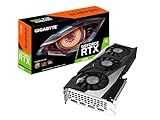
GIGABYTE GeForce RTX 5080 Gaming OC 16G

A high-end option for Very High with DLSS Quality at 1440p or Balanced at 4K, with Frame Generation on for 120 Hz and faster displays.
CORSAIR Vengeance DDR5 32GB (2 x 16GB) 6000MHz

The recommended specification lists 32 GB of system RAM, and 16 GB systems are more likely to hitch during traversal.
Samsung 990 PRO 2TB NVMe SSD

An SSD is mandatory for the roughly 100 GB install, and an NVMe drive loads zones faster and reduces streaming stutter compared with SATA models.
How we compared
We compared settings using Gearbox’s patch notes and performance statements, the official 2K PC specifications, independent measurements from PCOptimizedSettings, TechSpot, DSOGaming, Notebookcheck and Corsair, and player reports including PC Gamer’s shader cache fix. We did not bench-run these settings ourselves. Per-setting percentages come from PCOptimizedSettings’ RTX 4090 testing and will vary by system.
Sources
- 2K and Gearbox: Borderlands 4 PC specs and features page; patch notes and performance updates
- PCOptimizedSettings: Borderlands 4 PC settings optimization guide
- TechSpot: Borderlands 4 GPU benchmark
- DSOGaming: Borderlands 4 major performance update coverage
- PC Gamer: Borderlands 4 stutter and shader cache coverage
- Corsair: Borderlands 4 PC performance optimization guide
- Notebookcheck: Borderlands 4 performance review
- VideoCardz, OC3D and Game Rant: March 2026 performance patch coverage
- PCGamesN, FinalBoss and Skycoach settings guides
Frequently Asked Questions
What is the best preset for Borderlands 4?
High with Balanced upscaling for mid-range GPUs, then lower Lighting, Reflections and Foliage. Use Low on entry cards and Very High on flagships.
Why does Borderlands 4 stutter?
Mostly shader compilation and asset streaming in Unreal Engine 5. Update the game, rebuild the shader cache once with -ClearPSODriverCache, and increase the NVIDIA shader cache size.
Should I use Frame Generation?
Only with a base frame rate above about 50 fps and a high refresh monitor. Reviewers disagree, and it adds latency at lower base frame rates.
Does Borderlands 4 run on 8 GB GPUs?
Yes, and much better since the December 2025 update. Use Medium textures and an upscaler on Balanced or Performance.
How much did the 2026 patch improve performance?
Gearbox reported about 20% higher average FPS in v1.5 compared with v1.0.2, with fewer stutters and crashes in 0.38% of sessions.
What is the Badass preset?
The highest preset. PCOptimizedSettings measured an RTX 4090 at 34 fps at native 4K on Badass, so it is best used with upscaling or at 1080p.
Is Borderlands 4 CPU-heavy?
Yes. Gearbox lists eight CPU cores as a requirement, and Corsair notes the game can max out modern CPUs in busy scenes.
Which upscaler looks best?
DLSS on GeForce RTX cards and FSR 4 on Radeon RX 9000 cards. Older GPUs should use FSR or XeSS on Balanced.