Our Top Picks
 TP-Link AC600 USB WiFi Adapter for Desktop PCAC600, WiFi 52.28 x 0.71 x 6.83 inches0.04 poundsCheck on Amazon
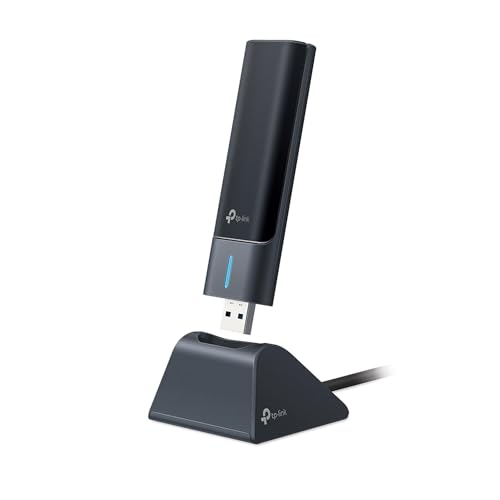 TP-Link USB WiFi 6E Adapter for Desktop PCAXE3000, WiFi 6E4.4 x 1.2 x 0.58 inches0.29 poundsCheck on Amazon
The best Wi-Fi 6E adapter for a gaming PC is the TP-Link Archer TXE75E PCIe card, because it pairs an Intel AX210 chip with two external magnetic-base antennas, tri-band 6 GHz, 5 GHz and 2.4 GHz operation, and Bluetooth 5.3 for your controller and headset. If your desktop has no free PCIe slot, or you would rather not open the case, a USB adapter such as the TP-Link AXE3000 model or one of the AX5400 dongles gets you onto the 6 GHz band without any tools. Players who already own a Wi-Fi 7 router can step up to a BE6500 USB adapter, while anyone on a tight budget with an older router can still improve a weak signal with a cheaper Wi-Fi 5 or Wi-Fi 6 dongle. This guide compares ten adapters, explains what the speed labels really mean for online gaming, and shows how to match an adapter to your router, your case and your operating system.
Top 3 Picks
Best Overall: TP-Link Archer TXE75E (Intel AX210 PCIe)
An internal card with external antennas on a magnetic base is the most reliable way to give a desktop a strong Wi-Fi 6E link. The Intel AX210 chip has a long track record with Windows drivers, and the card also adds Bluetooth 5.3 through an internal USB header cable. It is the pick for anyone comfortable seating a card in a motherboard slot.
Best Budget Option: TP-Link USB WiFi 6E Adapter (AXE3000)
The AXE3000 tri-band dongle brings the 6 GHz band to a PC through a single USB port. It trades the very top link rate for a lower cost of entry, which makes it the sensible way to try 6E without rebuilding anything inside the case.
Best Premium Pick: TP-Link BE6500 Wi-Fi 7 USB Adapter
If your router already speaks Wi-Fi 7, the BE6500 USB adapter is the most future-ready option in this list. It keeps full backward compatibility with Wi-Fi 6E and 6 networks, so it is not wasted if you upgrade the router later.
Quick Comparison
| Product | Best for | Key specs |
|---|---|---|
| TP-Link AC600 USB WiFi Adapter | Old PCs on a Wi-Fi 5 router | Dual-band Wi-Fi 5, AC600 class, USB, external antenna |
| TP-Link AXE3000 USB WiFi 6E Adapter | Low-cost entry to 6 GHz | Tri-band Wi-Fi 6E, AXE3000 class, USB dongle |
| Nineplus 1300Mbps USB WiFi Adapter | Better range on Wi-Fi 5 | Dual-band AC1300 class, two 5 dBi antennas, Windows 11/10/7 |
| TP-Link AX1800 USB WiFi 6 Adapter | Wi-Fi 6 without 6 GHz | Dual-band Wi-Fi 6, AX1800 class, external antenna |
| TP-Link Archer TXE75E PCIe Card | Best overall desktop upgrade | Intel AX210, AXE5400 tri-band, magnetic antenna base, Bluetooth 5.3 |
| GIGABYTE GC-WBAX210 PCIe Card | Simple Intel 6E card | 2×2 802.11ax, tri-band, Bluetooth 5.2, PCIe expansion card |
| PLERY AX5400 USB WiFi 6E Adapter | USB 6E with no PCIe slot | Tri-band 6/5/2.4 GHz, AX5400 class, USB |
| WAVLINK AX5400 USB WiFi 6E Adapter | Antenna-heavy USB 6E | Tri-band AX5400 class, desktop-PC USB adapter |
| TP-Link BE6500 USB Wi-Fi 7 Adapter | Wi-Fi 7 router owners | Tri-band BE6500, USB 3.0, backward compatible |
| WAVLINK BE6500 USB WiFi 7 Adapter | Wi-Fi 7 with big antennas | Tri-band BE6500, status LED, four 5 dBi antennas |
How We Chose
This ranking comes from research, not from bench work. We compared manufacturer specifications, the wording of each product listing, and well-established facts about Wi-Fi hardware. The main criteria were the supported Wi-Fi generation and bands, the interface (PCIe versus USB 3.0 versus USB 2.0), antenna design, Bluetooth support, operating system requirements, and how clearly each listing describes what the buyer gets. We gave extra weight to features that matter for online games: access to the uncongested 6 GHz band, stable drivers, and the ability to place antennas away from a metal case. We treated headline speeds as theoretical link rates, never as promises of real throughput. Where a listing leaves an exact detail open, such as the chipset, we say so and suggest checking the product page before you buy.
1. TP-Link AC600 USB WiFi Adapter – Best for Older PCs on Wi-Fi 5
As an Amazon Associate we earn from qualifying purchases at no extra cost to you.

This is the most basic adapter in the group, and it exists for one reason: a desktop that has no wireless hardware at all, or a card so old that it only handles 2.4 GHz. The AC600 label describes a dual-band Wi-Fi 5 adapter. In practice that splits into roughly 200 Mbps on the 2.4 GHz band and 433 Mbps on the 5 GHz band, and the two figures are added together to reach the headline number. It is a plug-in USB adapter with an external, adjustable high-gain antenna, which is the part that helps a desktop sitting under a desk in a far corner of the home.
Who it suits: players with a Wi-Fi 5 router, modest games and a very small budget. It also works well as a spare adapter for troubleshooting, since it is small, simple and works with older versions of Windows. Anyone planning to use 6 GHz, or anyone with an internet connection above a few hundred megabits, should look further down the list.
Key specs
- Wi-Fi generation: Wi-Fi 5 (802.11ac), dual-band 2.4 GHz and 5 GHz
- Rating class: AC600, about 200 Mbps plus 433 Mbps link rate
- Interface: USB; confirm the USB version and connector on the product page
- Antenna: one external adjustable high-gain antenna
- Security: WPA2-class; confirm whether WPA3 is listed
Pros
- Lowest cost of entry and very simple installation
- External antenna can be pointed toward the router
- Broad operating system support, including older Windows versions
- Small enough to leave plugged into a back-panel port
Cons
- No Wi-Fi 6 features such as OFDMA, so crowded apartments see more contention
- No 6 GHz band, and the 5 GHz link rate is modest
- A single antenna and a slower USB interface limit peak speed
- Does not include Bluetooth, so controllers still need another solution
Compared with the next-cheapest option, the AX1800 Wi-Fi 6 adapter in this list, the AC600 gives up roughly half the 5 GHz link rate and every Wi-Fi 6 efficiency feature. Compared with the Nineplus AC1300 dongle, it is smaller but has less antenna gain and a lower rated speed. Choose this one only when the router itself is Wi-Fi 5 and the goal is simply a stable, working connection for a desktop that currently has none. Even then, if you can afford a step up, the AX1800 adapter is a far better long-term purchase because it will still be useful after a router upgrade.
One practical tip applies to every USB dongle: avoid plugging it into the same side of the PC as a USB 3.0 hard drive or hub. USB 3.0 devices are known to radiate noise in the 2.4 GHz band, and a short extension cable that moves the adapter a foot away from the port cluster can improve the signal noticeably.
2. TP-Link AXE3000 USB WiFi 6E Adapter – Best for Low-Cost Entry to 6 GHz
This adapter is TP-Link’s entry point into the 6 GHz band for a USB-based setup. The AXE3000 rating describes a tri-band Wi-Fi 6E adapter with link rates in the neighborhood of 574 Mbps on 2.4 GHz and 1,201 Mbps on each of the 5 GHz and 6 GHz bands, though the rate you actually reach depends on your router and the channel width it is using. For a gamer, the key attraction is not the headline number. It is the 6 GHz band itself, which is free of older Wi-Fi 5 clients and of most neighbors’ networks, so latency is more consistent during busy evening hours.
Who it suits: players with a Wi-Fi 6E router, a Windows 11 PC and no spare PCIe slot, who want an upgrade that takes thirty seconds to install. It is also a smart pick for owners of small-form-factor or prebuilt desktops where the case is awkward to open. If you only own a Wi-Fi 5 or standard Wi-Fi 6 router, you will not use the 6 GHz band, and the AX1800 adapter gives you most of the benefit for less.
Key specs
- Wi-Fi generation: Wi-Fi 6E (802.11ax), tri-band 2.4 GHz, 5 GHz and 6 GHz
- Rating class: AXE3000, roughly 574 Mbps plus 1,201 Mbps plus 1,201 Mbps
- Interface: USB; check the product page for the USB generation and cable details
- 6 GHz support: normally requires Windows 11 and a 6E-capable router
Pros
- Access to the uncongested 6 GHz band without opening the PC
- Wi-Fi 6 features such as OFDMA and MU-MIMO for better behavior in busy homes
- Backward compatible with 5 GHz and 2.4 GHz networks
- Brand with an established driver and support history
Cons
- Lower peak link rate than the AXE5400 adapters
- USB dongles generally have smaller antennas than a PCIe card with external antennas
- 6 GHz range is shorter than 5 GHz through walls, so a router in another room may not benefit
- Bluetooth is not part of the standard feature set for a Wi-Fi-only dongle, so check the listing
Against the AX5400 USB adapters from PLERY and WAVLINK, this model has a lower rated speed but comes from a manufacturer that publishes consistent drivers and clear compatibility notes. Against the TXE75E PCIe card, it is easier to install but will usually be less stable at the edge of your router’s range. If your router is in the same room or the next room, the difference may be small. A good habit with any 6E dongle is to connect it to a rear motherboard port with a short USB extension, so the adapter sits above the desk instead of behind a metal case.
3. Nineplus 1300Mbps USB WiFi Adapter – Best for Extra Range on Wi-Fi 5

The Nineplus adapter is a Wi-Fi 5 dongle that leans on antenna gain rather than new technology. Its listing highlights an AC1300 rating, which usually means around 400 Mbps on 2.4 GHz and 867 Mbps on 5 GHz, along with two 5 dBi antennas and compatibility with Windows 11, 10 and 7. The extra antenna is the whole point. Where a one-antenna adapter can struggle when a router sits two walls away, a pair of adjustable antennas gives you more freedom to aim for a clean path.
Who it suits: desktop owners who still run Windows 7 or older hardware, people whose router is Wi-Fi 5 and who want a noticeable step up from a bare-bones AC600 stick, and anyone who needs a cheap secondary adapter for a workshop or spare machine. It is a sensible bridge product, but it is not the right pick if you expect to buy a 6E or Wi-Fi 7 router within the next year.
Key specs
- Wi-Fi generation: Wi-Fi 5 (802.11ac), dual-band
- Rating class: AC1300, about 400 Mbps plus 867 Mbps link rate
- Antennas: two 5 dBi external antennas as listed
- Operating systems: Windows 11, 10 and 7 as stated in the listing
Pros
- Dual antennas for easier signal tuning
- Higher 5 GHz link rate than the AC600 class
- Works with older Windows versions that newer adapters often drop
- Inexpensive way to fix a weak or unstable signal
Cons
- No Wi-Fi 6 efficiency features and no 6 GHz band
- Less-known brand, so driver updates and support may be thinner than TP-Link or GIGABYTE
- Bulky antennas can make it awkward to plug into a crowded rear panel
- Check the interface on the product page; USB 2.0 would cap real speed
Next to the TP-Link AC600, this model offers more rated speed and better antennas, so the extra cost is justified when range is your problem. Next to the TP-Link AX1800 Wi-Fi 6 dongle, it gives up OFDMA, WPA3 and modern efficiency in exchange for legacy compatibility. If your PC runs Windows 10 or 11 and your router is even Wi-Fi 6, the AX1800 is the stronger long-term choice.
A calming note on speed labels: AC1300 does not mean 1.3 gigabits per second in practice. The two bands are summed, and a single device can only use one band at a time, so a PC connected on 5 GHz sees at most the 867 Mbps portion in theory and typically far less in real use. That is still plenty for game downloads on most home connections.
For placement, aim the antenna so that it is not pointing straight at the router. A dipole antenna radiates weakly along its own axis, so tilting it a little off vertical often helps. Use the 5 GHz network for gaming whenever the signal is decent, and keep 2.4 GHz as a fallback for distant rooms, where its better reach through walls helps even though it is slower and more crowded.
4. TP-Link AX1800 USB WiFi 6 Adapter – Best for Wi-Fi 6 Without 6 GHz

This adapter takes a desktop to Wi-Fi 6 on the 2.4 GHz and 5 GHz bands. The AX1800 rating describes about 574 Mbps on 2.4 GHz and 1,201 Mbps on 5 GHz. The listing also mentions an antenna, which is TP-Link’s approach on this family: an adjustable high-gain antenna that can be pointed at the router. It uses USB 3.0 in this class of product, which prevents the interface from being the bottleneck, but confirm on the product page that the version you are buying matches that.
Who it suits: players with a Wi-Fi 6 router (the most common router type in homes right now), a Windows 10 or 11 desktop and no need for 6 GHz. It is also a good value pick for streaming setups where the PC streams video to a capture device or to a phone, since OFDMA and MU-MIMO help when many devices share a router.
Key specs
- Wi-Fi generation: Wi-Fi 6 (802.11ax), dual-band
- Rating class: AX1800, about 574 Mbps plus 1,201 Mbps
- Features: OFDMA, MU-MIMO and WPA3 support in this product family
- Antenna: adjustable external high-gain antenna as listed
- Interface: USB 3.0 class; confirm on the product page
Pros
- Real Wi-Fi 6 benefits at a moderate cost
- WPA3 security is supported by the Wi-Fi 6 standard
- External antenna improves placement flexibility over nano dongles
- Works on existing 5 GHz networks with no router upgrade needed
Cons
- No 6 GHz band, so it cannot join a dedicated 6E network
- Peak link rate is lower than the AX5400 and BE6500 options
- Still dependent on USB port placement and USB noise
- Bluetooth is not part of this adapter
Compared with the AXE3000 USB 6E adapter, this model costs less and has the same 5 GHz link rate, but it cannot join the 6 GHz band. If your router has a 6 GHz radio and you are in a crowded apartment building, the 6E option is worth the step. If not, the AX1800 delivers almost the same practical result today. Compared with the PCIe cards below, it is easier to install but offers less antenna reach and no Bluetooth.
When connecting a Wi-Fi 6 dongle, remember that the router matters as much as the adapter. A Wi-Fi 6 adapter on a Wi-Fi 5 router simply falls back to Wi-Fi 5 speeds. To see what you actually negotiated, open Windows network properties after connecting and read the link speed shown for the adapter.
The adapter makes sense when the router, not the PC, is the weak link. If a speed check shows a very low number, move the PC or the antenna first and check again before blaming the hardware. Wi-Fi 6 gives the most noticeable improvement in homes with many connected devices, because OFDMA lets the router serve several clients in one transmission instead of making each one wait its turn.
5. TP-Link Archer TXE75E (AXE5400 PCIe) – Best Overall for Gaming Desktops
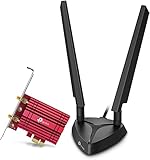
The Archer TXE75E is the card to start with when your desktop has an open PCIe slot. It is built around the Intel AX210 Wi-Fi 6E chip, which is among the most widely supported wireless chips on Windows and Linux. The AXE5400 rating is made up of up to 2,402 Mbps on the 6 GHz band, up to 2,402 Mbps on 5 GHz and up to 574 Mbps on 2.4 GHz, and the card supports OFDMA and MU-MIMO. Two external antennas on a magnetic base connect with SMA leads, so you can stick the base on top of a steel case or a shelf and get the antennas into open air.
Bluetooth 5.3 comes from an internal USB header cable, which means you connect one thin cable from the card to a motherboard USB header. That is a one-minute job on most boards, but it is a step to plan for. TP-Link states support for 64-bit Windows 10 and 11, with 6 GHz access limited to Windows 11.
Key specs
- Chipset: Intel AX210, Wi-Fi 6E tri-band
- Rating class: AXE5400, 2,402 plus 2,402 plus 574 Mbps link rates
- Antennas: two external antennas on a magnetic base with extension cable
- Bluetooth: 5.3 through an internal USB header
- Interface: PCIe; includes a low-profile bracket
- Operating systems: 64-bit Windows 10 and 11; 6 GHz on Windows 11
Pros
- Strongest antenna arrangement in the list for a 6E desktop
- Established Intel chip with mature drivers
- Bluetooth 5.3 included for controllers, headsets and keyboards
- No USB port used and no USB noise near the adapter
Cons
- Requires opening the case, a free PCIe slot and an internal USB header
- Does not support Wi-Fi 7, so it will not use MLO
- Drivers may need a manual update on some Windows builds
- Not usable on a laptop or a small box with no expansion slot
The nearest alternative here is the GIGABYTE GC-WBAX210, which uses the same Intel AX210 silicon. The TP-Link version stands out for its magnetic antenna base and for the clear Bluetooth 5.3 claim. Against the USB AX5400 dongles from PLERY and WAVLINK, the TXE75E gives you a stable connection with fewer unknowns, because a card is not exposed to port noise and its antennas can be moved. If you want the shortest path to a dependable 6E link, this is it.
Installation is simple: power the PC off, seat the card in a short PCIe x1 or longer slot, connect the Bluetooth cable to a USB 2.0 header, screw the two antennas onto the SMA leads and boot into Windows. Install the driver from the manufacturer, then confirm the 6 GHz network appears in your Wi-Fi list.
6. GIGABYTE GC-WBAX210 – Best for a Simple Intel 6E Card

GIGABYTE’s GC-WBAX210 is the other Intel AX210 card in the list, described in its listing as a 2×2 802.11ax tri-band card with Bluetooth 5.2 on a PCIe expansion card. A 2×2 radio means two spatial streams, and that is the layout behind the 2,402 Mbps maximum link rate on the 5 GHz and 6 GHz bands for a Wi-Fi 6E card. The card ships with antennas intended to connect to the card itself, and like the TP-Link version it uses an internal USB connection for Bluetooth.
Who it suits: gamers who built a PC on a GIGABYTE motherboard and like to keep the brand consistent, and anyone who wants a no-frills Intel 6E card without the magnetic antenna base. It is also a safe choice if you plan to dual-boot Linux, since Intel chips are widely supported in the kernel.
Key specs
- Standard: 802.11ax Wi-Fi 6E, tri-band, 2×2 radio
- Bluetooth: 5.2
- Form factor: PCIe expansion card
- Chipset: Intel AX210 family, as indicated by the model name
- Check the product page for the bracket types and antenna details included
Pros
- Mature Intel silicon with strong Windows and Linux support
- No USB port used for the Wi-Fi link itself
- Brand that is familiar to PC builders
- Same radio capability as the TP-Link card at its core
Cons
- Bluetooth 5.2 is one version behind the TP-Link card
- Antennas are less flexible to place than a magnetic base, so check what the box includes
- No Wi-Fi 7 features
- Requires opening the case and using an internal USB header
Between the two Intel cards, choose the TP-Link if you plan to put the case under a desk or in a cabinet, because the magnetic base lifts the antennas away from the metal. Choose GIGABYTE if you want a plain card that does the same job and matches a GIGABYTE board. Both beat any USB dongle in this list for stability, and both are limited to 6E rather than Wi-Fi 7, so they are not the final word for a very new router.
One more detail worth knowing: Windows 11 enables 6 GHz only in regions where the regulatory domain allows it, and the setting is tied to the driver. If your 6 GHz network does not show up, check your region setting in Windows and make sure the router broadcasts a 6 GHz name.
Card size is worth checking before you buy. The card needs a PCIe slot that is not blocked by a large graphics card cooler, and the slot directly below the GPU is often covered. A short x1 slot is enough, because a Wi-Fi chip needs very little bandwidth. If you are unsure, read the motherboard manual and count the open slots before you open the box.
7. PLERY AX5400 USB WiFi 6E Adapter – Best for USB 6E With No PCIe Slot
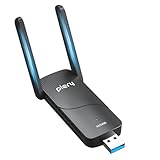
The PLERY adapter is a tri-band USB dongle that supports the 6 GHz, 5 GHz and 2.4 GHz bands. The AX5400 rating means link rates of up to about 2,402 Mbps on each of the 6 GHz and 5 GHz bands and 574 Mbps on 2.4 GHz. The listing positions it for desktop PCs, and it is aimed at buyers who want the highest 6E rating available without opening a case. Retail pages for adapters in this class generally state Windows 11 and Windows 10 support, with 6 GHz limited to Windows 11, but check the product page for operating system support.
Who it suits: owners of compact cases, office-style prebuilts and gaming mini PCs; and players whose motherboard has no spare PCIe slot because of a large graphics card. The adapter is a good fit if your router is Wi-Fi 6E and sits in the same room or an adjacent one.
Key specs
- Standard: Wi-Fi 6E, tri-band 6 GHz, 5 GHz and 2.4 GHz
- Rating class: AX5400, roughly 2,402 plus 2,402 plus 574 Mbps
- Interface: USB 3.0 class; confirm the cable and port requirements on the product page
- Chipset: not stated in the listing; confirm before you buy if driver support matters to you
Pros
- Highest 6E link rating available over USB
- No need to open the PC
- Portable between desktops and laptops
- Typically offers adjustable antennas on this type of dongle
Cons
- Lesser-known brand, so driver and warranty experience may vary
- USB 3.0 noise and port placement can reduce 2.4 GHz performance
- Needs a real USB 3.0 port; a USB 2.0 port would cap speed
- Bluetooth is not part of what the listing promises
Compared with the TP-Link AXE3000 dongle, the PLERY adapter has a higher rating but a less established brand. Compared with the WAVLINK AX5400, they sit in the same class, so the deciding factors are antenna design, driver availability and the clarity of the warranty. If the cost gap is small, TP-Link is the cautious choice. If you are comfortable installing a driver from the vendor page, this adapter is a reasonable value pick for a USB 6E link.
Whatever the brand, run Windows Update after installing the adapter and install the vendor’s latest driver. Many USB dongles ship with an old driver on a CD or mini-drive that does not include the 6 GHz fix.
Finally, keep the dongle away from the back of a metal case wherever you can. A one-foot USB extension cable that lifts the adapter to desk height, or the cradle that some kits include, is one of the cheapest ways to improve a USB Wi-Fi link, and it costs nothing in speed.
8. WAVLINK AX5400 USB WiFi 6E Adapter – Best for an Antenna-Heavy USB Setup
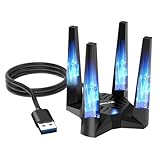
WAVLINK sells several AX5400 USB adapters, and the listing here describes a tri-band Wi-Fi 6E adapter made for desktop PCs. In this class of product, the maker normally supplies a set of external high-gain antennas, sometimes four, and some versions add a cradle or magnetic base on a cable. That antenna count is the main reason to look at WAVLINK over a smaller dongle. The AX5400 rating again points to about 2,402 Mbps on 6 GHz, 2,402 Mbps on 5 GHz and 573 Mbps on 2.4 GHz as maximum link rates. Because the exact antenna arrangement varies between WAVLINK models, check the product page for the picture and the list of items in the box.
Who it suits: gamers with a Wi-Fi 6E router who want strong reception from a desk where the PC is tucked away, and who prefer USB over PCIe. It is also useful for people who move an adapter between a desktop and a laptop, or who want the antenna cradle to sit on top of a monitor.
Key specs
- Standard: Wi-Fi 6E tri-band, AX5400 class
- Link rates: about 573 Mbps (2.4 GHz), 2,402 Mbps (5 GHz), 2,402 Mbps (6 GHz)
- Interface: USB 3.0 class; the listing is for desktop PCs
- Antennas: external high-gain antennas; count and mounting vary by model
- Chipset: not stated in the listing, so confirm on the product page
Pros
- Large antennas improve placement options compared with nano dongles
- Highest 6E rating for a USB adapter
- No need to open the PC case
- Portable between machines
Cons
- Brand is less established than TP-Link, so check the warranty and driver page
- Large antennas can be awkward behind a desk or in tight spaces
- Needs a genuine USB 3.0 port to reach its rating
- Does not offer Wi-Fi 7 features
Compared with the PLERY AX5400, this adapter is likely to appeal more if the listing shows a larger antenna set. Compared with the TP-Link BE6500 Wi-Fi 7 dongle, it cannot use Multi-Link Operation and has a lower maximum link rate, but it works well with any Wi-Fi 6E router and usually costs less. If you have a Wi-Fi 7 router, step up to the BE6500 adapters. If you have a 6E router and a desk with limited space, it is still a fair option.
As with all USB adapters, avoid placing it directly next to the PC’s USB 3.0 drive or a wireless mouse receiver. A short extension cable and a few inches of distance often make the difference between a stable and a noisy 2.4 GHz connection.
One last point on this model: because the listing stresses desktop use, treat it as a plug-in alternative to a PCIe card rather than a travel adapter. Its larger body and antennas are designed to sit on a desk where they can be pointed toward the router, which is exactly where most gamers want them.
9. TP-Link BE6500 USB 3.0 Wi-Fi 7 Adapter – Best for Wi-Fi 7 Router Owners

The TP-Link BE6500 adapter is the Wi-Fi 7 option from the brand with the longest track record in this list. TP-Link’s matching product page for this class lists link rates of up to 2,882 Mbps on 6 GHz, 2,882 Mbps on 5 GHz and 688 Mbps on 2.4 GHz, for a BE6500 rating. It connects over USB 3.0, supports Multi-Link Operation (MLO), OFDMA, MU-MIMO and 4096-QAM, and comes with high-gain antennas and a cradle on a cable for better placement. The listing says tri-band for desktop PCs, and the adapter falls back to Wi-Fi 6E, 6 and 5 on older routers.
Who it suits: players who have already bought or will soon buy a Wi-Fi 7 router, those with multi-gig internet, and anyone who wants the longest useful life from a USB adapter. MLO lets a Wi-Fi 7 client talk on two bands at once or switch quickly between them, which can reduce latency spikes when one band is briefly crowded.
Key specs
- Standard: Wi-Fi 7 (802.11be), tri-band 2.4, 5 and 6 GHz
- Rating class: BE6500, about 688 plus 2,882 plus 2,882 Mbps
- Interface: USB 3.0, with USB 2.0 fallback at much lower speeds
- Features: MLO, OFDMA, MU-MIMO and 4096-QAM in this product family
- Operating system: Windows 11 and 10 listed for this class; check the product page for macOS
Pros
- Future-ready for Wi-Fi 7 routers and multi-gig connections
- MLO can improve responsiveness in busy networks
- Established brand with clear driver pages
- Backward compatible with Wi-Fi 6E, 6 and 5 routers
Cons
- You need a Wi-Fi 7 router to use its main features
- Higher cost than Wi-Fi 6E USB adapters
- USB 3.0 port and cable quality are critical for peak speed
- Real throughput is far below the 2,882 Mbps link rate in typical homes
Compared with the WAVLINK BE6500, TP-Link offers a more established driver and support history, while the WAVLINK adds four antennas and a status LED. Compared with the Archer TXE75E PCIe card, the BE6500 gives up the stability of an internal card with a Bluetooth header in exchange for Wi-Fi 7 and an easy install. If your router is Wi-Fi 6E and you do not plan to upgrade for a year or two, the TXE75E is a better value.
When you plug the adapter into a USB 3.0 port, use a blue or SuperSpeed-marked port directly on the motherboard. Front-panel ports and unpowered hubs can reduce the speed or cause dropouts, especially with USB devices that draw more power.
If you use more than one Wi-Fi 7 client in the house, the router will also matter for MLO. The feature must be enabled and supported on both sides, and some routers expose it only in a settings menu. After you install the adapter, check the router admin page to see which bands the PC is using.
10. WAVLINK BE6500 USB WiFi 7 Adapter – Best for Wi-Fi 7 With Large Antennas
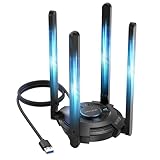
The WAVLINK BE6500 is the second Wi-Fi 7 USB adapter, and the listing highlights tri-band operation on 6 GHz, 5 GHz and 2.4 GHz, a multicolor status LED and four 5 dBi high-gain antennas. In the BE6500 class, the maximum link rates add up to roughly 688 plus 2,882 plus 2,882 Mbps, the same headline numbers as the TP-Link adapter. The extra antennas and the status light are what set it apart: the LED gives a quick visual sign of which band is in use, and four antennas offer a wider range of placement options on a desk.
Who it suits: players with a Wi-Fi 7 router who like the look and function of a larger antenna array, and anyone with a PC that sits under a desk or inside a case on the floor. It also suits users who want a high-rated adapter but are comfortable checking the manufacturer’s driver page for updates.
Key specs
- Standard: Wi-Fi 7 tri-band, BE6500 class
- Antennas: four 5 dBi high-gain antennas as listed
- Indicator: multicolor status LED
- Interface: USB 3.0 class; confirm the cable and port requirements on the product page
- Operating systems: check the product page; Windows 11 is the safest choice for new standards
Pros
- Four antennas for flexible placement
- Status LED helps with quick troubleshooting
- Wi-Fi 7 readiness for upgraded routers
- Falls back to Wi-Fi 6E, 6 and 5 networks
Cons
- Large, visible antenna array may not suit a tidy desk
- Driver support and warranty are less proven than for TP-Link
- Wi-Fi 7 benefits depend on a compatible router
- Peak link rate is rarely reached in real homes
The comparison is simple. Choose this adapter over the TP-Link BE6500 if you value the antenna array and status light and your PC is far from the router. Choose the TP-Link if you value driver confidence and a cleaner look. Choose the AXE5400 adapters if your router is only Wi-Fi 6E, because you will not use MLO and Wi-Fi 7 gains will be limited. The TXE75E PCIe card stays the best all-round pick for an internal install.
Be careful with expectations. A Wi-Fi 7 adapter paired with a Wi-Fi 6 router behaves like a Wi-Fi 6 adapter. The headline rating is a ceiling, and the real-world gain comes from a clean 6 GHz channel, a router in the same room and a good USB 3.0 connection.
Because the listing does not state whether the adapter ships with a cradle, check the box contents on the product page, since a cradle or extension cable is the cheapest way to improve reception. A status LED is helpful for troubleshooting, but it will not change speed, so judge the adapter by antennas, interface and driver support.
How to Choose a Wi-Fi 6E Adapter for a Gaming PC
Match the adapter to your router first
An adapter can never be faster than the router it talks to. Before spending anything, look at your router’s label or admin page. If it lists only 2.4 GHz and 5 GHz, a 6E or Wi-Fi 7 adapter will connect on 5 GHz and give you nothing extra beyond better antennas. If it lists a 6 GHz band, a 6E adapter is the right match. If it says Wi-Fi 7 or BE, you can use the BE6500 adapters in full.
Decide between PCIe and USB
PCIe cards put the Wi-Fi radio on the motherboard side of the PC and use external antennas on a lead, which gives you good placement and no USB noise. They also tend to include Bluetooth. USB adapters are tool-free, portable and ideal for small cases, but they share a USB port with other devices and can pick up noise from USB 3.0 gear. If your case is a mini-ITX box or a prebuilt with a blocked slot, USB is the practical answer.
Worked example: link rate versus real speed
Suppose an adapter lists an AX5400 rating with a 2,402 Mbps link rate on 6 GHz. Wi-Fi overhead typically leaves around half to two-thirds of the link rate as real user throughput when conditions are good, so a realistic range is about 1,200 to 1,600 Mbps. If your internet plan is 1,000 Mbps, the adapter is not the limit and a cheaper one would also do. If the router is in a different room and the link rate drops to 573 Mbps, the same two-thirds rule gives about 380 Mbps, which is still more than enough for gaming, since an online match uses a very small amount of data per second. For gaming, ping and jitter matter far more than raw speed, and a clean 6 GHz link in the same room usually beats a faster band that passes through two walls.
Decision matrix
| Your situation | Best pick from this list | Why |
|---|---|---|
| Open PCIe slot, Wi-Fi 6E router | TP-Link Archer TXE75E | Best antennas, Intel chip, Bluetooth 5.3 |
| Open PCIe slot, GIGABYTE board | GIGABYTE GC-WBAX210 | Same Intel silicon, matches the board |
| No PCIe slot, Wi-Fi 6E router | TP-Link AXE3000, PLERY AX5400 or WAVLINK AX5400 | 6 GHz without opening the case |
| Wi-Fi 7 router or multi-gig internet | TP-Link BE6500 or WAVLINK BE6500 | MLO and highest ratings |
| Wi-Fi 6 router only | TP-Link AX1800 | Wi-Fi 6 features at the lowest cost |
| Older Wi-Fi 5 router, tight budget | Nineplus AC1300 or TP-Link AC600 | Better signal, no router upgrade |
Check operating system support
6 GHz access on Windows generally requires Windows 11 and a current driver. On Windows 10, most 6E adapters work only on 5 GHz and 2.4 GHz. If you still run Windows 7 or an older build, only the Wi-Fi 5 adapters in this list are likely to work, and the Nineplus listing is the one that names Windows 7.
Understand channel widths and the 6 GHz advantage
A wider channel carries more data but is easier to disturb. In the United States, the 6 GHz band offers 59 channels of 20 MHz, which can be combined into 29 channels of 40 MHz, 14 of 80 MHz or 7 of 160 MHz, according to the FCC channel plan. The 5 GHz band has far fewer wide channels, and some of them are subject to radar-avoidance rules. That is why a 160 MHz link on 6 GHz is often smoother than one on 5 GHz. In a small apartment, set the 6 GHz radio to 80 or 160 MHz and the 5 GHz radio to 80 MHz, and keep the 2.4 GHz radio at 20 MHz for stability.
Place the router and antennas wisely
6 GHz signals lose strength faster through walls than 5 GHz signals. If the PC is two or more rooms from the router, a 6E adapter may fall back to 5 GHz automatically, which is normal. Moving the router to a shelf at head height, and moving the adapter antennas above the desk, often does more for latency than buying a faster adapter. Test with the game you play, not with a speed-test page.
Think about Bluetooth and extras
If you use a wireless controller, headset or keyboard with Bluetooth, a PCIe card with a header cable saves a USB port and keeps Bluetooth reception strong. USB Wi-Fi dongles rarely include Bluetooth, so you may need a separate Bluetooth adapter. Also consider the antenna cable length and whether you can place the base on top of the case or monitor.
Safety and setup tips
Power the PC off and unplug it before opening the case, and touch bare metal to discharge static before handling a PCIe card. For USB adapters, connect to a rear USB 3.0 port, update the driver from the manufacturer, and keep it away from other 2.4 GHz devices such as wireless mouse receivers.
Frequently Asked Questions
Is Wi-Fi 6E worth it for gaming?
It can be, if your router has a 6 GHz radio and sits close to your PC. The 6 GHz band has far less interference than 5 GHz in busy buildings, which lowers latency spikes. If your router is older, the benefit is smaller.
Does a Wi-Fi 6E adapter work with a Wi-Fi 6 router?
Yes, but it connects as a Wi-Fi 6 client on the 5 GHz or 2.4 GHz band. You will not see the 6 GHz band until you use a 6E or Wi-Fi 7 router. The adapter still works well as a general upgrade.
Do I need Windows 11 to use 6 GHz?
For most adapters, yes. Manufacturers such as TP-Link state that 6 GHz is supported on Windows 11, while Windows 10 uses 5 GHz and 2.4 GHz only. Check your adapter’s product page for the exact operating system list.
Is PCIe better than USB for a gaming PC?
A PCIe card is usually more stable and gives you better antenna placement, and some include Bluetooth. A USB adapter is more convenient and works in small cases. For most gamers, either is fine when the router is in the same room.
Should I buy Wi-Fi 7 now?
Only if you have or plan to buy a Wi-Fi 7 router. Without one, a Wi-Fi 6E adapter delivers nearly the same everyday result. A Wi-Fi 7 adapter is a reasonable future-proof choice if you expect to upgrade soon.
Will a Wi-Fi adapter lower my ping?
It can reduce jitter and lost packets if your current wireless link is weak or crowded. It cannot change the route between your home and the game server. For the lowest, most stable latency, a wired Ethernet cable is still the best option.
Why is my adapter slower than the rated speed?
The rated speed is a theoretical maximum between the adapter and router under ideal conditions. Distance, walls, channel width, interference and USB port quality all reduce it. Real throughput is often half or less of the rating.
Can I use a USB adapter and a built-in Wi-Fi chip at the same time?
Windows will usually use only one at a time for internet traffic, so you should disable the built-in adapter to avoid confusion. Keeping both active can cause the system to switch between them unexpectedly. If you want a fallback, leave the older one disabled and re-enable it only for troubleshooting.
Our Recommendation by Situation
If you have a free PCIe slot and a 6E router, buy the TP-Link Archer TXE75E. If you want the same Intel silicon on a GIGABYTE board, pick the GC-WBAX210. If you cannot open the case, the TP-Link AXE3000 is the easiest 6E step, and the PLERY or WAVLINK AX5400 dongles add a higher rating. If your router is Wi-Fi 7, choose the TP-Link BE6500, or the WAVLINK BE6500 when you want a larger antenna set. For a Wi-Fi 6 router, the AX1800 is the sensible value choice, and the Nineplus or AC600 adapters are fallback options for older Wi-Fi 5 setups.