Key takeaways
- Borderless monitors are bought for a very specific reason: the screen edge nearly disappears.
Borderless monitors are bought for a very specific reason: the screen edge nearly disappears, so the picture seems to float and two panels placed side by side look like one wide display. That is the decision behind this keyword. You are not just picking a monitor; you are picking a look, and often a multi-monitor look. The catch is that “borderless” is a marketing term with real variation behind it. Some panels are borderless on three sides with a thicker chin at the bottom, while others use a thin bezel that reads as borderless from a normal seating distance. Reading the listing carefully matters more here than on most monitor guides, and that is especially true in 2026, when nearly every budget panel in a shop listing carries some version of the word.
This roundup is for desk builders who care about aesthetics and for anyone planning a dual-screen setup for work, study, or streaming, where thick plastic borders create a visible gap between screens. It is also for office buyers who want a clean, modern desk without paying for a premium design monitor. Every product below states its borderless design in the title, and the comparison sticks to those listed facts: size, refresh rate, panel type, and ports. Where the titles are silent, the guide says so rather than guessing.
Quick Picks
Our top picks
 Samsung 32" Flat Computer Monitor
- The three-sided borderless display brings a clean and…
- AMD FreeSync keeps your monitor and graphics card…
- SEAMLESS, SMOOTH VISUALS: The 75Hz refresh rate ensures…



As an Amazon Associate we earn from qualifying purchases at no extra cost to you.
| Product | Best for | Key spec from the title |
|---|---|---|
| Samsung 32-inch Flat Monitor (LS32B304) | Large, simple home-office screen | 32-inch, 75Hz, borderless display, FreeSync |
| Samsung 24-inch S40GD (LS24D402) | Compact dual-monitor pairs | 24-inch IPS, 100Hz, borderless business design |
| Samsung 27-inch S40GD (LS27D402) | Roomier two-window work | 27-inch IPS, 100Hz, Eye Saver Mode |
| Samsung 24-inch S40GD (LS24D408) | Second-screen alternative in the same series | 24-inch IPS, 100Hz, ergonomic design |
| LG 27U421A-B | Laptop users who want USB-C power | 27-inch Full HD curved, 100Hz, USB Type-C 15W PD |
How to Choose
Understand what borderless really covers
True four-side borderless panels are rare at everyday prices. The usual arrangement is a screen where the top and side edges show a very thin black frame, and the bottom edge carries a slightly wider chin for the logo and control hardware. A listing that says “3-Side Borderless” is being literal about this. When you plan two monitors in a row, the side bezels determine the gap between the images, so aim for edges that look under about 2 millimeters in product photos. The center-to-center gap between two screens is the number that actually shapes how seamless the setup feels.
It also helps to think about the stand footprint. A wide, flat base can push the screens apart or eat into the space you need for a keyboard, while a slim base leaves room to slide the monitors closer together. Several of the models below list a slim or ergonomic stand, and that detail matters as much as the bezel itself when you are building a pair. If you plan to mount the screens on arms, confirm the VESA pattern in the full listing, because the stand is the part that most often decides whether a tidy setup is possible.
Size and resolution relationship
Every model in this group is Full HD, meaning 1920 x 1080 pixels. At 24 inches that gives about 92 pixels per inch, which looks sharp enough for office work. At 27 inches the density drops to about 82 pixels per inch, and at 32 inches it is around 69, so text looks softer the larger you go. If you sit within an arm’s length of a 32-inch Full HD screen, you may notice the pixel grid. For close seating, 24 or 27 inches is the better target; larger sizes suit a deeper desk or a living-room-style distance.
Refresh rate, panel type and ports
Refresh rates here run from 75Hz to 100Hz, which is a gentle upgrade over the old 60Hz standard and makes cursor movement and scrolling feel a touch smoother. IPS panels hold color and brightness from an angle, which is valuable when two monitors sit at a slight inward angle. Check ports before buying: HDMI is universal, DisplayPort adds flexibility on desktop PCs, and a USB-C input with power delivery lets a single cable carry video and charge a laptop. A 15W charge is enough to trickle a phone or a light laptop but not to run a heavy workstation laptop.
What to ignore and where budget models cut corners
Ignore labels such as Game Mode and Game Picture Mode as reasons to buy; they are preset picture profiles, not performance upgrades. Be skeptical of an HDR10 badge on an entry panel, since without high brightness and local dimming it does little. The usual corners cut on borderless budget models are the stand, which often tilts but does not rise or swivel, and the speakers, which many of these screens omit entirely. If posture matters, factor in a VESA mount or monitor arm, because thin-bezel panels pair especially well with arms for dual setups.
The 5 Best Options
Samsung 32-inch Flat Monitor (LS32B304)
The title leads with a flat 32-inch screen, 75Hz refresh, a borderless display, AMD FreeSync, Game Mode, and Advanced Eye Care, with both HDMI and DisplayPort connections. It is the largest panel here and the one aimed at buyers who want a big, uncluttered screen for documents, video, and light gaming. The mention of eye care points to flicker and blue light reduction for long sessions.
- Strength: the 32-inch canvas gives generous room for tiling several windows.
- Strength: both HDMI and DisplayPort inputs make it easy to connect a desktop or a laptop.
- Trade-off: Full HD stretched over 32 inches means lower pixel density than the 24-inch and 27-inch models.
Skip it if you sit close to the screen or need sharp fine text.
Samsung 24-inch S40GD (LS24D402)
The S40GD series is described as a borderless business monitor with an IPS panel, 100Hz refresh, Eye Saver Mode, an ergonomic design, and a Game Picture Mode. The 24-inch size is the sweet spot for dual-screen desks, since two of them fit comfortably within a standard desk width and the thin edges keep the gap small between the images.
- Strength: IPS technology keeps color consistent when the pair is angled inward.
- Strength: 100Hz refresh feels smoother than the 60Hz found on many office screens.
- Trade-off: the listing mentions no USB-C input, so laptop users rely on HDMI for video and a separate charger.
Skip it if you want a single-cable laptop connection or a larger panel.
Samsung 27-inch S40GD (LS27D402)
This is the 27-inch member of the same series, with the same borderless business design, IPS panel, 100Hz refresh, Eye Saver Mode, and ergonomic design listed in the title. The extra screen real estate suits someone who works with spreadsheets, browser windows, and chat panels side by side and prefers one large monitor to two small ones.
- Strength: a 27-inch IPS panel balances workspace with manageable pixel density at Full HD.
- Strength: the ergonomic design note suggests a more flexible stand than basic tilt-only bases, though the listing should be checked for the exact adjustments.
- Trade-off: at Full HD, a 27-inch screen shows less sharpness than 1440p alternatives.
Skip it if you do detailed photo or design work that benefits from higher resolution.
Samsung 24-inch S40GD (LS24D408)
This version carries a different model code but the same headline features: 24-inch IPS, borderless business design, 100Hz, Eye Saver Mode, ergonomic design, and a Game Picture Mode. The titles do not spell out what separates the 402 and 408 codes, so a careful buyer should compare the full listings for port or stand differences before choosing. It is a practical option when one variant is unavailable or listed at a more convenient tier.
- Strength: the same compact 24-inch IPS format makes it ideal as a matched second screen.
- Strength: Eye Saver Mode targets visual comfort for long office stretches.
- Trade-off: with so little visible difference from its sibling, the choice comes down to details the title does not show.
Skip it if you already know you want 27 inches or USB-C power delivery.
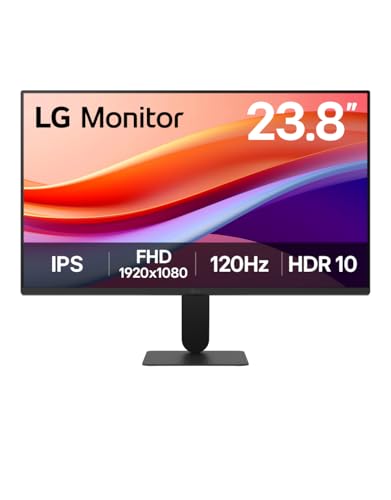
LG 27U421A-B
The LG stands apart for its curved 27-inch Full HD panel with 100Hz refresh, 5ms response, HDR10, and 3-side borderless styling. The title also lists a USB Type-C port with 15W power delivery and a slim tilt stand, which makes it attractive to buyers who connect a laptop and want a one-cable video link. The gentle curve wraps the image toward your eyes, which some users find immersive.
- Strength: USB-C with 15W power delivery adds convenient laptop connectivity that most others here lack.
- Strength: the curved, three-side borderless design gives a distinct, modern look.
- Trade-off: 15W is a modest charge level, so a power-hungry laptop will still need its own adapter.
Skip it if you plan a tight side-by-side pair, since curved screens do not line up as cleanly as flat ones.
Which One Fits Your Situation
You want a clean dual-monitor desk
Buy two Samsung 24-inch S40GD units. The thin edges and IPS panels keep the seam narrow and the color consistent between screens, and two 24-inch panels fit within most standard desk widths. Pick the same model code for both so the bezels and stands match.
You work from a laptop and hate cable clutter
The LG 27U421A-B is the one that lists USB Type-C with power delivery, so a single cable can carry the picture and some charging. It works best with thin and light laptops that need only modest power.
You want one big screen for general use
Go with the Samsung 32-inch Flat Monitor. It offers the largest canvas in the group, 75Hz, and both HDMI and DisplayPort, which suits a family computer or a living-space desk viewed from a bit farther back.
You want more room than 24 inches but a sharper look than 32
The Samsung 27-inch S40GD (LS27D402) hits the middle ground. It keeps pixel density higher than the 32-inch model while giving more room than the 24-inch pair for side-by-side windows.
Common Mistakes
- Assuming a borderless label means all four edges are frameless, when the bottom chin is usually thicker.
- Ordering a 32-inch Full HD screen for close-up use and then finding the text looks soft.
- Pairing a curved monitor with a flat one, which leaves an awkward angle and a visible gap.
- Skipping the mount: thin-bezel panels look best on an arm, yet buyers stay with tilt-only stands and lose the clean look.
- Expecting a USB-C port to charge any laptop, when a 15W rating covers only light devices.
Related guides
- Gaming Headsets For Competitive Fps Directional Audio
- Compact Mini Itx Gaming Pcs For Small Desks
- Threadripper Vs Xeon Vs Core I9 For Workstations
Frequently Asked Questions
Are borderless monitors good for dual-screen setups?
Yes, that is their strongest use. Thin edges reduce the gap between images, and matching panels keep color and height consistent. For the smoothest look, buy two of the same model and align them on an arm.
Is 100Hz noticeably better than 60Hz?
For everyday use it is a gentle improvement. Cursor movement, scrolling, and casual games look a little smoother, though the jump is smaller than moving from 60Hz to 144Hz. It is a nice extra rather than a deciding factor.
Do I need USB-C on my monitor?
Only if you connect a laptop that supports video over USB-C. A single cable keeps the desk tidy and can supply some power. If you use a desktop PC, HDMI or DisplayPort is all you need.
Does a borderless design affect picture quality?
No. The design describes the frame around the display, not the panel itself. Picture quality comes from the panel type, resolution, brightness, and refresh rate, so judge those specifications separately from the thin edges.