Our Top Picks
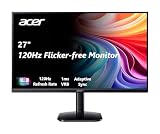
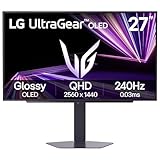
 LG 27G414B-B 27-inch Ultragear IPS 1080p 144Hz 1ms27 inch8.7 x 24.1 x 18.4 inches9.5 poundsCheck on Amazon
 Acer Nitro 27in QHD 2560x1440 IPS 180Hz Gaming27-inch8.28 x 24.2 x 18.14 inches12.1 poundsCheck on Amazon
 ASUS TUF Gaming VG27AQ3A 27 Inch 1440p 180Hz14.4" x 24.2" x 2.1"24.2 x 8.4 x 17.9 inches10.1 poundsCheck on Amazon


The best monitor for RTX 3060, 3070 and 3080 owners is the one that matches what your card can actually draw: a 1080p or 1440p screen at 144Hz or higher for the 3060, a 1440p screen at 165Hz to 200Hz for the 3070, and 1440p high refresh, ultrawide 1440p or 4K for the 3080. Pick resolution first, refresh rate second.
Picks at a Glance
- RTX 3060 (1080p to 1440p): LG 27G414B for 1080p 144Hz, Acer Nitro KG271U for 1440p 180Hz.
- RTX 3070 (1440p sweet spot): ASUS TUF VG27AQ3A, Samsung Odyssey G51F, msi MAG 274QF E20.
- RTX 3080 (1440p high refresh, ultrawide, 4K): msi MAG 274QF E20, Sceptre 34-inch ultrawide, ASUS TUF VG27UQ1A, Acer Nitro VG270K L1.
| Monitor | Resolution | Refresh | Best GPU match | Sync |
|---|---|---|---|---|
| LG 27G414B | 1920×1080 IPS | 144Hz | RTX 3060 | G-Sync Compatible / FreeSync |
| Acer Nitro KG271U | 2560×1440 IPS | 180Hz | RTX 3060 / 3070 | FreeSync |
| ASUS TUF VG27AQ3A | 2560×1440 Fast IPS | 180Hz | RTX 3070 | G-Sync Compatible / FreeSync Premium |
| Samsung Odyssey G51F | 2560×1440 | 180Hz | RTX 3070 | FreeSync |
| msi MAG 274QF E20 | 2560×1440 | 200Hz | RTX 3070 / 3080 | G-Sync Compatible / FreeSync Premium |
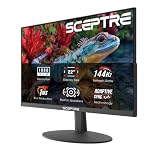
| Sceptre 34-inch C345B-QUT168 | 3440×1440 curved | up to 180Hz | RTX 3080 | Adaptive sync |
| ASUS TUF VG27UQ1A | 3840×2160 | 160Hz | RTX 3080 | G-Sync Compatible / FreeSync Premium |
| Acer Nitro VG270K L1 | 3840×2160 IPS | 72Hz (144Hz dual-frame-rate mode) | RTX 3080 | FreeSync |
What Each Card Can Realistically Drive
The three cards sit in different resolution tiers, and buying a monitor above your card’s tier is the most common mistake. Frame rates in this guide are rough planning estimates, only; they swing with the game, the settings and your CPU.
Best monitor for RTX 3060
For an RTX 3060, a 1080p 144Hz or 1440p 144Hz to 180Hz monitor is the right match. The 3060 comes with 12 GB of memory (an 8 GB variant also exists), which helps texture-heavy games at 1440p, but demanding titles will need medium to high settings to stay smooth. A 1440p screen is still a good long-term buy because upscalers such as DLSS and FSR close much of the gap.
Best monitor for RTX 3070
The RTX 3070 is a 1440p card. It carries 8 GB of memory, so very high texture settings in the newest games can hit the limit, but 1440p at 144Hz or above is its comfort zone in most esports and mainstream titles. A 27-inch 1440p panel at 165Hz to 200Hz is the standard pairing.
Best monitor for RTX 3080
The RTX 3080 (10 GB or 12 GB of GDDR6X, depending on the version) has the headroom for 1440p at very high refresh rates, 3440×1440 ultrawide, or 4K at 60Hz to 120Hz with tuned settings and upscaling. If you want one monitor to last through a future GPU upgrade, 4K or ultrawide makes sense here.
Best Monitor for 3060, 3070 and 3080: The Picks
LG 27G414B: Best 1080p Match for an RTX 3060
As an Amazon Associate we earn from qualifying purchases at no extra cost to you.

The LG 27G414B-B is a 27-inch UltraGear IPS panel at 1920×1080 and 144Hz with a 1ms response rating, listed with G-Sync, FreeSync and HDR10 support, a built-in speaker, HDMI, DisplayPort and a tilt/height stand. It is a straightforward esports screen: an RTX 3060 has no trouble pushing high frame rates at this resolution, so the GPU is rarely the limit.
- 27 inch, 1920×1080 IPS, 144Hz
- HDMI and DisplayPort inputs, height-adjustable stand
- FreeSync and G-Sync support per the listing
Best for: competitive players on an RTX 3060 who want frames over sharpness. Skip if: you want a crisp 27-inch image, since 1080p at that size looks softer than 1440p.
Pros: easy to drive; IPS colors; height-adjustable stand; sync support. Cons: lower pixel density at 27 inches; no headroom if you upgrade your GPU.
Acer Nitro KG271U: Best Value 1440p for RTX 3060 and 3070
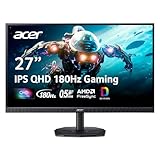
The Acer Nitro KG271U is a 27-inch QHD (2560×1440) IPS monitor at 180Hz with a 0.5ms response rating, AMD FreeSync, 95% DCI-P3 coverage, two HDMI ports, DisplayPort, built-in speakers, a bluelight filter and VESA mounting. It is the move-up option for a 3060 owner and a comfortable match for a 3070.
- 27 inch, 2560×1440 IPS, 180Hz
- 2x HDMI, 1x DisplayPort, speakers
- 95% DCI-P3 per the listing
Best for: a first 1440p upgrade on a sensible budget. Skip if: you want a height-adjustable stand; this one is listed as VESA mountable, so check the stand adjustments on the maker page.
Pros: wide color for the class; 180Hz headroom; two HDMI ports for a console. Cons: FreeSync labeling only, so Nvidia owners should confirm G-Sync Compatible behavior; basic stand.
ASUS TUF VG27AQ3A: Best All-Round Match for an RTX 3070

The ASUS TUF Gaming VG27AQ3A is a 27-inch 1440p Fast IPS monitor at 180Hz with ELMB Sync motion blur reduction, 1ms response, 130% sRGB, FreeSync Premium, HDR10 and built-in speakers. ASUS lists G-Sync compatibility and a three-year warranty, and it suits consoles too. For an RTX 3070, it hits the 1440p high-refresh target squarely.
- 27 inch, 2560×1440 Fast IPS, 180Hz
- ELMB Sync, FreeSync Premium, G-Sync compatible
- Built-in speakers, 3-year warranty
Best for: RTX 3070 owners who want a safe, well-rounded 1440p screen. Skip if: you want HDR that looks truly bright; HDR10 support on a panel in this class is nominal.
Pros: fast panel; Nvidia-friendly sync; long warranty; console-ready. Cons: HDR is limited; ELMB Sync has trade-offs and is typically not run together with variable refresh.
Samsung Odyssey G51F 27-inch: Best Stand and Ergonomics
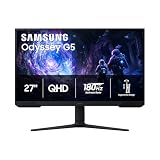
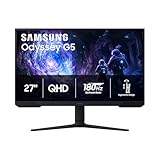
The Samsung 27-inch Odyssey G5 (G51F) is a QHD 1440p gaming monitor at 180Hz with 1ms response, AMD FreeSync, HDR10, a height-adjustable stand, Black Equalizer, Virtual Aim Point and Auto Source Switch+. It suits an RTX 3070 well and adds desk-friendly ergonomics the cheaper picks skip.
- 27 inch, QHD, 180Hz, 1ms
- Height-adjustable stand, HDR10
- Black Equalizer and Virtual Aim Point tools
Best for: shooter players who want an adjustable stand and in-game aids. Skip if: you want the lowest cost; this sits in a higher tier than the other 27-inch 1440p options here.
Pros: adjustable stand; useful gaming overlays; 180Hz. Cons: FreeSync-only labeling; HDR10 is basic.
msi MAG 274QF E20: Best 1440p Screen to Grow Into an RTX 3080

The msi MAG 274QF E20 is a 27-inch 2560×1440 monitor at 200Hz with a 0.5ms rating, AMD FreeSync Premium, NVIDIA G-SYNC Compatible, HDR Ready, HDMI, a VGA port, VESA mounting and tilt. It has the extra refresh headroom an RTX 3080 can use, while still being friendly to a 3070.
- 27 inch, 2560×1440, 200Hz, 0.5ms
- FreeSync Premium, G-SYNC Compatible
- HDMI, VESA mount, tilt stand
Best for: chasing 165+ fps in esports titles at 1440p. Skip if: you want a swivel or height-adjustable stand.
Pros: 200Hz ceiling; Nvidia-compatible sync; flexible mounting. Cons: tilt-only stand; HDR is just “ready”.
Sceptre 34-inch C345B-QUT168: Best Ultrawide for an RTX 3080

The Sceptre 34-inch curved ultrawide (C345B-QUT168) runs 3440×1440 with a 1500R curve, up to 180Hz or 165Hz, 1ms response, 99% sRGB, two DisplayPort inputs and built-in speakers. Ultrawide 1440p pushes about 30% more pixels than 16:9 1440p, so it is a natural fit for the RTX 3080 and a stretch for a 3060.
- 34 inch, 3440×1440, 1500R curve
- Up to 180Hz or 165Hz, 1ms
- 2x DisplayPort, speakers, 99% sRGB
Best for: racing, flight and open-world games on an RTX 3080. Skip if: you play competitive shooters that do not support 21:9 well.
Pros: immersive field of view; high refresh; strong value for an ultrawide. Cons: not every game supports 21:9; the desk needs more room.
ASUS TUF VG27UQ1A: Best 4K 160Hz Match for an RTX 3080

The ASUS TUF Gaming VG27UQ1A is a 27-inch 4K (3840×2160) monitor at 160Hz with ELMB Sync, 1ms response, 95% DCI-P3, FreeSync Premium, G-SYNC compatibility and DisplayWidget Center, and ASUS markets it for PS5 and Xbox. An RTX 3080 can run many games at 4K between 60Hz and 100Hz with tuned settings, so the 160Hz ceiling is mostly for lighter titles.
- 27 inch, 3840×2160, 160Hz
- 95% DCI-P3, FreeSync Premium, G-SYNC compatible
- ELMB Sync, DisplayWidget Center
Best for: RTX 3080 owners who want sharp 4K and some high-refresh options. Skip if: you mostly play competitive games where 1440p at 240Hz matters more.
Pros: sharp 27-inch 4K; wide color; Nvidia-friendly sync. Cons: hard to feed above 100 fps in new games; costs more than 1440p screens.
Acer Nitro VG270K L1: Best Flexible 4K Option

The Acer Nitro VG270K L1 is a 27-inch 4K IPS panel at 72Hz with a dynamic frame rate mode that reaches 144Hz at a lower resolution. It lists 0.5ms response, FreeSync, 95% DCI-P3, two HDMI ports and DisplayPort. The idea is 4K for single-player games and a faster mode for shooters, a reasonable fit for an RTX 3080.
- 27 inch, 3840×2160 IPS, 72Hz native
- DFR mode up to 144Hz at reduced resolution
- 2x HDMI, DisplayPort, 95% DCI-P3
Best for: mixed play: cinematic 4K plus a fast mode for esports. Skip if: you want native 4K at 120Hz or more.
Pros: flexible modes; wide color; multiple HDMI ports. Cons: native refresh is only 72Hz; the fast mode lowers resolution.
Also Consider
- AOC Q27G41ZE: 27-inch QHD at 240Hz native (260Hz overclocked) with G-SYNC Compatible, a strong pick for a 3070 or 3080 in esports.
- Dell 27 Plus S2725DSM: 27-inch QHD at 144Hz with speakers and an adjustable stand, good for mixed work and play.
- KTC H27T27S: 27-inch QHD 144Hz with FreeSync and G-Sync support, a budget route to 1440p for a 3060.
Pairing Cheat Sheet: Resolution, Refresh and Settings
Use this table as a starting point. It describes the target we would aim for, not a promise of specific frame rates, because games vary widely in how hard they lean on the GPU.
| Card | Memory | Comfortable target | Stretch target | Not recommended |
|---|---|---|---|---|
| RTX 3060 | 12 GB (8 GB variant exists) | 1080p 144Hz, or 1440p with medium-high settings | 1440p 144Hz in lighter games | Native 4K in new games |
| RTX 3070 | 8 GB | 1440p 144Hz to 165Hz | 3440×1440 with tuned settings | 4K with maximum textures |
| RTX 3080 | 10 GB or 12 GB | 1440p 165Hz to 200Hz, 3440×1440 | 4K with upscaling and tuned settings | Chasing 240Hz at 4K |
Making a 3060 feel faster at 1440p
If you pair an RTX 3060 with a 1440p monitor, a few settings changes make a large difference. Turn on DLSS where a game supports it, drop shadows and volumetric effects from ultra to high, and cap the frame rate a few frames below the monitor’s refresh rate so variable refresh stays active. The 12 GB version has an advantage in games that want a lot of video memory, while the 8 GB version is closer to a 1080p card in newer titles.
Getting the most from a 3070’s 8 GB
The RTX 3070 has plenty of raw speed for 1440p, but its 8 GB of memory is the limit to watch. In recent games with large texture packs, lowering texture quality one notch often removes stutter without a visible change on a 27-inch screen. This is also why we steer 3070 owners away from 4K for new releases: pixel count and texture size both grow, and memory runs out first.
Why a 3080 owner should think about the long run
An RTX 3080 can drive almost any monitor in this guide, so the choice is about how long you want the monitor to last. A 27-inch 1440p panel at 200Hz is the best pure gaming experience for the card today. A 4K panel is the better investment if you plan to upgrade the GPU in a year or two, because the monitor will outlive the card. A 34-inch ultrawide sits between the two, trading refresh headroom for immersion.
Common Mistakes When Pairing a Monitor with an RTX 30 Series Card
- Buying 4K for an RTX 3060. The 3060 can display 4K, but new games will need heavy upscaling and low settings. A 1440p screen looks better at playable frame rates.
- Paying for 240Hz you cannot reach. An RTX 3070 at 1440p will not hold 240 fps in most modern games. A 165Hz to 200Hz panel captures nearly all of the benefit.
- Ignoring the port in use. A monitor that only reaches its top refresh rate over DisplayPort will fall back to a lower rate if you plug in an HDMI cable. Check the manual or maker page for each port’s limits.
- Trusting response-time numbers. A 0.5ms or 1ms rating comes from the most favorable overdrive mode, and aggressive overdrive can add visual artifacts. Medium overdrive settings often look cleaner.
- Forgetting the stand. A tilt-only stand can force you to buy a separate VESA arm. If you sit close to the screen, height adjustment matters more than another 20Hz.
- Skipping the cable. Use the DisplayPort cable in the box or a certified DisplayPort 1.4 cable. Cheap, uncertified cables can cause black screens or dropped refresh rates at 1440p and above.
Panel Types Explained for Gamers
Most monitors in this guide use IPS or Fast IPS panels, which give consistent colors from any angle and quick pixel response. Curved ultrawides frequently use VA panels, which have deeper blacks and higher contrast but can show smearing behind fast-moving dark objects. If you mostly play dark, atmospheric games, VA contrast is attractive; if you play fast shooters, IPS is usually the safer choice. OLED monitors exist at higher price tiers and give the best motion clarity, but they sit outside the tiers this guide focuses on and carry their own care requirements.
HDR on mid-range gaming monitors
HDR10 and “HDR Ready” labels on these monitors mean the screen accepts an HDR signal, not that it can show a bright, high-contrast HDR image. True HDR needs high peak brightness and local dimming, which budget panels lack. Treat HDR as a bonus feature, not a reason to pick one model over another, and leave it off if highlights look washed out.
Screen Size and Distance
At a typical desk distance of two to three feet, 27 inches is the right size for 1440p: sharp enough that you will not see individual pixels, and small enough to see the whole screen without turning your head. A 24-inch 1080p screen is ideal for competitive play, since the whole image sits within your vision. At 32 inches or 34 inches ultrawide, sit slightly further back or accept that corners of the screen will be in your peripheral vision. For 4K at 27 inches, Windows scaling at 125% to 150% keeps text readable, and games render at full resolution.
Console and Second-System Use
Many of these monitors double as screens for a PlayStation 5 or Xbox Series X, which output up to 4K 120Hz over HDMI 2.1, while 1440p support varies by console. If you plan to share a monitor between a PC and a console, check how many HDMI ports are present and whether they run at full speed. The Acer Nitro models list two HDMI ports, which is convenient, and the ASUS TUF models are marketed for console use. Confirm the HDMI version and refresh limits on the maker page before buying for a console.
Extra Questions
Is 144Hz enough for an RTX 3070?
Yes, 144Hz is enough for most players, and 165Hz to 200Hz adds a small extra smoothness in esports games where the 3070 can reach those frame rates.
Should I get a curved monitor for an RTX 3080?
Curved screens suit ultrawide formats and immersive games. A 27-inch flat 1440p panel is better for competitive shooters and mixed desk use.
Does an RTX 3060 12GB need a different monitor than the 8GB model?
Not by resolution target, but the 12 GB version handles 1440p texture loads more comfortably, so it is a better match for a 1440p monitor in new games.
Is DLSS useful with these monitors?
Yes. DLSS is the easiest way to run a 1440p or 4K monitor at higher frame rates on an RTX 30 series card in games that support it.
How We Chose
This is a research-based guide. We did not use these monitors ourselves. We matched each model’s listed resolution, refresh rate, panel type, sync support and connectivity to what the RTX 3060, 3070 and 3080 can reasonably drive, using manufacturer spec sheets, NVIDIA’s product pages and the product listings. We favored monitors with documented G-Sync Compatible or FreeSync Premium support and limited each brand to two picks. Any figure we could not confirm is marked as “check the maker”.
Buying Guide: Matching a Monitor to Your GPU
Resolution thresholds
- 1080p: best if you play esports titles and want the highest possible frame rate from an RTX 3060.
- 1440p: the target for the RTX 3070 and a strong choice for the 3060 and 3080.
- Ultrawide 3440×1440: aim for an RTX 3080 or accept lower settings on a 3070.
- 4K: an RTX 3080 can manage it with tuned settings and DLSS; a 3060 is a poor match for 4K in new games.
Refresh rate
A refresh rate is only useful if your GPU can reach it. Aim for a monitor whose refresh rate is at or slightly above the frame rate you hit in your most-played game. If you cannot sustain 144 fps, a 165Hz or 200Hz panel still helps through variable refresh, but you do not need to pay extra for 240Hz.
Sync and ports
RTX 30 desktop cards carry one HDMI 2.1 and three DisplayPort 1.4a outputs, so use DisplayPort for high-refresh 1440p unless the monitor supports high refresh over HDMI 2.1. Look for G-Sync Compatible or FreeSync Premium labeling to avoid tearing.
Panel type
Fast IPS panels give the best color and viewing angles; VA panels (common on curved ultrawides) offer deeper contrast but can smear in dark scenes. Treat 0.5ms and 1ms response claims with caution, since they use favorable measurement modes.
FAQ
What is the best monitor for RTX 3060?
A 27-inch 1440p monitor at 144Hz to 180Hz is the best match for most RTX 3060 owners, with 1080p 144Hz as the pick if you favor frame rate in competitive games.
What is the best monitor for 3080?
For an RTX 3080, a 27-inch 1440p monitor at 200Hz or higher, a 34-inch ultrawide, or a 4K 120Hz-class screen are the best fits, depending on what you play.
Can an RTX 3060 run a 1440p monitor?
Yes, an RTX 3060 can run a 1440p monitor well in esports and older games and at medium to high settings in newer ones. Frame rates vary by game, so expect to use upscaling for demanding titles.
Is 4K worth it with an RTX 3070?
Usually not for new games. The RTX 3070’s 8 GB of memory limits high-texture 4K play, so 1440p is the better balance for most players.
Do I need G-Sync for an RTX 30 series card?
No. G-Sync Compatible monitors and many FreeSync Premium screens work with RTX 30 series cards, so a native G-Sync module is not required.
HDMI or DisplayPort for a 1440p 144Hz monitor?
DisplayPort 1.4a is the safest choice, and HDMI 2.1 also works if the monitor supports it. RTX 30 cards offer both.
Will a monitor bottleneck my GPU?
A monitor does not bottleneck a GPU, but it can cap what you see: a 60Hz monitor shows only 60 frames per second even if your card renders more.
Which One Should You Buy?
- RTX 3060 and competitive play: LG 27G414B.
- RTX 3060 or 3070 and a first 1440p screen: Acer Nitro KG271U.
- RTX 3070 and an all-rounder: ASUS TUF VG27AQ3A, or Samsung G51F if you want a height-adjustable stand.
- RTX 3070 or 3080 and very high refresh: msi MAG 274QF E20.
- RTX 3080 and immersion: Sceptre 34-inch ultrawide.
- RTX 3080 and sharpness: ASUS TUF VG27UQ1A, or Acer VG270K L1 for mixed modes.
Sources
- NVIDIA GeForce RTX 30 Series product pages (3060 family, 3070, 3080 family)
- ASUS, Acer, LG, Samsung, msi and Sceptre monitor specification pages
- VESA AdaptiveSync and NVIDIA G-Sync Compatible program documentation
Last updated: November 2026
FAQ
Is 144Hz enough for an RTX 3070?
Should I get a curved monitor for an RTX 3080?
Does an RTX 3060 12GB need a different monitor than the 8GB model?
Is DLSS useful with these monitors?
What is the best monitor for RTX 3060?
What is the best monitor for 3080?
Can an RTX 3060 run a 1440p monitor?
Is 4K worth it with an RTX 3070?
More from Amazon
Programs that pair well with the guide above. Offers and eligibility are set by Amazon and may change.
Free shipping on eligible items, Prime Video and more. Eligible new members can start with a free trial.
Start a Prime free trialAd-free music streaming. Eligible new subscribers can start with a free trial.
Try Music Unlimited freeA Prime membership for ages 18-24 with a trial period. Eligibility is set by Amazon.
See Prime for Young AdultsAudiobooks and podcasts to listen to on the go. Eligible new members can start with a free trial.
Try Audible freeAs an Amazon Associate we earn from qualifying purchases.