Key takeaways
- Rendering punishes a graphics card in a different way from gaming. A game can drop its texture quality when memory runs short; a render simply fails.
Rendering punishes a graphics card in a different way from gaming. A game can drop its texture quality when memory runs short; a render simply fails, or falls back to the processor, the moment a scene is larger than the card’s video memory. That is why the first question behind this keyword is not “how fast” but “how much memory, and which software will use it”. The second question is whether you want a consumer card that also games, or a workstation card with error-correcting memory, professional drivers and a cooler designed for a case full of other cards.
The seven cards below sit on both sides of that line, from a 16GB GeForce card aimed at gaming and content creation to workstation boards with 24GB, 32GB and 48GB of memory. Every statement about a card comes from its listing title, so we describe memory size, interface and outputs but never invent speeds, and we tell you what to verify on the manufacturer page before ordering in 2026. Two listings were left out: a vague unbranded card named only for an older workstation model with 8GB, and an entry-level 4GB DDR3 display card that is not meant for rendering.
Quick Picks
Our top picks


 ASUS Dual GeForce RTX 5060 Ti 16GB
- AI Performance: 767 AI TOPS
- OC mode: 2632 MHz (OC mode)/ 2602 MHz…
- Powered by the NVIDIA Blackwell architecture and DLSS…

As an Amazon Associate we earn from qualifying purchases at no extra cost to you.
| Product | Best for | Key spec from the title |
|---|---|---|
| MSI GeForce RTX 5080 16G Ventus 3X OC | One card for rendering and gaming | 16GB GDDR7, PCIe Gen 5, 3D rendering and AI content creation |
| AMD Radeon Pro W7800 | Large scenes beyond 16GB | 32GB GDDR6, 45 TFLOPS, 70 CUs, 260W TDP |
| AMD Radeon Pro W7900 | Very large scenes and textures | 48GB GDDR6, 61 TFLOPS, 96 CUs, 295W TDP |
| ASRock Radeon AI PRO R9700 Creator | Newer AMD architecture with 32GB | 32GB GDDR6, RDNA 4, AI accelerators, DisplayPort 2.1a |
| ASUS Dual GeForce RTX 5060 Ti 16GB | Entry point for rendering with 16GB | 16GB GDDR7, PCIe 5.0, 2.5-slot, 0dB technology |
| NVIDIA RTX PRO 4000 Blackwell | Compact workstation with ECC memory | 24GB GDDR7 ECC, single slot, 4x DisplayPort 2.1b |
| NVIDIA RTX PRO 5000 Blackwell | Top memory capacity from NVIDIA here | 48GB GDDR7 ECC, dual slot, 4x DisplayPort 2.1b |
The 7 Best Options
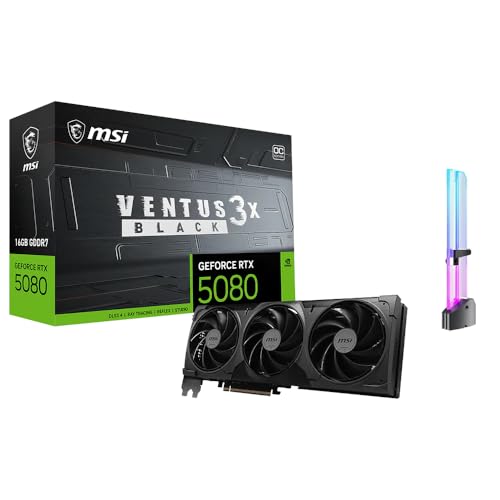
MSI GeForce RTX 5080 16G Ventus 3X OC
The RTX 5080 Ventus is the consumer card that openly lists 3D rendering in its title. The listing describes 16GB of GDDR7 memory, PCIe Gen 5, 4K gaming, 3D rendering, AI content creation, streaming and RGB lighting, with a black three-fan design. For a freelancer who renders by day and games at night, it is the one-card answer.
The title does not cite software support, so confirm which render engines you use take advantage of the card’s feature set.
- 16GB of GDDR7 memory is enough for most single-scene work, product visuals and architectural interiors of moderate size.
- PCIe Gen 5 gives the card the newest slot interface on a compatible board.
- A consumer card lets you game, stream and render on the same machine without a second graphics card.
- 16GB of memory is a hard ceiling; scenes with huge textures or dense geometry will exceed it.
- There is no ECC memory listed, and consumer drivers may not carry the certifications some studios need.
In practice, 16GB suits a lot of real work: product renders, character busts, interior stills and motion graphics with sensible texture sizes. The trouble begins with scatter-heavy landscapes, large 8K texture sets and simulation caches, which is where the workstation cards below earn their place.
Skip it if your scenes regularly exceed 16GB or your studio requires professional drivers. Compared with the Radeon Pro W7800 next, you give up memory capacity and workstation features in exchange for gaming ability and a familiar consumer form.
AMD Radeon Pro W7800
The Radeon Pro W7800 is a workstation card with a clear memory advantage. The title lists 32GB of GDDR6, DisplayPort 2.1, AV1 support, 45 TFLOPS, 70 compute units, a 260W TDP and 8K output, and it names workstation, AI and 3D rendering as uses. The board power figure matters for planning the power supply and the case airflow.
It is a good match for artists whose scenes have outgrown 16GB but who do not need the very largest memory pool.
- 32GB of GDDR6 is double the memory of the RTX 5080 listing here, which opens up larger scenes and textures.
- The listing names 45 TFLOPS and 70 compute units, giving clear numbers for comparing with other AMD boards.
- AV1 and 8K support add value to a mixed render and video workflow.
- A 260W TDP needs a robust power supply and good case airflow.
- Software support varies between render engines, so confirm that your renderer supports the AMD card well.
Because it is a workstation board, it is meant to sit in a machine that runs for long stretches, so plan for a power supply with comfortable headroom above the 260W figure and a case with a clear path for hot air to leave. A workstation tower with front-to-back airflow suits it better than a cramped mid-tower.
Skip it if your main renderer depends on NVIDIA-specific features. Compared with the RTX 5080, it has more memory and professional positioning but no gaming focus. Compared with the W7900 next, it has two thirds of the memory and a lower power draw.
AMD Radeon Pro W7900
The W7900 is the big-memory AMD card in this list. The title lists 48GB of GDDR6, AV1, 61 TFLOPS, 96 compute units, a 295W TDP, 8K and a single Mini DisplayPort output. Forty-eight gigabytes of memory is the capacity that studios reach for when scenes include very large textures, sculpts or simulation caches.
It matches the memory of the NVIDIA RTX PRO 5000 here and gives AMD users a top-end option.
- 48GB of GDDR6 is the largest memory pool tied for first in this group.
- 61 TFLOPS and 96 compute units are listed, which gives a stronger on-paper compute figure than the W7800.
- Professional positioning means drivers aimed at workstation applications.
- A 295W TDP is the highest listed board power here, so check your power supply and cooling.
- The title mentions only one Mini DisplayPort output, which limits multi-monitor setups without adapters.
The single Mini DisplayPort noted in the title is a reminder to read the output list before you buy a workstation card: capacity and compute are headline numbers, but a desk with three monitors needs adapters or a second card for display duty. Confirm the exact outputs on the product page.
Skip it if you have a multi-monitor desk and do not want adapters, or if your renderer is tuned for NVIDIA. Compared with the W7800, it adds memory and compute; compared with the ASRock R9700 next, it has more memory and a higher listed compute figure.
ASRock Radeon AI PRO R9700 Creator 32GB
The R9700 Creator brings newer AMD silicon to the workstation space. The title describes 32GB of GDDR6, a 2920 MHz boost clock, AMD RDNA 4 architecture, AI accelerators, DisplayPort 2.1a and a PCIe 5 interface. It is positioned as a creator and AI card, which suits a mixed workflow.
It will appeal to buyers who want 32GB of memory and a newer generation without going to the top-end memory sizes.
- 32GB of GDDR6 gives room for larger scenes than a 16GB card.
- RDNA 4 architecture and AI accelerators point to newer features than older Radeon Pro boards.
- PCIe 5 and DisplayPort 2.1a suit a modern workstation platform.
- The title does not state board power or cooling design, so verify both before buying.
- Render engine support for the newest AMD architecture should be confirmed with your software vendor.
The listing calls it a Creator edition, which suggests a card aimed at artists who also work with AI tools, but the title does not describe cooling or board power. Look at the manufacturer page for the cooler design, the power connector and the card’s length before you order.
Skip it if you need 48GB of memory or ECC. Compared with the W7800, it uses a newer architecture at the same memory size. Compared with the NVIDIA RTX PRO 4000 Blackwell below, it has more memory but does not list ECC.
ASUS Dual GeForce RTX 5060 Ti 16GB
The RTX 5060 Ti 16GB is the entry point to 16GB of memory. The title lists 16GB of GDDR7, an OC edition, PCIe 5.0, HDMI 2.1b, DisplayPort 2.1b, a 2.5-slot design, Axial-tech fans and 0dB technology. Unlike some listings here it does not name rendering directly, but 16GB of fast memory makes it a practical entry card for students and hobbyists.
The 0dB feature means the fans can stop at idle, which is useful on a quiet desk between renders.
- 16GB of GDDR7 is the same memory size as the RTX 5080 listing, in a lower tier of the lineup.
- A 2.5-slot design with Axial-tech fans is aimed at cooling and quiet running.
- HDMI and DisplayPort outputs cover most monitors and televisions.
- A 2.5-slot card takes a lot of case space and blocks adjacent slots.
- The title does not mention rendering, so confirm software compatibility on the product page.
This is also the card that makes the most sense in a combined desk machine, where it will spend most of its time on documents, video and light modeling, and only occasionally hold a render. The idle fan stop is a small comfort in that role.
Skip it if you plan to render large scenes or install multiple cards. Compared with the RTX 5080, it shares the memory size but sits in a lower tier. Compared with the RTX PRO 4000 Blackwell next, it has less memory and no ECC.
NVIDIA RTX PRO 4000 Blackwell
The RTX PRO 4000 Blackwell is the compact workstation card. The title lists 24GB of GDDR7 with ECC, PCIe 5.0 x16, four DisplayPort 2.1b outputs, a single-slot full-height design and an AI workstation GPU label. The single-slot form is what makes it special: it fits in cases and chassis where a two-slot card would not.
It suits studios that need professional features and want more than one card in a tower.
- 24GB of GDDR7 ECC memory combines capacity with error correction.
- A single-slot cooler lets you place more cards in a multi-GPU workstation.
- Four DisplayPort 2.1b outputs support a multi-monitor desk without adapters.
- A single-slot cooler has limited room, so noise and thermal headroom depend on case airflow.
- 24GB of memory is below the 32GB and 48GB cards if your scenes are very large.
A single-slot design also appeals to anyone building a compact workstation, where a thick consumer card would not fit. Confirm the power connector and the cooling plan, since a slim cooler relies on case airflow to keep temperatures in check.
Skip it if you need the maximum memory. Compared with the RTX PRO 5000 next, it has half the memory but a slimmer body. Compared with the R9700, it has less memory but adds ECC.
NVIDIA RTX PRO 5000 Blackwell
The RTX PRO 5000 Blackwell is the memory leader on the NVIDIA side. The title lists 48GB of GDDR7 with ECC, PCIe 5.0 x16, four DisplayPort 2.1b outputs, a dual-slot full-height design and an AI workstation GPU description. It is the card for studios whose scenes are larger than anything a consumer board can hold.
Together with the W7900, it covers the very high end of this list.
- 48GB of GDDR7 ECC memory is both large and error-corrected.
- Four DisplayPort 2.1b outputs suit a multi-monitor professional desk.
- A dual-slot full-height design is a standard workstation form.
- It is a premium-tier card that will be overkill for hobbyists or small scenes.
- Board power is not stated in the visible title, so check the power supply requirements.
For a studio that renders overnight, error-corrected memory and professional drivers reduce the chance of a failed job at four in the morning. That reliability is the real reason to pay for this tier rather than for a faster consumer card.
Skip it if your scenes fit comfortably in 16GB or 24GB. Compared with the W7900, it matches the memory size and adds ECC; compared with the RTX PRO 4000, it doubles the memory at the cost of a thicker cooler.
Who Needs a Dedicated Rendering Graphics Card
Rendering on the processor alone works for light jobs, but a graphics card changes the speed and the interactivity of the viewport. The question is how much card you need.
Students and hobbyists
If you are learning a 3D package and rendering small scenes, a 16GB card such as the ASUS RTX 5060 Ti or the MSI RTX 5080 is a good beginning. The extra memory beyond 8GB helps when you begin adding textures and lighting passes.
Freelancers who also game
A single consumer card that games, streams and renders is the simplest setup. The MSI RTX 5080 lists 3D rendering, AI content creation and 4K gaming in the same title, and it avoids the cost of a separate workstation card. The trade-off is memory, so check your biggest project before relying on it.
Studios and production artists
Larger scenes, long renders and many monitors point to workstation cards. The 32GB and 48GB boards give room for heavy scenes, and ECC memory on the NVIDIA workstation cards reduces the risk of corrupted output on very long jobs. These buyers should also plan around software certification, since some studios only support cards on a published list.
How to Choose a Graphics Card for 3D Rendering
Video memory comes first
For learning and small scenes, 8GB works, but 12 to 16GB is the comfortable minimum for texture-heavy scenes. For production-sized scenes, 24GB to 48GB is where workstation cards operate. If a scene does not fit in video memory, most GPU renderers either fail or fall back to slower processing, so size the card to the largest scene you expect, not the average one. A useful habit is to open your heaviest project, read the memory use in the renderer’s status panel, and add a margin of at least a quarter on top of that number for growth.
Match the card to your renderer
Different render engines favor different hardware. Some engines are built around NVIDIA features; others support AMD through different frameworks. Check the engine’s documentation for supported cards before buying. A card with more memory but poor engine support can render slower than a smaller, better-supported one. Also check which features you rely on, such as denoising, hardware ray tracing or a specific API, and confirm that the card’s generation supports them. A short conversation with the renderer’s support forum or documentation often settles the question faster than any listing can.
ECC memory and drivers
ECC memory detects and corrects memory errors, which matters for long renders and simulation. The NVIDIA workstation cards here list ECC. Professional drivers are validated by the vendor for design and rendering software, which is useful in a studio, although consumer drivers work for most freelance use. If a client or studio requires a certified configuration, treat that as a hard requirement ahead of budget tier or speed.
Power, cooling and slots
Board power ranges from the 260W and 295W figures listed for the Radeon Pro cards to lower figures on others. Choose a power supply with headroom, and check the power connector on the card. Slot width matters too: a 2.5-slot card blocks neighboring slots, while a single-slot board allows several cards. Allow airflow, since long renders keep the card hot for hours and a case that is fine for gaming sessions can struggle with a render that runs all night. Dust filters and a clean case matter more than they seem to. If you plan two cards, add up both power figures, leave a gap between them, and make sure the power supply has enough separate connectors rather than relying on splitters.
Outputs and monitors
Count your monitors. The NVIDIA workstation cards list four DisplayPort 2.1b connectors, while the Radeon Pro W7900 lists one Mini DisplayPort. Adapters work but add cost and complexity, and not every adapter supports the highest resolutions. High-resolution and high-refresh monitors need the newer DisplayPort standard.
Where budget cards cut corners and what to ignore
Lower-tier cards often have less memory, narrower memory buses and smaller coolers. Ignore gaming frame-rate claims when your work is rendering, and ignore a very high clock number without the memory to back it. Be wary of unbranded listings that mention a model name without a clear specification, because the memory size, the memory type and the board maker all matter. Lower-tier cards may also use a narrower memory interface, which slows texture-heavy scenes even when the capacity looks adequate.
Consumer GeForce Card Versus Workstation Card
This is the choice most buyers face: do you buy a gaming-class card that renders well, or a workstation card with more memory and professional features?
| Factor | Consumer card | Workstation card |
|---|---|---|
| Memory size | Up to 16GB in this list | 24GB to 48GB in this list |
| ECC memory | Not listed | Listed on the NVIDIA workstation cards |
| Gaming | Primary use | Possible but not the focus |
| Cooling | Large multi-fan coolers (2.5-slot on the ASUS) | Often compact, including single slot |
| Driver focus | Games and creator apps | Professional applications |
Neither type is better in every case. The right decision follows the size of your scenes, the length of your jobs and whether anyone besides you depends on the output being correct.
When a consumer card makes sense
A consumer card suits individuals and small teams whose scenes fit in 16GB. It saves money, plays games and handles streaming and editing as well. For many artists this is the right level, and if scenes grow later the card can move to a secondary machine or be sold on.
When a workstation card makes sense
A workstation card wins when scenes are large, jobs are long and reliability matters. The extra memory is what lets very large scenes render at all, and ECC provides a layer of protection against silent errors on multi-hour jobs. It also tends to come with professional support channels, which matters when a deadline depends on the machine.
Setup, Compatibility and Upgrade Tips
What to check before buying
Measure the space in your case for the card’s length and thickness. Check that your power supply has the right connectors and enough wattage. Confirm that your motherboard has a PCIe x16 slot; PCIe 5.0 cards work in older slots at lower link speed. Check the motherboard manual for the slot that runs at x16, since a second slot may share lanes and run slower.
What to upgrade first
If you have a decent processor and only 8GB of video memory, the graphics card is the upgrade that matters most. After that, system memory of 32GB or more helps with large scenes, and a fast NVMe drive speeds up loading caches and textures. Keep a second drive for project files and render output so the system drive never fills up mid-render.
Common compatibility traps
The common traps are a power supply with too few connectors, a card that is too thick for the next slot, and a monitor that needs an adapter for the available outputs. Drivers are another trap: install the correct type for your card and renderer. Also, running two different brands of card in one machine can cause trouble with some render engines. Before the first long render, run a short job and watch temperatures and fan noise, then adjust the fan curve and case airflow if the card runs hotter than you expected.
Which One Fits Your Situation
A student on a first rendering rig
Choose the ASUS Dual RTX 5060 Ti 16GB. It offers 16GB of memory, quiet idle behavior and modern outputs in a manageable package. Pair it with 32GB of system memory if your course projects include large texture sets.
A freelancer who games and renders on one PC
Choose the MSI RTX 5080 16G Ventus 3X OC. The title lists 3D rendering and AI content creation, and the card handles gaming and streaming. Keep an eye on scene size, because 16GB is the limit you will meet first.
An architectural studio with big scenes
Choose the Radeon Pro W7800 or the ASRock R9700 Creator. Both offer 32GB of memory, and the choice depends on your renderer and budget tier. Check whether your studio software lists either card as supported before you commit.
A production artist with simulation caches and huge textures
Choose the NVIDIA RTX PRO 5000 Blackwell or the Radeon Pro W7900. Each has 48GB of memory, and the NVIDIA card adds ECC while the AMD card lists a higher power draw. Whichever you choose, install it in a case and power supply sized for a workstation.
Common Mistakes
- Buying on clock speed or TFLOPS alone and ignoring memory capacity.
- Choosing a card that your render engine supports poorly.
- Forgetting the power supply and ending up with too few connectors.
- Assuming a single Mini DisplayPort output is enough for a multi-monitor desk.
- Putting a thick consumer card in a case with no room for airflow.
- Buying a vaguely described listing without a clear memory size or brand, then discovering the card is not what the photo implied.
Related guides
- Gaming Headsets For Competitive Fps Directional Audio
- Threadripper Vs Xeon Vs Core I9 For Workstations
- Compact Mini Itx Gaming Pcs For Small Desks
Frequently Asked Questions
How much video memory do I need for 3D rendering?
Sixteen gigabytes covers most single-artist work, and 24GB to 48GB suits production scenes. The right amount is set by your largest scene, so measure it before you buy.
Is a gaming card good enough for rendering?
Yes for many users. The MSI RTX 5080 listing names 3D rendering directly. The limits are memory size and the lack of ECC on consumer boards.
Do I need ECC memory?
For short renders it is not essential. For long simulations and overnight renders, ECC reduces the risk of silent errors, and the NVIDIA workstation cards here list it.
Can I use an AMD card for rendering?
Yes, if your render engine supports it. Check the engine’s documentation for supported AMD cards and drivers before buying.
Does PCIe 5.0 matter for rendering?
The faster interface helps with data transfer between the processor and the card, but it is rarely the limit in rendering once a scene is loaded. Memory size and renderer support matter more, and PCIe 5.0 cards work in older slots.
Can I run two cards for faster rendering?
Many engines can use multiple cards, and a single-slot card like the RTX PRO 4000 Blackwell makes this easier. Memory does not combine across cards in most cases, so each card must hold the whole scene.
Final Words
For one machine that renders and games, the MSI RTX 5080 and the ASUS RTX 5060 Ti offer 16GB with consumer features. For larger scenes, the 32GB Radeon Pro W7800 and ASRock R9700 and the 48GB W7900 and RTX PRO 5000 give the memory that heavy work needs, while the RTX PRO 4000 Blackwell adds ECC in a single-slot body. Size the card to your largest scene, check your renderer’s support and plan the power supply before you order. If you are unsure, begin with a 16GB card, learn where your scenes hit the limit and upgrade the memory tier only when your work demands it.