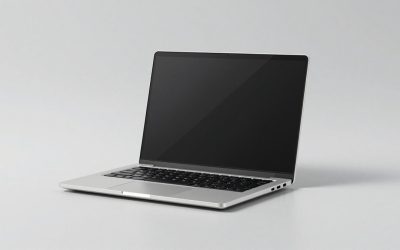
The best laptops with color accurate display are the Apple MacBook Pro 14 and 16, ASUS ProArt P16, Lenovo Yoga Pro 9i 16, and professional mobile workstations with factory-calibrated OLED or mini-LED panels—but the right choice depends on whether your work targets sRGB web content, DCI-P3 video, or Adobe RGB print production.
Our top picks
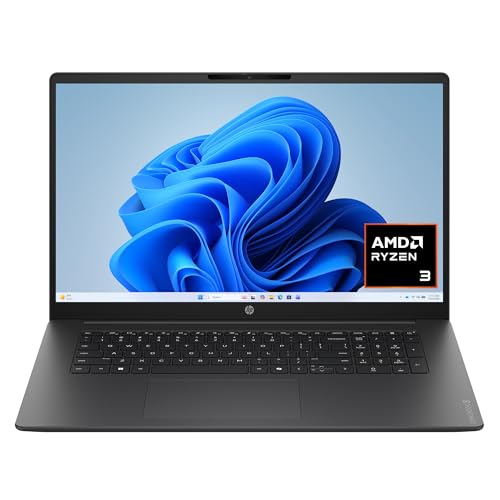 HP OmniBook 3 17.3 inch Laptop PC
- Enjoy vibrant, crystal-clear images with 178-degree wide-viewing angles
- Everyday performance you can count on
- HP Fast Charge restores battery from 0 to…
 Calibrite Display 123 Monitor Calibration Colorimeter for
- Monitor calibration colorimeter with Easy 1 2 3…
- Guided 1 2 3 workflow makes calibration fast…
- Corrects common monitor color shifts to deliver truer…
As an Amazon Associate we earn from qualifying purchases at no extra cost to you.
Best laptops with color accurate display: quick picks
| Laptop | Panel and measured-class coverage | Best for | Typical market range |
|---|---|---|---|
| Apple MacBook Pro 14/16 with Liquid Retina XDR | Mini-LED; about 100% sRGB, 100% DCI-P3; very low average color error in calibrated modes | Video, photography, development, and long battery life | Usually $1,500–$4,000 depending on chip, memory, and storage |
| ASUS ProArt P16 | 4K OLED; about 100% sRGB, 100% DCI-P3, and roughly 95% Adobe RGB on wide-gamut configurations | Creators who need Windows, high resolution, and a discrete GPU | Usually $2,000–$3,500 |
| Lenovo Yoga Pro 9i 16 Gen 9 | 3.2K mini-LED option; approximately 100% sRGB and 100% DCI-P3, with strong factory calibration | Photo and video work with gaming-capable performance | Usually $1,400–$2,500 |
| Dell XPS 16 with 4K OLED | OLED; approximately 100% sRGB and 100% DCI-P3, but Adobe RGB coverage varies by panel and measurement | Premium editing in a slim Windows chassis | Usually $1,700–$3,500 |
| Professional mobile workstation with an IPS or OLED wide-gamut panel | Often 100% sRGB; selected panels reach 100% DCI-P3 or near-full Adobe RGB | CAD, print, retouching, and certified professional software | Usually $1,800–$5,000+ |
Coverage figures are useful comparisons rather than guarantees. The exact panel, firmware, operating mode, and measurement instrument can change the result. Look for a laptop that publishes a color profile or offers a hardware calibration workflow, not just one that advertises “vivid” colors.
What color accuracy means in practical terms
sRGB is the safest target for websites, games, general Windows applications, and most consumer video. A display covering close to 100% sRGB without excessive oversaturation is usually the best choice for web design.
DCI-P3 covers a wider range of reds and greens and is common for modern video, HDR content, and Apple-oriented production. A laptop with 100% DCI-P3 can display colors that a standard sRGB panel cannot, but applications must be color-managed or those colors may appear too strong.
Adobe RGB matters most for photography and print workflows, particularly where cyan and green reproduction is important. A display can have excellent DCI-P3 coverage and still fall short of Adobe RGB in specific areas, so do not use “wide gamut” as a substitute for an Adobe RGB percentage.
Color error is commonly reported as Delta E. Lower is better: an average Delta E below 2 is strong for creative work, while below 1 is excellent when measured with a suitable colorimeter and a controlled profile. Peak brightness also matters. Around 400 nits is comfortable indoors; 500–600 nits helps in bright rooms; HDR mastering requires much higher short-term brightness, often 1,000 nits or more on mini-LED screens.
Head-to-head: which panel type should you choose?
Mini-LED: the best balance for HDR and sustained desktop work
Mini-LED laptops such as the MacBook Pro and selected Yoga Pro 9i configurations use many local-dimming zones behind an LCD layer. They can become extremely bright for HDR while avoiding the permanent burn-in concerns associated with OLED. Their weaknesses are blooming around bright objects on dark backgrounds and possible brightness changes as the backlight adjusts.
Choose mini-LED if you edit HDR video, work in a bright room, or keep static application panels visible for many hours. For accurate SDR work, use the laptop’s standard or reference color mode rather than an automatically enhanced HDR mode.
OLED: superb contrast and wide gamut
OLED panels switch individual pixels off, producing effectively perfect black levels and strong contrast. They are excellent for cinematic video, photography, and dark creative interfaces. OLED also commonly provides full DCI-P3 coverage in slim laptops.
The trade-offs are potential image retention, automatic brightness limiting, and text fringing caused by the pixel layout on some high-resolution panels. Use the panel’s native resolution, keep automatic pixel protection enabled, and avoid leaving a static white interface at maximum brightness for an entire workday.
IPS: predictable and practical
A good IPS display remains a strong option for color-sensitive work. It usually has clean text, stable brightness, and no OLED burn-in concern. Standard IPS panels may cover only 100% sRGB, while professional wide-gamut IPS panels can approach full Adobe RGB or DCI-P3.
IPS is the sensible choice when you need consistent brightness across a long session, work primarily in sRGB, or want to reduce the risk of OLED-related image retention. Contrast is lower than OLED, and HDR performance is usually limited unless the screen has an effective local-dimming backlight.
Match the laptop to your workflow
| Your work | Minimum display target | Recommended choice | Performance target |
|---|---|---|---|
| Web design and UI | 100% sRGB, average Delta E below 2, 400 nits | Calibrated IPS, OLED, or mini-LED in an sRGB mode | 16GB RAM, modern 6-core CPU or better |
| Photography and retouching | 100% sRGB; near-full Adobe RGB preferred; 500 nits | Wide-gamut OLED or professional IPS | 32GB RAM and fast SSD; discrete GPU useful for large RAW catalogs |
| Video editing | 100% DCI-P3, accurate Rec. 709 mode, strong brightness control | MacBook Pro mini-LED or Windows creator laptop with OLED/mini-LED | 32GB RAM, 1TB SSD, and a discrete GPU with at least 8GB VRAM for demanding 4K work |
| Print production | Near-full Adobe RGB, hardware calibration, stable brightness | Workstation-class wide-gamut IPS or OLED | 32GB RAM; prioritize color workflow over gaming GPU specifications |
| 3D, motion graphics, and games | 100% DCI-P3, accurate sRGB mode, 120Hz or higher | ProArt P16, Yoga Pro 9i, or a similar creator laptop | RTX-class GPU, 32GB RAM, and efficient cooling |
Why resolution and GPU memory still matter
A color-accurate screen cannot compensate for insufficient performance. For 4K editing, a useful starting point is 32GB of memory, a fast NVMe SSD, and a GPU with at least 8GB of VRAM. Complex effects, noise reduction, 3D scenes, and high-resolution textures can exceed that amount, making 12GB or more preferable for heavier work.
Here is a practical storage calculation: one hour of 4K ProRes 422 footage can occupy roughly 265GB at 30 frames per second, before proxies, audio, cache files, and exports. A 1TB laptop SSD therefore does not provide 1TB of usable project space after the operating system and applications are installed. A creator working with several projects should plan for an external SSD or a 2TB internal drive.
For gaming alongside creative work, a high-refresh panel is useful, but it should not replace a proper color mode. A 160Hz display may be excellent for games while still requiring an sRGB clamp for web work. Check whether the laptop allows switching between sRGB, DCI-P3, and native modes without third-party software.
Calibration: the settings that make the specification useful
- Warm the laptop for at least 20–30 minutes. OLED and LED backlights can change slightly as they reach operating temperature.
- Disable Night Light, vivid mode, blue-light filters, and dynamic contrast. These alter the color balance or tonal response that your profile is intended to control.
- Select the correct target. Use sRGB for web graphics, DCI-P3 for compatible video work, and Adobe RGB only when the panel actually covers it and your application is color-managed.
- Set brightness by measurement or a repeatable reference. A practical SDR target is about 120 nits for a dim editing room and 160–200 nits for a normally lit office. Excessive brightness makes prints and web images appear too dark by comparison.
- Calibrate with a colorimeter when accuracy matters. Create an ICC profile after setting brightness and color mode. Recalibrate every few months, or whenever the display mode or firmware changes.
- Verify the profile in the application. Photoshop, Lightroom, DaVinci Resolve, and modern browsers can use color profiles, but some games and older programs cannot. An unclamped wide-gamut mode may therefore look oversaturated outside color-managed software.
On laptops with manufacturer utilities, save separate profiles for sRGB, DCI-P3, and native gamut rather than assuming one profile works for every mode. If the panel offers hardware calibration, the adjustment is stored in the display’s internal lookup table and is generally more reliable than changing graphics-card output alone.
Our buying recommendation
For the broadest creative workload, the MacBook Pro is the safest overall display choice because its XDR panel combines full DCI-P3 coverage, excellent factory consistency, high HDR brightness, and dependable color-management behavior. Choose the ASUS ProArt P16 when Windows software, CUDA acceleration, or a dedicated NVIDIA GPU is more important. The Lenovo Yoga Pro 9i is a strong middle ground for buyers who want a high-resolution mini-LED panel, substantial CPU/GPU performance, and a lower price than many mobile workstations.
If print accuracy is the priority, do not choose by brand or OLED contrast alone. Confirm measured Adobe RGB coverage, request or create an ICC profile, and favor a workstation or creator model with a documented calibration process. For web and general design, a properly calibrated 100% sRGB display is often more dependable than a spectacular but unmanaged wide-gamut panel.