Our Top Picks
 ASUS TUF Gaming A16 Laptop: AMD Ryzen 716 GB RAM / 512 GB SSD14 x 1 x 10 inches7 poundsCheck on Amazon
 acer Nitro V 15.6” FHD IPS 165Hz Gamingi5|RTX 5050|512GB PCIe SSD14.27 x 0.93 x 9.44 inches4.66 poundsCheck on Amazon
Gaming laptops that don’t overheat are the ones with good airflow, sensible power limits and a user who keeps the vents clear. No gaming laptop stays cool under full load, but ASUS, HP and Acer all sell models that hold steady clocks when you manage heat. Below you get a plain-English explanation of throttling, a fix list, a brand comparison and a few cooling accessories.
Quick Answer: What Keeps a Gaming Laptop Cool?
Four things decide how hot a gaming laptop runs: how much air the chassis can move, how big the heat pipes and fans are, how many watts the CPU and GPU are allowed to draw, and how clean the vents are. Brand matters less than the specific model, so judge the design, not the logo.
| Factor | What it does | What you can change |
|---|---|---|
| Vent and fan design | Sets how much cool air reaches the heat pipes | Keep intakes clear, use a hard flat surface or a stand |
| Power limits | Caps heat output of the CPU and GPU | Use a balanced or quiet profile in the maker’s control app |
| Dust buildup | Chokes fans and fins over months | Blow out vents with short bursts of compressed air |
| Thermal paste age | Affects heat transfer from chip to heat pipe | Only worth doing out of warranty or on a repair visit |
| Frame rate and resolution | Higher load means more heat | Cap fps, lower settings, turn on upscaling |
Gaming Laptops That Don’t Overheat: What the Phrase Really Means
When people search for gaming laptops that don’t overheat, they usually mean two different things. Some want a laptop that never gets uncomfortable to touch. Others want one that never slows down mid-match. Neither is fully possible in a thin chassis, but you can get close with realistic expectations.
A gaming laptop packs a hot CPU and a hot GPU into a body a few centimeters thick. Under load, both chips can reach temperatures that look alarming on a monitoring app yet sit inside the range the maker designed them for. Modern chips are built to run warm and to slow themselves down before they get damaged. The goal is not a cold laptop. The goal is a laptop that keeps its speed and does not shut itself off.
Normal Heat Versus a Real Problem
Normal heat looks like loud fans, a warm keyboard deck and a hot exhaust vent during a demanding game. A real problem looks like sudden frame rate drops after ten or twenty minutes, fans that scream even on the desktop, the laptop restarting without warning, or a bottom panel too hot to rest on your legs. Those signs point to dust, blocked vents, a failing fan or a setting gone wrong.
What Is Thermal Throttling?
Thermal throttling is when a chip lowers its own speed to stay under a temperature limit. It is a safety feature, not a defect. You feel it as stutter or a frame rate that starts high and settles lower after several minutes of play.
Power throttling is a close cousin. The laptop limits watts because of a battery, a small charger or a quiet profile, and the chips slow down even though the temperature is fine. Many players blame heat when the cause is actually a power limit.
How to Tell Which One Is Happening
- Install a free monitoring tool that shows CPU and GPU temperature, clock speed and power draw together.
- Start a game or a stress run and watch for ten to fifteen minutes.
- If temperatures climb to the top of the range and clocks fall at the same moment, it is thermal throttling.
- If clocks fall while temperatures stay moderate, check the power profile, the charger and whether the laptop is plugged in.
- Note the numbers and compare them after each fix so you know what helped.
Maximum safe temperatures differ by chip, so look up the limit on the CPU and GPU maker’s product page rather than trusting a number from a forum post.
Why Is My Gaming Laptop Overheating?
The usual causes are blocked air intakes, dust, a high power profile in a hot room and a soft surface under the laptop. Fix those first, because they cost nothing and solve most complaints.
- Soft surfaces: beds, couches and laps block the bottom intakes. A desk or a stand fixes this immediately.
- Dust: after a year or more of use, dust can clog the fins behind the fans.
- Background load: launchers, browsers and overlays add heat before the game even starts.
- Uncapped frame rate: a menu running at several hundred frames per second heats the GPU for no benefit.
- Warm room: intake air that starts warm leaves less cooling headroom.
- Worn fans or dried paste: more likely on older laptops, and a job for a repair shop if the laptop is still covered.
How to Cool a Gaming Laptop: 10 Steps in Order
1. Put it on a hard, flat surface
A desk lets the bottom intakes breathe. If the surface is soft, use a stand or a cooling pad.
2. Raise the back edge
Even a small lift gives the fans more room to pull air in. A purpose-built stand beats a stack of books because it keeps the whole bottom exposed.
3. Pick the right performance profile
Most gaming laptops ship with a control app that offers quiet, balanced and turbo modes. Turbo is useful for short bursts. Balanced is usually the best everyday choice for long sessions because it keeps fan noise and heat in check.
4. Cap your frame rate
Set the cap close to your monitor’s refresh rate. Running far above it makes heat without making the game look smoother.
5. Lower the heaviest settings
Shadows, ray tracing and extreme texture settings add GPU load. Dropping one or two of them often cuts temperatures noticeably with little visual cost. Upscaling options such as DLSS, FSR or XeSS can lower load further when the game supports them.
6. Close background apps
Browsers with many tabs, cloud sync tools and recording software all use CPU time. Close what you do not need.
7. Clean the vents
Power the laptop off, unplug it, and use short bursts of compressed air at the vents. Do not spin the fans freely with a strong blast, because that can damage them. If you need to open the case, check your warranty terms first.
8. Update BIOS, drivers and the control app
Makers sometimes adjust fan curves and power behavior through updates. Check the support page for your exact model number.
9. Add a cooling pad if the base is the weak point
A cooling pad helps most on laptops with bottom intakes. It will not fix a design that is limited by its heat pipes, but it can lower surface temperatures and add steady airflow.
10. Consider undervolting only if you know how
Some CPUs and GPUs allow a lower voltage at the same speed, which cuts heat. Maker support for this varies, and some laptops lock it. Follow reliable guides for your exact chip and keep stock settings as a fallback.
Do Cooling Pads Actually Help?
Cooling pads help some laptops by adding airflow to the bottom intakes and lifting the chassis. The benefit is real but modest, and it depends on where your laptop pulls in air. If the intakes are on the bottom, a pad with strong fans can help. If the laptop takes air from the sides or the back, a stand that simply lifts it may matter more than the fans.
Here are three pads that appear in the store, listed by what the listings say.
Kootek Laptop Cooling Pad with 5 Quiet Fans
The Kootek pad is listed for 12 to 17 inch laptops and uses five fans described as quiet and high performance. It is a straightforward USB-powered stand with a fan array, which suits a mid-size gaming laptop that pulls air from the bottom. Check the fan layout against your laptop’s intake position before choosing, because fans that do not line up with the vents add little. The listing also mentions an adjustable height setup, so you can tilt the keyboard to a comfortable angle.
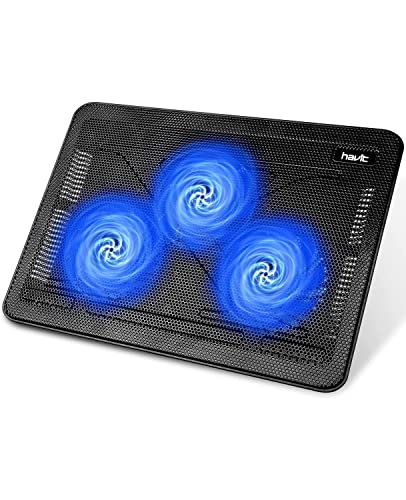
havit HV-F2056 Laptop Cooling Pad for 15.6 to 17 Inch Laptops
As an Amazon Associate we earn from qualifying purchases at no extra cost to you.
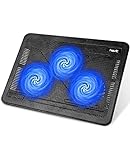
The havit pad is described as having three quiet USB-powered fans that move air below the laptop. It is listed for 15.6 to 17 inch machines, which covers most gaming laptop sizes. It is a simple, light option for people who want extra airflow without a bulky, high-powered unit. As with any pad, how well it works depends on how your laptop’s intakes sit over the fans.
TECKNET Laptop Cooling Pad, Portable Slim Laptop Cooler

The TECKNET cooler is listed for 12 to 17 inch laptops and is pitched as slim, portable and whisper quiet. That makes it a fit for players who carry a laptop between desk and school or work. A slim pad lifts the chassis less than a tall stand, so it suits those who want a gentle boost over a big change in airflow.
ASUS vs HP vs Acer: Which Brand Runs Cooler?
No brand wins on temperature across its whole lineup. Each sells thin models that run hot and thicker ones with more cooling room. The better question is which line fits your budget and how that line is built, then read model-specific reviews that show thermal data.
| Brand | Common gaming lines | Cooling traits to look for | Control software |
|---|---|---|---|
| ASUS | TUF Gaming, ROG Strix, ROG Flow | Wide range of chassis sizes; higher tiers advertise advanced cooling, so check the exact model | Armoury Crate profiles |
| HP | Victus, OMEN | Victus targets value; OMEN targets higher performance, so cooling room differs by line | OMEN Gaming Hub on supported models |
| Acer | Nitro V, Nitro, Predator | Nitro covers value and mid-range; Predator is the performance line, so thermals vary a lot | NitroSense or PredatorSense |
ASUS and HP: Which Is Better?
Neither is better in general; it depends on the line. ASUS offers more steps from the value TUF line up to the large ROG chassis, which gives more choices for cooling headroom. HP’s Victus is aimed at buyers who want a good price, and its higher OMEN line leans toward performance.
If you are comparing a TUF Gaming laptop with a Victus at a similar tier, read reviews for fan noise and surface temperature on those exact models. Specs on a product page do not show how well the cooling handles a long session.
Acer and HP: Which Is Better?
Again, the answer depends on the model. Acer’s Nitro V line and HP’s Victus line compete for the same value-minded buyer. Both are often listed with an Intel or AMD processor and a recent entry-to-mid GeForce GPU. The one with the better thermal design for your exact configuration is the one that is better for you, so look up reviews for the specific model number.
Three Value Gaming Laptops From the Store
These listings show the type of laptop in the value tier from each brand. Specs come from the listings, and thermal behavior is not listed, so check model-specific reviews before buying.
ASUS TUF Gaming A16

The ASUS TUF Gaming A16 is listed with an AMD Ryzen 7 7445HS, a 16 inch Full HD Plus display at 145Hz and a GeForce RTX 4050 graphics chip. The listing also notes 16GB of DDR5 memory. A larger 16 inch body generally leaves more space for fans and heat pipes than a compact 14 inch model, though how well it handles heat depends on the design. Look for noise and temperature results in independent reviews of this exact model.
HP Victus 15
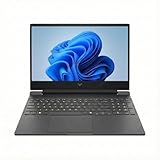
The HP Victus 15 in this listing has a 15.6 inch Full HD 144Hz screen, an RTX 4050 6GB graphics chip, an AMD Ryzen 7 7445HS processor and 16GB of DDR5 memory with a 512GB SSD. It is the kind of laptop that suits a mid-range budget. HP’s Victus line is built for value, so it is smart to check how loud the fans get under sustained load in reviews before you commit.
Acer Nitro V 15

The Acer Nitro V in this listing is a 15.6 inch Full HD 165Hz laptop with an Intel Core i5-13420H and a GeForce RTX 5050 with 8GB of GDDR7 video memory, running Windows 11. The 165Hz screen gives you room to cap frame rates for cooler running. Thermal behavior is not stated in the listing, so look for a review that covers fan noise and keyboard temperatures.
What Does Reddit Say About Gaming Laptops?
If you search for gaminglaptops reddit threads, you will see the same advice repeated: buy for the cooling design, not the spec sheet; avoid very thin laptops with high-power GPUs; and expect to adjust power profiles. Treat forum posts as clues for what to research, not as proof. Individual experiences vary, and a single complaint about one unit does not tell you how a whole model line behaves.
A good habit is to read several recent threads for your exact model, look for repeat issues such as fan noise or hot palm rests, and check whether a BIOS update was released to address them. Skip claims that cannot be backed up by a model number, a maker support page or a review with measurements.
How to Choose a Gaming Laptop That Runs Cooler
Check the chassis size
Thicker, larger bodies usually have more room for fans and heat pipes. A 16 or 17 inch laptop often has more thermal room than a 14 inch one with a similar GPU.
Match the GPU tier to the body
A mid-range GPU in a roomy chassis often runs cooler and quieter than a top-tier GPU in a thin one. If you play competitive games at modest settings, a mid-tier chip is plenty.
Look for vents on several sides
Laptops with intakes on the bottom and exhaust on the back and sides tend to handle a pad or stand well. Pictures of the underside in reviews show this clearly.
Read for fan noise, not only temperature
A laptop can hold safe temperatures by running loud fans. If you game without headphones, noise matters as much as heat.
Check for a control app and manual fan modes
Quiet, balanced and turbo profiles give you a way to trade speed for heat. Models that lock these controls give you fewer options.
Think about use
Mostly desk use means you can lean on a stand and a pad. Heavy travel means you should prioritize a thicker build and a good power profile for battery and plugged-in play.
Maintenance Calendar for a Cooler Laptop
| How often | Task |
|---|---|
| Every session | Use a hard surface; keep vents clear; cap frame rate |
| Monthly | Look at the vents for visible dust; update the control app if prompted |
| Every 6 to 12 months | Clean vents with short bursts of compressed air; check drivers and BIOS |
| When performance drops | Run the monitoring check again and compare to your earlier numbers |
| When out of warranty and still hot | Consider a repair shop for fan cleaning and fresh paste |
FAQ
Which gaming laptops don’t overheat?
No gaming laptop avoids heat completely, but models with larger chassis, multiple vents and mid-range GPUs generally run cooler. Check model-specific reviews that show temperatures and fan noise.
Is 90 degrees Celsius too hot for a gaming laptop?
It depends on the chip. Many gaming CPUs run in the 80s and 90s under load by design, but limits differ. Check the CPU or GPU maker’s page for the maximum for your exact chip.
Which is better, ASUS or HP for gaming?
It depends on the model. ASUS has a wide range from TUF to ROG, while HP’s Victus targets value and OMEN targets higher performance. Compare exact models and read thermal reviews.
Which is better, Acer or HP for gaming?
Both make value-focused lines, Nitro and Victus, with similar parts at similar tiers. The better one is the model with the better cooling design for your configuration, so compare reviews.
Does a cooling pad reduce throttling?
It can help by improving airflow to bottom intakes, but gains vary by laptop. A stand that simply lifts the rear may help as much as extra fans.
Can I fix an overheating gaming laptop myself?
Often yes. Clean vents, use a hard surface, cap frame rate and choose a balanced profile. Opening the case and replacing paste may affect warranty, so check the terms first.
Does playing on battery overheat a laptop?
Battery play usually lowers power limits, so performance drops more than temperatures rise. Plug in for demanding games.
Which Approach Should You Take?
If your laptop already runs hot, fix airflow and settings first: hard surface, clean vents, balanced profile and a frame cap. If that is not enough, add a stand or pad. If you are shopping, pick a roomier chassis with a mid-range GPU from any of the three brands, and read model-specific thermal reviews before you buy.
Sources
- ASUS support and product pages
- HP support and product pages
- Acer support and product pages
- Intel and AMD processor specification pages
- NVIDIA GeForce laptop GPU specification pages
Last updated: November 2026
FAQ
Quick Answer: What Keeps a Gaming Laptop Cool?
What Is Thermal Throttling?
Why Is My Gaming Laptop Overheating?
Do Cooling Pads Actually Help?
ASUS vs HP vs Acer: Which Brand Runs Cooler?
ASUS and HP: Which Is Better?
Acer and HP: Which Is Better?
What Does Reddit Say About Gaming Laptops?
More from Amazon
Programs that pair well with the guide above. Offers and eligibility are set by Amazon and may change.
Free shipping on eligible items, Prime Video and more. Eligible new members can start with a free trial.
Start a Prime free trialAd-free music streaming. Eligible new subscribers can start with a free trial.
Try Music Unlimited freeA Prime membership for ages 18-24 with a trial period. Eligibility is set by Amazon.
See Prime for Young AdultsAudiobooks and podcasts to listen to on the go. Eligible new members can start with a free trial.
Try Audible freeAs an Amazon Associate we earn from qualifying purchases.