Our Short List of 3
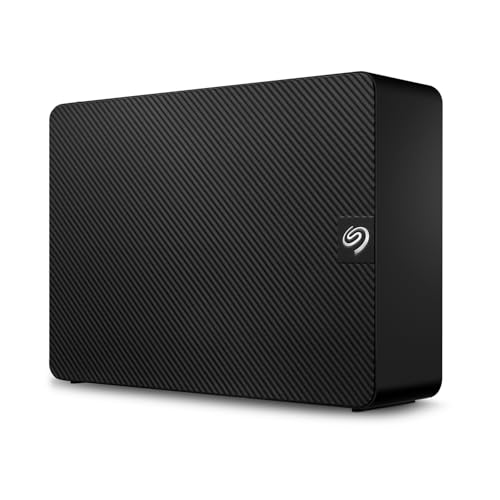
- Best for: Consolidating several older drives into one household archive
- Brand: Seagate
- Model number: STKP24000400
- Digital storage capacity: 24 TB
- Hard disk form factor: 3.5 inches
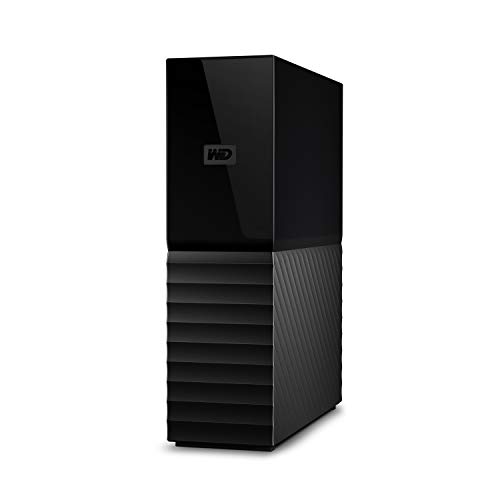
- Best for: A large personal or client archive that should be password protected
- Brand: WD
- Model number: WDBBGB0220HBK-NESN
- Digital storage capacity: 22 TB
- Interface named in title: USB 3.0
- Best for: Two-computer household backup or a large game and photo library
- Brand: Seagate
- Model number: STKP16000400
- Digital storage capacity: 16 TB
- Hard disk interface: USB 3.0
All 4 Picks at a Glance
| Product | Specs | Action |
|---|---|---|
| Seagate Expansion 24TB |
| Check price on Amazon |
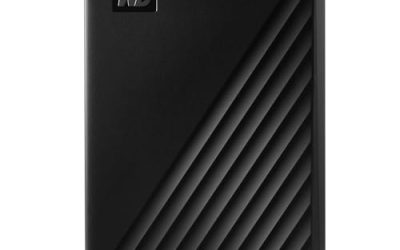
| WD My Book 22TB |
| Check price on Amazon |
| Seagate Expansion 16TB |
| Check price on Amazon |
 WD Elements Desktop 14TB |
| Check price on Amazon |
Key takeaways
- Large desktop external hard drives from 14TB to 24TB compared by capacity, formatting, power and backup features, with real Amazon ASINs for each pick.
Buying a large external hard drive is really a decision about where years of files will live in one place. A portable drive suits travel, but once a photo library, game installs, and video projects pass what a small drive can hold, the choice becomes a mains-powered desktop unit that stays beside one computer. Pick too small and you repeat the purchase within a year. Pick a format your backup software cannot use, and the drive sits reformatted or returned.
This guide is for home archivists, video editors, photographers, and PC gamers whose libraries have outgrown portable storage. Every pick below is a desktop drive, chosen from the capacity and details named in its Amazon product title and listing. Capacities here run from fourteen to twenty-four terabytes, deliberately above the portable range, so the comparison stays focused on bulk desk storage rather than pocket drives.
Quick Picks
As an Amazon Associate we earn from qualifying purchases
| Product | Best for | Key spec from title |
|---|---|---|
| Seagate Expansion 24TB | One drive for a whole household archive | 24TB, USB 3.0, Rescue Data Recovery Services |
| WD My Book 22TB | A large library you want password protected | 22TB, USB 3.0, password protection |
| Seagate Expansion 16TB | Bulk backup without going to the largest size | 16TB, USB 3.0, Rescue Data Recovery Services |
| WD Elements Desktop 14TB | Simple plug-and-play bulk storage | 14TB, USB 3.0, plug-and-play storage |
How to Choose
Start from the archive you actually have
Add up the folders you truly intend to move, not the size of your current internal drive. A household with scanned photos, phone videos, and a decade of documents may need only the fourteen-terabyte end of this list. A video editor keeping project files and exported masters, or a gamer storing many large installs at once, can fill sixteen terabytes faster than expected. Leaving clear headroom matters because a nearly full backup drive forces awkward splitting across devices. Measure first, then choose the next capacity above that total rather than matching it exactly.
Accept that large means a desk and a power outlet
Every drive in this guide is a desktop unit that uses its own power adapter, unlike a portable drive powered through the cable alone. That trade brings much larger capacities, but it also fixes the drive to one spot. Picture the shelf or desk corner where it will sit permanently, near an outlet and within cable reach of the computer. The Seagate Expansion twenty-four-terabyte listing, for example, names an eighteen-watt power adapter in the box. If you regularly work from two rooms, a desktop drive is the archive, not the travelling copy.
Check formatting against your computer and backup tool
A drive that is recognised by Windows and Mac for simple setup may still need reformatting for a specific backup tool. The Seagate Expansion listing states that reformatting is required for use with Time Machine, which is the kind of line worth reading before you copy anything across. Reformatting erases the drive, so the decision belongs at the start, not after terabytes have moved. Decide which machine owns the backup, which program will run it, and whether the drive will ever swap between systems. That answer determines the format you apply on day one.
Decide what protection you want beyond capacity
Two drives of similar size can offer quite different extras. The WD My Book listing names password protection, backup software, and hardware encryption in its title, which suits an archive containing tax records or client work. The Seagate Expansion listings instead name Rescue Data Recovery Services, a different kind of reassurance aimed at recovery help rather than locking the drive. Neither extra replaces a second copy kept elsewhere. Choose the feature that matches your real risk: unwanted access to the files, or losing the only copy of them.
The 4 Best Options
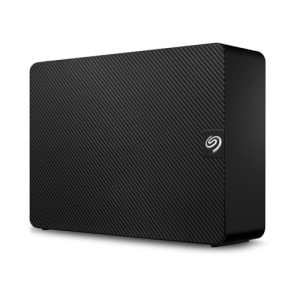
Seagate Expansion 24TB
- Best for: Consolidating several older drives into one household archive
- Brand: Seagate
- Model number: STKP24000400
- Digital storage capacity: 24 TB
- Hard disk form factor: 3.5 inches
Consolidating several older drives into one household archive
Confirm the exact ASIN on the listing, because this model appears under more than one listing variant
This is the pick for a household or studio that wants one very large destination instead of a row of smaller drives. Twenty-four terabytes gives a single home for a media archive, several computer backups, and bulky project folders without splitting them across devices. Its listing frames it as a desktop drive for home, office, or dorm use, with simple setup once the power adapter and USB cable are connected. Buyers consolidating older drives onto one unit will feel the benefit most, because the tidying job finishes in one place.
WD My Book 22TB
- Best for: A large personal or client archive that should be password protected
- Brand: WD
- Model number: WDBBGB0220HBK-NESN
- Digital storage capacity: 22 TB
- Interface named in title: USB 3.0
A large personal or client archive that should be password protected
Keep the password somewhere safe and separate, because a locked drive you cannot open helps nobody
The My Book suits a buyer whose large archive also needs guarding. Its title names password protection and backup software alongside the twenty-two-terabyte capacity, so the appeal is not size alone. A freelancer keeping client projects, a family storing financial documents beside photos, or anyone whose desk is shared will value a drive that can be locked. It remains a desktop unit for one main computer rather than a portable drive, and that fixed role suits a scheduled backup routine that runs in the same place every week without being unplugged.
Seagate Expansion 16TB
- Best for: Two-computer household backup or a large game and photo library
- Brand: Seagate
- Model number: STKP16000400
- Digital storage capacity: 16 TB
- Hard disk interface: USB 3.0
Two-computer household backup or a large game and photo library
Check which ASIN the listing shows at checkout, as this capacity has appeared under sibling listing codes
Sixteen terabytes is the middle path in this list: far beyond portable sizes, without committing to the very largest desktop enclosure. This Expansion model fits a gamer with a big install library, a photographer keeping several years of shoots, or a household backing up two computers to one place. The listing names Rescue Data Recovery Services in its title, and describes drag-and-drop storage preformatted for Windows and Mac in related listing material. It still needs its power adapter and a permanent desk spot, so treat it as fixed backup furniture, not luggage.
WD Elements Desktop 14TB
- Best for: A single home computer needing simple, roomy scheduled backup
- Brand: WD
- Model number: WDBWLG0140HBK-NESN
- Digital storage capacity: 14 TB
- Hard drive description in listing: Mechanical Hard Disk
A single home computer needing simple, roomy scheduled backup
It offers no headline password feature in its title, so look to the My Book if locking the archive matters
The Elements Desktop is the straightforward option for a buyer who wants bulk room and the least setup fuss. Its title promises plug-and-play storage over USB 3.0, with no password or recovery feature pushed to the front. Fourteen terabytes still holds a substantial photo collection, years of documents, and a healthy set of video files. It suits a single home computer that needs one calm, always-attached backup target. If your routine is simply plugging in, letting backup software run, and forgetting the drive until it is needed, this plain approach fits.
Which One Fits Your Situation
You are merging several old drives into one archive
Choose the Seagate Expansion 24TB. Merging is exactly where the largest capacity earns its place, because half-finished consolidation leaves files scattered again. One twenty-four-terabyte destination lets you empty each old drive fully, check the copies, and only then retire the smaller units. The included power adapter and short USB cable in its listing also suit a drive that will sit in one archive spot permanently rather than travelling between rooms.
Your archive includes client files or tax records
Choose the WD My Book 22TB. Its title names password protection, which is the relevant difference when the drive holds work belonging to other people or documents you would not leave open on a shared desk. The capacity is close to the largest pick here, so you are not giving up much room for that protection. Set the password carefully, store it separately from the drive, and include it in your own recovery notes at home.
You back up two family computers from one desk
Choose the Seagate Expansion 16TB. Sixteen terabytes divides comfortably between two machines and their older backups, and the desktop format suits a shared desk where the drive never moves. Plan the folder layout before the first backup so each computer has its own clearly named space. If one machine is a Mac using Time Machine, remember the listing note about reformatting and settle the format before either computer starts relying on the drive.
You want backup to disappear into the background
Choose the WD Elements Desktop 14TB. Its plug-and-play positioning matches a set-and-forget routine on one home computer, where backup software runs on a schedule and the drive simply stays attached. Fourteen terabytes is enough headroom for a typical household library to grow for a long while. Keep the drive in the same spot, leave its power connected, and check occasionally that recent files actually appear in the backup folder.
Common Mistakes
- Buying a portable drive for an archive job, then discovering its capacity forces you to split the collection across two or three devices.
- Copying files for hours before checking formatting, then learning the drive needs reformatting for your backup tool, which erases everything on it.
- Treating one large drive as the only copy of irreplaceable photos, instead of keeping a second copy somewhere physically separate.
- Forgetting that desktop drives need their own power adapter, and placing the drive where no outlet or cable reach is available.
- Setting a password on a protected drive and keeping the only record of it stored on that same drive.
Frequently Asked Questions
Is a desktop drive better than a portable drive for a large archive?
For a fixed archive, usually yes. Desktop units in this guide reach fourteen to twenty-four terabytes, well beyond typical portable sizes, and they are built to stay attached to one computer. The trade is mobility: each needs its own power adapter and a permanent spot. If the files must travel between locations weekly, keep a smaller portable copy for that job and let the desktop drive remain the home archive.
Will one of these drives work with both Windows and Mac?
The Seagate Expansion listing describes automatic recognition of Windows and Mac computers for simple setup, which covers ordinary file storage. Backup tools are stricter. That listing notes reformatting is required for use with Time Machine. So general access and backup use are different questions. Decide which computer and backup program the drive serves first, format it for that job, and avoid swapping it casually between systems.
Does a bigger drive transfer files faster?
Not necessarily. Every drive here connects over USB 3.0, so the interface named in the listings is the same across all four capacities. Capacity and speed are separate decisions. A larger drive mainly changes how much fits before you need another device, and how long a first backup takes because there is more data to copy. For an archive updated in small pieces, capacity usually matters more.
Should the drive be my only backup?
No. A single drive, however large, is still one device in one place, exposed to failure, damage, or theft alongside the computer beside it. Use it as the main, convenient backup, then keep another copy of irreplaceable material somewhere separate, such as a second drive stored elsewhere. The larger the archive grows, the more that second copy matters.
FAQ
Is a desktop drive better than a portable drive for a large archive?
Will one of these drives work with both Windows and Mac?
Does a bigger drive transfer files faster?
Should the drive be my only backup?
More from Amazon
Programs that pair well with the guide above. Offers and eligibility are set by Amazon and may change.
Free shipping on eligible items, Prime Video and more. Eligible new members can start with a free trial.
Start a Prime free trialAd-free music streaming. Eligible new subscribers can start with a free trial.
Try Music Unlimited freeA Prime membership for ages 18-24 with a trial period. Eligibility is set by Amazon.
See Prime for Young AdultsAudiobooks and podcasts to listen to on the go. Eligible new members can start with a free trial.
Try Audible freeAs an Amazon Associate we earn from qualifying purchases.