Our Short List of 3

- Best for: A main-screen position with 4K recording headroom and a frame you can tighten in steps.
- Video resolution: Ultra HD 4K, with 1080p at 60 FPS listed
- Diagonal field of view: 65°, 78°, and 90°
- Microphones: 2 beamforming mics
- Privacy: Integrated privacy shutter
- Best for: A settled two-screen desk that wants three framing widths and a built-in lens cover.
- Video capture resolution: 2K
- Field of view: 65°, 78°, or 95° via software
- Sensor: 5MP CMOS
- Microphones: Dual mics with AI noise cancellation

- Best for: Streaming from a fixed position where smooth 1080p motion matters more than 4K detail.
- Video capture resolution: 1080p
- HDR: HDR enabled listed
- Sensor: Sony sensor listed
- Control: PTZ control listed
All 3 Picks at a Glance
| Product | Specs | Action |
|---|---|---|
| Logitech MX Brio |
| Check price on Amazon |
| Anker PowerConf C200 |
| Check price on Amazon |
| Elgato Facecam MK.2 |
| Check price on Amazon |
Our Top Picks
With two screens, the webcam decision is not really about sharpness first. It is about where the camera can sit so your eyes stop sliding sideways on every call. Perch it on the far monitor and you look off-axis all day; wedge it in the centre gap at the wrong height and you get a low, distracted angle. The right pick solves placement, framing width, and focus before it solves resolution.
This guide is for people who work, stream, or take calls across a two-screen desk, whether both displays sit side by side or one is stacked above a laptop. Every model below was chosen from the name and specifications on its Amazon listing, with the mount, field of view, and framing controls treated as the deciding facts.
Quick Picks
As an Amazon Associate we earn from qualifying purchases
| Product | Best for | Key spec from title |
|---|---|---|
| Logitech MX Brio | Centred 4K calls on the main screen | Ultra HD 4K, 1080p at 60 FPS |
| OBSBOT Tiny 2 Lite | Shifting between screens while you talk | 4K, AI Tracking PTZ, 1/2″ Sensor, 60 FPS |
| Anker PowerConf C200 | Adjustable framing on a simpler desk | 2K, Adjustable Field of View |
| Elgato Facecam MK.2 | Streaming from one fixed position | Full HD, HDR Enabled, Sony Sensor |
How to Choose
Decide where the camera will actually sit
Placement decides eye contact on a dual-monitor desk, and each spot carries a trade. Centred on top of the primary screen gives the most natural gaze, because that is where your call window usually lives. Centred between the two screens can work if a tripod thread or a small desk stand lifts the camera to eye level in the gap. Sitting on the secondary screen is the weakest option for daily calls, since every glance at the main display reads as looking away. Check the listing for both a monitor clip and a tripod option before you commit, because thin bezels and curved backs defeat some clips.
Match field of view to how much you move
Field of view controls how forgiving the frame feels when your attention crosses two screens. A narrow setting near 65 degrees keeps a single face large and shuts out the room, which suits a camera parked close on the main monitor. A middle setting near 78 degrees adds shoulders and a little desk context. A wide setting near 90 degrees or above forgives bigger shifts and can hold a second person, but it also shrinks your face and pulls in shelves, doors, and window light. Adjustable models let you test all three from the same mount, which matters when your chair position changes between work and streaming.
Choose fixed framing or a camera that follows you
A fixed webcam assumes you stay roughly where you framed it, and software auto-framing can only crop and shift inside that still picture. A gimbal camera physically pans and tilts, so it can follow you as you turn toward the second screen, stand to present, or lean in to read something. That movement helps presenters and teachers most. For a seated caller who rarely leaves the chair, the gimbal adds moving parts and setup steps without adding much to the call. Decide from your real habits across a week, not from the most animated meeting you can remember.
Set resolution by what you record, not only by calls
Most call platforms compress what they send, so a 4K sensor rarely reaches the other side of a meeting at full size. The extra pixels still earn their place when you record locally, crop a tighter frame from a wide shot, or stream through software that can use the sharper feed. A 2K model is a sensible middle step for calls plus occasional recording, while a strong 1080p model at a higher frame rate can look smoother for gaming and fast movement. Match the mode in the listing to your actual output, and check the connection type, because some higher modes depend on the faster USB link named in the specifications.
The 4 Best Options
Logitech MX Brio
- Best for: A main-screen position with 4K recording headroom and a frame you can tighten in steps.
- Video resolution: Ultra HD 4K, with 1080p at 60 FPS listed
- Diagonal field of view: 65°, 78°, and 90°
- Microphones: 2 beamforming mics
- Privacy: Integrated privacy shutter
A main-screen position with 4K recording headroom and a frame you can tighten in steps.
Confirm your computer and hub can supply the USB connection the higher modes expect before relying on them.
This is the centred, set-it-once choice for a dual-monitor desk where most calls happen on the main screen. Its three field-of-view settings let you start wide while you find your position, then tighten the frame once the camera is settled at eye level. Show Mode adds a practical extra for this layout, because tilting the camera down to share notes or a product on the desk is easier than lifting a second camera into place. It suits callers and streamers who want 4K headroom for recording and cropping without giving the camera a motor to manage.
OBSBOT Tiny 2 Lite
Pick this one when your body follows your eyes across the desk. Instead of asking a fixed frame to forgive every turn toward the second monitor, its motorised gimbal and AI tracking physically follow you, which keeps presenters, teachers, and animated talkers centred without constant re-aiming. The 4K feed also leaves room to record or crop after a session. It asks more of the buyer than the fixed models here, because tracking modes and presets live in its companion software, so it rewards people who will actually set those options up rather than leaving every feature at its default.
Specs
- Video: 4K at 30fps and 1080p at 60fps listed
- Sensor: 1/2-inch CMOS
- Tracking: AI Tracking PTZ with gesture control
- HDR: Listed in the product title
- Microphones: Built-in microphones listed
- Use cases in title: Desktop computer, laptop, meeting, and video calls
Best for: Presenters and streamers who turn, stand, or move between screens during a session.
Watch out for: The fuller tracking and preset controls need the companion software, so allow setup time instead of expecting everything from the plug-in moment.
ASIN: B0D45T2LTE
Anker PowerConf C200
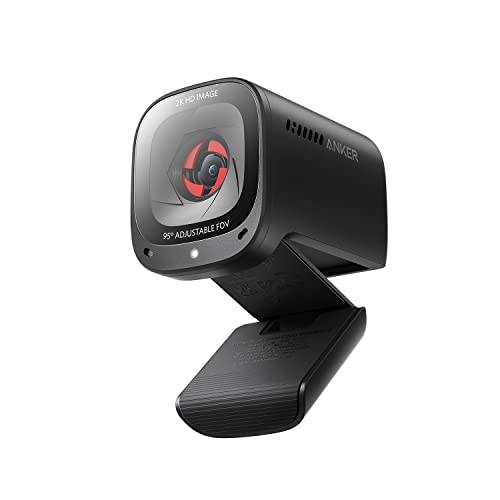
- Best for: A settled two-screen desk that wants three framing widths and a built-in lens cover.
- Video capture resolution: 2K
- Field of view: 65°, 78°, or 95° via software
- Sensor: 5MP CMOS
- Microphones: Dual mics with AI noise cancellation
A settled two-screen desk that wants three framing widths and a built-in lens cover.
Field-of-view changes are made through the AnkerWork software, so check that the app fits how you like to manage your desk devices.
The C200 fits the dual-monitor desk that stays put. Its software-selectable field of view is the useful part here: run the widest setting while the camera sits centred and you are still settling your layout, then step down to a tighter setting once your chair, screens, and call window stop moving around. The 2K feed is a clear step above a basic laptop camera for calls and simple recording, and the built-in cover closes the lens without hunting for a separate cap. It suits a home office that wants framing choices and a physical cover without a gimbal or a 4K pipeline.
Elgato Facecam MK.2
- Best for: Streaming from a fixed position where smooth 1080p motion matters more than 4K detail.
- Video capture resolution: 1080p
- HDR: HDR enabled listed
- Sensor: Sony sensor listed
- Control: PTZ control listed
Streaming from a fixed position where smooth 1080p motion matters more than 4K detail.
There is no built-in microphone story in this listing, so plan your audio around a separate mic or headset if you do not already use one.
This fixed camera is aimed at the streamer side of a dual-monitor setup, where the game or chat lives on the second screen and the camera stays locked on one position above the main display. Its value is smooth Full HD motion and HDR handling for rooms where a window or a bright screen sits behind you, rather than raw resolution. Digital pan, tilt, and zoom control lets you refine the frame from software after mounting, which helps when the clip position is dictated by bezel shape. It suits creators who record through streaming software and prefer a steady, predictable frame.
Which One Fits Your Situation
Your calls live on the main screen and you record sometimes
Choose the Logitech MX Brio and centre it on the primary display at eye level. The tighter field-of-view settings keep your face large while the second screen stays outside the frame, and the 4K feed gives you clean material when a session is worth recording or cropping. It is the least fussy route to a professional-looking default position.
You present, teach, or keep turning to the second screen
Choose the OBSBOT Tiny 2 Lite, mounted where its gimbal has a clear sweep across your chair and standing spot. Physical tracking answers the exact problem a wide dual-monitor desk creates, because your face leaves the centre of a fixed frame every time your attention crosses the gap. Set the tracking area up once, then let the camera do the following.
Your desk is settled and you want simple framing control
Choose the Anker PowerConf C200. Three selectable widths cover the common positions on a two-screen desk, from a tight head-and-shoulders crop to a wider view that includes a colleague beside you. The built-in cover and the 2K feed keep daily use simple, and nothing about the setup needs rethinking when you swap which screen hosts the call.
You stream games or commentary from a fixed chair
Choose the Elgato Facecam MK.2 and lock it above the screen you face while playing. Smooth Full HD motion suits a facecam window that sits beside gameplay, and software framing control lets you adjust the crop without remounting the camera mid-setup. Pair it with the microphone you already use for streaming, and keep the second monitor for chat and alerts.
Common Mistakes
- Mounting the camera on the secondary monitor because the clip fits there, then wondering why every call looks like you are talking to someone off-screen.
- Buying the widest field of view available and leaving it there, so your face shrinks and the room behind you becomes half the picture.
- Placing the camera in the centre gap at desk height, which creates a low upward angle instead of the eye-level view a raised mount gives.
- Paying for 4K recording modes when every session is a compressed call and nothing is ever recorded or cropped locally.
- Ignoring the mount details in the listing, especially whether a tripod thread exists for the centre-gap position your desk actually needs.
Frequently Asked Questions
Where should a webcam go on a dual-monitor setup?
Centre it on the primary monitor, at or just above eye level, in most cases. That position keeps your gaze closest to the camera when the call window sits on your main screen. A centre-gap position can also work if a stand or tripod lifts the camera to the same height, rather than leaving it down at desk level.
Is a wide field of view better for two monitors?
Only up to a point. A wider view forgives movement between screens and can include a second person, but it also makes your face smaller and shows more of the room. Adjustable models are the safer buy here, because you can start wide, find your position, and then tighten the frame once your desk layout settles.
Do I need a tracking webcam if I sit at my desk all day?
Probably not. Tracking earns its place when you stand, present, demonstrate something, or turn sharply toward the second screen throughout a session. A seated caller who stays in one chair is usually better served by a fixed camera with the right field of view, mounted carefully once and then left alone.
Does 4K matter when call apps compress the video?
For the call itself, often less than buyers expect, because the platform decides what the other side receives. The 4K feed still helps when you record locally, crop a tighter frame from a wider shot, or stream through software that can use the extra detail. Buy it for those uses, not for the meeting window alone.
FAQ
Where should a webcam go on a dual-monitor setup?
Is a wide field of view better for two monitors?
Do I need a tracking webcam if I sit at my desk all day?
Does 4K matter when call apps compress the video?
More from Amazon
Programs that pair well with the guide above. Offers and eligibility are set by Amazon and may change.
Free shipping on eligible items, Prime Video and more. Eligible new members can start with a free trial.
Start a Prime free trialAd-free music streaming. Eligible new subscribers can start with a free trial.
Try Music Unlimited freeA Prime membership for ages 18-24 with a trial period. Eligibility is set by Amazon.
See Prime for Young AdultsAudiobooks and podcasts to listen to on the go. Eligible new members can start with a free trial.
Try Audible freeAs an Amazon Associate we earn from qualifying purchases.