Key takeaways
- CPU_FAN: the main header, which usually triggers a warning at boot if no signal is detected.
- CHA_FAN or SYS_FAN: case fans. You can set separate curves for intake and exhaust.
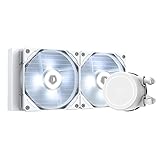
- AIO_PUMP or W_PUMP: designed for a liquid cooler pump. Most pumps are meant to run at a constant speed or a high floor, so avoid tying them to a low fan curve.
- Fan splitters and hubs: several fans on one header share the same curve, and the header’s current limit applies. Check the manual for the header’s rated current.
To set a smart fan curve in the BIOS, restart and enter setup with the Delete or F2 key, open the fan control page (named Q-Fan Control, Smart Fan, or Hardware Monitor depending on the board maker), choose the fan header and the temperature source, set PWM or DC mode to match the fan, drag or enter the temperature and speed points, then save and exit. Keep the curve gentle, and never let a fan minimum drop low enough to stall.
What a Fan Curve Does
A fan curve links temperature to fan speed. At low temperature the fan spins slowly or quietly, and as heat rises the speed ramps up. Motherboard makers label this feature differently: ASUS calls it Q-Fan Control, Gigabyte uses Smart Fan (for example Smart Fan 6), MSI uses Smart Fan or Fan Control in its Hardware Monitor page, and ASRock uses FAN-Tastic Tuning. The menu path varies by maker and BIOS version, so use your motherboard manual for exact names.
Quick Setup Table
| Setting | What it does | Typical choice |
|---|---|---|
| Fan header | Which connector the curve applies to (CPU_FAN, CHA_FAN, AIO_PUMP, and so on) | Configure each header separately |
| Control mode | PWM (4-pin) or DC voltage (3-pin), sometimes Auto | Match the fan connector; Auto detects many fans |
| Temperature source | Which sensor drives the curve | CPU temperature for CPU and case fans in most builds; some boards offer motherboard or GPU sensors |
| Curve points | Temperature and speed pairs | A gentle rise, with higher speed at higher temperature |
| Minimum speed | Lowest allowed fan speed | High enough that the fan never stalls |
| Step up and step down time | Delay before changing speed | Longer times reduce audible ramping |
| Fan stop | Lets a fan stop at low temperature | Optional, only if the fan and cooler maker allow it |
Step-by-Step in the BIOS
- Save work, shut down fully, and restart. Tap Delete or F2 as the logo appears; the key is listed in your motherboard manual.
- If the BIOS opens in a simple mode, switch to Advanced mode (often with F7 on ASUS boards, or an Advanced button on others).
- Find the fan page. Common locations are a Monitor tab, a Hardware Monitor section, or a Q-Fan Tuning option. Terms vary, so use the manual’s index.
- Select the fan header. Many boards list CPU Fan, Chassis Fans and an AIO or pump header separately.
- Set the control mode. Choose PWM for four-pin fans and DC for three-pin fans. Auto detection is usually accurate, but a wrong mode can cause the fan to run at full speed or not slow down.
- Pick the temperature source if the board offers it. CPU is the usual driver; choosing a source unrelated to the fan’s load can make it ramp at the wrong time.
- Set curve points. Some BIOS pages give four or five points you can drag with a mouse or edit with numbers. Keep the line rising and avoid steep jumps, which cause audible surges.
- Set the minimum speed. Many fans stall below a certain percent, and the figure varies by fan model. Use the fan maker’s listed minimum speed if one is stated.
- Press F10 (or use the save option) to apply and exit. Boot into the operating system and check readings in monitoring software.
Suggested Curve Shape
There is no single right curve, since it depends on the cooler, the case and room temperature. A common approach from builders’ guides is a quiet idle zone where the fan holds a low steady speed, a middle zone where speed rises gradually, and a steep zone only near high temperatures. Here is a generic conceptual layout, not a measured result.
| Zone | Temperature feeling | Fan behavior |
|---|---|---|
| Idle | Desktop use, web browsing | Low and constant, above the stall point |
| Light load | Video, light games | Gradual increase |
| Gaming load | Sustained gaming | Medium to high speed |
| Near thermal limit | CPU approaching its maximum rated temperature | Full speed |
The maximum safe temperature depends on the processor, and the maker lists it on its product page. Keep the curve reaching full speed well before that limit.
Fan Types and Headers
- CPU_FAN: the main header, which usually triggers a warning at boot if no signal is detected.
- CHA_FAN or SYS_FAN: case fans. You can set separate curves for intake and exhaust.
- AIO_PUMP or W_PUMP: designed for a liquid cooler pump. Most pumps are meant to run at a constant speed or a high floor, so avoid tying them to a low fan curve.
- Fan splitters and hubs: several fans on one header share the same curve, and the header’s current limit applies. Check the manual for the header’s rated current.
Common Problems
| Symptom | Likely cause | Fix |
|---|---|---|
| Fan stays at full speed | DC mode set for a PWM fan or vice versa, or a profile set to full speed | Switch the mode or choose a different profile |
| Fan speed hunts up and down | Steep curve, short response time | Flatten the curve, lengthen step times |
| CPU fan error at boot | Minimum speed too low or no tachometer signal | Raise the minimum, set the error threshold per manual |
| Fan will not slow down | Fan lacks PWM or voltage control | Check the fan’s connector type |
| Settings do not save | CMOS battery low, BIOS reset | Check battery, update BIOS per maker guidance |
| Pump warning | Pump on a fan curve | Move to the pump header with full speed |
Caution
BIOS changes can affect stability, and wrongly set fans can cause overheating. Fan curve tweaks alone do not normally void a warranty, but other BIOS changes such as overclocking can. If a fan fails to spin or temperatures rise unexpectedly, restore default settings from the BIOS (often with a Load Optimized Defaults option) and consult the manual or the maker’s support.
Software Alternatives
Several board makers offer utilities, such as ASUS Armoury Crate or AI Suite, Gigabyte Control Center, MSI Center and ASRock tools, that adjust curves in Windows. Third-party tools exist as well. Software control is handy for testing, but the BIOS curve remains active before the operating system loads and is a good place for a baseline. Avoid running two programs that control the same fans simultaneously, since they can conflict.
Frequently Asked Questions
What is the difference between PWM and DC mode?
PWM controls speed through a signal on the fourth pin while the power stays constant, and DC mode varies the voltage on a three-pin fan. Match the mode to the fan connector, or use Auto when the BIOS detects it correctly.
Which temperature source should I choose?
The CPU temperature is the usual choice for CPU and case fans. Some boards also offer motherboard or other sensors, and your cooler’s manual may give more specific advice for liquid coolers.
Why does my fan not drop to zero RPM?
Many fans have a minimum speed, and some headers set a floor. Zero-RPM modes exist only on fans and boards that support them, and the maker’s manual explains how to enable them.
Should my pump follow a fan curve?
Generally not. Cooler makers typically want pumps to run at a steady speed set by the unit or at a fixed value, so use a pump header and follow the cooler manual.
Can I set a different curve for each case fan?
If the board has separate headers, yes. Fans on a shared splitter follow one header’s curve.
What if my BIOS has no fan curve page?
Some prebuilt and entry-level boards limit fan options. Use the maker’s utility in Windows if it exists, or look for BIOS updates that add the feature, following the maker’s guidance.
FAQ
What is the difference between PWM and DC mode?
Which temperature source should I choose?
Why does my fan not drop to zero RPM?
Should my pump follow a fan curve?
Can I set a different curve for each case fan?
What if my BIOS has no fan curve page?
More from Amazon
Programs that pair well with the guide above. Offers and eligibility are set by Amazon and may change.
Free shipping on eligible items, Prime Video and more. Eligible new members can start with a free trial.
Start a Prime free trialAd-free music streaming. Eligible new subscribers can start with a free trial.
Try Music Unlimited freeA Prime membership for ages 18-24 with a trial period. Eligibility is set by Amazon.
See Prime for Young AdultsAudiobooks and podcasts to listen to on the go. Eligible new members can start with a free trial.
Try Audible freeAs an Amazon Associate we earn from qualifying purchases.