Key takeaways
- Case fans that match the mounting sizes in your case manual (commonly 120 mm or 140 mm, with some cases supporting 200 mm).
- The screws that come with the fans, or the case’s fan screws.
- A Phillips screwdriver and cable ties.
- Your motherboard manual, to locate the fan headers.
- Optional: a fan hub if you have more fans than motherboard headers.
To install case fans for good airflow, mount fans at the front (and bottom if the case allows) so they pull cool air in, mount fans at the rear and top so they push warm air out, connect each fan to a motherboard fan header or a fan hub, and then set a fan curve in the BIOS or software. The whole job takes about 30 minutes with a screwdriver and the PC unplugged.
Our top picks
 CORSAIR 4000D RS ARGB Frame Customizable Mid-Tower
- FRAME Modular Case System - The revolutionary FRAME…
- 3x CORSAIR RS ARGB PWM Fans - High-performance…
- CORSAIR InfiniRail Fan Mounting System - This steel…
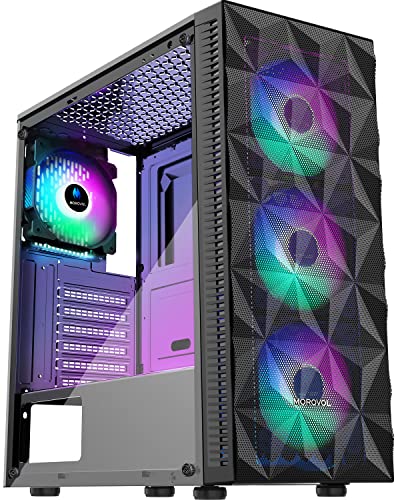 MOROVOL PC Case Pre-Install 4 RGB Fans
- 4PCS RGB Fans For Gifts - The 621…
- Tempered Glass Side Panel - The mid tower…
- Precise Design - Morovol 621-N4 computer tower case…
| Product | Key specs | |
|---|---|---|
| CORSAIR 4000D RS ARGB Frame Customizable Mid-Tower | FRAME Modular Case System - The revolutionary FRAME… 3x CORSAIR RS ARGB PWM Fans - High-performance… CORSAIR InfiniRail Fan Mounting System - This steel… | Check price |
| MOROVOL PC Case Pre-Install 4 RGB Fans | 4PCS RGB Fans For Gifts - The 621… Tempered Glass Side Panel - The mid tower… Precise Design - Morovol 621-N4 computer tower case… | Check price |
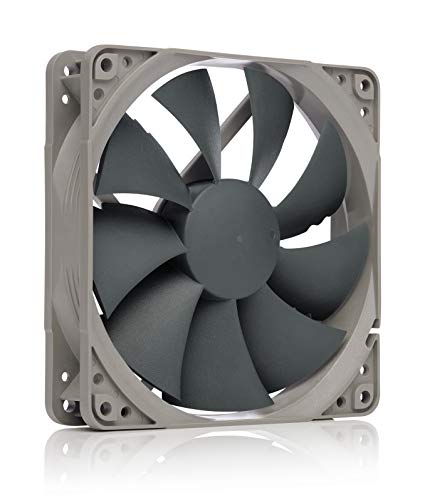 Noctua NF-P12 redux-1700 PWM Noctua NF-P12 redux-1700 PWM | Check price | |
 Montech AIR 903 Series Montech AIR 903 Series | Check price |
As an Amazon Associate we earn from qualifying purchases at no extra cost to you.
What You Need Before You Start
- Case fans that match the mounting sizes in your case manual (commonly 120 mm or 140 mm, with some cases supporting 200 mm).
- The screws that come with the fans, or the case’s fan screws.
- A Phillips screwdriver and cable ties.
- Your motherboard manual, to locate the fan headers.
- Optional: a fan hub if you have more fans than motherboard headers.
Safety: shut down, switch off the power supply and unplug the PC. Touch bare case metal to discharge static. Do not open the power supply. Never push cables or screws into a running fan.
Understand Airflow Direction
Most PC fans have two small arrows molded on the frame. One shows the direction of the fan’s rotation, and the other shows the direction of airflow. Air flows toward the side the airflow arrow points to. Hold the fan so that the side with the sticker or hub support spokes faces the direction you want the air to leave. Many fans move air out of the side where their support struts are, but the arrows are the reliable guide, so follow them.
The standard layout is front intake, rear exhaust and top exhaust. Cool air enters at the front, passes over the graphics card and motherboard, and warm air leaves out the back and top. That layout works because hot air rises and the processor cooler sits near the rear exhaust.
Quick Reference
| Position | Typical role | Fan count to consider |
|---|---|---|
| Front | Intake | 2 to 3 |
| Rear | Exhaust | 1 |
| Top | Exhaust | 1 to 3 |
| Bottom | Intake, if the case has a vented floor | 0 to 2 |
| Side panel | Intake for the GPU, if supported | 0 to 2 |
| Radiator mount | Per the cooler manual | Match the radiator size |
These are typical starting points. Your case manual lists the supported positions and sizes.
Step-by-Step Installation
- Plan the layout. Decide which fans will be intake and which exhaust. A common approach is slightly more intake than exhaust, which creates positive pressure and reduces dust entering through gaps. Neutral pressure also works, so aim for balance.
- Prepare the case. Remove the side panels. If you have a front panel with a dust filter, remove it according to the case manual. Take out any old fans you plan to replace.
- Check the fan orientation. Find the airflow arrow on each fan. Decide which direction each fan should face.
- Mount the rear exhaust fan. Hold the fan at the rear mount so the airflow arrow points out of the case. Insert screws from the outside of the case through the fan’s corner holes and tighten them evenly without over-tightening, which can crack the frame.
- Mount the front intake fans. Mount them with the airflow arrows pointing into the case. Many cases mount front fans from inside the case. Use the screws supplied with the case, and fit any rubber vibration pads.
- Mount top fans. Set the arrows to point up and out for exhaust. If you have a radiator at the top, follow the cooler manual instead.
- Install bottom or side fans (optional). Orient the arrows to bring air in. Check that these positions do not conflict with the power supply shroud or graphics card.
- Connect the cables. Plug fan connectors into motherboard fan headers, usually labeled CHA_FAN, SYS_FAN or similar. A 4-pin connector supports PWM speed control, while a 3-pin connector uses voltage control. Both fit the same header in most cases, but the connector is keyed, so do not force it. If you have many fans, use a fan hub powered by a SATA or Molex connection (check the hub’s manual), and plug its control lead into one header.
- Manage cables. Tie loose cables away from fan blades and airflow paths with cable ties.
- Close the case and power on. Check that every fan spins. Place a hand near the rear and top to feel warm air leaving, and near the front to feel air entering.
Set Fan Speeds in BIOS
Enter the BIOS (commonly Delete or F2 at startup; this depends on the motherboard). Look for a section named something like Hardware Monitor, Smart Fan, Q-Fan Control or Fan Tuning. Menu names vary by maker, so consult the motherboard manual.
- Set each fan header to PWM mode for 4-pin fans, or DC mode for 3-pin fans.
- Choose a profile such as Standard or Balanced, or draw a custom curve.
- Base the curve on CPU temperature or on a motherboard sensor.
- Use a minimum speed that keeps fans spinning to avoid stalls.
BIOS changes can cause instability and may affect warranty coverage if mistaken. Make small changes, save, and restart. Restore defaults if something behaves oddly.
Expected Results
| Setting | What to expect |
|---|---|
| Balanced intake and exhaust | Lower component temperatures and steadier fan noise |
| Quiet curve | Lower noise at idle, higher fan speeds under load |
| Performance curve | Cooler parts, more noise |
| Too few intake fans | Hot spots near the graphics card |
| Blocked front panel | Reduced airflow even with strong fans |
Reviewers of case airflow generally report that mesh-front cases outperform solid-front cases at the same fan speed, so the case design affects the benefit of added fans.
Common Mistakes
- Mounting a fan backward so it blows against the intended direction.
- Putting all fans as exhaust, which pulls dusty air through gaps.
- Placing cables in front of the fan blades.
- Over-tightening screws and cracking the frame.
- Connecting several fans to one header without checking the header’s power rating in the manual.
- Ignoring dust filters and letting them clog.
- Setting a fan curve that stops fans completely under load.
When Not to Do It
Skip adding fans if the case has no mounting points for them or if the fans would block graphics card or radiator clearance. Do not modify the case with cutting tools unless you know what you are doing, since metal edges are sharp. If the PC runs hot, check the processor cooler and thermal paste first, because case fans alone cannot fix a poor cooler connection. If you are unsure, ask a technician.
Frequently Asked Questions
Which way should case fans face?
Front and bottom fans usually bring air in, and rear and top fans push air out. Use the airflow arrow on the fan frame to confirm the direction, because the logo side does not always indicate airflow.
How many case fans do I need?
A common setup uses two or three intake fans at the front and one exhaust fan at the rear. Heavier builds may add top exhaust fans. Your case manual lists the supported positions.
Should I use positive or negative pressure?
Positive pressure, with slightly more intake than exhaust, reduces dust entering through gaps. Balanced pressure also works well. Negative pressure can draw in dust through openings.
Can I plug several fans into one header?
You can use a fan splitter or hub, but the header has a maximum current rating listed in the motherboard manual. A powered hub is safer for many fans.
Are PWM fans better than DC fans?
PWM fans offer finer speed control, especially at low speeds, and work on 4-pin headers. DC fans can be adjusted by voltage, which works on 3-pin headers. Check which control mode your motherboard header supports.