Key takeaways
- Find the best computer keyboards for typing, from quiet low-profile boards to tactile mechanical and split ergonomic designs built for comfortable all-day typing.
Typing is the one thing almost every computer user does for hours at a time, yet the keyboard is often the last part of a setup to get any real thought. A keyboard that suits your hands can make long writing sessions, work documents, and emails feel smooth and natural. A keyboard that fights you turns every paragraph into a chore, with stiff keys, a cramped layout, or a typing sound that wears thin by mid-afternoon.
The best computer keyboards for typing share a few qualities, even though they look very different from one another. The keys should feel consistent from one press to the next, with a clear sense of when a key has been pressed. The layout should match the way you work, with enough space for your hands and the keys you actually use. The board should sit still on the desk while you type, and the typing sound should suit your environment. This guide covers five keyboards that handle typing well in different ways, so you can match the board to your hands, your desk, and your daily workload.
At a Glance
| Keyboard | Layout | Key Feel | Connection | Best For |
|---|---|---|---|---|
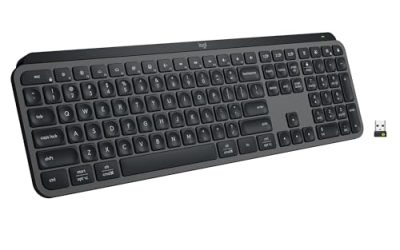
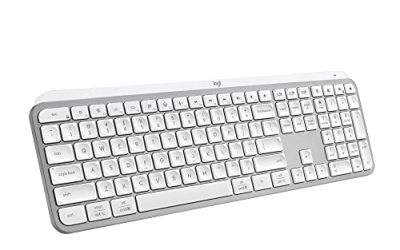
| Logitech MX Keys S | Full-size with numpad | Low-profile, quiet, dished keys | Bluetooth and USB receiver, USB-C charging | All-round daily typing |
| Keychron K2 QMK Version 3 | Compact 75 percent | Mechanical tactile Brown switches | Bluetooth and wired USB-C | Tactile mechanical typing |
| Logitech ERGO K860 | Full-size split ergonomic | Quiet membrane keys, curved split | Bluetooth and USB receiver | Long sessions and wrist comfort |
| Logitech K780 | Full-size with numpad | Round low-profile keys, quiet | Bluetooth and USB receiver | Typing across several devices |
| Logitech Wave Keys | Compact ergonomic wave | Quiet membrane keys, wave layout | Bluetooth and Logi Bolt receiver | Comfortable typing in less space |
1. Logitech MX Keys S

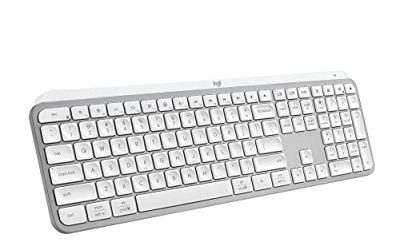
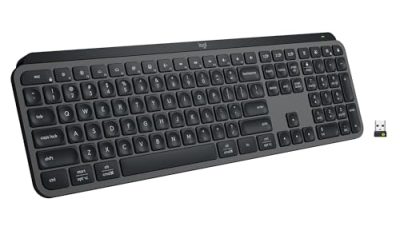
The Logitech MX Keys S is a full-size wireless keyboard built around comfortable, quiet typing. Its low-profile keys have a dished shape that cups the fingertips, helping your fingers find the center of each key without looking down. Key travel is short and smooth, with a soft landing that keeps typing quiet enough for a shared office or a late-night session at home. The board feels solid and planted on the desk, and the matte finish resists fingerprints and wear from daily use.
Backlighting is one of the more thoughtful touches here. The keys light up as your hands approach the board and adjust to the light in the room, so the legends stay easy to read in a dim room without glowing brightly in daylight. The keyboard charges over USB-C, and the full-size layout means the number pad, arrow keys, and function row are all in their familiar places, which matters if you enter numbers or use keyboard shortcuts often. Dedicated Easy-Switch keys connect to three devices at once, moving between a Windows computer, a Mac, or a tablet with a single press, and the board pairs over Bluetooth or through the included USB receiver.
Considerations
The MX Keys S is a full-size board, so it needs a desk with room for the number pad and a mouse beside it. Typists who prefer a compact layout or a deeper mechanical key feel may find the low-profile keys too shallow at first, though most people adjust within a few days. The board is also heavier than many slim keyboards, which helps stability but makes it less appealing to carry in a bag every day.
2. Keychron K2 QMK Version 3

The Keychron K2 QMK Version 3 is a compact mechanical keyboard aimed at people who type a lot and like to feel each key press. Its 75 percent layout keeps the function row, arrow keys, and navigation keys while dropping the number pad, which frees space on the right side of the desk for the mouse and pulls your arms into a narrower, more relaxed position. The aluminum frame gives the board a firm, reassuring weight, and the double-shot keycaps have legends that stay crisp through heavy daily use.
This version uses Super Brown switches, which are tactile without being clicky. Each press gives a gentle bump partway down that tells your fingers the key has registered, without the sharp click that can bother people nearby. The switches are hot-swappable, so they can be changed later without soldering if your preferences change or a switch ever wears out. Connectivity covers Bluetooth pairing with up to three devices as well as a wired USB-C connection, and the board ships with keycaps for both Mac and Windows layouts. QMK support means the keymap can be remapped and layers can be set up for shortcuts and alternate layouts.
Considerations
A 75 percent layout means there is no dedicated number pad, so people who enter long strings of numbers throughout the day will miss it or need a separate pad. The K2 is also taller and heavier than a slim membrane board, so pairing it with a wrist rest can help keep your wrists level during long sessions. The Brown switches feel firmer and more deliberate than the soft keys on many bundled desktop boards, so expect a short learning curve if you are coming from a laptop keyboard.
3. Logitech ERGO K860

The Logitech ERGO K860 is a split ergonomic keyboard designed for people whose wrists and forearms feel the strain of long typing days. Its curved, split keyframe angles each half of the keyboard outward, letting your hands, wrists, and forearms rest in a more natural, straighter position instead of bending inward toward the middle of a flat board. A cushioned wrist rest runs along the front edge, supporting the heels of your palms.
The keys are quiet membrane keys with a soft, cushioned landing, so typing stays subdued even at a fast pace. The layout is full-size, with a number pad and a full function row, and the keys are spaced generously, which reduces mistypes when your hands rest in the split position. The wrist rest uses a stain-resistant fabric that is easy to wipe clean, and the board connects over Bluetooth or the included USB receiver, pairing with up to three devices. The K860 can feel unusual for the first few days, but most typists adjust quickly, and the payoff is a more relaxed posture during long sessions.
Considerations
The split shape makes the K860 wider than a standard keyboard, so it needs a desk with enough depth and width to sit comfortably alongside a mouse. The curved layout also means the number pad and some keys sit at a slightly different angle than on a flat board, which can take a few days to learn. It is a desk keyboard rather than a portable one, and its sculpted shape does not pack flat into a laptop bag.
4. Logitech K780
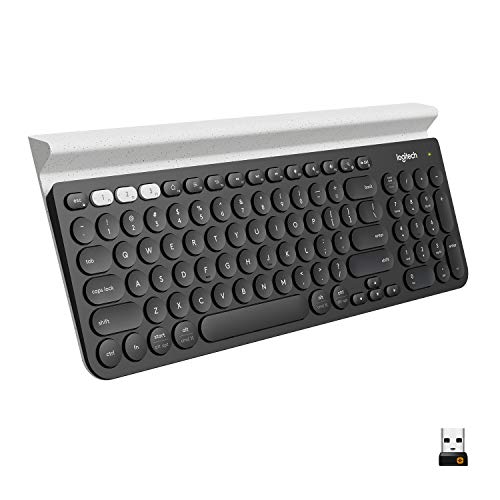
The Logitech K780 is a full-size wireless keyboard built for people who type on more than one device during the day. Its round, low-profile keys use a quiet scissor mechanism with short travel and a soft landing, giving it a typing feel that sits somewhere between a laptop keyboard and a traditional desktop board. The keys are comfortable for long stretches, and the quiet action keeps typing unobtrusive in a shared room.
A built-in cradle along the top edge holds a phone or tablet upright at a readable angle, so you can type a message or check a reference on a second screen without propping the device against something else. Easy-Switch keys connect the board to three devices, and the keyboard works with Windows, Mac, Android, and Chrome OS, switching between them with a single press. The full-size layout includes a number pad and a row of shortcut keys, and the board runs on replaceable batteries with a long service life between changes. The round keycaps look distinctive, but the layout underneath is standard, so touch typists can settle in quickly.
Considerations
The round keys and the built-in cradle give the K780 a wider footprint than many compact boards, so it needs a desk with room to spare. The device cradle holds phones and most tablets, but a tablet in a thick case may not sit securely in the slot. The board uses replaceable batteries rather than a rechargeable cell, so keeping a spare set on hand is a sensible habit. There is no backlighting or mechanical feel here, since the K780 keeps its design simple and focused on quiet multi-device typing.
5. Logitech Wave Keys

The Logitech Wave Keys is an ergonomic keyboard that brings a wave-shaped layout to a compact footprint. The keys follow a gentle wave curve that matches the natural resting angle of the hands, with a cushioned palm rest built into the front edge. The design encourages a relaxed wrist position without the wide split shape of a full ergonomic board, which makes it a good middle step for typists who want more comfort than a flat keyboard provides but do not want to relearn their typing posture entirely.
Key feel is quiet and cushioned, with membrane keys that land softly and keep typing noise low. The layout is compact, dropping the number pad to save desk space, while keeping the arrow keys and navigation cluster within easy reach. The board connects over Bluetooth or the included Logi Bolt receiver and pairs with up to three devices, switching between them with dedicated keys. It works across Windows and Mac, and the familiar key spacing means most typists adjust to the wave shape within a day or two.
Considerations
Dropping the number pad means people who work with figures all day will need a separate pad or a different board. The wave shape, while gentler than a split design, still angles the keys differently from a flat board, so the first day of typing may feel slightly unfamiliar. There is no backlighting, which matters if you often type in a dim room, and as a desk keyboard it is larger and heavier than ultra-slim travel boards.
How to Choose
Start with the way you type. If you type with a light touch and like a short, quiet key press, a low-profile membrane or scissor board such as the MX Keys S, the K780, or Wave Keys will feel natural right away. If you like to feel a clear bump as each key registers and you type with more force, a mechanical board with tactile switches such as the Keychron K2 with Brown switches gives you that feedback without the sharp click of a clicky switch. Linear switches press straight down without a bump, while clicky switches suit people who type alone and enjoy an audible click.
Layout is the next decision. A full-size board with a number pad suits data entry, spreadsheets, and anyone who uses the number pad daily. A tenkeyless or 75 percent board drops the number pad and pulls the mouse closer to the center of the desk, which can ease shoulder strain and free space on a smaller desk. Ergonomics matter more the longer you type: a split or wave layout keeps the wrists straighter and reduces the inward bend that flat boards demand, and a cushioned wrist rest supports the heels of the palms during pauses. Adjustable tilt feet let you set a slight slope that matches your hand position, and a keyboard at elbow height, with the forearms level, keeps the shoulders relaxed.
Connection and compatibility come after comfort. Bluetooth suits laptops, tablets, and tidy desks, while a USB receiver gives a steady wireless link for desktop computers. A wired USB-C connection removes batteries and charging from the equation entirely and suits a fixed desk setup. Multi-device pairing is worth having if you type on a computer and a tablet, and cross-platform keycaps or a layout switch matter if you move between Windows and Mac. Backlighting helps in dim rooms, but neither feature matters as much as the basic feel of the keys under your fingers. Finally, think about noise: quiet keys suit shared rooms, while clicky switches belong where the sound will not bother anyone else.
Fit and Installation
Setting up a typing keyboard well is mostly about position. Place the board directly in front of you, with the space bar roughly in line with the center of your body. Your elbows should hang naturally at your sides with the forearms level or sloping slightly downward, and the keyboard should sit low enough that your wrists stay straight rather than bending upward to reach the keys. A wrist rest can support the palms during pauses, though your wrists should float freely while you are actually typing.
Pairing a wireless keyboard takes a few minutes. For Bluetooth, put the board into pairing mode, find it in the Bluetooth settings on your computer or tablet, and confirm the connection. For a USB receiver, plug the receiver into a free port, switch the keyboard on, and the board should connect on its own. Wired boards are simpler still: plug the USB-C cable into the keyboard and the computer, and the board is ready to use. Keep the receiver close to the keyboard, and replace or recharge batteries before they run flat so the board does not drop out mid-document.
Software setup is optional but useful. Logitech boards can use Logitech software to remap keys, adjust backlighting, and set up shortcuts, while the Keychron K2 can be remapped through QMK-compatible tools for custom layouts and layers. The boards work with standard layouts straight out of the box. Desk space deserves a quick check before you settle on a layout: a full-size board needs room for the number pad plus a mouse to its right, while a compact board frees a hand-width of space that can make a real difference on a narrow desk. Keep the monitor at arm’s length with the top of the screen near eye level, since hunching puts strain on the neck and shoulders that no keyboard can fix.
FAQ
Are mechanical keyboards better for typing?
Mechanical keyboards suit many typists because each key has its own switch with a consistent feel and a clear point where the key registers. Tactile switches add a small bump that confirms each press, which helps some people type more accurately. Membrane and scissor keyboards can be just as good for typing, especially for people who prefer a quieter, softer key press and a slimmer board. The better choice matches your finger strength, your tolerance for typing sound, and how your hands feel after an hour of typing.
What is the quietest type of keyboard for typing?
Low-profile membrane and scissor-switch keyboards are usually the quietest, since their keys travel a short distance and land on a soft cushion. Linear mechanical switches are also fairly quiet, while tactile switches add a moderate sound and clicky switches are the loudest. A desk mat beneath the board absorbs vibration and takes the edge off the typing sound, and a lighter touch reduces noise on any keyboard.
Do I need a full-size keyboard for typing?
A full-size keyboard is worth having if you enter numbers often, work in spreadsheets, or use the number pad for shortcuts. For writing, email, and general computer use, the number pad is rarely essential, and a tenkeyless or 75 percent board gives you the same typing keys in less space. If you only need the number pad occasionally, a compact board plus a separate pad gives you both options.
How can I reduce wrist strain while typing?
Keep your wrists straight and level with the keyboard, with your forearms relaxed and your elbows close to your body. A split or wave keyboard helps by angling the keys to match the natural position of your hands, and a cushioned palm rest supports your palms during pauses. Take short breaks to stretch your hands, and check that your chair and desk height let your forearms rest level. If strain persists, a different keyboard shape or typing posture is worth trying.
Conclusion
The best computer keyboards for typing are the ones that let you forget about the keyboard and focus on the words. The Logitech MX Keys S is the strongest all-round pick, with quiet low-profile keys and smooth multi-device switching. The Keychron K2 QMK Version 3 suits typists who want tactile mechanical feedback in a compact frame. The Logitech ERGO K860 is the pick for long sessions where wrist comfort matters most, while the Logitech K780 covers typing across a computer, tablet, and phone from one board. The Logitech Wave Keys brings ergonomic comfort to a smaller desk without the wide footprint of a split board.
Choose by starting with your hands: the key feel you enjoy, the layout your work needs, and the shape that keeps your wrists comfortable through a full day. Get those three things right, and the keyboard becomes the part of your setup that simply works every time you sit down to type.
As an Amazon Associate, we earn from qualifying purchases.
FAQ
Are mechanical keyboards better for typing?
What is the quietest type of keyboard for typing?
Do I need a full-size keyboard for typing?
How can I reduce wrist strain while typing?
More from Amazon
Programs that pair well with the guide above. Offers and eligibility are set by Amazon and may change.
Free shipping on eligible items, Prime Video and more. Eligible new members can start with a free trial.
Start a Prime free trialAd-free music streaming. Eligible new subscribers can start with a free trial.
Try Music Unlimited freeA Prime membership for ages 18-24 with a trial period. Eligibility is set by Amazon.
See Prime for Young AdultsAudiobooks and podcasts to listen to on the go. Eligible new members can start with a free trial.
Try Audible freeAs an Amazon Associate we earn from qualifying purchases.