Key takeaways
- Disable overlays you do not actively use (they inject into the game and add frame-time variance).
- Set your game and GPU driver to “High Performance” in Windows Graphics settings.
- Pause cloud sync and antivirus scans during play.
Few things ruin a gaming session faster than stutter—those brief hitches where the frame rate counter reads 120 but the game feels like it is skipping. Stutter is not the same as low FPS; it is inconsistent frame pacing, where individual frames arrive late and your eyes catch the hiccup. In 2026, with shader-heavy engines and always-on background apps, stutter has become the most common complaint even on powerful rigs, and the causes range from a full VRAM buffer to a rogue Windows service.
This guide gives you a systematic checklist, working from the most common culprits to the obscure ones, so you can isolate and fix the real cause instead of guessing. Most stutter traces back to one of five things: shader compilation, background processes, storage bottlenecks, driver or power settings, or thermal throttling. Work through them in order and you will resolve the vast majority of cases in under an hour.
Our top picks


As an Amazon Associate we earn from qualifying purchases at no extra cost to you. Ratings are shown as listed on Amazon.
⚡ Save on Your Next PC — Amazon Prime
Prime members get fast free shipping on the systems above, plus early access to Prime Day & Black Friday PC deals. New members get a 30-day free trial.
Watch: How to Fix Game Stuttering on PC — Video Review
Rule Out Shader Compilation Stutter First
Modern engines compile shaders on the fly the first time you encounter an effect, and that compilation causes a brief hitch. This is why a new game stutters in the first hour and smooths out afterward. Let the game build its shader cache by playing through varied areas, and enable any “pre-compile shaders” option in the graphics menu. If you recently updated your GPU driver, the shader cache resets, so early stutter after a driver update is expected and temporary.
Kill Background Processes
Overlays, launchers, browser tabs, and sync clients steal CPU cycles and cause micro-stutter. Open Task Manager, sort by CPU and by GPU, and close anything you do not need while gaming. The worst offenders are chat overlays with hardware acceleration, cloud backup clients that spin up mid-session, and browser tabs running video. A tune-up utility such as System Mechanic can automate stopping non-essential startup services if you would rather not manage them by hand.
- Disable overlays you do not actively use (they inject into the game and add frame-time variance).
- Set your game and GPU driver to “High Performance” in Windows Graphics settings.
- Pause cloud sync and antivirus scans during play.
Check Your Storage and RAM
Games streaming assets from a slow drive stutter when they hit an uncached texture. Install shader-heavy and open-world titles on an NVMe SSD, not a hard drive or SATA SSD. Equally, if you are running out of system RAM or VRAM, the game swaps data to disk and hitches badly—16GB of system RAM is the practical floor in 2026, and watch VRAM usage against your card’s capacity in an overlay. A full VRAM buffer is one of the most common stutter causes on 8GB cards at high textures.
Fix Driver, Power, and Sync Settings
Set your Windows power plan to High Performance or Ultimate Performance so the CPU does not down-clock mid-frame. In the NVIDIA or AMD control panel, set the power management mode to “Prefer Maximum Performance.” Enable G-Sync or FreeSync with V-Sync on and a frame rate cap 3-4 fps below your refresh rate—this is the single most effective fix for the tearing-plus-stutter combination, because it keeps frame delivery synced to the display.
Rule Out Thermal Throttling
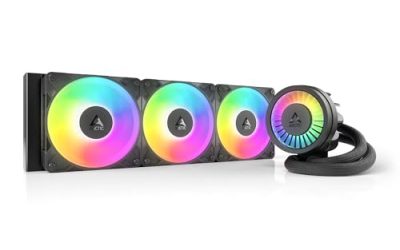
A CPU or GPU that overheats will drop its clock speed suddenly, producing a stutter that appears only after the system warms up. Monitor temperatures during a long session; if the CPU crosses 90°C or the GPU throttles, address cooling before chasing software fixes. Sustained thermal stutter that starts 20-30 minutes into play is a dead giveaway that the real problem is heat, not software.
Tips
- Use a frame-time graph, not an FPS counter, to actually see stutter—spikes in frame time are the culprit.
- Cap your frame rate slightly below your monitor’s refresh for the smoothest pacing.
- Do a clean GPU driver install with DDU if stutter appeared right after a driver update.
- Test one change at a time so you know which fix worked.
Frequently Asked Questions
Why does my game stutter even at high FPS?
Stutter is a frame-pacing problem, not a frame-rate problem. Individual frames arrive late even when the average is high, so the counter reads 120 while your eyes catch the hitches. Fixing it means smoothing frame delivery—through sync technology, closing background apps, and eliminating storage or VRAM bottlenecks—rather than just raising average FPS.
Does a new game always stutter at first?
Often, yes, because of shader compilation. The engine builds a shader cache the first time you see each effect, causing brief hitches that fade as the cache fills. Playing through varied areas or using an in-menu shader pre-compile option resolves it. The cache resets after a GPU driver update, so expect a short return of stutter then.
Will more RAM stop stutter?
It helps if you are RAM-limited. When system memory fills, the game swaps to disk and hitches severely. Moving from 8GB to 16GB eliminates that on most 2026 titles. Beyond your actual usage, though, adding RAM gives no further stutter benefit—check your usage in Task Manager first.
Can an SSD reduce stutter?
Yes, for asset-streaming stutter. Open-world and texture-heavy games hitch when loading uncached data from a slow drive. An NVMe SSD delivers assets fast enough to avoid those hitches. It will not fix stutter caused by shaders, background apps, or thermal throttling, so diagnose the type first.
Conclusion
Stutter is a solvable problem once you stop guessing and work the checklist: shaders, background processes, storage and RAM, driver and sync settings, then thermals. Watch a frame-time graph to confirm what you are fixing, change one thing at a time, and pair a variable refresh display with a sensible frame cap. Do that and even a mid-range 2026 rig delivers buttery-smooth pacing.