Key takeaways
- 24-inch monitor: approximately 2–2.5 m of strip is normally sufficient for three-sided coverage.
- 27-inch monitor: approximately 2.5–3 m usually covers the top and side edges.
- 32-inch monitor: approximately 3–3.5 m is a sensible starting point.
- 34-inch ultrawide: approximately 3–4 m may be needed, depending on whether the bottom edge is covered.
- 42-inch television used as a monitor: use a television-size kit or measure carefully; a standard 27-inch kit will not distribute light evenly.
Best Bias Lighting Systems for Computer Monitors
The best bias lighting systems for computer monitors are the Philips Hue Play gradient lightstrip for PC for accurate, polished ambient lighting, the Govee AI Gaming Sync Box Kit 2 for HDMI-based game synchronization, and a simple USB-powered neutral-white LED strip for the best value and least setup.
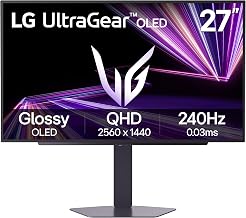
Bias lighting is a light source placed behind a monitor and aimed at the wall. Its job is not to illuminate the desk like a lamp; it raises the surrounding wall brightness so your eyes do not constantly adapt between a bright screen and a dark room. For the most comfortable setup, prioritize a diffused strip, adjustable brightness, a neutral-to-warm white mode, and a length that follows the monitor’s rear edges without bunching.
Quick comparison
| System | Best for | Light output and color | Monitor fit | Power and control | Typical market range |
|---|---|---|---|---|---|
| Philips Hue Play gradient lightstrip for PC | Premium ambient lighting and multi-monitor setups | Full-color gradient effects; adjustable white modes | Available in monitor-size-specific versions; designed for rear mounting | External power supply; app, desktop software, voice and accessory controls | Usually $150–$300 before optional Hue accessories |
| Govee AI Gaming Sync Box Kit 2 | HDMI gaming setups that need reactive lighting | High-output RGBIC lighting with segmented effects | Best when the monitor’s video passes through the included HDMI box | External power; app, desktop software and physical controls | Usually $150–$250 depending on the kit |
| Corsair iCUE LS100 Smart Lighting Strips | PC builders already using the iCUE ecosystem | Diffused RGB lighting intended for smooth rear glow | Modular lengths suit many single-monitor desks | External controller and power; iCUE software | Usually $80–$180 when available |
| USB-powered single-color LED strip | Low-cost, low-complexity bias lighting | Usually fixed white or adjustable white; quality varies substantially | Easy to cut or trim only where marked; suitable for most monitor sizes | USB power; inline switch or monitor software may control it | Usually $15–$40 |
Choose by the result you want
For accurate, calm illumination: use neutral white
If your priority is eye comfort, photo editing, video work, or a distraction-free desk, choose a white-only or tunable-white strip rather than an RGB gaming system. Set the rear light between roughly 4,000K and 6,500K and keep brightness low enough that the wall is visibly lifted but not glowing around the monitor.
A 6,500K setting is close to common daylight references and works well when the monitor is calibrated for a daylight white point. A warmer setting around 4,000K–5,000K is more relaxing for evening gaming. Avoid judging color-critical work under a strongly saturated red, blue, or green bias light: the colored wall illumination can affect how your eyes perceive neutral colors on screen.
For reactive RGB effects: choose a system with the right signal path
There are two main synchronization methods. Camera-based systems read the image from a camera mounted above or below the display. They work with almost any source, including a game console or a second computer, but the camera needs a clear view and can react to on-screen menus, subtitles, or glare.
HDMI sync-box systems analyze the video signal before it reaches the monitor. They generally produce more predictable screen matching, but every source must pass through the box and the box must support the required HDMI standard. Confirm support for your resolution, refresh rate, HDR mode, variable refresh rate, and HDCP requirements before buying.
Desktop software synchronization is convenient for a gaming PC, but it may not see content from a console or work correctly with protected video. It is also more dependent on background software and ecosystem compatibility.
Monitor fit matters more than the LED count
A strip that is too short leaves the top corners dark; one that is too long creates bright overlaps that are visible on the wall. Measure the rear perimeter you actually intend to cover rather than using the monitor’s diagonal size alone.
- 24-inch monitor: approximately 2–2.5 m of strip is normally sufficient for three-sided coverage.
- 27-inch monitor: approximately 2.5–3 m usually covers the top and side edges.
- 32-inch monitor: approximately 3–3.5 m is a sensible starting point.
- 34-inch ultrawide: approximately 3–4 m may be needed, depending on whether the bottom edge is covered.
- 42-inch television used as a monitor: use a television-size kit or measure carefully; a standard 27-inch kit will not distribute light evenly.
Most bias lighting works best on the top and two side edges, leaving the bottom edge open around the stand and cables. Place the strip 2–5 cm from the edge if possible. This creates a broad wall wash instead of a sharp line. Clean the rear plastic with isopropyl alcohol, allow it to dry, and use the supplied clips if the monitor has a textured or warm surface that weakens adhesive.
Light output: how bright is enough?
More brightness is not automatically better. A very bright strip can become a second light source, create reflections in glossy panels, and make a dark game appear less contrasty. For a typical desk, a modest strip running at 10–30% brightness is often sufficient at night. Increase it only when the wall behind the monitor is dark or the room has other lighting.
As a practical target, aim for a soft wall glow that is clearly visible in peripheral vision but does not draw attention away from the screen. If the LEDs are visible from your seating position, the strip is either mounted too close to the edge, insufficiently diffused, or set too brightly.
Power calculation: USB or external adapter?
USB power is convenient, but the port on a monitor may not provide enough current for a long, bright RGB strip. Use this calculation before connecting one:
Power = voltage × current. A 5 V strip drawing 1.5 A requires 7.5 W. A monitor USB port rated at 5 V and 0.9 A can provide only 4.5 W, so the strip may dim, flicker, or fail to start at full brightness.
For a simple white strip rated at 4 W per metre and used at 2.5 m, the full-power requirement is:
4 W × 2.5 m = 10 W.
A 5 V USB connection would then need about 2 A. That is beyond many monitor ports, although brightness reduction lowers actual consumption. An externally powered system is the safer choice for long strips, high-output RGB lighting, or synchronized kits. It also avoids turning the monitor’s USB hub into the limiting component.
Decision matrix for common desk setups
| Your setup | Recommended type | Why | Watch for |
|---|---|---|---|
| Single 24–27-inch monitor, basic gaming PC | USB neutral-white strip | Low cost, simple installation, enough light for comfort | USB current limit and uneven color quality |
| HDR gaming PC with 1440p or 4K high refresh | Software-controlled strip or a compatible HDMI 2.1 sync system | Preserves the desired signal path when properly specified | HDMI bandwidth, VRR, HDR and refresh-rate support |
| Console connected to a monitor | HDMI sync box or camera-based system | Works without relying on PC desktop software | Extra cables, input switching and protected video compatibility |
| Dual monitors | Multi-monitor system or two independently controlled strips | Allows separate lengths and avoids a dark gap between displays | Color matching and software support for both monitors |
| Color grading or photography workstation | High-quality neutral-white light with a stated color temperature | Avoids RGB spill that can distort visual judgment | Unknown white balance, visible hotspots and excessive brightness |
Control methods compared
Inline controls are the most reliable and require no account, network, or background process. They are ideal if you want one brightness or color setting and rarely change it.
Remote controls and mobile apps make scenes, schedules, and brightness adjustments convenient. They are useful when the controller is hidden behind a desk, but check whether the system needs Bluetooth, Wi-Fi, or a cloud account.
Desktop software is best for synchronizing lighting with games and music. Its drawbacks include startup services, software conflicts, and inconsistent support for multiple displays. Check whether the application can identify the correct monitor arrangement before committing to an ecosystem.
HDMI sync boxes offer source-level synchronization, but they add a device between the computer and display. For a 4K 144 Hz HDR setup, the box must explicitly support that combination; a box limited to 4K 60 Hz can force the entire chain down to the lower mode.
Installation settings that usually work
- Mount the strip on the top and sides, keeping it a few centimetres inward from the monitor edge.
- Start at 15% brightness and increase gradually until the wall is evenly visible.
- Set static white to 5,000K for mixed work and gaming, or 6,500K for a daylight-oriented workspace.
- Disable animated effects while working with photographs, video, or color-critical graphics.
- For reactive lighting, reduce saturation and effect intensity if bright flashes distract from the game.
- Route power away from DisplayPort and USB 3 cables where practical, then secure the controller so its weight does not pull the strip loose.
Bottom line
For most people, a well-diffused neutral-white USB strip is the best value because it delivers the main comfort benefit without software or signal-path complications. Choose the Philips Hue Play gradient lightstrip for PC when premium ecosystem control and multi-zone color are important. Choose the Govee AI Gaming Sync Box Kit 2 when console or HDMI-source synchronization matters. Choose Corsair’s iCUE LS100 system when your desk already revolves around iCUE and you want lighting managed alongside PC components.
The right system is the one that fits the monitor’s rear perimeter, stays within its power budget, and produces a gentle wall wash rather than a bright band of LEDs. Those three factors matter more than the number of colors or the maximum advertised brightness.