Key takeaways
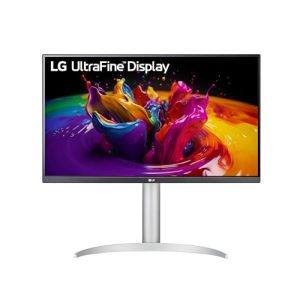
- Find the best 4k monitors for xbox series x with our guide to 4K at 120Hz, HDMI 2.1, VRR and HDR, plus size, panel and setup tips for your console today.
As an Amazon Associate we earn from qualifying purchases.
Choosing a monitor for Xbox Series X comes down to one practical decision: whether to buy a screen that can actually show what the console can output, or to settle for a screen that caps it. The console can run supported games in 4K at up to 120 frames per second, yet many 4K monitors top out at 60Hz, and many fast monitors are not 4K at all. Picking the wrong combination means paying for resolution or speed that never reaches your eyes.
This guide is written for competitive players who want smooth motion, story-driven players who want sharp detailed worlds, living-room players replacing a television, and desk players fitting a screen into a small room. For each group, it explains how to judge a monitor from the names and specifications shown on its listing page, so you can match the screen to the way you actually play instead of guessing from a headline feature.
Why 4K at 120Hz Matters on Xbox Series X
The Xbox Series X can output 4K resolution at up to 120 frames per second in games that support it, and that combination is the reason a monitor matters at all. A television can do the same job, but a monitor usually sits closer to your eyes, which makes sharpness easier to notice and makes a smaller screen feel large. That closeness also makes flaws easier to notice, so a monitor with washed-out colour or slow pixel response will bother you far sooner on a desk than it would across a living room.
Resolution and frame rate work together rather than separately. A 4K image gives you fine detail in distant scenery, small text and intricate textures, while a 120Hz refresh rate gives you smoother camera movement and a clearer picture when the action turns fast. Either one on its own is a partial upgrade: a sharp still image that stutters when you turn, or a smooth image that looks soft. The consoles best games are built to use both at once, so the screen you choose should be able to keep up with both.
Two console features complete the picture. Variable refresh rate lets the monitor match its refresh timing to the frame rate the console is producing, which reduces tearing and stutter when a demanding scene dips below its target. Auto low latency mode lets the console tell the monitor to switch into its fastest mode as soon as a game starts, so you do not have to dig through menus every time. Both need a monitor that supports them, and both need to be switched on in the console settings as well as on the screen itself.
How to Choose
HDMI 2.1 and 4K at 120Hz
HDMI 2.1 is the single most important specification for this purchase, because it carries the bandwidth needed for 4K at 120Hz from the console. An older HDMI port can still show a 4K picture, but it will cap the refresh rate at 60Hz, which quietly removes half of the upgrade you bought the monitor for. Check the listing for HDMI 2.1 on at least one port, and count how many such ports the monitor has, since a single port may force you to swap cables with a second console or streaming stick. A monitor that lists HDMI 2.1 alongside 4K and 120Hz in the same specification block is the combination to look for.
Refresh Rate, Response Time and VRR
Refresh rate tells you how many frames the screen can show each second, and for Xbox Series X the useful range starts at 120Hz. A 144Hz or 165Hz panel is fine too, since the console will simply run at its own 120Hz ceiling, and the extra headroom does no harm. Response time matters just as much, because a slow panel smears fast movement even when the refresh rate is high; look for a quoted response time of one millisecond or close to it, and read it alongside the refresh rate rather than on its own. Variable refresh rate support, listed as VRR or FreeSync, keeps the picture steady when the frame rate wavers, which happens often in busy open-world scenes.
Panel Type and HDR
Panel type shapes colour, contrast and viewing angles, and the three common choices each suit a different player. IPS panels give wide viewing angles and dependable colour, which suits shared desks and side viewing. VA panels give deeper blacks and stronger contrast, which suits dark rooms and moody games, though their viewing angles are narrower. OLED panels give the deepest blacks and the fastest pixel response, which suits players who want the most vivid image. For HDR, look for a named standard on the listing, such as HDR10 or DisplayHDR, and note that a bright room will hide much of the benefit unless the panel can get bright enough.
Size, Ergonomics and Desk Space
Screen size should follow your viewing distance rather than your ambition. A 27-inch screen suits a desk where you sit about an arm’s length away, while a 32-inch screen suits a deeper desk or a setup where you sit further back. Anything larger belongs further away still, or it will force you to turn your head to follow the action. Check the stand as well as the screen: height, tilt and swivel adjustment let you set the panel at eye level, which matters during long sessions, and a VESA mount lets you put the monitor on an arm if the desk is crowded. Measure the desk depth before you order, and leave room behind the screen for cables and airflow.
Matching Screen Size to Your Room
Where the monitor lives changes which size makes sense, so start with the room rather than the catalogue. A bedroom desk with a shallow surface suits a 27-inch screen, because the panel fills your field of view without forcing you to sit unnaturally close or to push the keyboard to the edge of the desk. A dedicated gaming room with a deep desk suits a 32-inch screen, which gives a more cinematic image while keeping text and menus readable from a normal seated distance. A living-room setup where the monitor replaces a television suits the largest screen the seating distance supports, and a wall mount can free up the surface underneath for the console itself.
Light in the room matters as much as distance. A screen facing a bright window will show reflections that wash out dark scenes, so a matte coating and a panel that can reach good brightness will hold up better in daylight. A dark room lets a high-contrast panel shine, since deep blacks stay deep and bright highlights stand out against them. Built-in speakers are a bonus rather than a deciding factor, because most players end up using a headset or external speakers, but a headphone jack on the monitor is genuinely useful for late-night sessions. Plan the cable run too: the console, the monitor power lead and any headset cable all need to reach without trailing across a walkway.
Which One Fits Your Situation
Competitive Multiplayer Players
If your evenings are spent in shooters and fast online matches, put refresh rate, response time and VRR first and treat everything else as secondary. A 27-inch 4K screen with HDMI 2.1, a 120Hz or higher refresh rate and a fast response time will keep fast movement readable. Sit close enough that the screen fills your view, and use a headset so audio cues arrive as quickly as the picture does.
Story-Driven and Open-World Players
If you play long single-player campaigns and open worlds, put image quality first. A larger 32-inch screen with strong HDR and a high-contrast panel will make landscapes, lighting and fine detail stand out, and the extra size pays off when you spend hours exploring rather than reacting. A 120Hz refresh rate still matters for smooth camera movement, but you can trade a little speed for better colour and contrast without losing much, since these games rarely demand split-second reactions.
Living-Room Players Replacing a Television
If the monitor is replacing a television, size and viewing distance lead the decision. Choose the largest screen your seating distance supports, make sure it has HDMI 2.1 so the console can run 4K at 120Hz, and check that the stand is stable on the unit you already own. Built-in speakers matter more here than on a desk, so look for speakers that are actually described on the listing rather than assumed.
Small-Desk and Bedroom Players
If your desk is small, a 27-inch screen is the sensible ceiling, and a slim stand or a monitor arm will save the space a wide base would eat. Check the depth of the desk before ordering, and remember that a 32-inch panel on a shallow desk will sit too close. A monitor with a headphone jack and a simple on-screen menu will serve you well, and a matte screen will cope better with a bedroom window behind you.
Common Mistakes
- Buying a 4K monitor that only runs at 60Hz and expecting the console to unlock 120 frames per second on it anyway, when the panel itself sets the ceiling.
- Assuming every HDMI port on a monitor is HDMI 2.1, when many screens mix one fast port with older ports that cap the refresh rate.
- Turning on VRR or 120Hz in the console settings but forgetting to enable the matching setting on the monitor, so the feature never actually engages.
- Choosing a screen that is too large for the desk, then sitting so close that you have to turn your head to follow the action at the edges.
- Judging HDR from a headline badge alone, without checking the brightness and the named standard on the listing, and then wondering why bright scenes look flat.
Frequently Asked Questions
Does Xbox Series X need HDMI 2.1 for 4K at 120Hz?
Yes. The console needs HDMI 2.1 bandwidth to carry a 4K signal at 120 frames per second, so a monitor without an HDMI 2.1 port will cap the picture at 60Hz even when the game supports more. Check the listing for HDMI 2.1 on at least one port, use the cable supplied with the console, and enable 120Hz in the console display settings after connecting.
Is a 27-inch or 32-inch 4K monitor better for Xbox Series X?
It depends on how far you sit from the screen. A 27-inch panel suits a normal desk where you sit about an arm’s length away, while a 32-inch panel suits a deeper desk or a setup where you sit further back. Both sizes show the same 4K detail, so choose the one that fills your view without forcing you to turn your head.
Do I need HDR on a monitor for Xbox Series X?
HDR is worth having, but it is not the first thing to check. HDMI 2.1, a 120Hz refresh rate and VRR matter more, because they change how every game feels. Once those are covered, a monitor with a named HDR standard will give brighter highlights and deeper shadows in supported games, especially in a room that is not flooded with daylight.
Can I use a 1440p monitor with Xbox Series X instead of 4K?
Yes, you can. The console can output at 1440p, and a fast 1440p screen will still give you smooth motion at up to 120 frames per second. You will lose the extra sharpness that 4K brings to fine detail and text, so 1440p makes sense mainly when the budget or the desk rules out a good 4K screen with HDMI 2.1.
FAQ
Does Xbox Series X need HDMI 2.1 for 4K at 120Hz?
Is a 27-inch or 32-inch 4K monitor better for Xbox Series X?
Do I need HDR on a monitor for Xbox Series X?
Can I use a 1440p monitor with Xbox Series X instead of 4K?
More from Amazon
Programs that pair well with the guide above. Offers and eligibility are set by Amazon and may change.
Free shipping on eligible items, Prime Video and more. Eligible new members can start with a free trial.
Start a Prime free trialAd-free music streaming. Eligible new subscribers can start with a free trial.
Try Music Unlimited freeA Prime membership for ages 18-24 with a trial period. Eligibility is set by Amazon.
See Prime for Young AdultsAudiobooks and podcasts to listen to on the go. Eligible new members can start with a free trial.
Try Audible freeAs an Amazon Associate we earn from qualifying purchases.