Our Short List of 3
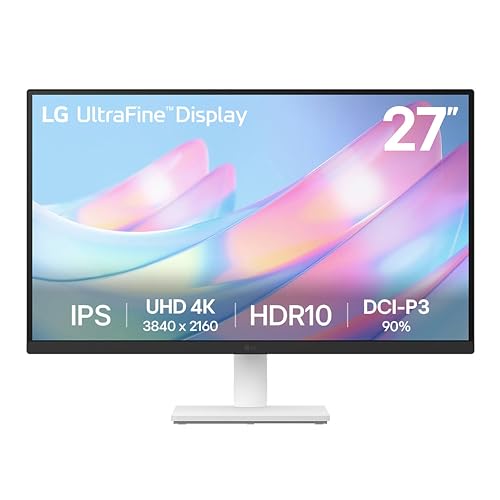
- Best for: Home offices, students, writers, coders, and anyone who wants sharp text and consistent colour in this budget.

- Best for: Home offices, shared desks, and long work sessions where stand adjustment and colour-accurate viewing matter most.

- Best for: Living-room desks, shared viewing, film lovers, and casual gamers who want the biggest 4K image in this budget.
All 3 Picks at a Glance
| Product | Specs | Action |
|---|---|---|
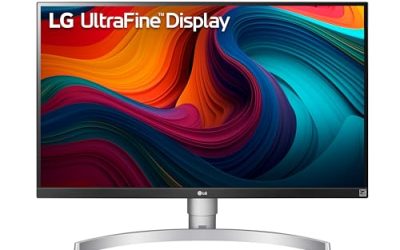
| 1. LG 27US500-W — Best Overall Budget 4K Monitor |
| Check price on Amazon |
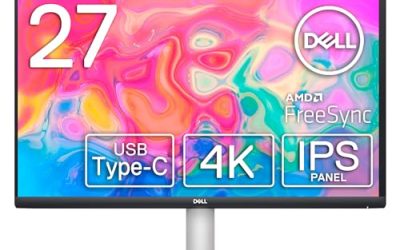
| 2. Dell S2721QS — Best 4K Monitor for a Flexible Home Office |
| Check price on Amazon |
| 4. ASUS VP327Q — Best Large 4K Monitor for Films and Shared Viewing |
| Check price on Amazon |
Our Top Picks
Introduction
A sharp screen changes the way a desk feels. Text looks cleaner, spreadsheets show more columns at once, photographs reveal fine detail, and films gain a depth that a lower-resolution panel cannot match. The best 4k monitors under 200 now cover most home offices, study desks, and casual gaming setups, without asking buyers to accept a tiny screen, a washed-out panel, or missing ports.
This guide focuses on real 4K resolution, which means 3840 by 2160 pixels, on every pick. Every monitor below lists that figure as its native resolution, so you can compare them on the details that affect daily use: panel type, refresh rate, colour coverage, connectivity, stand adjustment, and eye comfort. The budget here is deliberately tight, and that shapes the trade-offs. Most 4K monitors at this level run at 60 Hz or a little above, USB-C with power delivery is uncommon, and a fully adjustable stand is a bonus rather than a given. What you do get, when you choose well, is a genuinely sharp image, wide viewing angles on most models, and enough ports for a desktop computer, a laptop, and a console.
Disclosure: As an Amazon Associate, we earn from qualifying purchases.
Before choosing, think about how you will actually use the screen. A writer or coder needs crisp text and a comfortable stand. A photo enthusiast needs reliable colour and a matte finish that resists glare. A casual gamer needs smooth motion and adaptive sync support. A household that shares one desk needs simple switching between two sources and speakers good enough for video calls. The four picks below cover those situations in different ways. Availability on Amazon US can change, so always confirm the exact model name and ASIN on the listing before ordering.
How to Choose a 4K Monitor on a Tight Budget
Start With True 4K Resolution
Look for a native resolution of 3840 by 2160 pixels. That is the standard described as 4K UHD, and it packs four times as many pixels as a Full HD screen of the same size. On a 27-inch display, that density makes small text much easier to read. On a larger 31.5-inch display, the same pixel count is spread over a wider area, so text is larger and easier on the eyes. Be careful with listings that mention 4K support or upscaling without stating the native panel resolution.
Choose the Right Size for Your Desk
A 27-inch 4K monitor is the sweet spot for most desks. It is large enough for side-by-side windows, yet compact enough to sit comfortably at a normal arm’s length. If small text strains your eyes, the display settings in Windows and macOS can scale text larger without losing sharpness. A 31.5-inch 4K monitor suits a deeper desk and shared viewing, because two people can follow a film or a presentation more comfortably. Measure your desk before ordering the larger size.
Understand Panel Type and Colour
Most budget 4K monitors use an IPS panel or a VA panel. IPS panels are known for wide viewing angles and consistent colour, which helps in shared rooms and multi-monitor setups. VA panels often deliver higher contrast, which makes dark scenes look deeper. Look for sRGB coverage close to 99 percent or 100 percent on the listing if you edit photographs or design graphics. HDR10 can add depth to compatible video, although at this budget it is a bonus rather than a professional grading tool. A matte finish helps reduce reflections.
Refresh Rate, Response Time, and Adaptive Sync
A 60 Hz panel updates sixty times per second, which is smooth enough for office work, browsing, streaming, and casual gaming. A 70 Hz panel updates a little more often, which can make scrolling feel slightly smoother. Response time, listed in milliseconds, describes how quickly a pixel can change shade; a lower figure generally means less smearing in fast motion. Adaptive sync, including AMD FreeSync and the broader Adaptive-Sync standard, helps the monitor match its refresh rate to a compatible graphics card or console, reducing tearing during fast movement.
Ports, Speakers, and Everyday Convenience
At minimum, look for HDMI and DisplayPort inputs, because those cover most desktop computers, laptops with a suitable adapter, and modern consoles. Two HDMI ports are handy if you switch between a computer and a console. Built-in speakers will not replace a dedicated speaker system, but they are useful for video calls and casual streaming. A headphone output, a simple on-screen menu, and clearly labelled buttons make daily use much less frustrating.
Stand Adjustment and Eye Comfort
A stand that adjusts in height, swivels, and pivots into portrait orientation gives you far more control over posture than a tilt-only stand. Height adjustment is the most valuable feature for long work sessions, because it lets you place the top of the screen at or just below eye level. If the stand is limited, a VESA mount is a useful fallback. Flicker-free backlighting, a low blue light mode, and a matte anti-glare finish all help reduce strain during long sessions, although none replaces regular breaks and good lighting.
Top Picks: The Best 4K Monitors Under 200
1. LG 27US500-W — Best Overall Budget 4K Monitor
- Best for: Home offices, students, writers, coders, and anyone who wants sharp text and consistent colour in this budget.
Home offices, students, writers, coders, and anyone who wants sharp text and consistent colour in this budget.
The LG 27US500-W is the most straightforward recommendation here, because it covers the essentials so cleanly. It is a 27-inch 4K UHD monitor with a 3840 by 2160 IPS panel, a 60 Hz refresh rate, and a 5 ms response time. The IPS panel gives wide viewing angles and consistent colour, while HDR10 support adds depth to compatible video. A borderless design on three sides keeps the focus on the image.
Key specifications include a 27-inch IPS display, 3840 by 2160 resolution, 60 Hz refresh rate, 5 ms response time, HDR10, Reader Mode, Flicker Safe technology, and HDMI and DisplayPort inputs. In daily use, text looks crisp, spreadsheets stay readable, and photographs show fine detail without colour shift from the side. Reader Mode warms the image for long reading sessions. The borderless design also suits a dual-monitor setup, because the gap between two screens stays narrow. Limits are modest: the refresh rate is 60 Hz, the stand is simple, and USB-C power delivery is not a headline feature, so laptop users should check adapters before ordering.
Pros: True 4K IPS panel with wide viewing angles; HDR10 and Reader Mode; clean borderless design; HDMI and DisplayPort.
Cons: 60 Hz refresh rate; limited stand adjustment; no USB-C power delivery.
2. Dell S2721QS — Best 4K Monitor for a Flexible Home Office
- Best for: Home offices, shared desks, and long work sessions where stand adjustment and colour-accurate viewing matter most.
Home offices, shared desks, and long work sessions where stand adjustment and colour-accurate viewing matter most.
The Dell S2721QS combines a sharp 4K IPS panel with a genuinely adjustable stand. It is a 27-inch monitor with 3840 by 2160 resolution, a 60 Hz refresh rate, a 4 ms response time, and 99 percent sRGB coverage. The three-sided ultrathin bezel gives it a modern look.
Key specifications include a 27-inch IPS display, 3840 by 2160 resolution, 60 Hz refresh rate, 4 ms response time, 99 percent sRGB, AMD FreeSync, HDR content playback, dual 3 W built-in speakers, two HDMI ports, one DisplayPort, and a stand that adjusts in height, pivot, swivel, and tilt. Picture-by-Picture and Picture-in-Picture modes let you view two sources at once. The stand is the clearest advantage: height adjustment sets the screen at eye level, pivot turns it into portrait orientation for long documents, and swivel helps when sharing the screen. With 99 percent sRGB, photographs look natural, and FreeSync helps casual gaming feel smoother. Trade-offs are modest: no USB-C input, and a practical rather than striking design.
Pros: Fully adjustable stand; 99 percent sRGB IPS panel; dual HDMI plus DisplayPort and speakers; Picture-by-Picture and Picture-in-Picture.
Cons: 60 Hz refresh rate; no USB-C input; HDR playback is a bonus, not a professional tool.
3. Sceptre U275W-UPT Series — Best Value 4K Monitor With a Faster Refresh Rate
The Sceptre U275W-UPT Series, in its current 2026 configuration, is the value pick for buyers who want a little extra smoothness without leaving this budget. It is a 27-inch 4K UHD monitor with a 3840 by 2160 IPS panel, a refresh rate of up to 70 Hz, and 100 percent sRGB coverage on the listing for the current model.
ASIN: B0FDDVRS59
Key specifications include a 27-inch IPS display, 3840 by 2160 resolution, refresh rate up to 70 Hz, 1 ms response time on the listing, 100 percent sRGB, 2000:1 contrast ratio, matte finish, DisplayPort and HDMI inputs, built-in speakers, blue light filter, and a 1-year manufacturer warranty. The model number for this configuration is U275W-UPT.A1, in Machine Black. At up to 70 Hz, scrolling and casual gaming feel a touch smoother than on a standard 60 Hz panel. The matte finish helps in bright rooms, and the IPS panel keeps colours consistent across a wide viewing angle. Weigh two limits before choosing: the brand is less familiar than LG or Dell, and the stand is simpler than the Dell stand.
Pros: Up to 70 Hz refresh rate; 100 percent sRGB IPS panel; matte finish and blue light filter; built-in speakers.
Cons: Less familiar brand; simpler stand; warranty on the listing is shorter than on some rivals.
Best for: Budget buyers who want the smoothest everyday motion and strong colour in this group, for work, study, streaming, and casual gaming.
4. ASUS VP327Q — Best Large 4K Monitor for Films and Shared Viewing
- Best for: Living-room desks, shared viewing, film lovers, and casual gamers who want the biggest 4K image in this budget.
Living-room desks, shared viewing, film lovers, and casual gamers who want the biggest 4K image in this budget.
The ASUS VP327Q is the large-screen pick in this guide. It is a 31.5-inch monitor with 3840 by 2160 resolution, a 60 Hz refresh rate, a 4 ms response time, and 99 percent sRGB coverage. The larger panel makes text larger and easier to read, gives films and games more presence, and suits a desk that sits a little farther from the viewer.
Key specifications include a 31.5-inch display, 3840 by 2160 resolution, 60 Hz refresh rate, 4 ms response time, 99 percent sRGB, HDR10, Adaptive-Sync, 3000:1 static contrast ratio, 178-degree viewing angles, dual HDMI ports, DisplayPort, built-in speakers, Flicker-Free technology, blue light filter, GamePlus features, and VESA wall-mount support. An HDMI cable is included in the box on the listing. A 31.5-inch screen suits shared viewing and video timelines, and the high contrast ratio supports deeper blacks in dark scenes. Eye Care features help during long sessions, and dual HDMI ports make it easy to keep a computer and a console connected at once. Trade-offs follow from the size: it needs a deeper, wider desk, the refresh rate is 60 Hz, and the stand is simpler than the Dell stand.
Pros: Large 31.5-inch 4K screen; 99 percent sRGB, HDR10, and high contrast; dual HDMI plus DisplayPort and speakers; Eye Care features and VESA support.
Cons: Needs a larger, deeper desk; 60 Hz refresh rate; limited stand adjustment.
Comparison Table
| Monitor | Screen Size | Resolution | Panel | Refresh Rate | Colour Coverage | Key Ports | Stand Adjustment |
|---|---|---|---|---|---|---|---|
| LG 27US500-W | 27 inches | 3840 by 2160 | IPS | 60 Hz | HDR10, IPS colour | HDMI, DisplayPort | Tilt |
| Dell S2721QS | 27 inches | 3840 by 2160 | IPS | 60 Hz | 99 percent sRGB | Two HDMI, DisplayPort | Height, pivot, swivel, tilt |
| Sceptre U275W-UPT Series | 27 inches | 3840 by 2160 | IPS | Up to 70 Hz | 100 percent sRGB | HDMI, DisplayPort | Tilt |
| ASUS VP327Q | 31.5 inches | 3840 by 2160 | Wide-viewing-angle | 60 Hz | 99 percent sRGB | Two HDMI, DisplayPort | Tilt |
If stand flexibility is your priority, the Dell stands out. If you want the smoothest motion in this group, the Sceptre leads on refresh rate. If you want the largest image, the ASUS is the only 31.5-inch pick here. If you want the simplest, most balanced 27-inch 4K screen, the LG is a strong starting point. All four share true 4K resolution, HDMI and DisplayPort inputs, built-in speakers, and eye comfort features.
Frequently Asked Questions
Is a 4K monitor worth it on a tight budget?
Yes, for most desk users, because the gain in sharpness is visible every time you read text, open a spreadsheet, or view a photograph. The compromise at this budget is usually refresh rate, USB-C, or stand adjustment, rather than image quality itself. If your main work is reading, writing, coding, studying, or photo browsing, a budget 4K monitor is often a better choice than a larger lower-resolution screen.
What size 4K monitor is best for a normal desk?
A 27-inch 4K monitor suits most desks, because it balances sharpness, screen space, and viewing distance. It fits at arm’s length and shows two windows side by side. A 31.5-inch 4K monitor suits a deeper desk, a shared viewing setup, or a user who prefers larger text and a more immersive image. Measure your desk before choosing the larger size.
Do I need a powerful graphics card for a 4K monitor?
You need a graphics output that can drive 3840 by 2160 at 60 Hz, which most modern desktop graphics cards, integrated graphics, and laptops with HDMI or DisplayPort can handle for office work, browsing, and streaming. Casual gaming at 4K is more demanding, and you may need to lower in-game settings for smooth play in newer titles. Check your device manual for its maximum supported resolution before ordering.
Is 60 Hz enough for a 4K monitor?
For office work, study, streaming, and casual gaming, 60 Hz is enough, because the image updates smoothly and consistently. A 70 Hz panel, such as the Sceptre pick in this guide, adds a small improvement in smoothness. Competitive gamers who play fast-paced titles at high frame rates will notice the difference on a higher-refresh display, but that is a specialist need that usually requires a larger budget.
How can I check that a monitor listing is the right model?
Use the ASIN and the full model name together. The ASIN is a unique identifier for the listing, and the model name confirms the screen size, panel, and feature set. Compare both against the product described here, and check the resolution, refresh rate, ports, and stand on the listing itself. If the listing shows a different screen size or resolution, or a bundle with extra items, confirm that you are looking at the same product before ordering.
Conclusion
The best 4k monitors under 200 prove that sharp, colour-rich 4K viewing no longer requires a premium budget. Each pick delivers true 3840 by 2160 resolution, a practical set of ports, built-in speakers, and eye comfort features, while taking a different approach to size, ergonomics, and motion.
Choose the LG 27US500-W for a balanced 27-inch 4K monitor for work and everyday use. Choose the Dell S2721QS if stand adjustment and colour accuracy matter most. Choose the Sceptre U275W-UPT Series if you want the smoothest motion and strong colour in this group. Choose the ASUS VP327Q if you want the largest screen for films, shared viewing, and immersive casual gaming. Confirm the ASIN and model name on the Amazon US listing before ordering, measure your desk, and check that your computer can drive 4K at 60 Hz through HDMI or DisplayPort.
FAQ
Is a 4K monitor worth it on a tight budget?
What size 4K monitor is best for a normal desk?
Do I need a powerful graphics card for a 4K monitor?
Is 60 Hz enough for a 4K monitor?
How can I check that a monitor listing is the right model?
More from Amazon
Programs that pair well with the guide above. Offers and eligibility are set by Amazon and may change.
Free shipping on eligible items, Prime Video and more. Eligible new members can start with a free trial.
Start a Prime free trialAd-free music streaming. Eligible new subscribers can start with a free trial.
Try Music Unlimited freeA Prime membership for ages 18-24 with a trial period. Eligibility is set by Amazon.
See Prime for Young AdultsAudiobooks and podcasts to listen to on the go. Eligible new members can start with a free trial.
Try Audible freeAs an Amazon Associate we earn from qualifying purchases.