Our Short List of 3
- Full USB-C hub with up to 90 watts of laptop charging and Ethernet, a rare combination on a touch monitor
- Articulating stand tilts almost flat, which suits extended touch sessions
- Ten-point touch works on Windows and macOS
- IPS panel with wide viewing angles and consistent colors

- Built-in 7,800 mAh battery enables use away from an outlet
- Mini-HDMI plus USB-C covers laptops, phones, and game consoles
- Slim, light design with a kickstand and a tripod socket
- Eye Care features reduce flicker and blue light during long sessions

- Single-cable USB-C docking with up to 80 watts of laptop charging
- Built-in webcam for video calls without extra hardware
- DisplayPort daisy-chain output for adding a second monitor
- Fully adjustable ergonomic stand plus VESA mounting, and a three-year warranty
All 4 Picks at a Glance
| Product | Specs | Action |
|---|---|---|
| 1. Dell Pro 24 Plus Touch USB-C Hub Monitor P2424HT — Best Overall Desktop Touch Monitor |
| Check price on Amazon |
| 3. ASUS ZenScreen Touch MB16AMTR — Best Portable Touch Monitor With a Battery |
| Check price on Amazon |
| 4. ASUS BE24ECSBT — Best Touch Monitor for One-Cable Laptop Docking |
| Check price on Amazon |
 5. ASUS VT229H — Best Budget Desktop Touch Monitor |
| Check price on Amazon |
Key takeaways
- Find the best computer touch screen monitors for work, travel, and creative tasks, with top picks, key specs, and a practical buying guide for your desk.
Disclosure: As an Amazon Associate, we earn from qualifying purchases.
A touch screen monitor changes how you interact with your computer. Instead of reaching for the mouse to scroll a page, zoom into a photo, or tap a button, you can simply touch the screen. For office work, creative tasks, point-of-sale setups, and casual gaming, the best computer touch screen monitors pair a sharp display with responsive multi-touch input.
Modern touch monitors use capacitive touch, the same technology as smartphones and tablets, supporting ten-point multi-touch, pinch-to-zoom, and smooth scrolling. Many connect over a single USB-C cable carrying video, touch data, and laptop charging, while portable models pack a battery and a kickstand into a laptop-bag-friendly package.
This guide explains what to look for, then rounds up five touch screen monitors for different needs: a desktop hub, a high-resolution portable display, a battery-powered travel companion, a one-cable docking monitor with a webcam, and a budget classic. Every pick is a genuine multi-touch monitor listed on Amazon US; confirm availability before ordering, since stock and sellers can change.
How to Choose a Touch Screen Monitor
Touch monitors vary more than regular monitors, because the touch layer, the connection method, and operating system support all matter.
Screen Size and Resolution
Desktop touch monitors usually measure 22 to 24 inches, a comfortable size for tapping icons and dragging windows. Portable models are typically 14 to 16 inches, matching a laptop screen. Full HD (1920 x 1080) is fine for office work, while a 2K (2560 x 1600) portable panel shows noticeably sharper text and more detail. Match size and resolution to your eyesight and workload.
Touch Technology and Touch Points
Most modern touch monitors use projected capacitive touch, which responds to a light finger tap and supports ten-point multi-touch, enabling pinch-to-zoom and two-finger scrolling. If you plan to use a stylus for drawing, signing, or annotating, check whether the monitor supports an active pen and how many pressure levels it offers.
Operating System Compatibility
Touch input is not universal. Windows 10 and Windows 11 support touch natively, so a touch monitor usually works as soon as you connect the USB or USB-C cable. macOS support is more limited: many models offer only single-point touch on a Mac, or need a third-party driver for full multi-touch. ChromeOS and Linux vary by model, so read the manufacturer’s compatibility notes before buying.
Connectivity: USB-C, HDMI, and DisplayPort
A USB-C port with DisplayPort Alt Mode can carry video, touch data, and power over one cable, and many desktop touch monitors add power delivery of 65 to 90 watts, enough to charge a laptop while you work. HDMI and DisplayPort carry the picture only, so touch data needs a separate USB cable. Portable monitors rely almost entirely on USB-C, sometimes with a mini-HDMI port for devices that lack a video-capable USB-C output. Check your laptop’s ports first: a data-only USB-C port will not drive a display.
Stand, Ergonomics, and Mounting
Touching a screen pushes it, so the stand matters more than on a regular monitor. A wobbly stand makes every tap feel unstable, and a screen that cannot tilt low enough forces you to reach up uncomfortably. Look for tilt, height adjustment, swivel, and pivot, or a model that tilts almost flat for a drafting-table feel. VESA mounting suits arms and walls, common for point-of-sale and kiosk installs. Portable monitors usually rely on a folio cover or kickstand, fine for occasional use but less steady than a desktop stand for constant tapping.
Refresh Rate, Panel Type, and Extras
Most touch monitors use an IPS panel with a 60 Hz refresh rate, adequate for office work, browsing, and media. IPS panels offer wide viewing angles and consistent colors, which help when you lean in to tap from different positions. High-refresh touch monitors are rare and cost more, so panel quality and touch responsiveness matter far more than refresh rate for most buyers.
Built-in speakers suit video calls and casual media, though they rarely replace dedicated speakers or headphones. Some desktop touch monitors include a webcam, handy for video conferencing. A USB hub lets you plug a keyboard, mouse, or flash drive directly into the monitor, and an Ethernet port turns a USB-C monitor into a full docking station. Decide which extras you will actually use, since each one adds to the cost.
Top Picks: The Best Computer Touch Screen Monitors
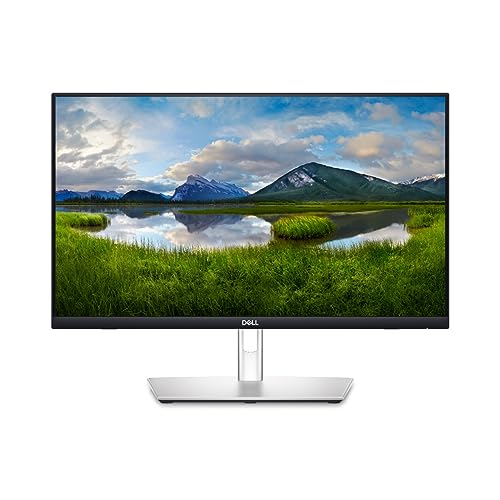
1. Dell Pro 24 Plus Touch USB-C Hub Monitor P2424HT — Best Overall Desktop Touch Monitor
- Full USB-C hub with up to 90 watts of laptop charging and Ethernet, a rare combination on a touch monitor
- Articulating stand tilts almost flat, which suits extended touch sessions
- Ten-point touch works on Windows and macOS
- IPS panel with wide viewing angles and consistent colors
The Dell Pro 24 Plus Touch P2424HT is the most complete desktop touch monitor in this roundup. It pairs a 23.8-inch Full HD IPS display with ten-point touch and a built-in USB-C hub, so one cable can connect your laptop, charge it, and link your peripherals at the same time.
Key specifications include a 23.8-inch IPS panel at 1920 x 1080, ten-point capacitive touch, USB-C with up to 90 watts of power delivery, HDMI and DisplayPort inputs, an RJ45 Ethernet port, multiple USB-A ports, and an articulating stand that tilts from minus 5 degrees to 90 degrees, letting you lay the screen almost flat.
The stand includes height adjustment, tilt, swivel, and pivot, and tilting the panel nearly flat makes long touch sessions far less tiring. With Ethernet, USB ports, and laptop charging in one unit, the USB-C hub replaces a separate docking station for many office setups.
Pros:
Cons:
Who it fits: Office and hybrid workers who want a single-cable docking setup with touch. If your monitor stays on one desk and you connect a laptop daily, this is the strongest all-round choice here.
2. ViewSonic TD1656-2K — Best Portable High-Resolution Touch Monitor
ASIN: B0D4DQCCWR
The ViewSonic TD1656-2K is the sharpest portable touch monitor in this guide. Its 16-inch display runs at 2560 x 1600, packing far more pixels into a laptop-sized screen than Full HD models, so text looks crisp and spreadsheets show more columns at once.
Key specifications include a 16-inch IPS panel at 2560 x 1600 with a 16:10 aspect ratio, ten-point multi-touch, two USB-C ports with up to 65 watts of two-way power, a smart cover that doubles as a stand, and an included stylus. It weighs around two pounds, with brightness around 330 nits.
The higher resolution is the main reason to choose this model over cheaper portable touch screens. On a 16-inch display, the jump from Full HD to 2560 x 1600 is easy to see: fonts render more cleanly, photos show finer detail, and the 16:10 aspect ratio gives documents more breathing room. The included stylus suits quick sketches and handwritten notes.
Pros:
- Sharp 2560 x 1600 resolution on a 16-inch panel, noticeably clearer than Full HD portables
- Two USB-C ports with up to 65 watts of power delivery
- Includes a stylus and a smart cover with a built-in stand
- Light enough to carry daily in a laptop bag
Cons:
- No built-in battery, so it draws power from the host device or a wall adapter
- The cover stand can feel less steady than a desktop stand during heavy tapping
- Needs a video-capable USB-C port on the host for a single-cable setup
Who it fits: Travelers, remote workers, and students who want a sharp second screen with touch. If you work from cafes, co-working spaces, or client offices, this is the portable pick to beat.
3. ASUS ZenScreen Touch MB16AMTR — Best Portable Touch Monitor With a Battery
- Built-in 7,800 mAh battery enables use away from an outlet
- Mini-HDMI plus USB-C covers laptops, phones, and game consoles
- Slim, light design with a kickstand and a tripod socket
- Eye Care features reduce flicker and blue light during long sessions
The ASUS ZenScreen Touch MB16AMTR solves the one problem that trips up most portable monitors: power. Its built-in 7,800 mAh battery lets it run away from an outlet, so you can set it up on a plane tray table or in a meeting room without hunting for a socket or draining your laptop battery.
Key specifications include a 15.6-inch Full HD IPS panel at 1920 x 1080, ten-point touch on Windows, ChromeOS, and Linux, a 7,800 mAh built-in battery, two USB-C ports, a mini-HDMI port, an ergo kickstand, a tripod socket, and ASUS Eye Care technologies. ASUS rates the battery at up to around four hours of use, depending on brightness and workload.
USB-C handles video, touch, and power, while mini-HDMI connects to devices that lack a video-capable USB-C output, such as game consoles and older laptops. The kickstand props the screen up at a comfortable angle, and the tripod socket suits presentations. Touch works with ten points on Windows, while macOS is limited to single-point touch.
Pros:
Cons:
Who it fits: Frequent travelers and presenters who work where outlets are scarce. If you need a second screen on a plane or at a client site, the built-in battery makes this the easiest portable touch monitor to live with.
4. ASUS BE24ECSBT — Best Touch Monitor for One-Cable Laptop Docking
- Single-cable USB-C docking with up to 80 watts of laptop charging
- Built-in webcam for video calls without extra hardware
- DisplayPort daisy-chain output for adding a second monitor
- Fully adjustable ergonomic stand plus VESA mounting, and a three-year warranty
The ASUS BE24ECSBT is built around a simple idea: one USB-C cable should do everything. Plug in your laptop and the monitor delivers the picture, carries the touch signal, and charges the laptop with up to 80 watts of power delivery, all at once. It also adds a built-in webcam and a DisplayPort output for daisy-chaining a second display.
Key specifications include a 23.8-inch Full HD IPS panel at 1920 x 1080, ten-point multi-touch, USB-C with up to 80 watts of power delivery, HDMI and DisplayPort inputs, DisplayPort output for daisy-chaining, a built-in webcam, an ergonomic stand with height adjustment, tilt, swivel, and pivot, and VESA wall-mount support. ASUS also includes Eye Care technologies and a three-year warranty.
The webcam sets this monitor apart from the Dell P2424HT for video-heavy workers: one less device to plug in and position. The DisplayPort daisy-chain output lets you add a second monitor without using another video port on your laptop. The frameless design and fully adjustable stand round out a package built for a modern office desk.
Pros:
Cons:
Who it fits: Laptop users who dock at a desk and spend a lot of time on video calls. If you want touch, charging, a webcam, and a second-monitor option from one display, this is the pick.
5. ASUS VT229H — Best Budget Desktop Touch Monitor
- The most affordable desktop touch monitor in this guide
- Ten-point touch with a durable 7H hardness screen coating
- HDMI and VGA inputs suit both modern and older computers
- Built-in speakers and VESA mounting add flexibility
The ASUS VT229H has been a staple of the touch monitor market for years, and it remains the most affordable way to add a touch screen to a desktop. This straightforward 21.5-inch Full HD touch monitor has no docking hub and no webcam, but it covers the essentials: responsive ten-point touch, an IPS panel with wide viewing angles, and HDMI and VGA inputs.
Key specifications include a 21.5-inch Full HD IPS panel at 1920 x 1080, ten-point capacitive touch, HDMI and VGA inputs, a 5 ms response time, built-in speakers, a frameless design, a 7H hardness screen coating for scratch resistance, and VESA wall-mount support. ASUS includes Eye Care features for flicker-free viewing and low blue light.
The VT229H makes the most sense where touch is the point and extras are not: reception desks, point-of-sale stations, kiosks, classrooms, and shared family computers. The 7H hardness coating is a plus where many people touch the screen all day. The VGA port looks dated, but it matters for businesses still running older PCs. Because it lacks USB-C, touch data travels over a separate USB connection, so plan for one extra cable.
Pros:
Cons:
Who it fits: Budget buyers, small businesses, reception areas, classrooms, and point-of-sale setups. If you need a reliable touch screen for a fixed location without docking features, this is the sensible, low-cost choice.
Comparison Table
| Monitor | Size and Resolution | Touch | Key Connections | Best For |
|---|---|---|---|---|
| Dell P2424HT | 23.8 in, 1920 x 1080 IPS | 10-point | USB-C (90W), HDMI, DisplayPort, Ethernet, USB hub | Best overall desktop touch monitor |
| ViewSonic TD1656-2K | 16 in, 2560 x 1600 IPS | 10-point | Dual USB-C (65W) | Best portable high-resolution touch monitor |
| ASUS ZenScreen Touch MB16AMTR | 15.6 in, 1920 x 1080 IPS | 10-point | USB-C, mini-HDMI, built-in battery | Best portable touch monitor with a battery |
| ASUS BE24ECSBT | 23.8 in, 1920 x 1080 IPS | 10-point | USB-C (80W), HDMI, DisplayPort in and out | Best for one-cable laptop docking |
| ASUS VT229H | 21.5 in, 1920 x 1080 IPS | 10-point | HDMI, VGA | Best budget desktop touch monitor |
Frequently Asked Questions
Do touch screen monitors work with any computer?
Not quite. Touch monitors work best with Windows 10 and Windows 11, which support touch natively. On macOS, many models offer only single-point touch or need a third-party driver, and ChromeOS and Linux support varies by model. Check the manufacturer’s compatibility notes, and make sure you have the right connection: video over HDMI, DisplayPort, or USB-C, plus a USB link for touch data unless one USB-C cable carries both.
Do I need a special cable for the touch function to work?
Usually yes. HDMI and DisplayPort carry only the picture, so touch data needs a separate USB cable, and many desktop models include it in the box. With a USB-C monitor that supports DisplayPort Alt Mode, one cable can carry video, touch data, and power at the same time.
Can I use a touch screen monitor with a Mac?
You can, but with limits. Most touch monitors display a picture on a Mac without trouble, but touch input is often restricted to single-point touch, so taps work while multi-finger gestures may not. Some manufacturers offer macOS drivers that improve support. If full multi-touch on a Mac is essential, look for a model that explicitly lists it.
Is a portable touch monitor worth it for travel?
For many mobile workers, yes. A portable touch monitor adds a second screen in hotels, cafes, and meeting rooms, and touch makes it faster to scroll documents, tap through slides, and annotate on the go. Battery-powered models such as the ASUS ZenScreen Touch MB16AMTR are the most convenient for travel, since they do not drain the laptop or need an outlet.
Can touch screen monitors be used for drawing and digital art?
They can, with caveats. A touch monitor with stylus support and pressure sensitivity works for sketching, note-taking, and annotation. However, most general-purpose touch monitors here are designed for finger touch rather than professional drawing, and they lack the pressure-level counts and palm rejection of dedicated pen displays. If drawing is your main use, prioritize a model with an included active stylus, or consider a dedicated pen display.
Conclusion
The best computer touch screen monitors are not one-size-fits-all. For a permanent desk, the Dell P2424HT stands out with its USB-C hub, Ethernet, laptop charging, and articulating stand, while the ASUS BE24ECSBT is better if you want a built-in webcam and daisy-chain support. For travel, the ViewSonic TD1656-2K offers the sharpest portable image, and the ASUS ZenScreen Touch MB16AMTR adds a battery that frees you from outlets. On a tight budget, the ASUS VT229H delivers reliable ten-point touch without extras you will not use.
Before you buy, confirm that your operating system supports touch the way you expect, that your laptop has the right port, and that the stand suits how you will tap the screen. Check the current listing on Amazon US for the model you choose, since availability can change.
FAQ
Do touch screen monitors work with any computer?
Do I need a special cable for the touch function to work?
Can I use a touch screen monitor with a Mac?
Is a portable touch monitor worth it for travel?
Can touch screen monitors be used for drawing and digital art?
More from Amazon
Programs that pair well with the guide above. Offers and eligibility are set by Amazon and may change.
Free shipping on eligible items, Prime Video and more. Eligible new members can start with a free trial.
Start a Prime free trialAd-free music streaming. Eligible new subscribers can start with a free trial.
Try Music Unlimited freeA Prime membership for ages 18-24 with a trial period. Eligibility is set by Amazon.
See Prime for Young AdultsAudiobooks and podcasts to listen to on the go. Eligible new members can start with a free trial.
Try Audible freeAs an Amazon Associate we earn from qualifying purchases.